What is the Market List feature?
In eZee Optimus, the Market List feature allows users to create purchase orders for multiple inventory items from different vendors within a single operation.
Unlike the standard Purchase Order option (which allows only one vendor per order), Market List provides flexibility to assign different vendors to different items in one consolidated process.
Why should I use the Market List?
You should use Market List when:
- You need to order items from multiple vendors at the same time
- Different items are supplied by different vendors
- You want to efficiently manage vendor-specific purchases
- You want the system to automatically generate separate Purchase Orders vendor-wise
How do I create a Market List?
Follow the steps below:
Step 1: Navigate to Market List
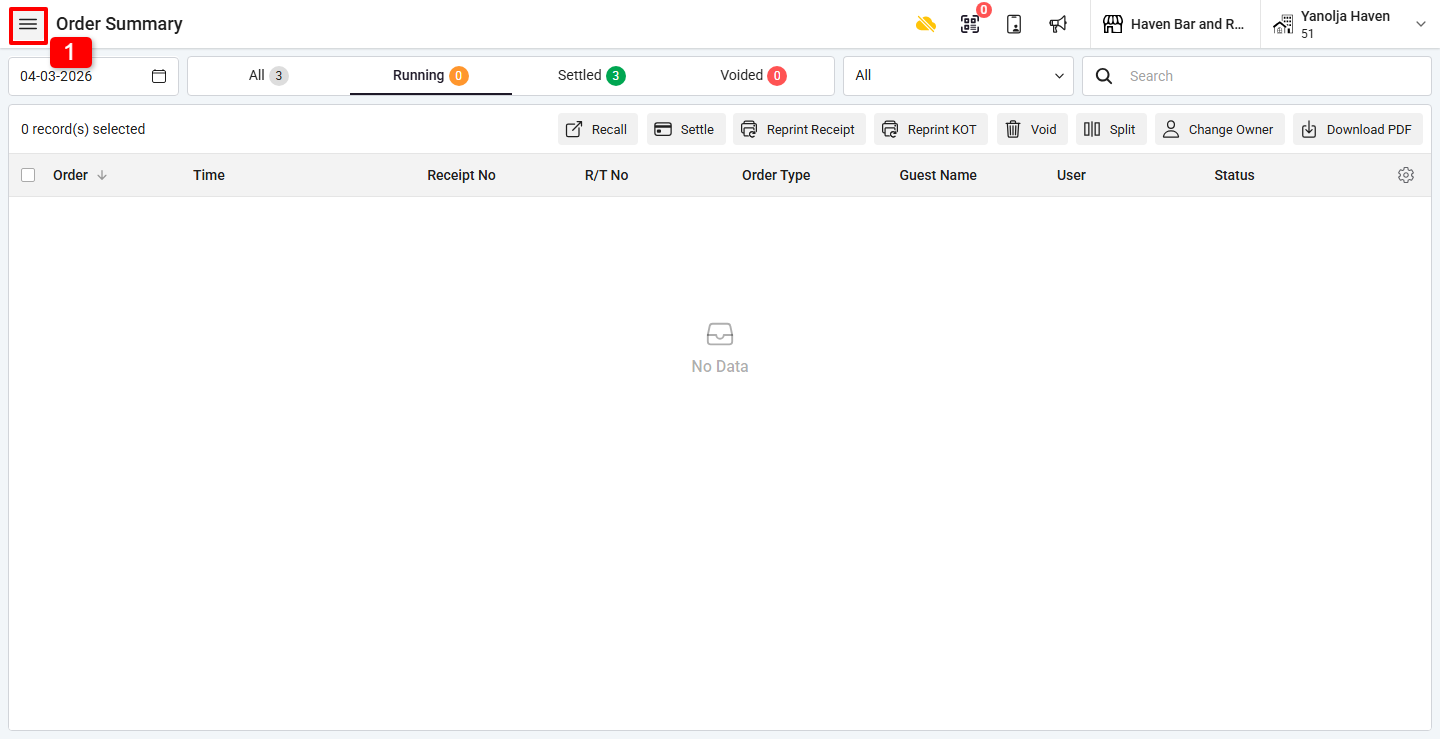
1. Click on the ☰ (Three Lines Menu).
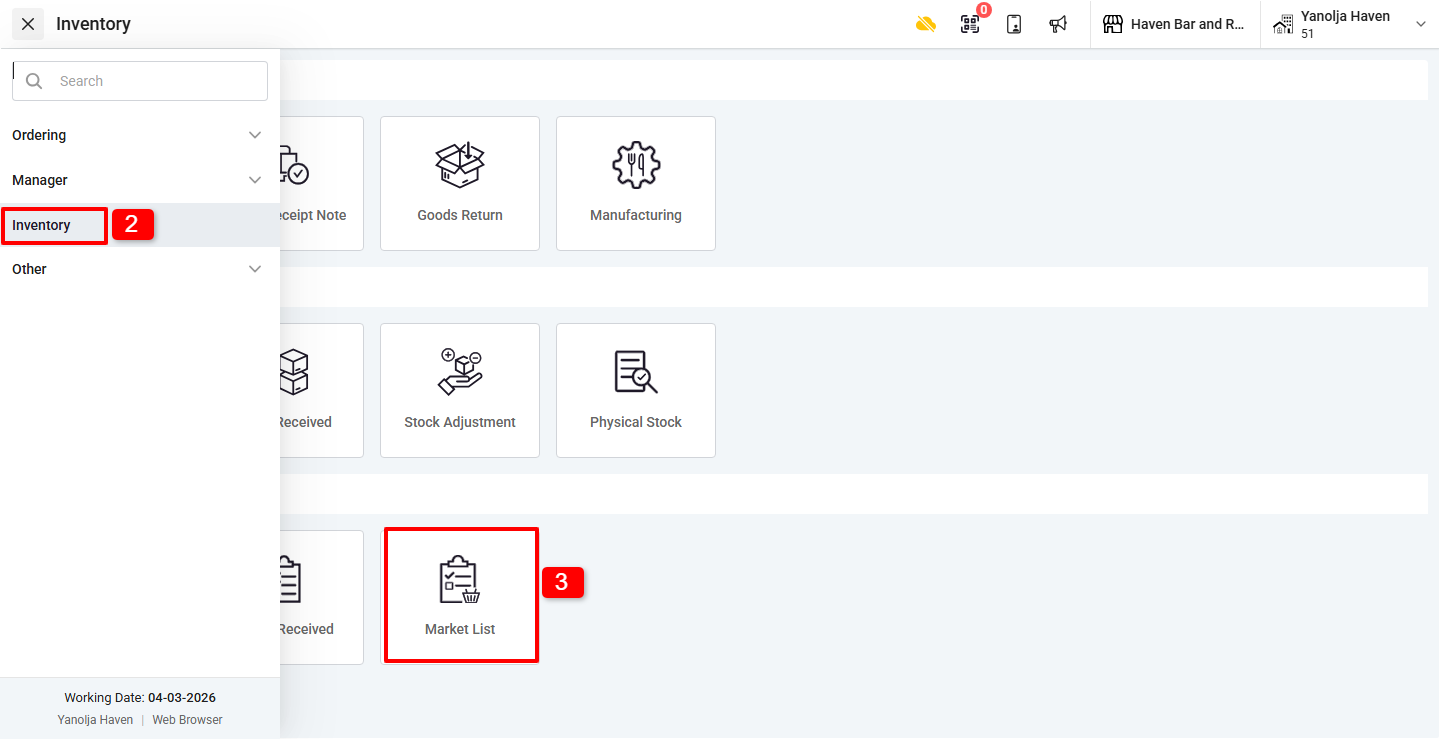
2. Click on Inventory.
3. Click on Market List.
Step 2: Create Market List
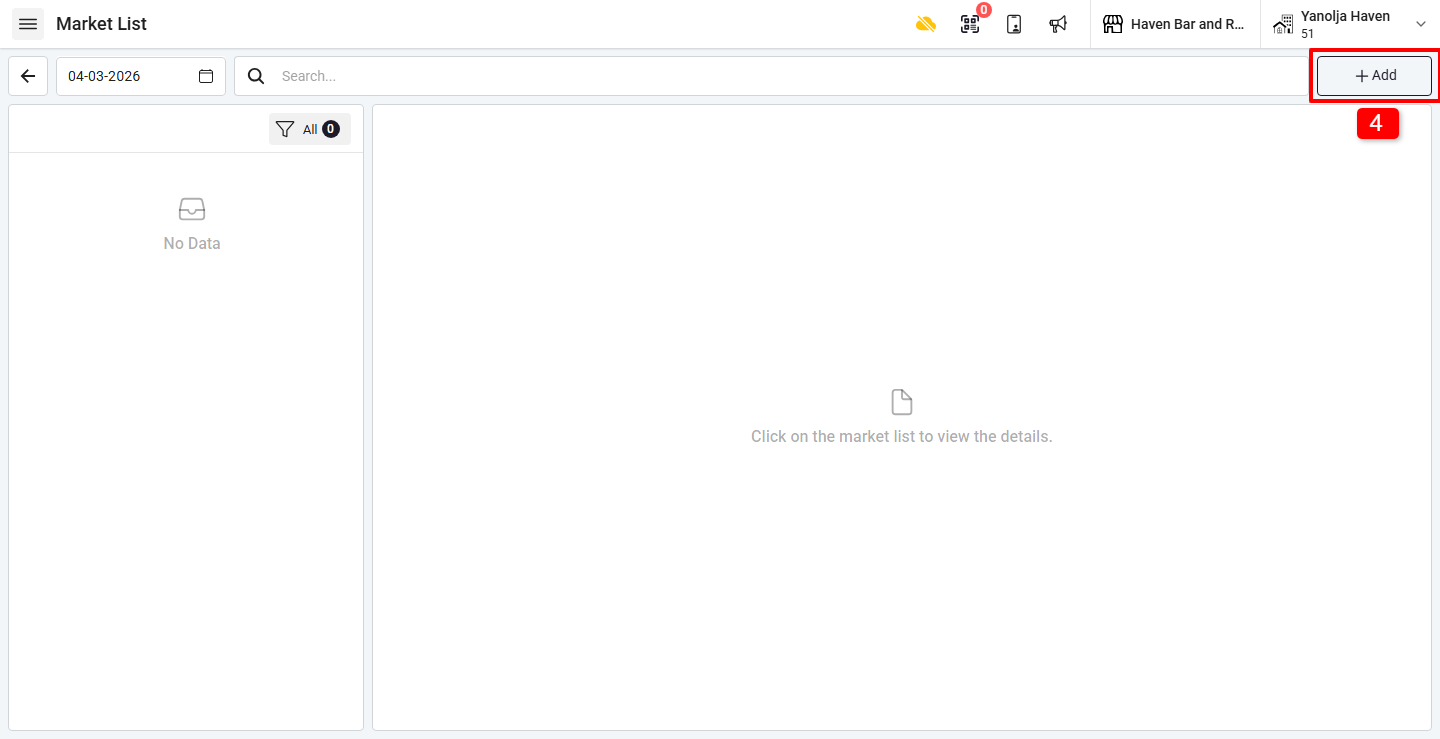
4. Click on “+ Add” to create a new Market List.
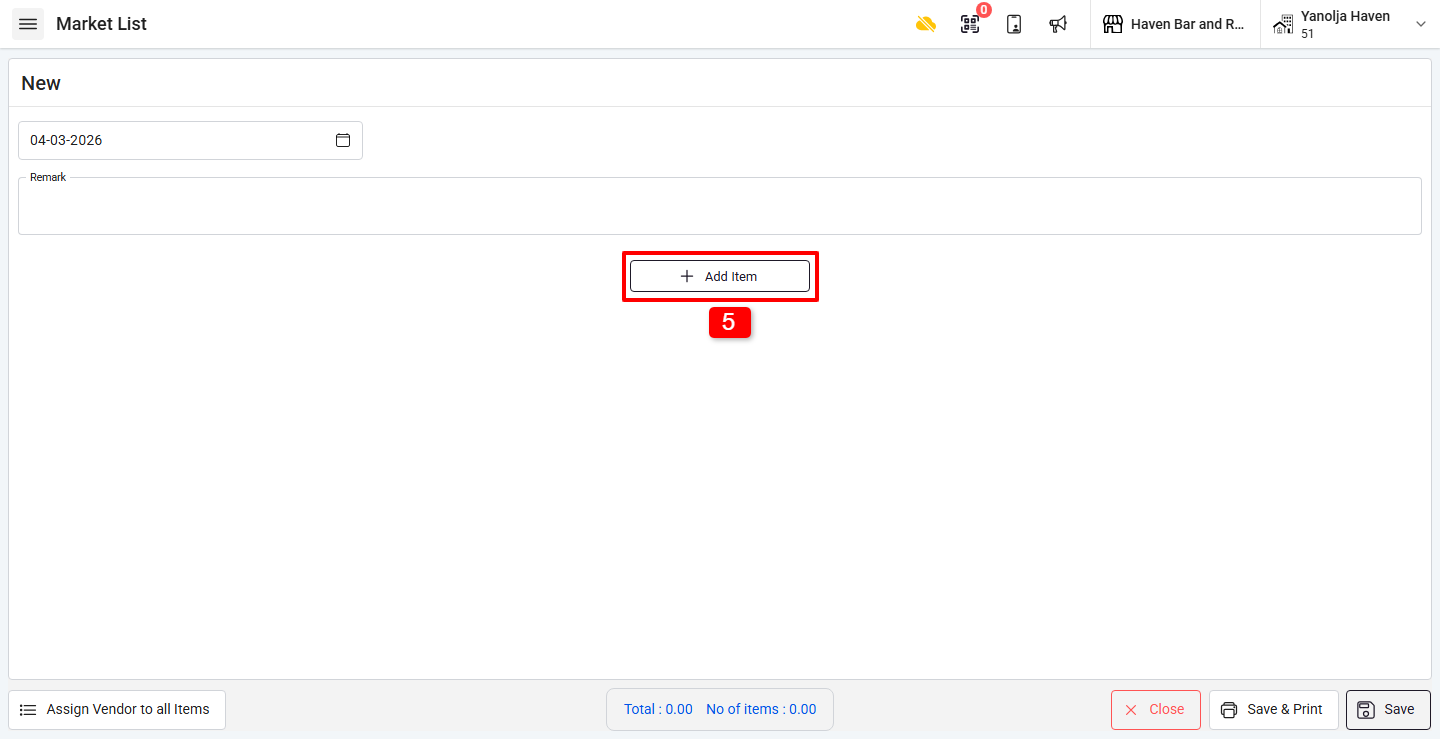
5. Click on “+ Add” to add inventory items.
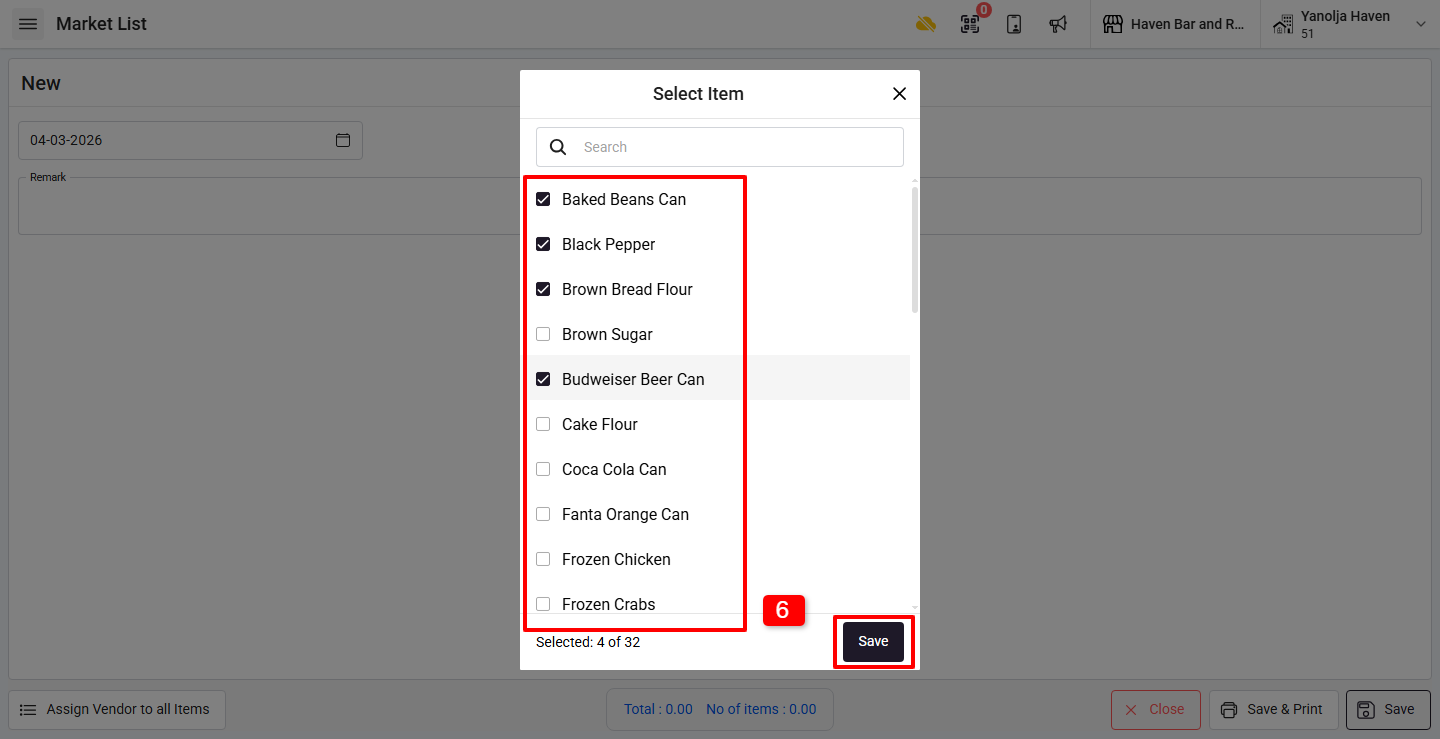
6. Select the inventory items you want to order and click Save.
Step 3: Enter Purchase Details
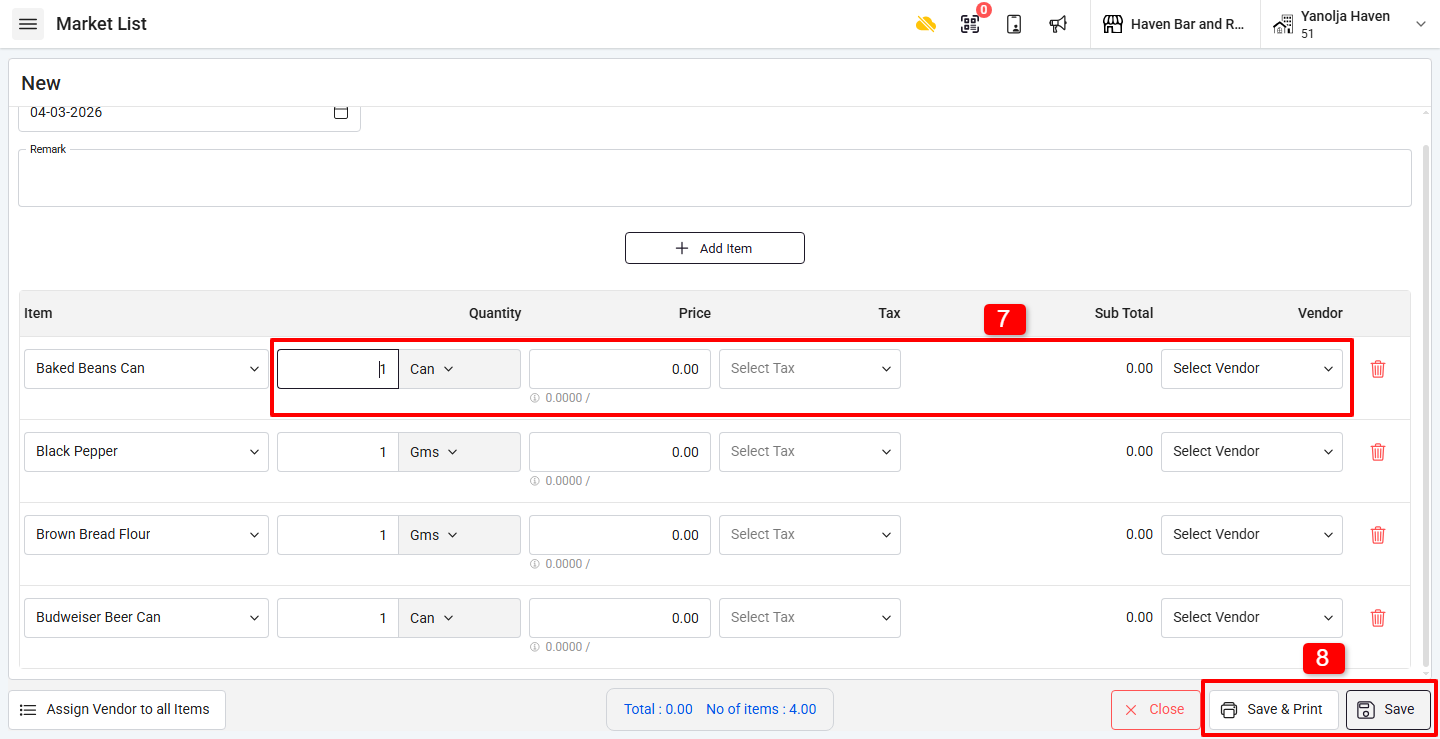
7. For each selected item, enter:
- Quantity
- Purchase Rate
- Tax
- Vendor
8. Review all details carefully. Click:
- Save & Print to save and print the voucher
- Save to save without printing
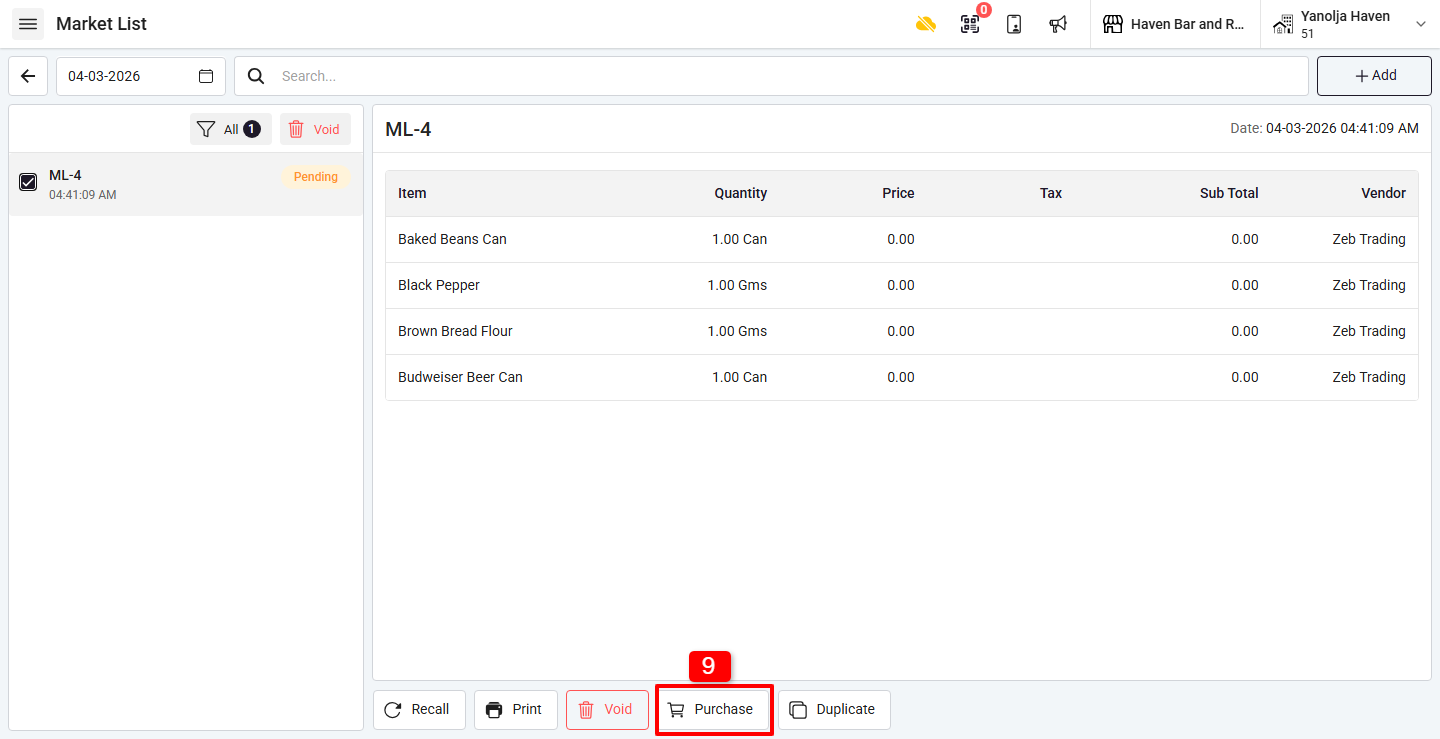
9. Click on Purchase to generate the Purchase Order.
Was this article helpful?
That’s Great!
Thank you for your feedback
Sorry! We couldn't be helpful
Thank you for your feedback
Feedback sent
We appreciate your effort and will try to fix the article