Step to add Mini Report Printer in Restaurant POS Application.
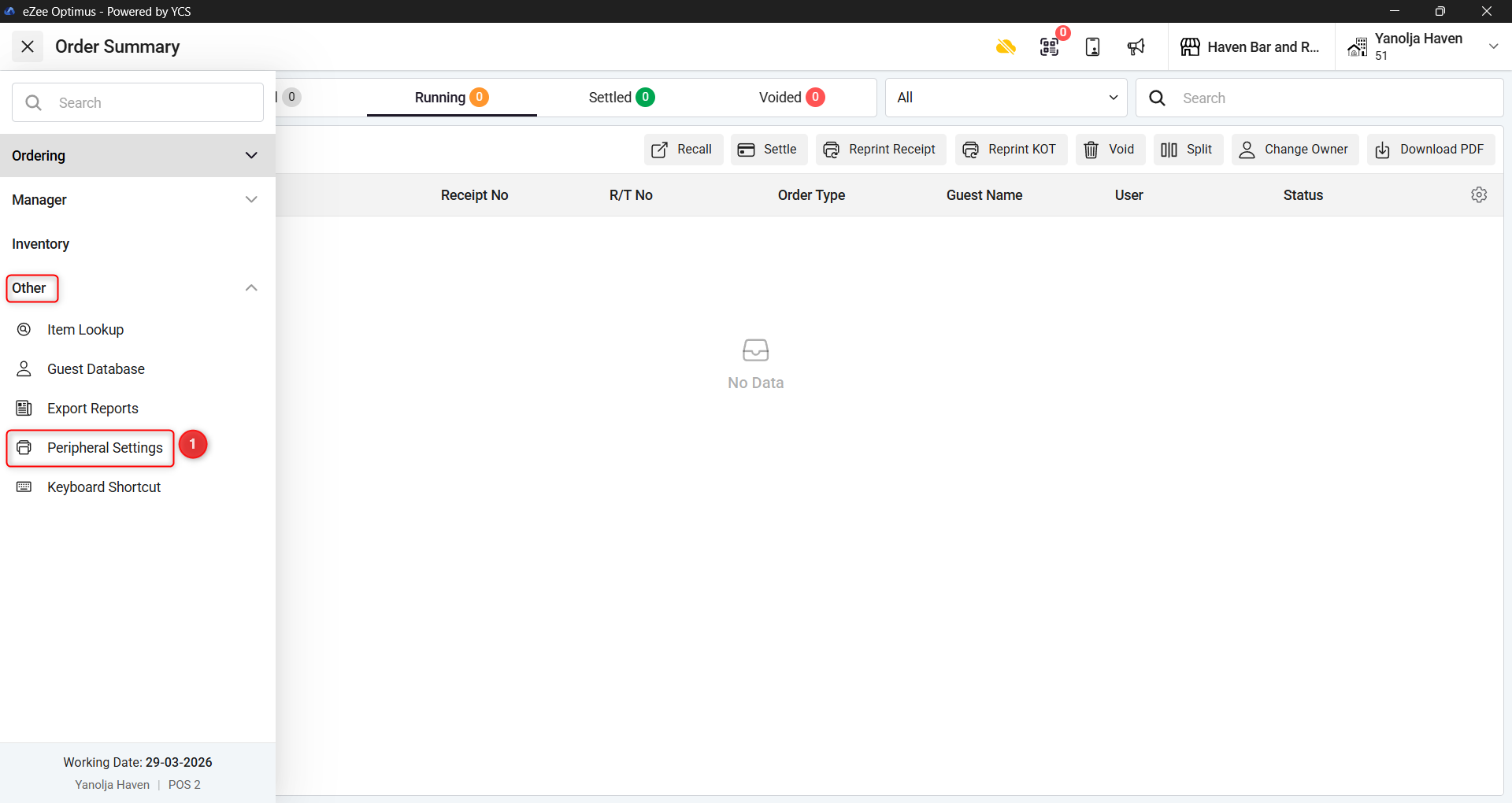
1. Click on Hamburger menu icon and Under “Other” you will find an option for “Peripheral Settings”.
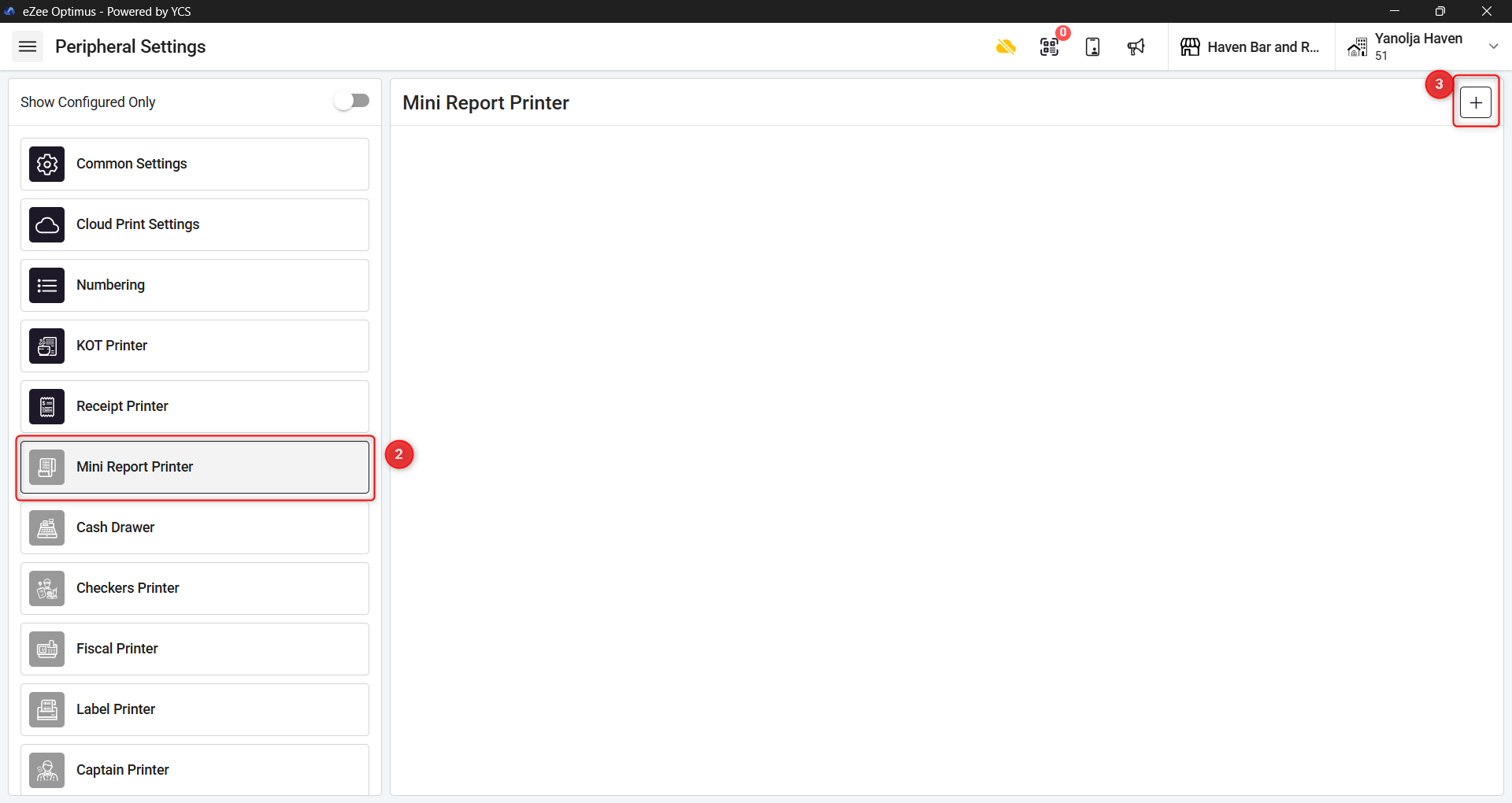
2. Click on “Mini Report Printer”
3. Click on “+Add” Button.
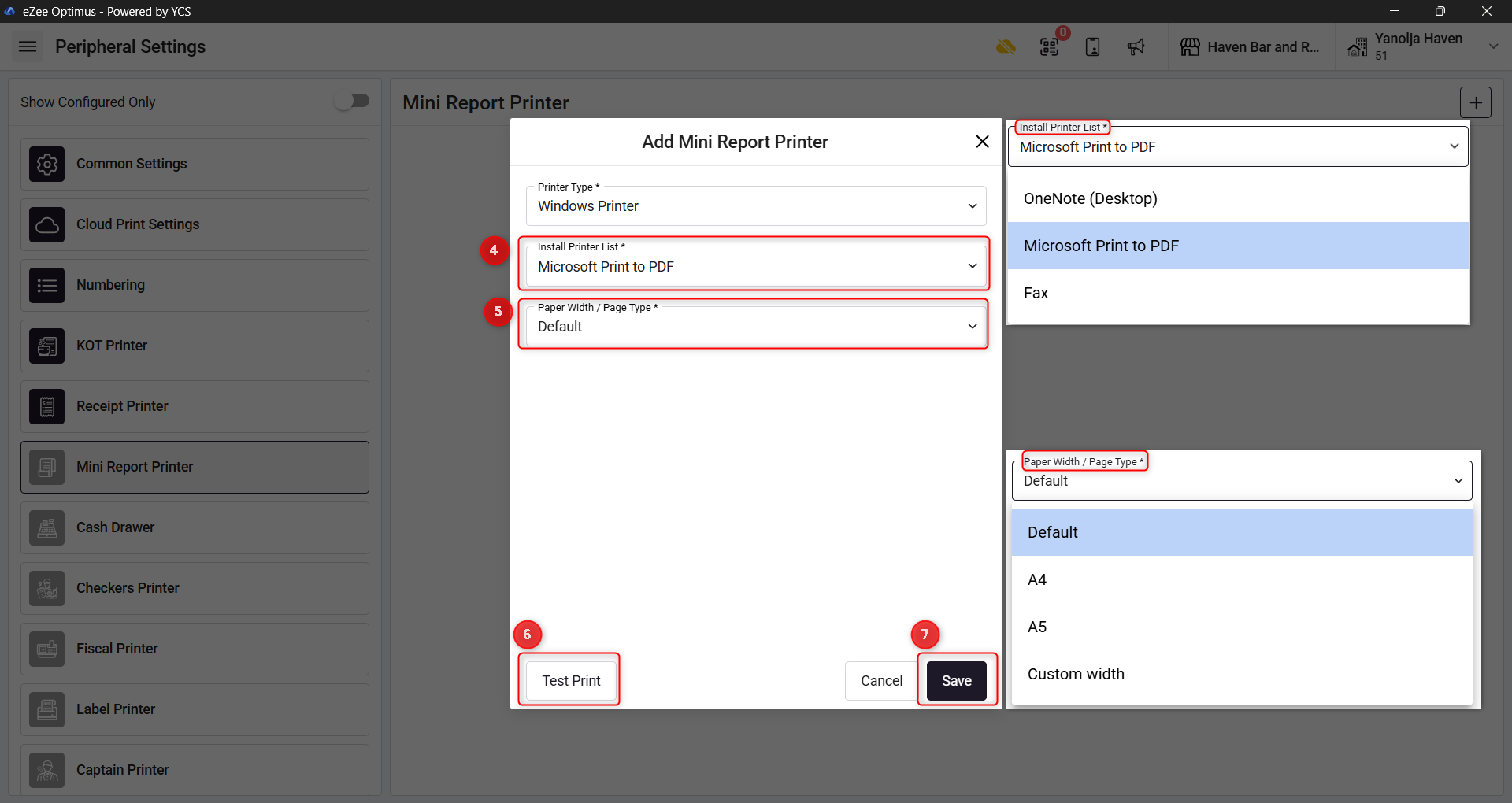
4. Select the Printer from the installed Printer list.
5. Select the Paper width/Page type.
6. Click on Test print to check if the printer is working properly.
7. Click on Save and the Report Printer will be added to the application.
Was this article helpful?
That’s Great!
Thank you for your feedback
Sorry! We couldn't be helpful
Thank you for your feedback
Feedback sent
We appreciate your effort and will try to fix the article