Discount Types in POS
In the POS system, we can create different types of discounts to apply to orders.
Common types include:
Item Level Discount – Applied to a single item.
Bulk Item Discount – Applied to multiple selected items at once.
Bulk Item Discount
A Bulk Item Discount allows you to apply a discount to selected items in an order simultaneously.
Step 1: Create a Bulk Item Discount in POS (Back Office) :
1. Switch to Back Office.
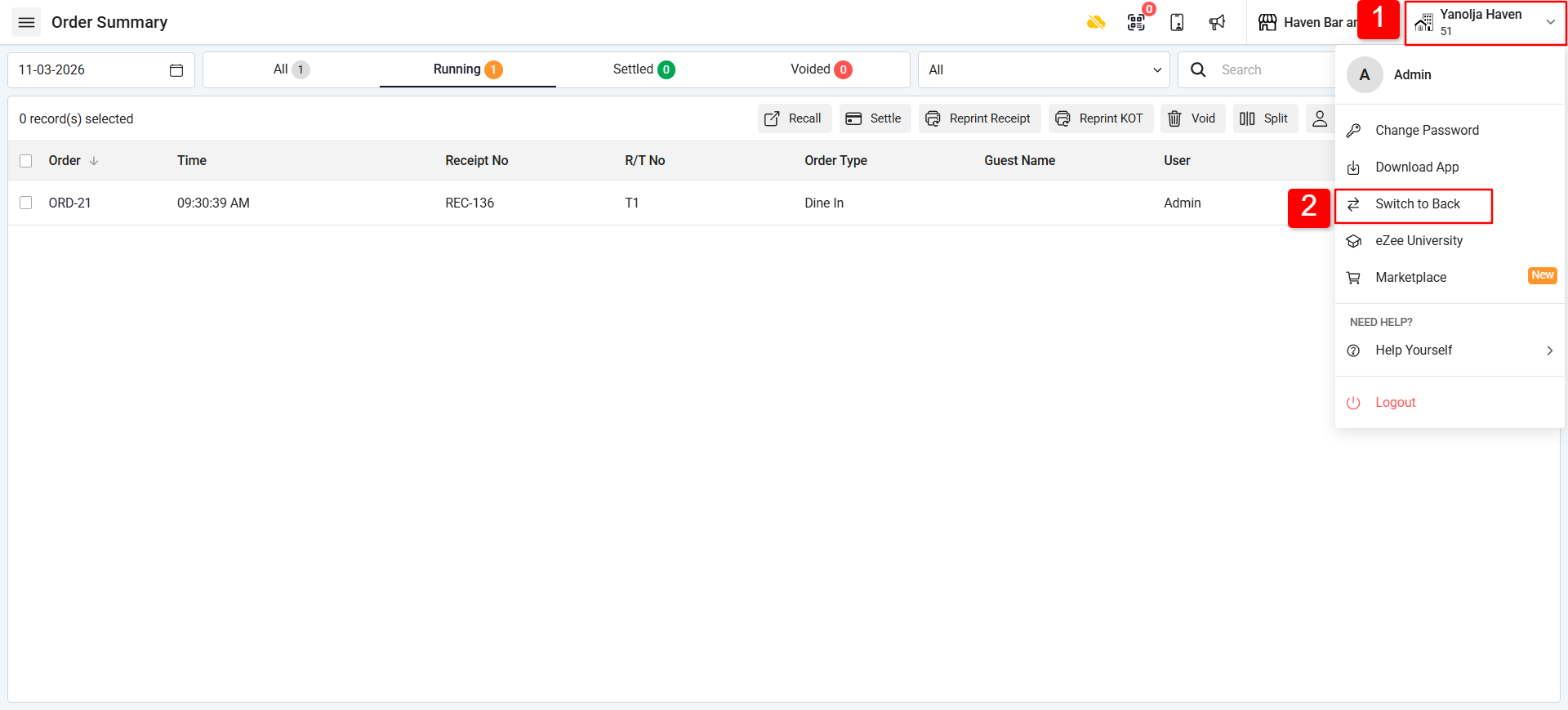
2. Go to Master.
3. Select Discount.
4. Click on the Plus (+) icon to create a new discount.
5. Fill in the required details:
Discount Name
Apply On → Select Bulk Item
Type → Select Percentage (or other type if required)
Discount Percentage
6. Click on edit Save the discount.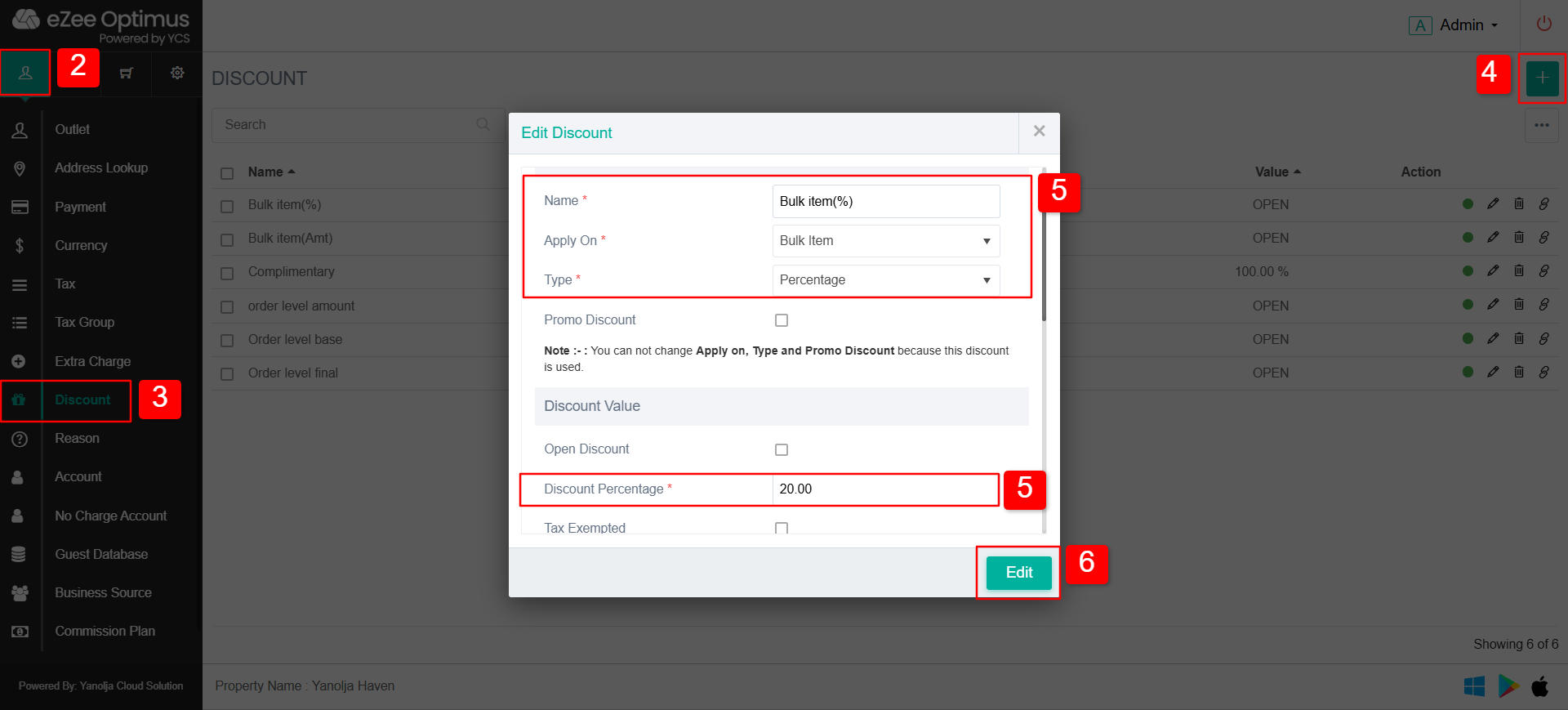
Step 2: Apply Bulk Item Discount on an Order :
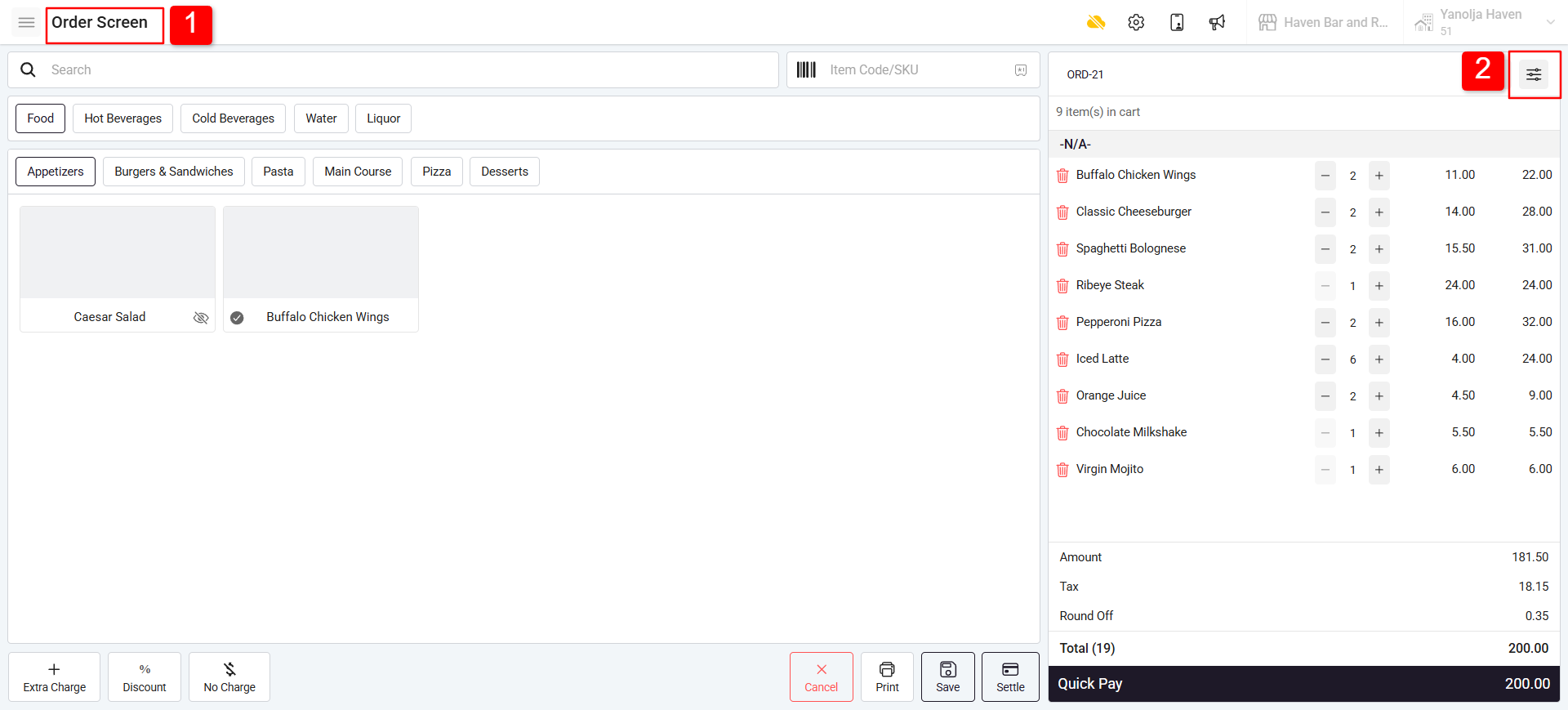
1. Open the Order Screen in POS.
2. Click on the Filter Option.
3. Select all the items you want to apply the discount to.
4. Click on Discount.
5. Select the required discount from the list.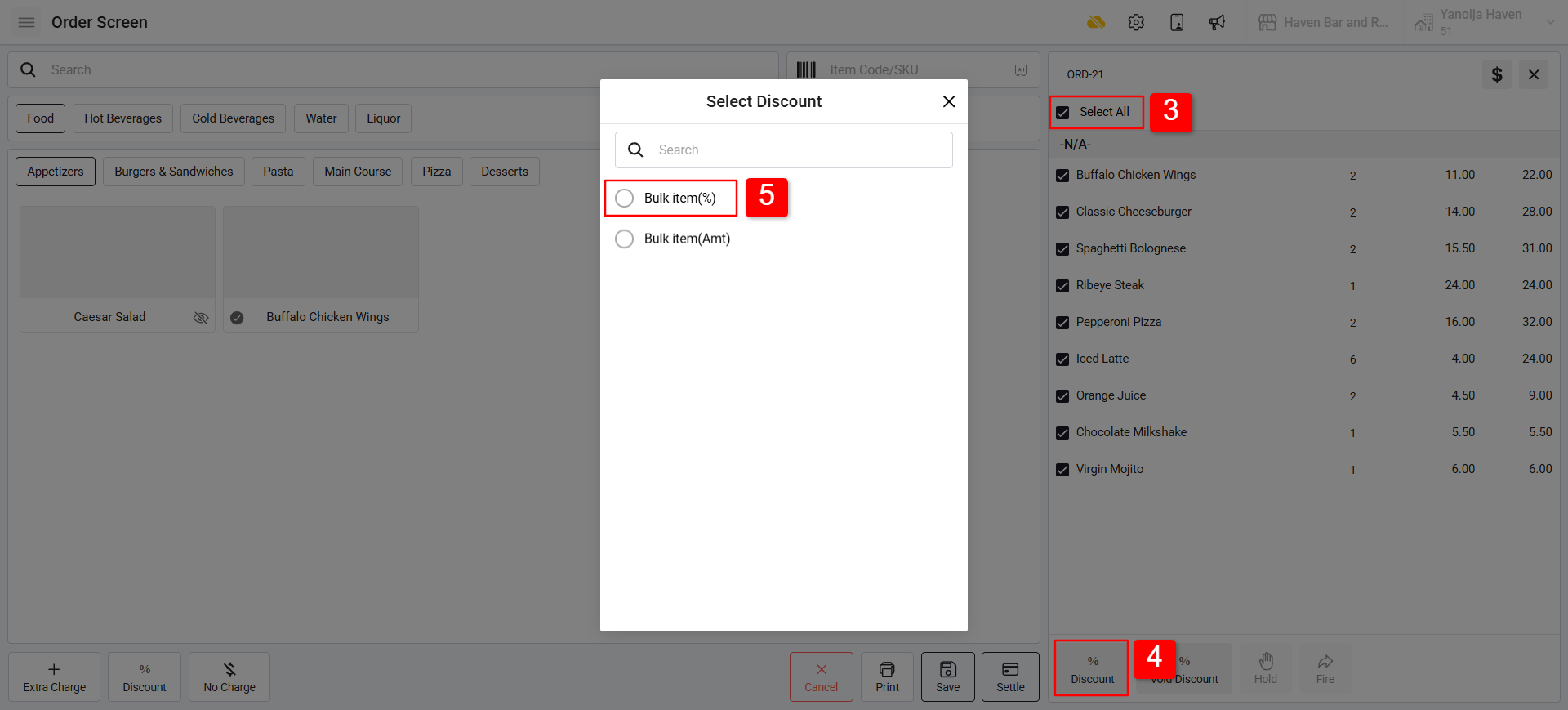
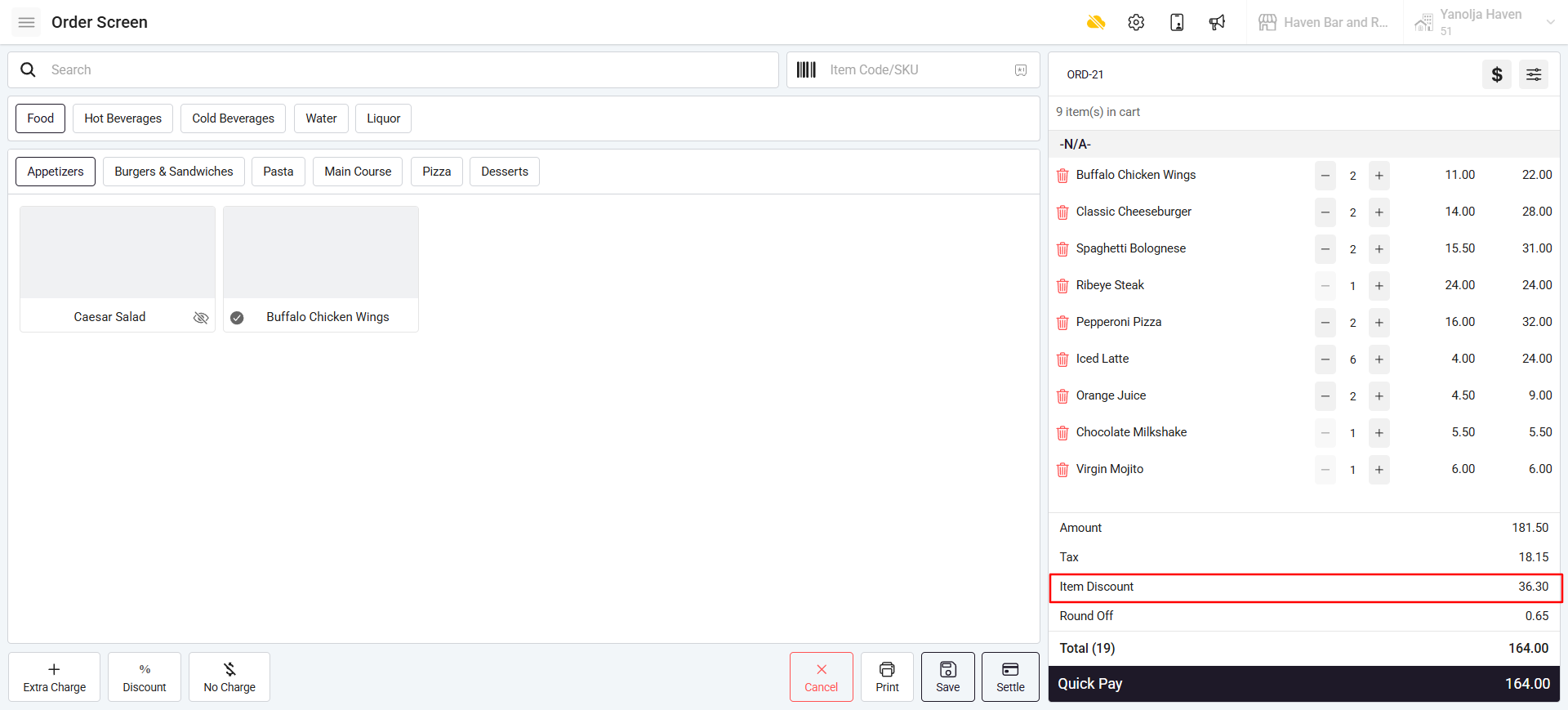
✅ The discount will be applied successfully, and you will be able to see it on the order screen.
Was this article helpful?
That’s Great!
Thank you for your feedback
Sorry! We couldn't be helpful
Thank you for your feedback
Feedback sent
We appreciate your effort and will try to fix the article