What is Item Discount?
Item discount is used to give discount on ordered items or on specific items in an order. Discount can be given in 2 ways.
1. Percentage.
2. Amount.
Steps:
1. Select the item you want to apply discount on.
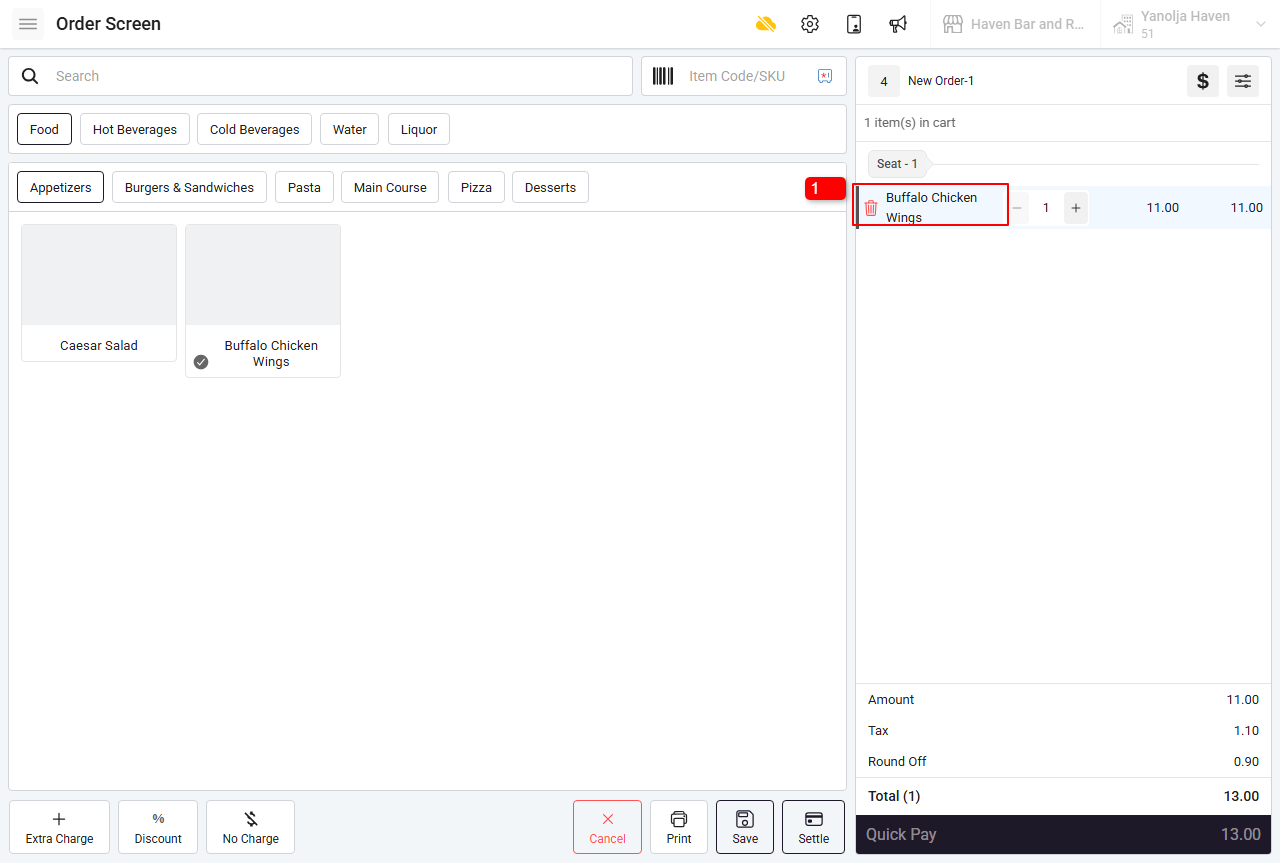
2. Click on Discount Option.
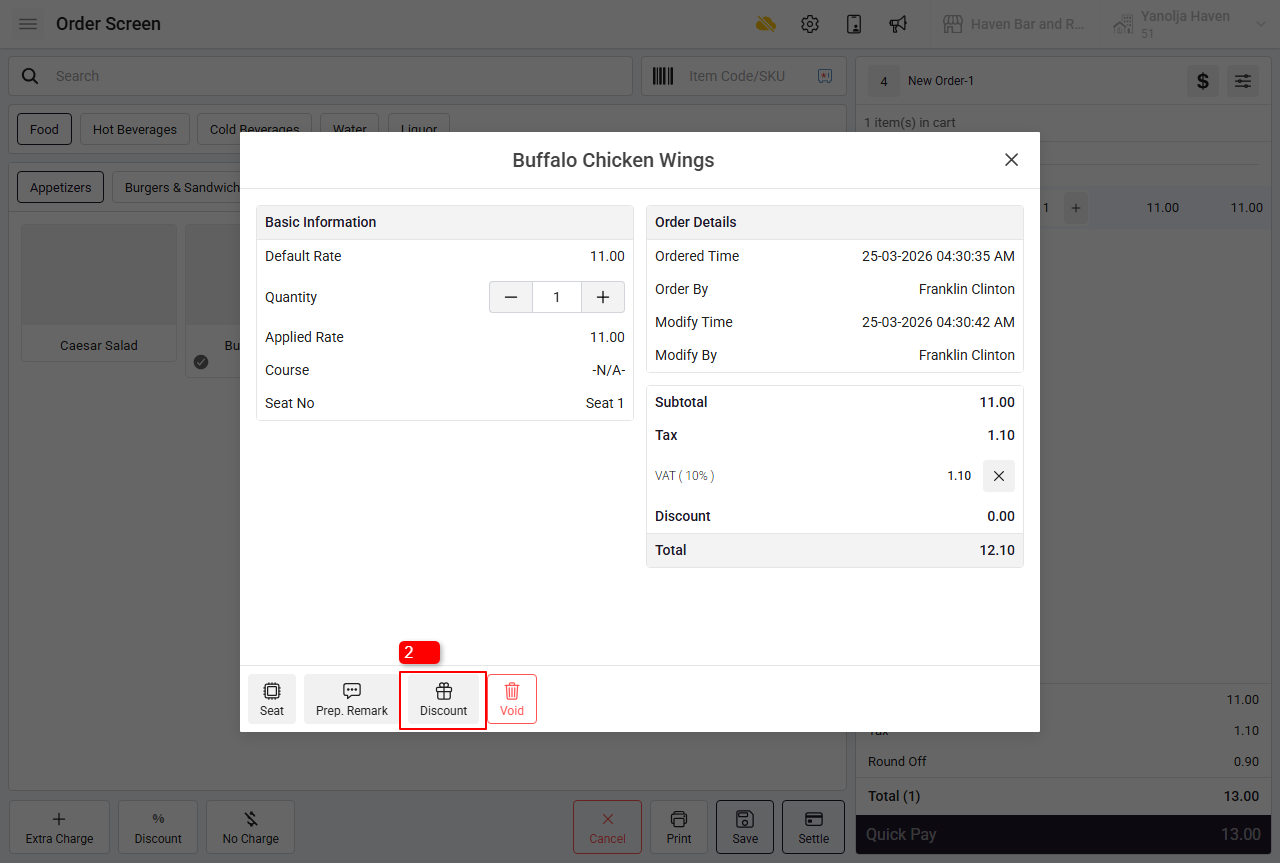
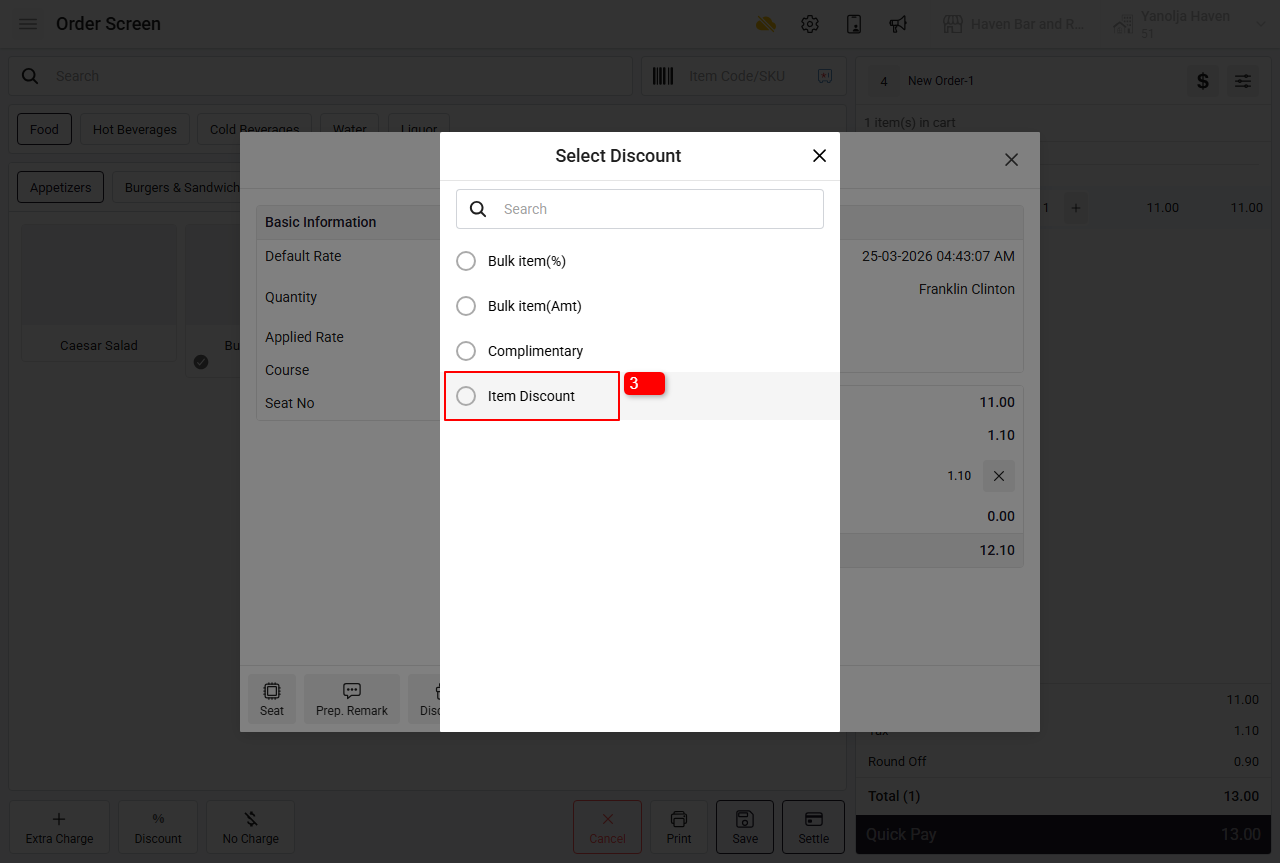
3. Select the preferred discount.
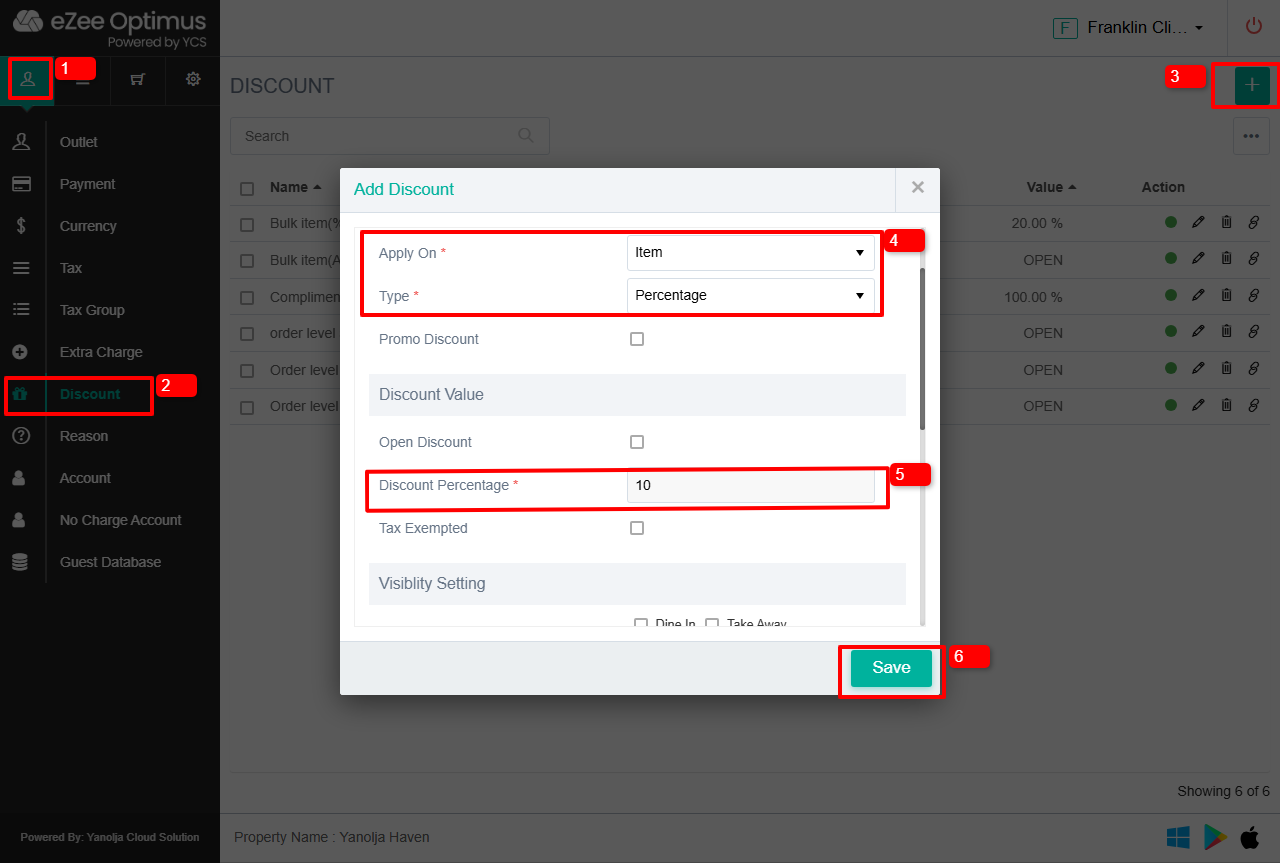
Below are the steps on creating the item discount.
1. Switch to back.
2. Click on Discount option
3. Click on “+” Icon which will let you add/create a discount.
4. Enter the Discount name / Select the Apply on as “Item Discount” / Type as “Percentage or
Amount”
5. Enter the Discount Percentage or Amount
6. Click on “Save”
Discount Value:
Open Discount: You can define the discount range so the user can apply the discount within that specified range.
Example: Maximum Discount: 20% ( User can apply 0 to 20% between any discount)
Tax Exempted: Discount is not applied to Tax
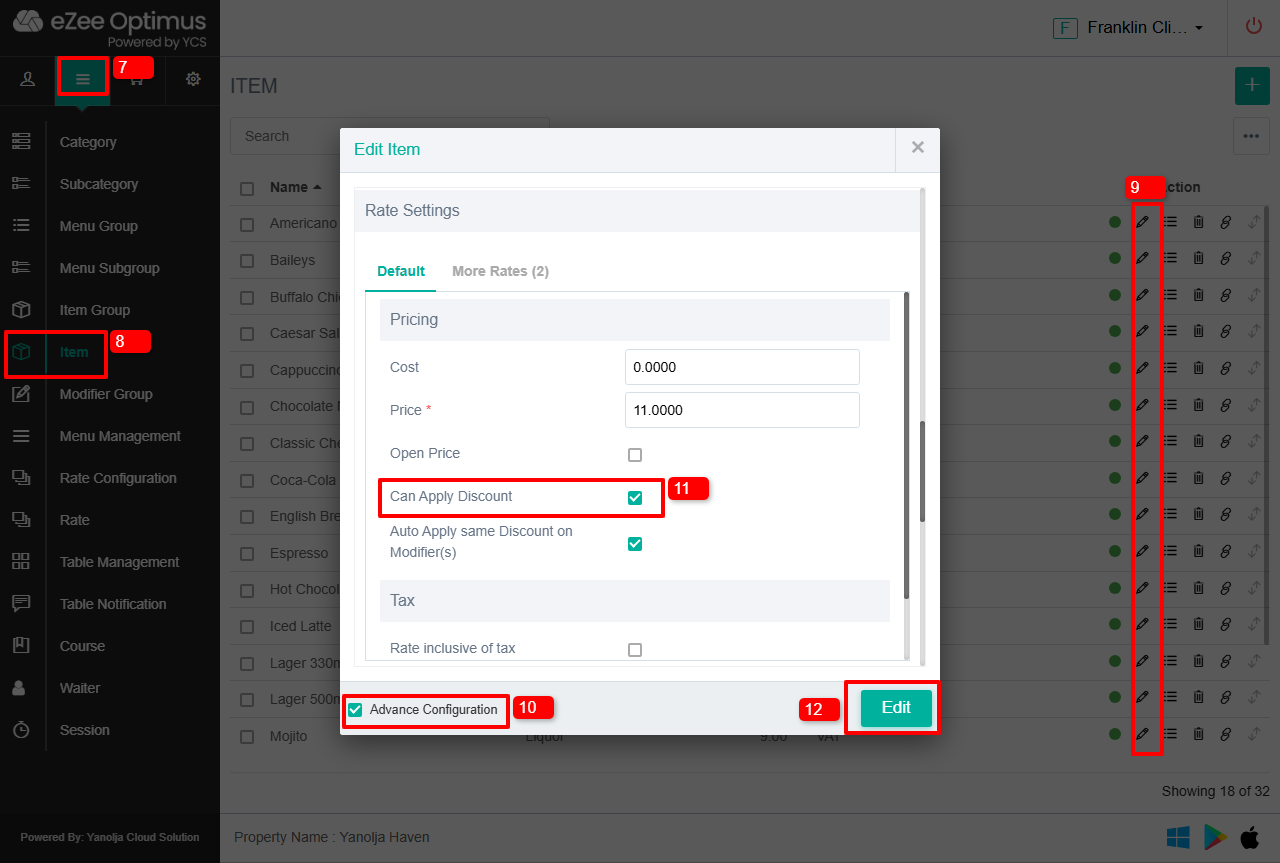
7. Go to Item settings in the configuration.
8. Click on Item
9. Click on Pencil icon/Edit button on the item.
10. Click on Advanced Configuration.
11. Check mark the option which says “Can Apply Discount”
(Note: If the above-mentioned option is not tick marked, the Item level discount will not take that item into effect and it will remain unaccounted for in the discount)
12. Click on “Edit” button and the settings will be updated.
In order to update this settings on all of your items/many items at once, please follow below steps.
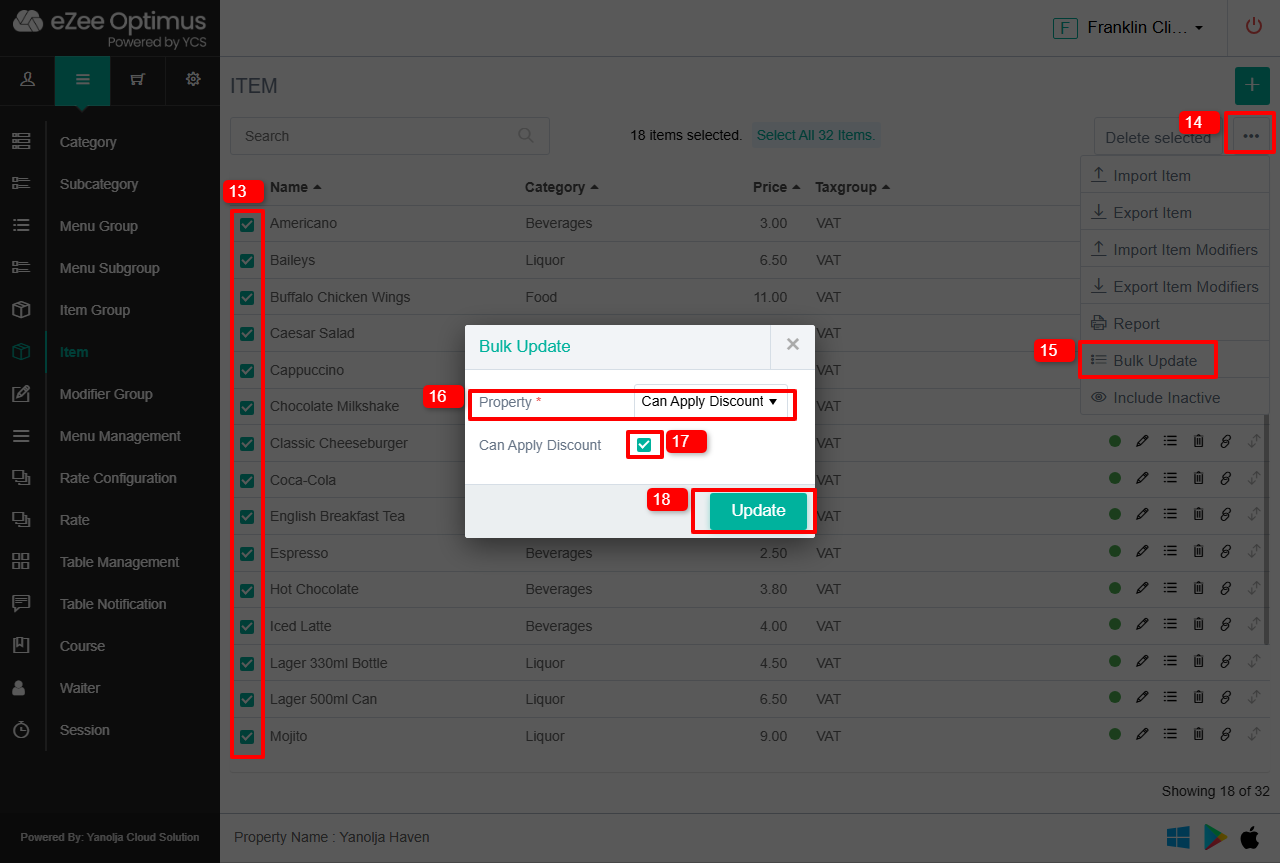
13. Select the Items that you are looking to update the discount settings.
14. Click on 3 dots.
15. Select the Bulk Update option.
16. Select Property as “Can Apply Discount”
17. Check mark the option.
18. Click on Update and selected items will be updated.
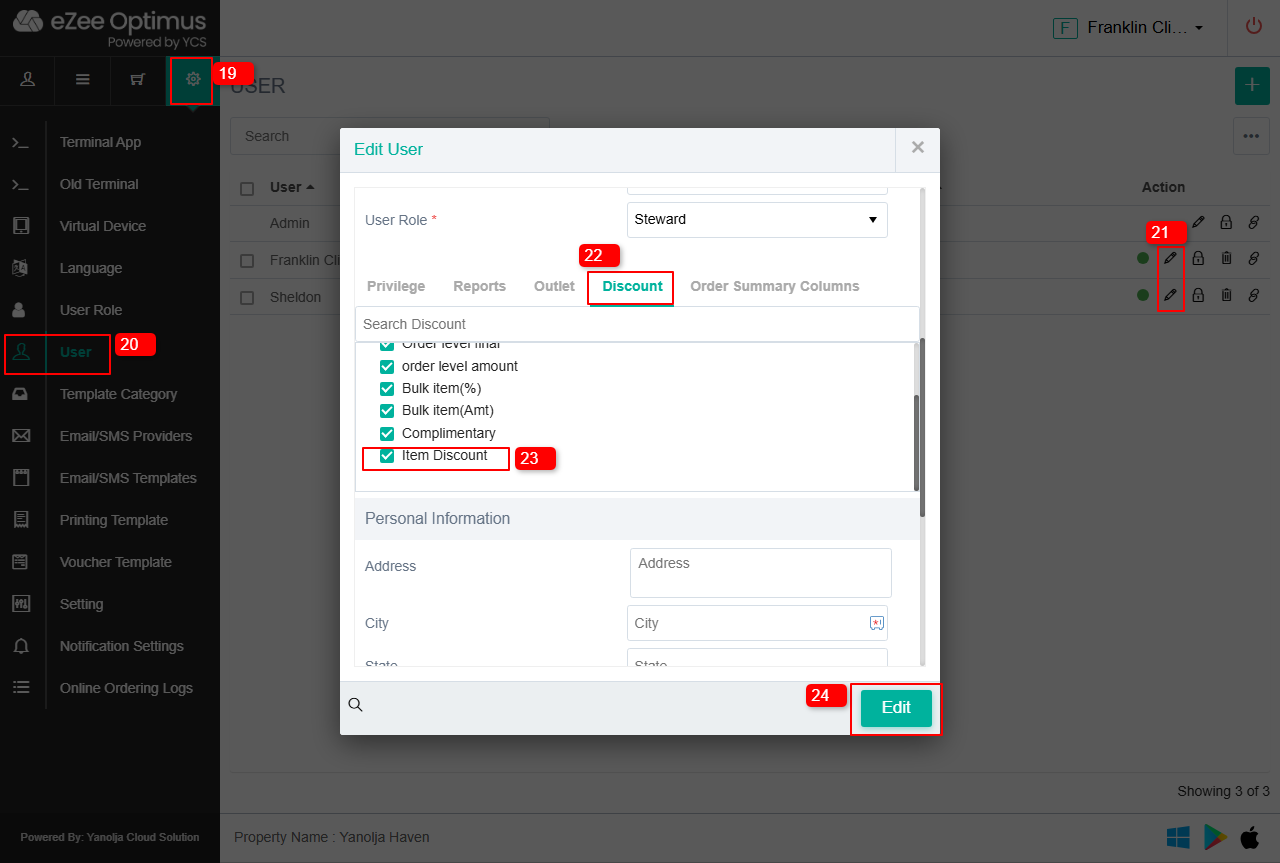
In order to allow your user to apply the created discount, you can follow below settings.
19. Click on Setting Icon.
20. Click on User.
21. Click on pencil icon/Edit button.
22. Click Discount option.
23. Select Discount that a user should be allowed to give.
24. Click on Edit and it will be updated.
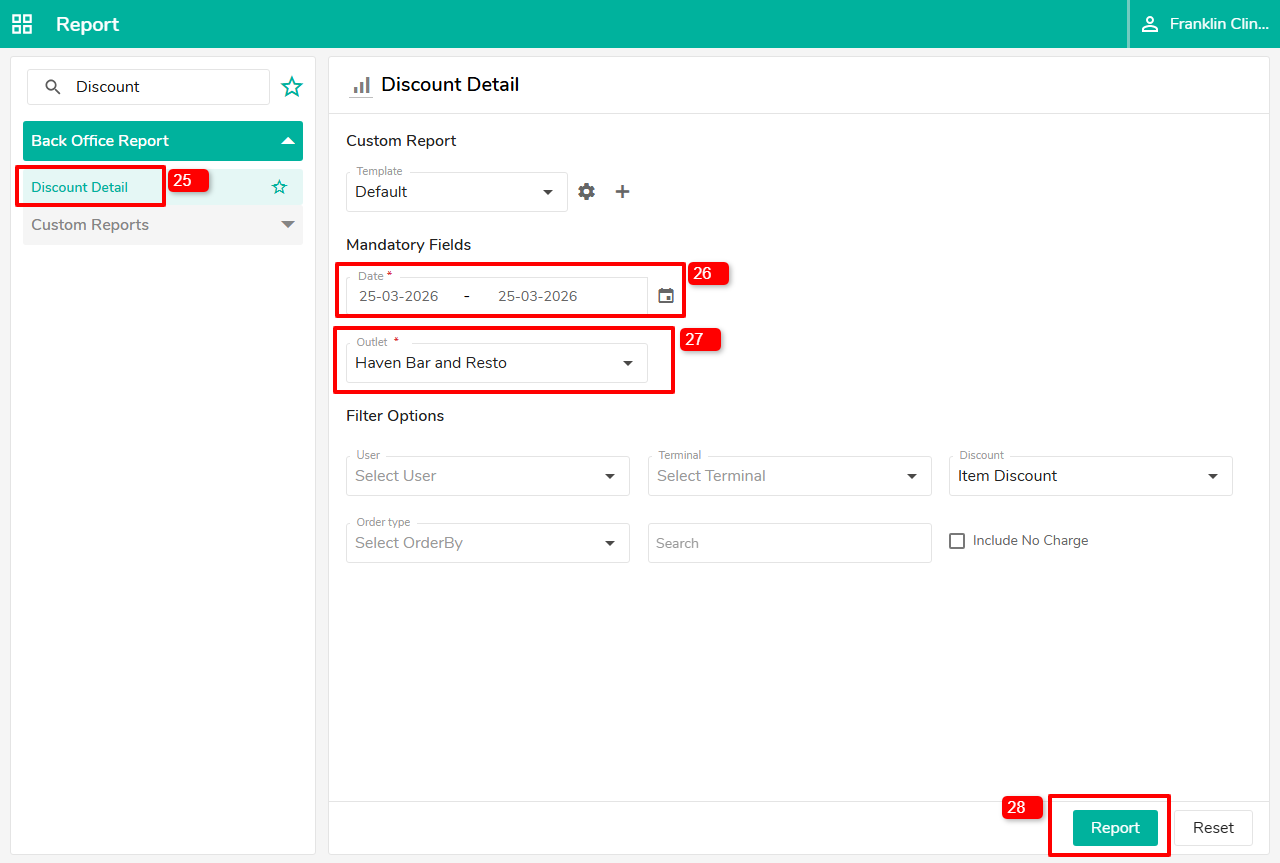
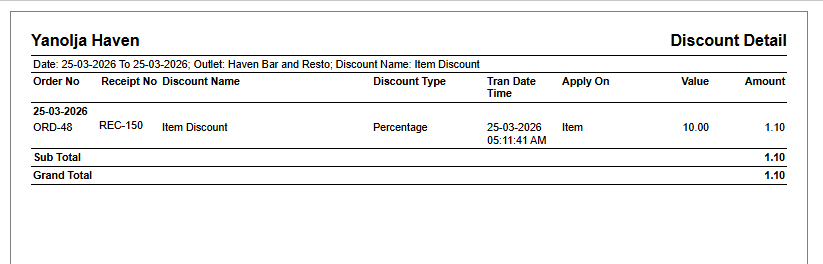
You can view the discount report by simply searching for the Discount Detail Report in report Section Under Back Office Reports.
25. Select the Discount Detail Report.
26. Select the Date Range.
27 Select the Outlet.
28. Click on Report.
Was this article helpful?
That’s Great!
Thank you for your feedback
Sorry! We couldn't be helpful
Thank you for your feedback
Feedback sent
We appreciate your effort and will try to fix the article