Cash Drawer Configuration Guide
A cash drawer is a secure container used to store cash (bills and coins) in Point-of-Sale (POS) systems. It is commonly used in retail environments where transactions involve physical cash. The drawer is typically connected to the POS system and automatically opens when a sale is completed so the cashier can provide change.
Configure the Cash Drawer
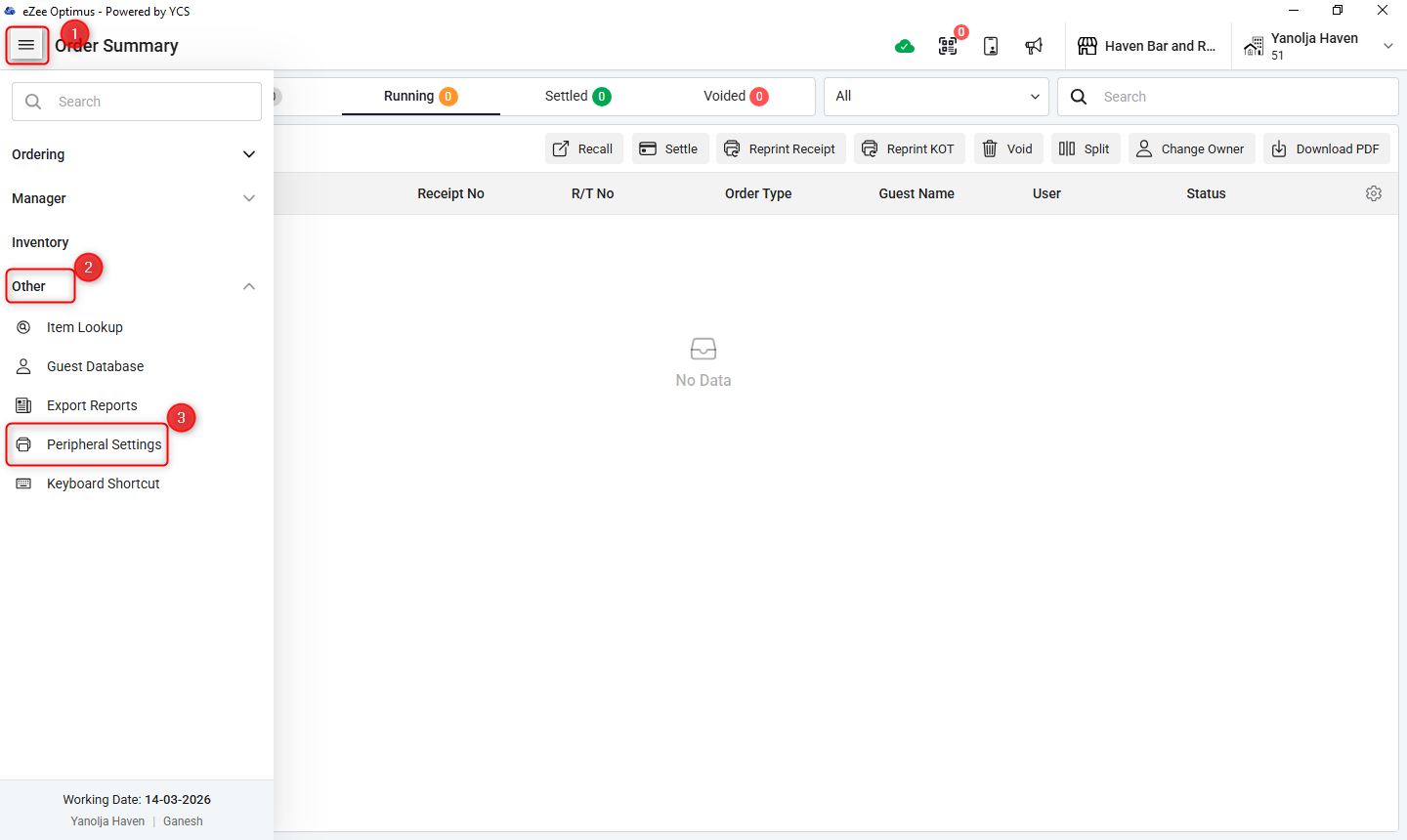
Step 1: Open Peripheral Settings
1. Go to Menu.
2. Click Other (a dropdown menu will appear).
3. Select Peripheral Setting.
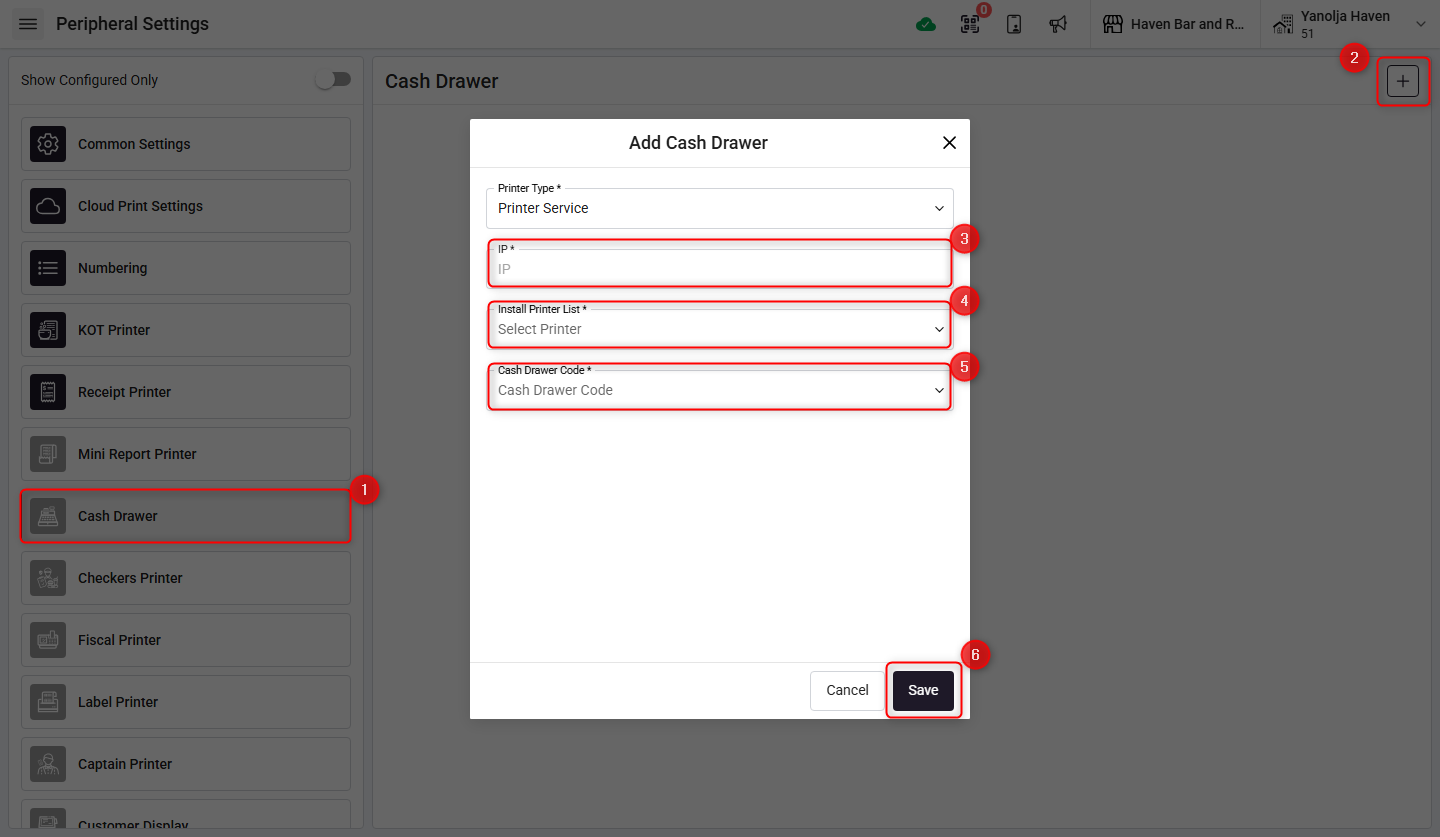
Step 2: Add Cash Drawer
1. Select Cash Drawer.
2. Click the Plus (+) icon to add a new configuration.
3. Enter the Computer IP Address.
4. Enter the Printer Name to which the cash drawer is physically connected.
5. Enter the Cash Drawer Code shown below.
6. Click Save to apply the configuration.
 Cash Drawer Code:
{27, 112, 48, 55, 121}
Important Note
⚠ The Cash Drawer must NOT open when printing KOT (Kitchen Order Ticket).
To prevent this, configure the printer settings as follows:
Right-click the printer.
Select Printer Properties.
Go to Device Settings.
Find Cash Select.
Disable or set it so the cash drawer does not open on KOT printing.
User Privileges Required
The user must have permission to access terminal and back-office settings.
Steps to Assign Privileges
Go to Settings.
Select User.
Click Edit User.
Go to the Privileges section.
Enable permissions for:
Terminal Access
Back Office Access
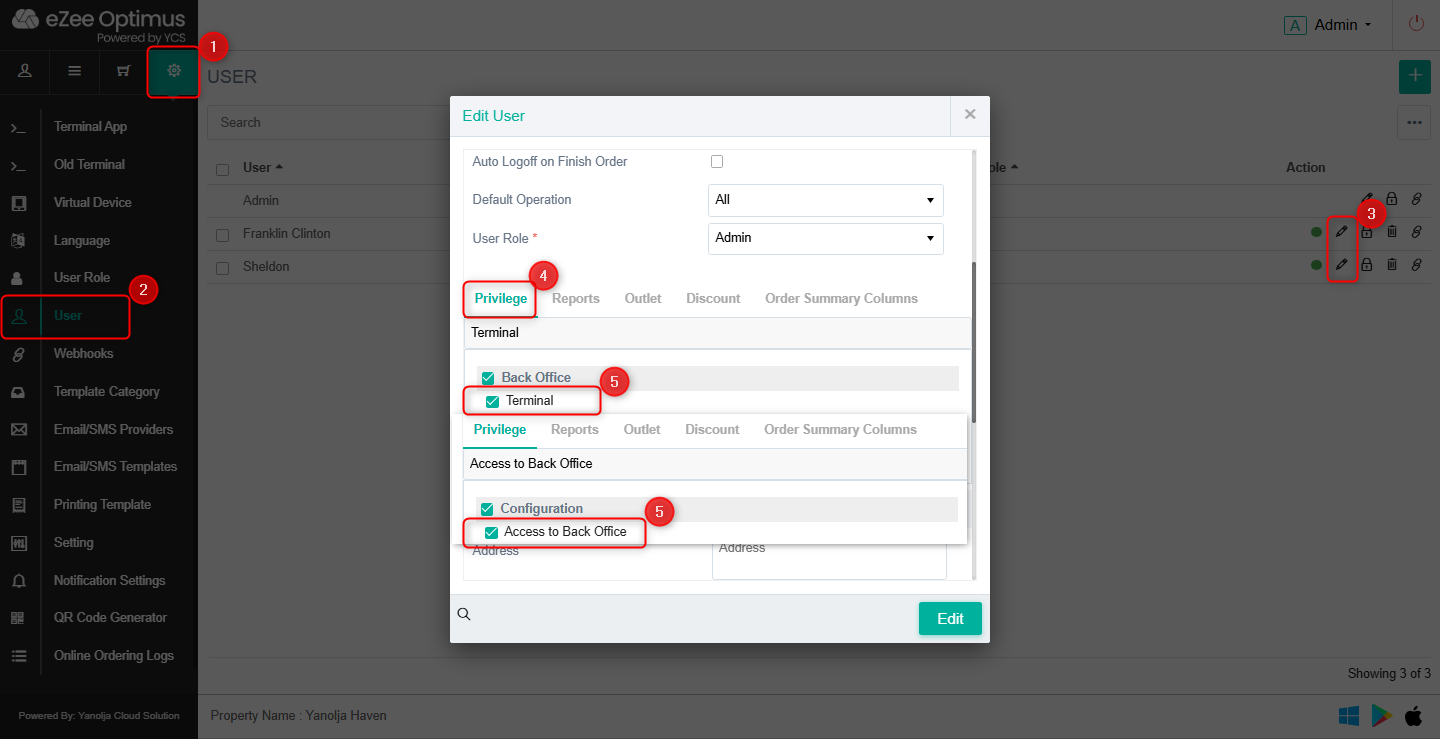
These privileges are required to configure peripherals and cash drawer settings.
Was this article helpful?
That’s Great!
Thank you for your feedback
Sorry! We couldn't be helpful
Thank you for your feedback
Feedback sent
We appreciate your effort and will try to fix the article