Voiding an order in the POS system allows authorized users to cancel a running or settled order when required. This may occur due to reasons such as billing mistakes, order cancellation by the customer, or incorrect item entry.
To void an order, the user must have the required privilege, and a void reason must be created in the system. Once an order is voided, it will appear in the Voided Section of the Order Summary and can also be tracked through the Void Order Report.
Step 1: Enable Void Order Privilege :
Before voiding an order, the user must have the proper permission.
1. Go to Settings.
2. Select User.
3. Click Edit User.
4. Go to the Privilege section.
5. Search for privilege.
Allow voiding audited orders.
Allow voiding running orders.
Allow voiding today's settled orders.
6. Enable the privilege and click Edit/Save to apply the changes.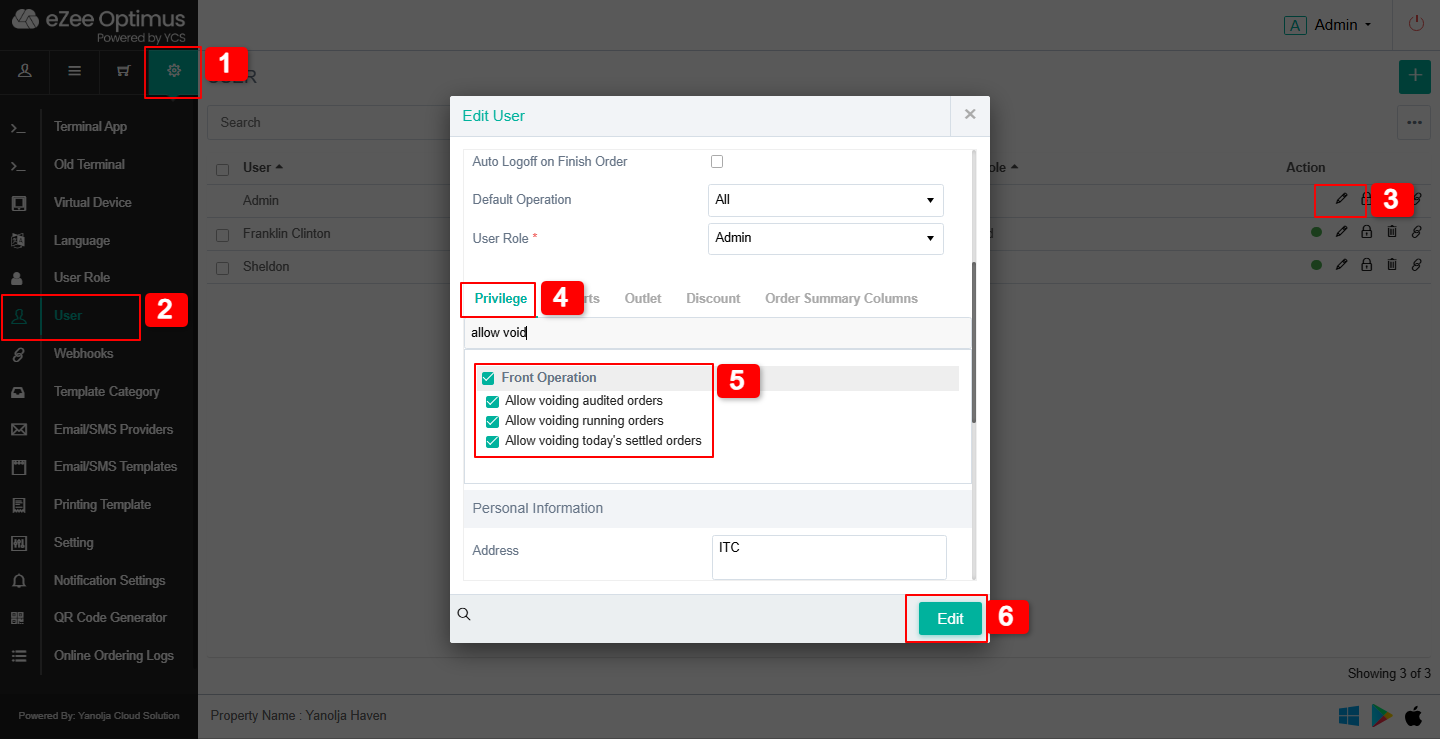
Step 2: Create a Void Reason :
A void reason must be created to record why an order is being voided.
1. Go to Master.
2. Select Reason.
3. Click on the “+” (Plus) icon to create a new reason.
4. Enter the specific reason (example: Billing Error, Customer Cancellation).
5. Select the Reason Type as Void Order.
6. Save the reason.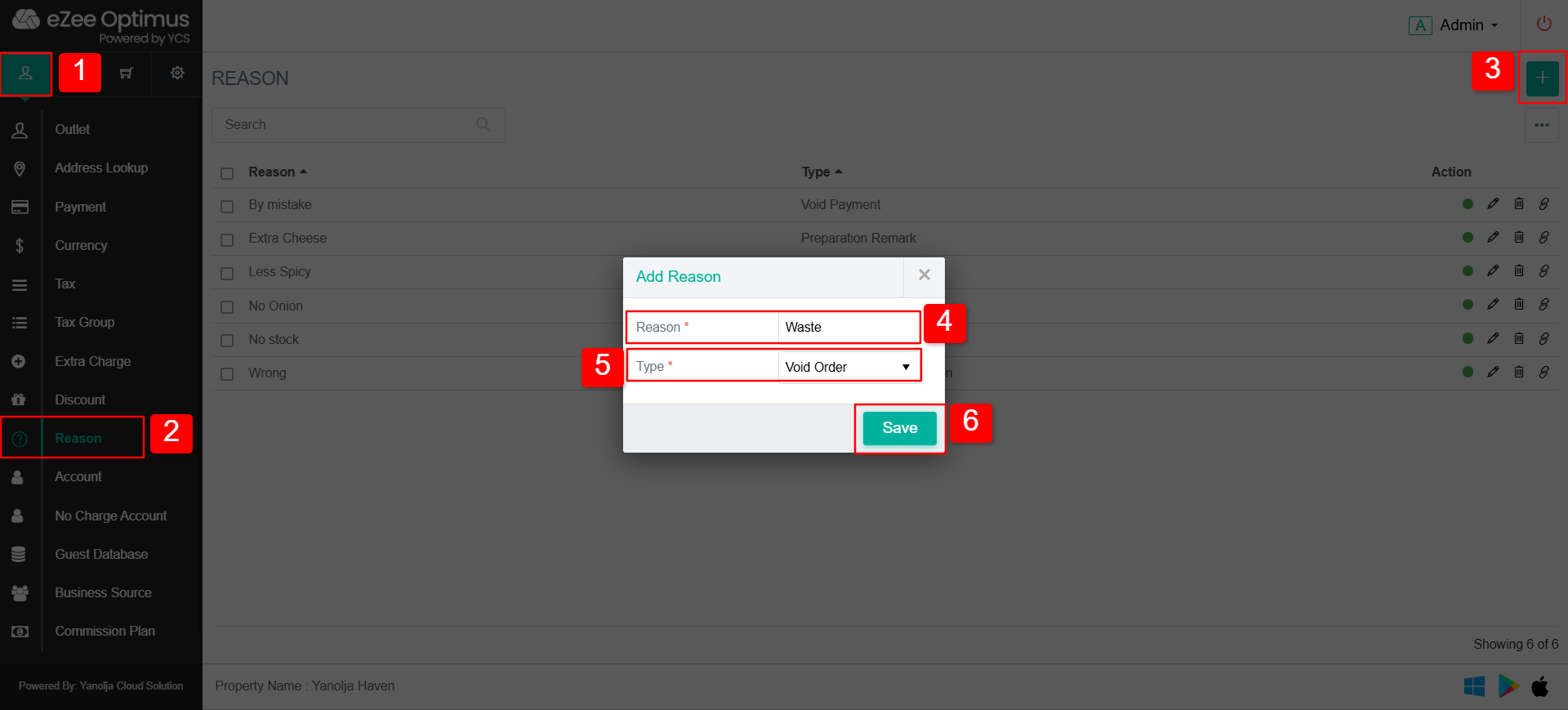
Step 3: How to Void an Order :
1. Click on Menu.
2. Go to the Ordering section.
3. Select Order Summary.
4. Go to Running / Settled Orders.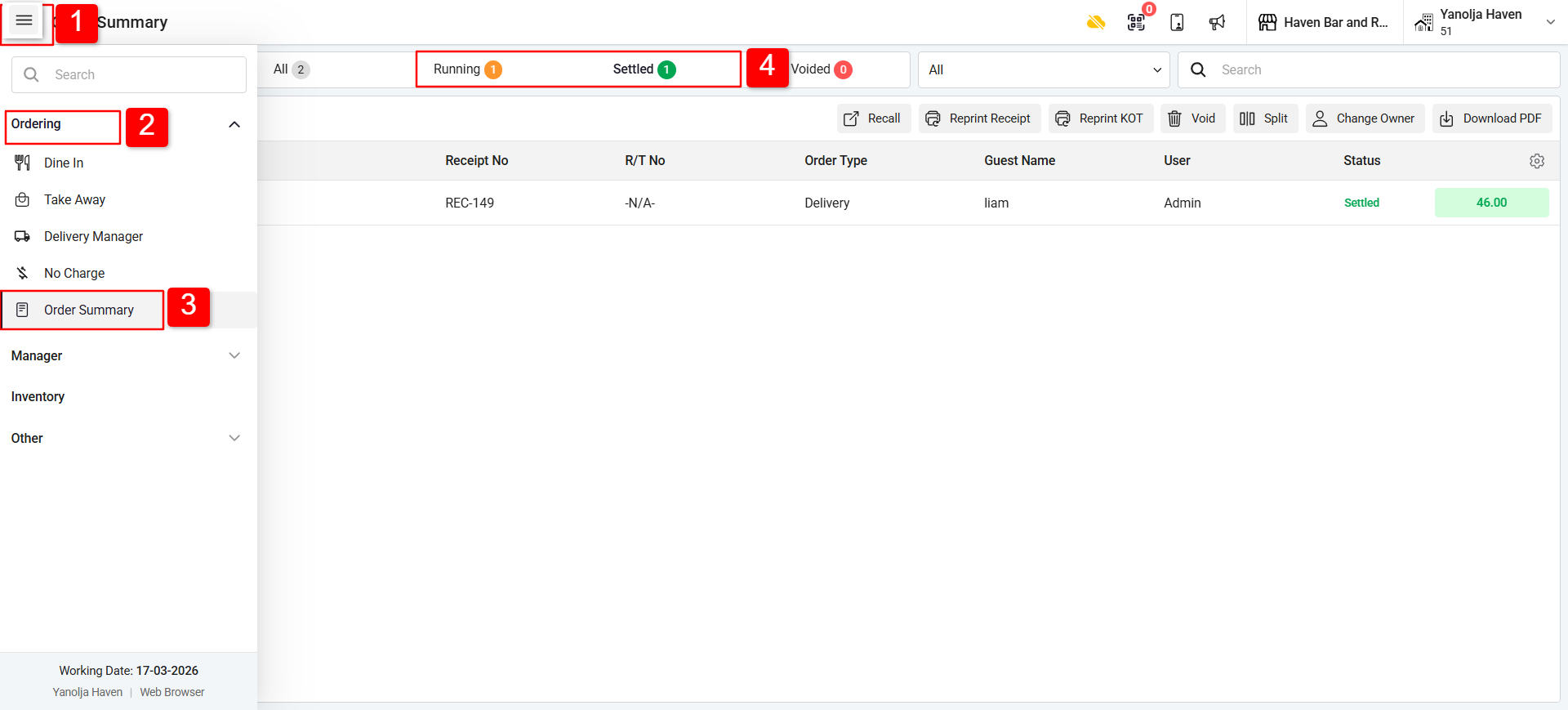
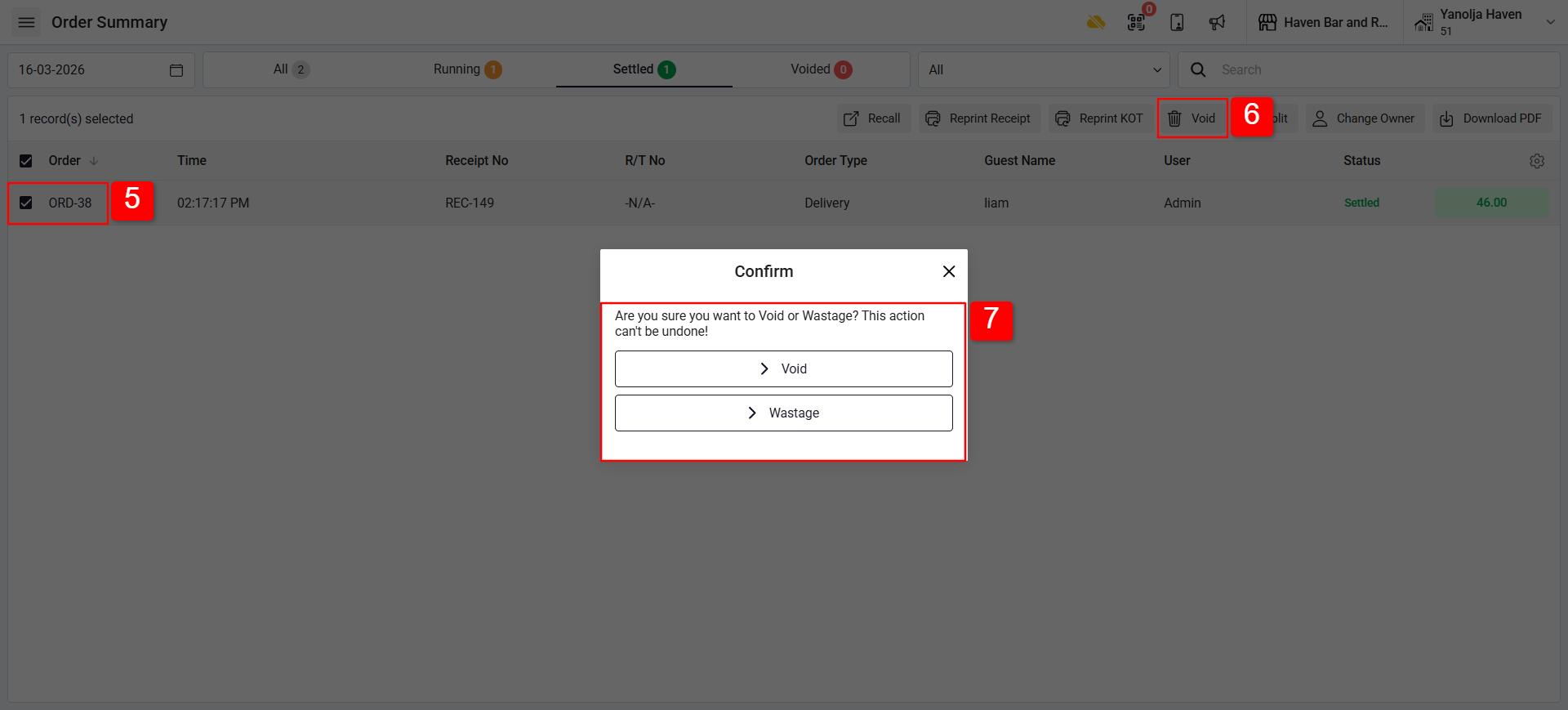
5. Select the order you want to void.
6. Click on the Void option.
7. Choose one of the following options:
Void – If the item/order was not prepared.
Wastage – If the item/order was already prepared.
8. Select the Void Reason or enter a manual reason.
9. Confirm the action to void the receipt/order.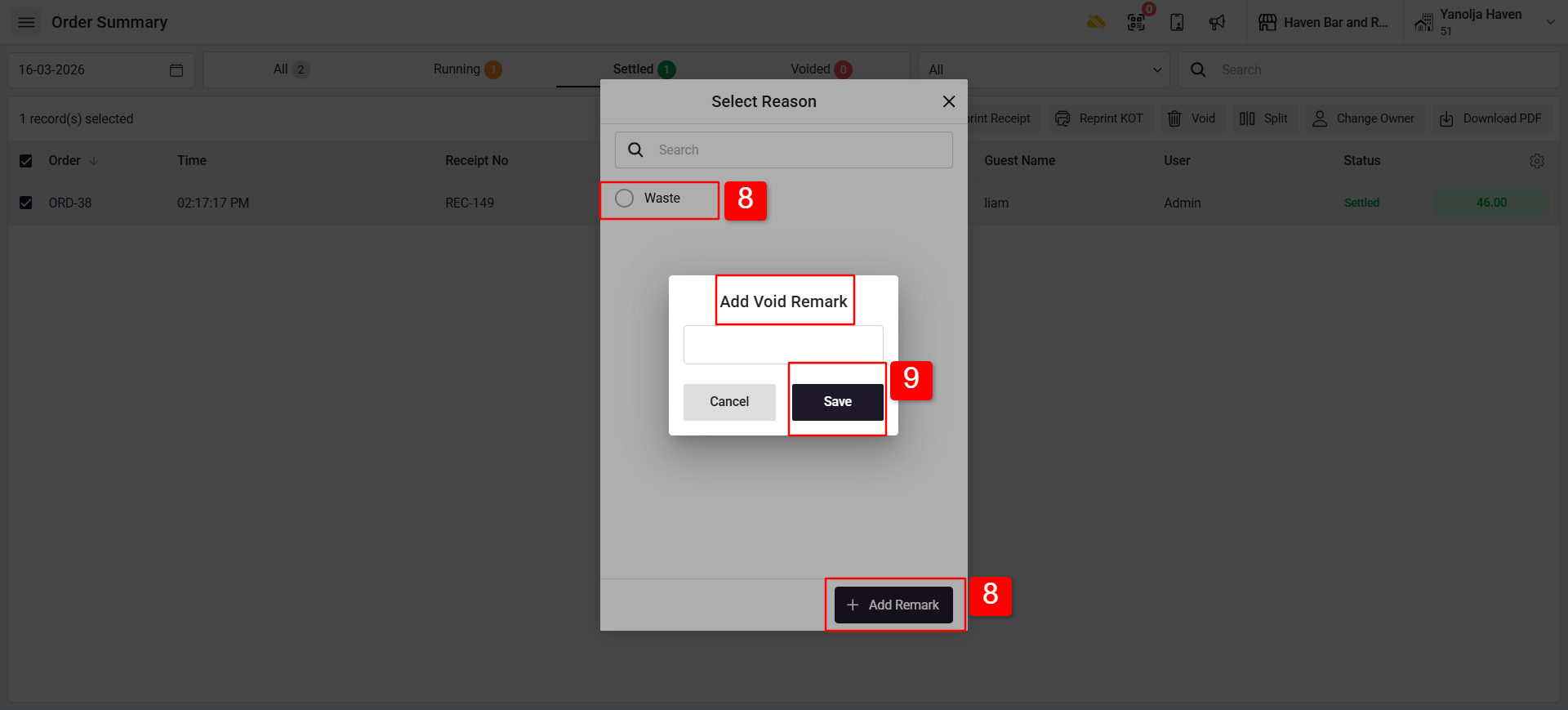
The voided order will appear in the Voided/All Section of the Order Summary.
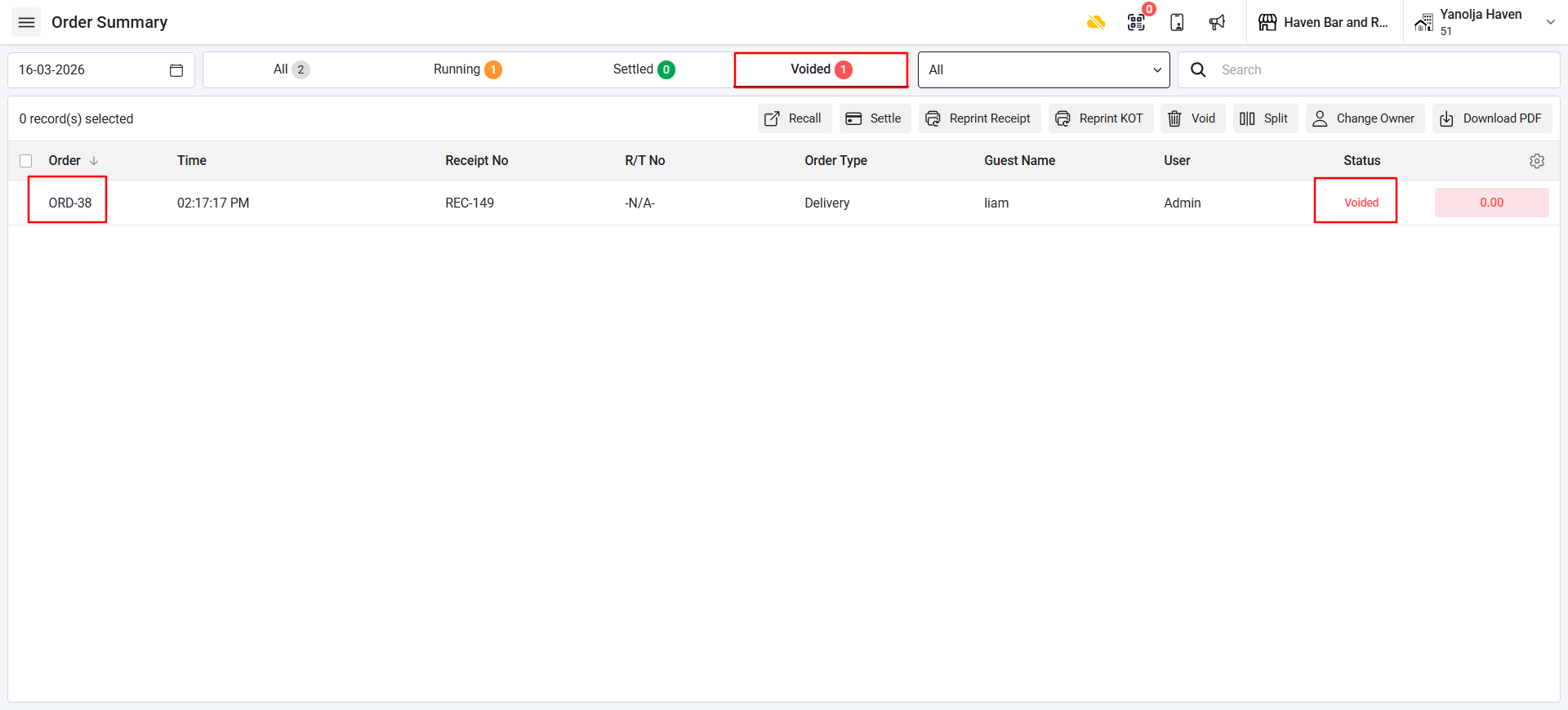
Step 4: View Void Order Report :
You can check all voided orders in the reports section.
1. Click on Menu.
2. Go to the Manager section.
3. Click on Reports.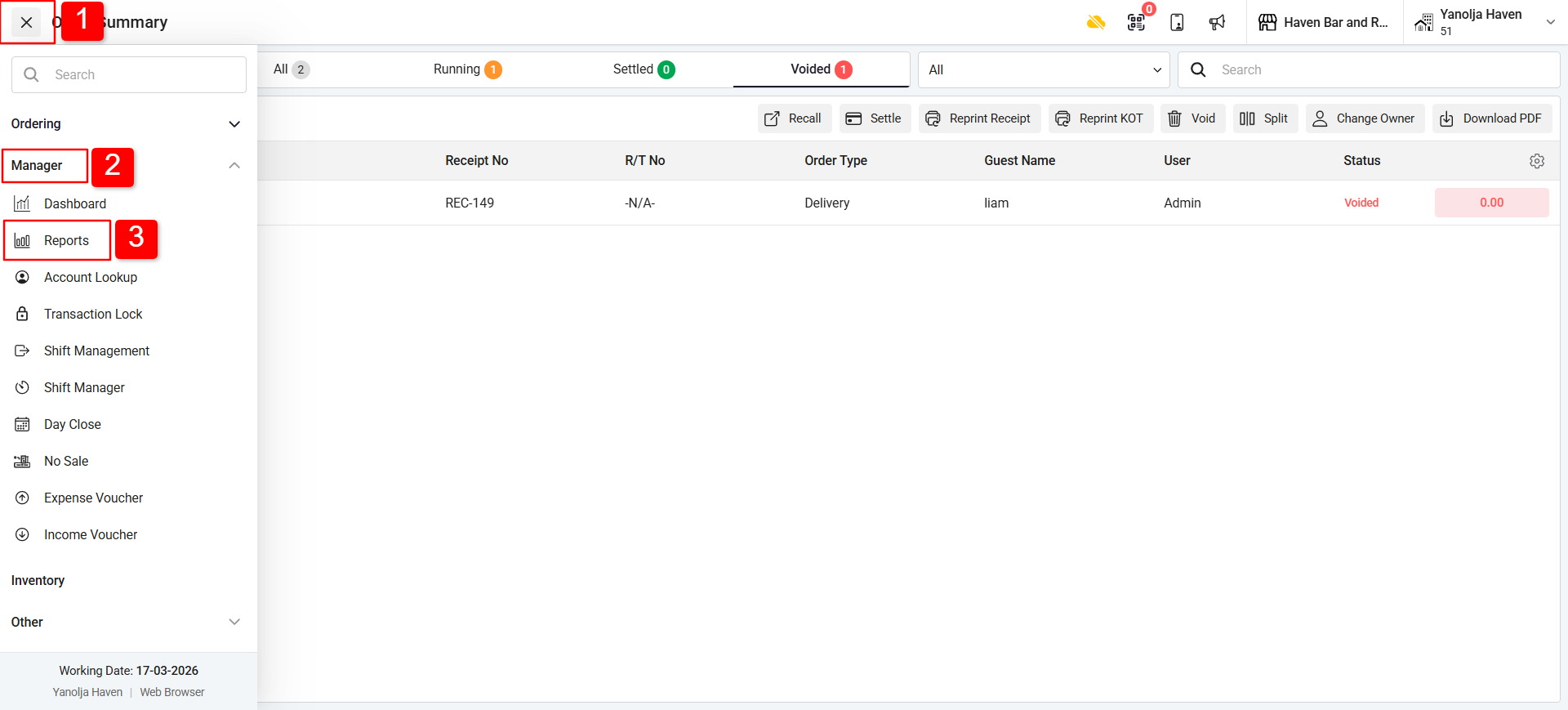
4. Open the Audit Report Section and Select Void order report.
5. Select the date range.
6. Click Report to generate the Void Order Report.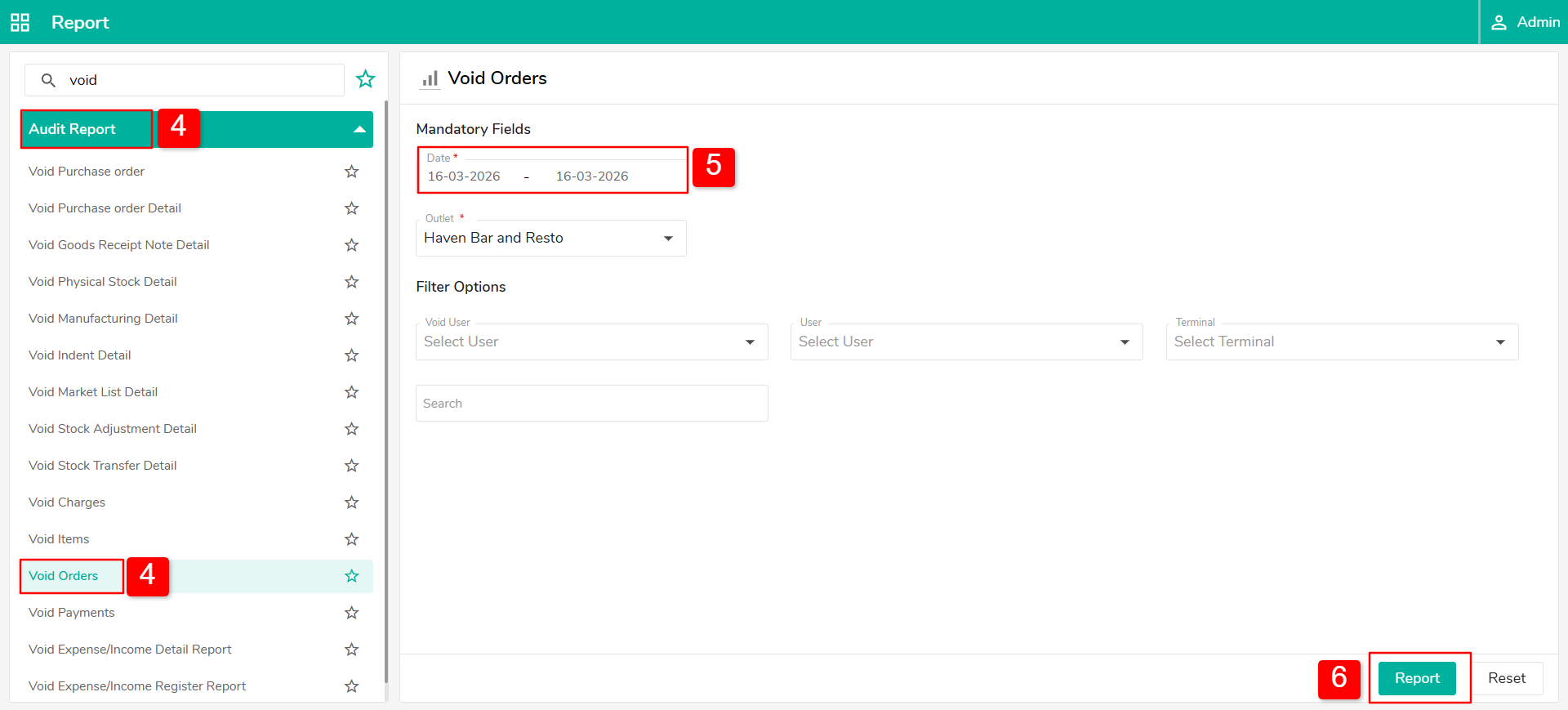
✅ Result:
The report will display all voided orders, reasons for voiding, user details, and timestamps, helping management track cancellations and maintain accountability.
Was this article helpful?
That’s Great!
Thank you for your feedback
Sorry! We couldn't be helpful
Thank you for your feedback
Feedback sent
We appreciate your effort and will try to fix the article