Steps to Add a Manual Reservation
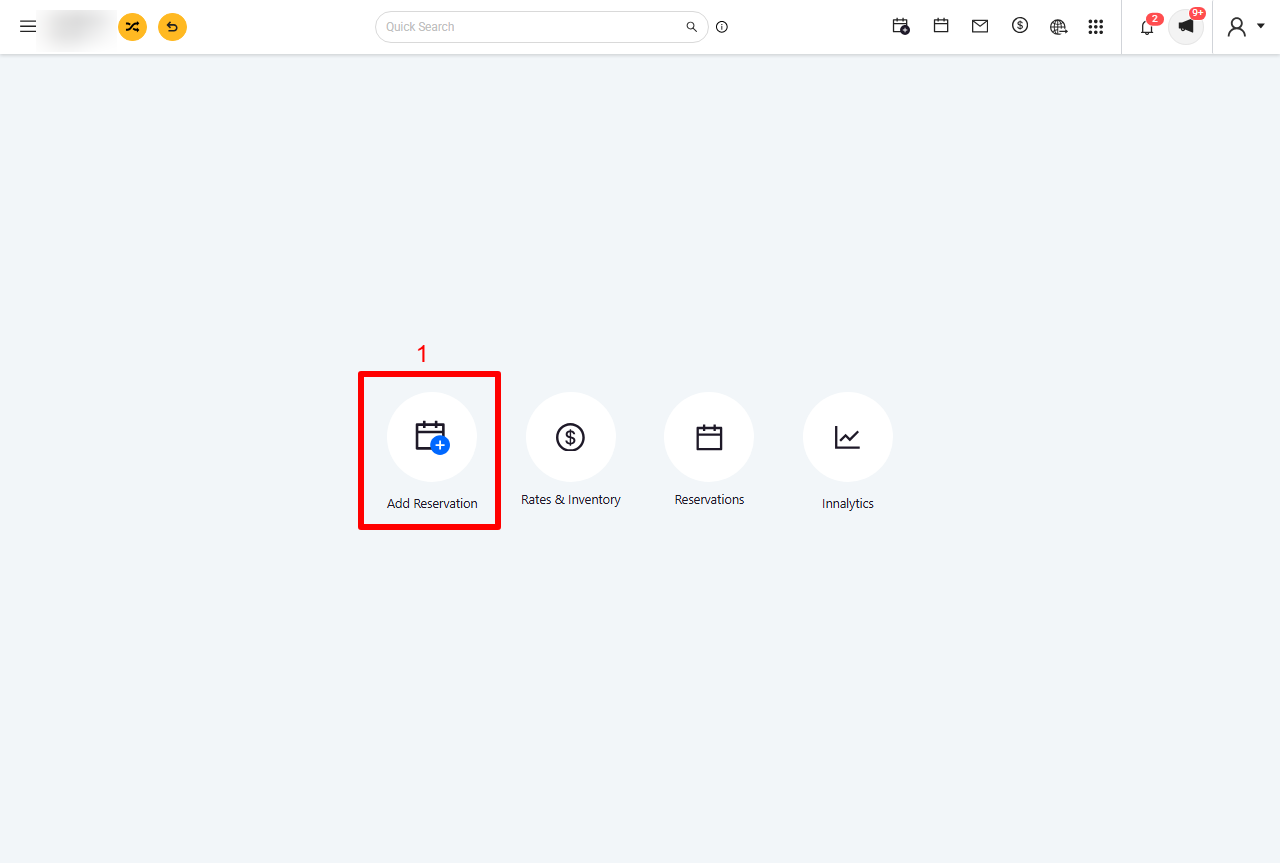
1. Access the Reservation Module
Click on the “Add Reservation” icon.
2. Set Stay Duration
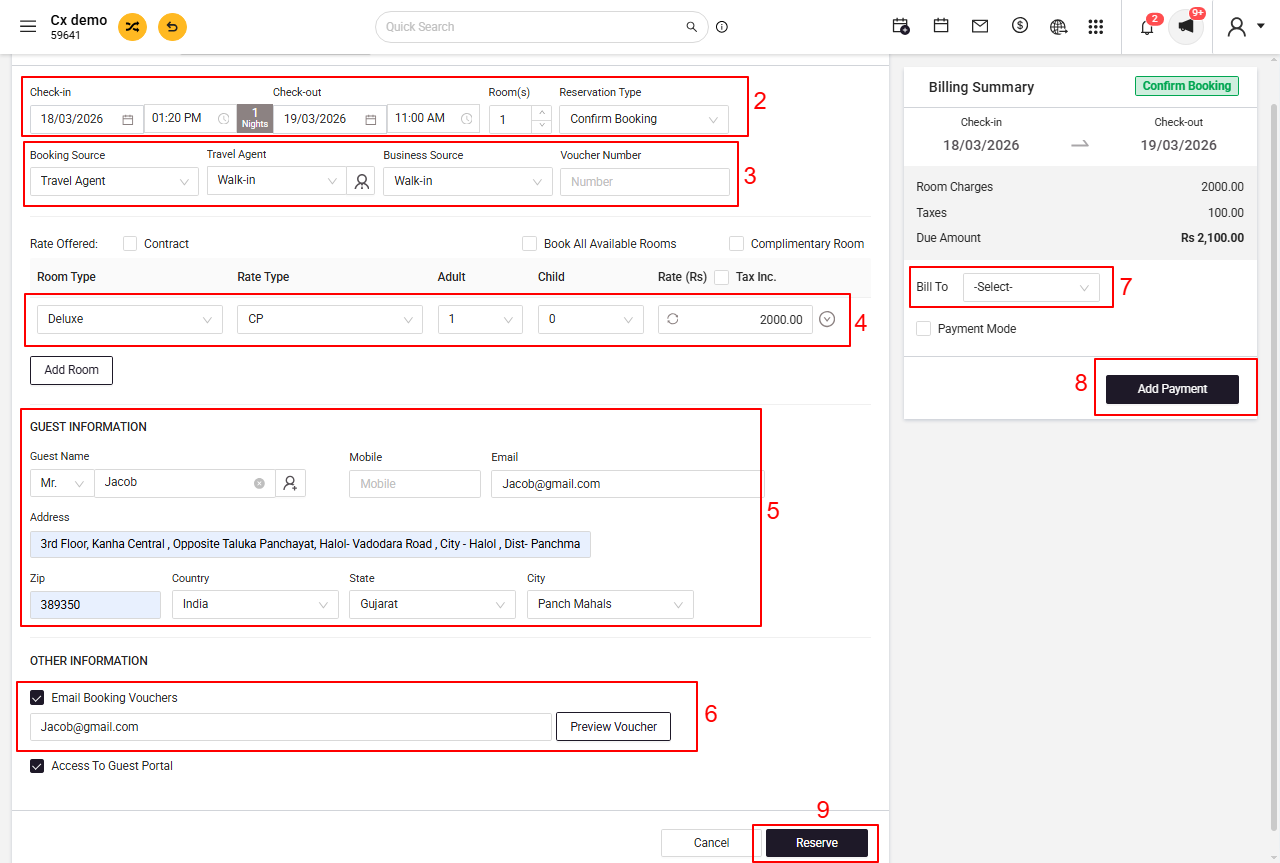
Check-in Date: Select the guest’s arrival date
Check-out Date: Select the guest’s departure date
3. Enter Booking Details
Booking Source: Select the source of the booking (e.g., Direct, Travel Agent, Business Source)
Booking Type: Choose the booking status (e.g., Confirmed / Hold / Unconfirmed)
4. Assign Room Details
Room Type: Select the required room category
Rate Plan: Choose the applicable rate plan
Number of Rooms: Enter the number of rooms to be booked
Occupancy: Specify the number of adults and children for each room
5. Enter Guest Information
New Guest: Manually enter guest details
Returning Guest: Search for existing records
6. Send Confirmation
Enable the option to send a booking voucher / confirmation email
Enter the recipient’s email address
7. Set Billing Preferences
Select the billing reference (e.g., Guest, Company, Group Owner)
8. Record Payment Details
Deposit: Enter the received deposit amount (if any)
Credit Card Details: Add card information if available
If payment is collected at the time of booking, record the amount received
9. Save the Reservation
Click on “Save” to complete the process. The reservation will now be successfully created in the system.
Was this article helpful?
That’s Great!
Thank you for your feedback
Sorry! We couldn't be helpful
Thank you for your feedback
Feedback sent
We appreciate your effort and will try to fix the article