Note: Standard Image Resolution: Ideal dimensions are 1280 px X 720 px
(aspect ratio of 16:9) (Max to 2MB)
How to Access:
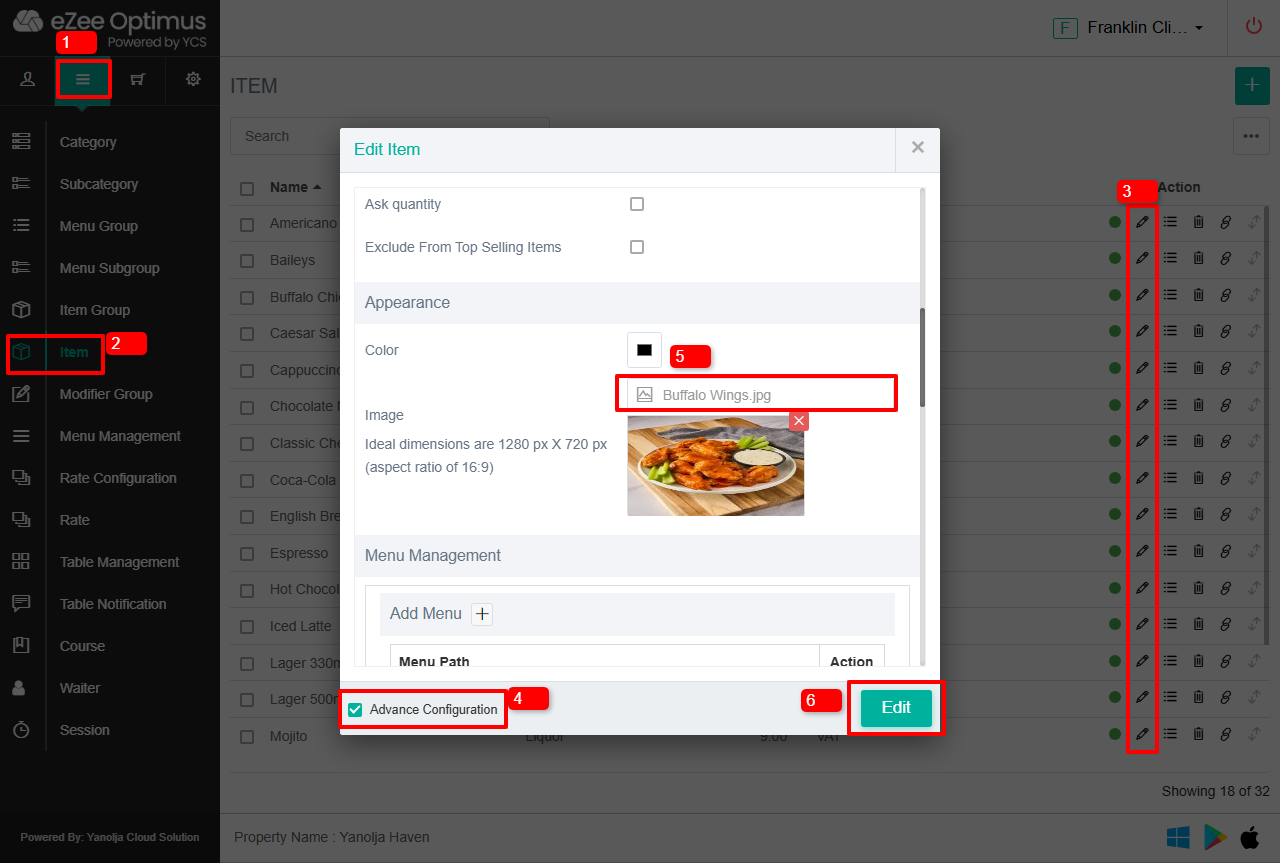
Please follow the below steps to add images for Menu items
1. Switch to back and go to item settings
2. Click on Item.
3. Click on pencil icon/edit button.
4. Click on Advanced configuration and go to Appearances.
5. Upload the item image.
6. Click on Edit and the image will be uploaded.
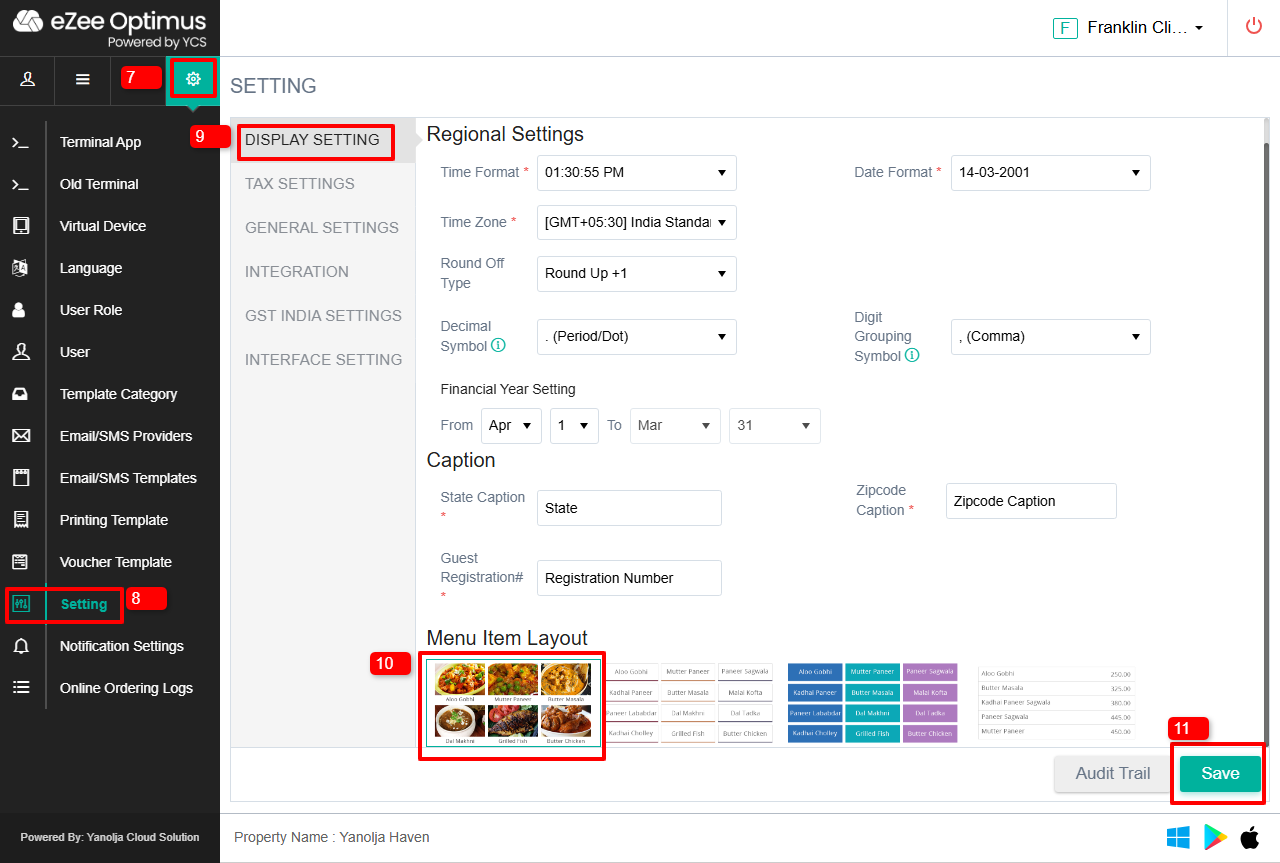
Once the image is uploaded in items, you will have to select layout which displays images.
7. Go to settings icon
8. Click on Settings.
9. Go to Display Settings.
10. Select the Menu Item Layout
11. Click on “Save” and re-login once everything is completed.
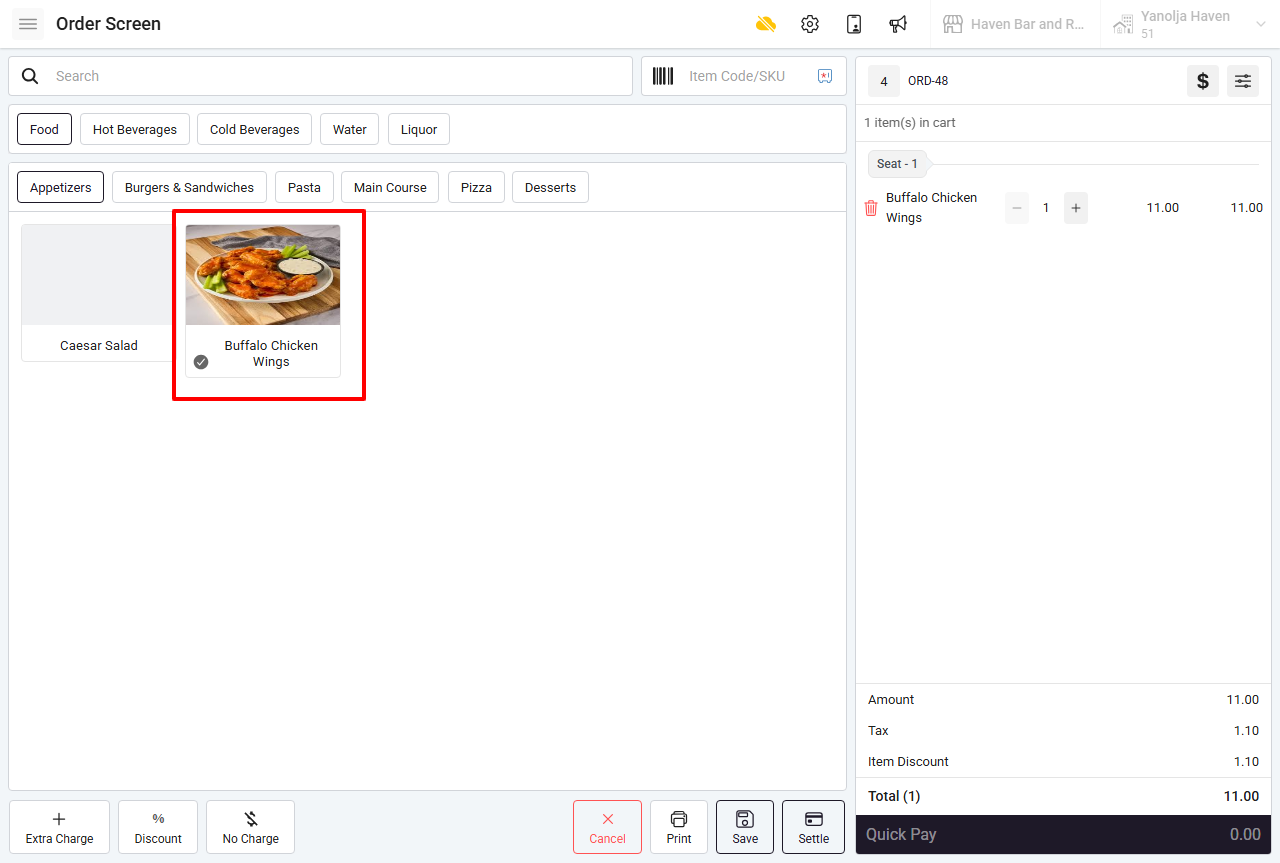
Output: View Layout
Was this article helpful?
That’s Great!
Thank you for your feedback
Sorry! We couldn't be helpful
Thank you for your feedback
Feedback sent
We appreciate your effort and will try to fix the article