This article explains the different ways to send E - Payment link to guests from the Property Management Software (PMS) under Yanolja Cloud Solution.
A. You can send the E - Payment link:
While making a reservation
Already on an existing reservation
1. Sending the E - Payment Link While Making a Reservation
You can send the E - Payment link while creating a reservation or at the time of check-in.
Steps:
Log in to Property Management Software (PMS).
Navigate to Front Office > Go to Stay View.
Click on New Reservation.
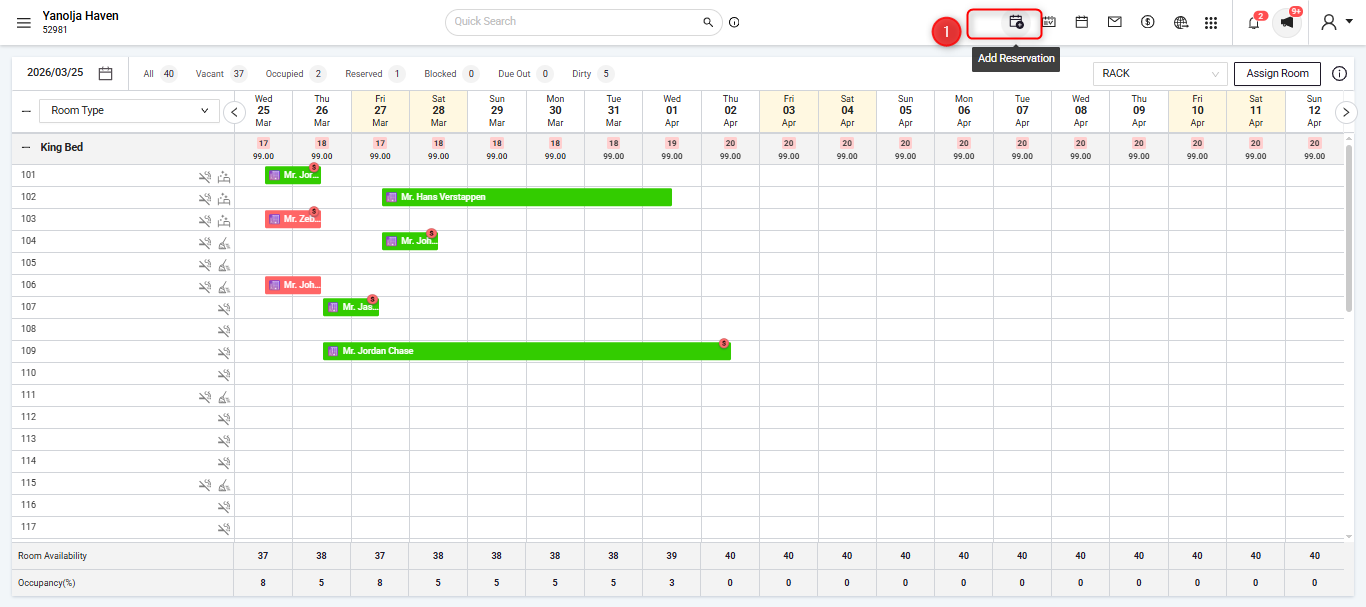
Complete steps 1 to 3
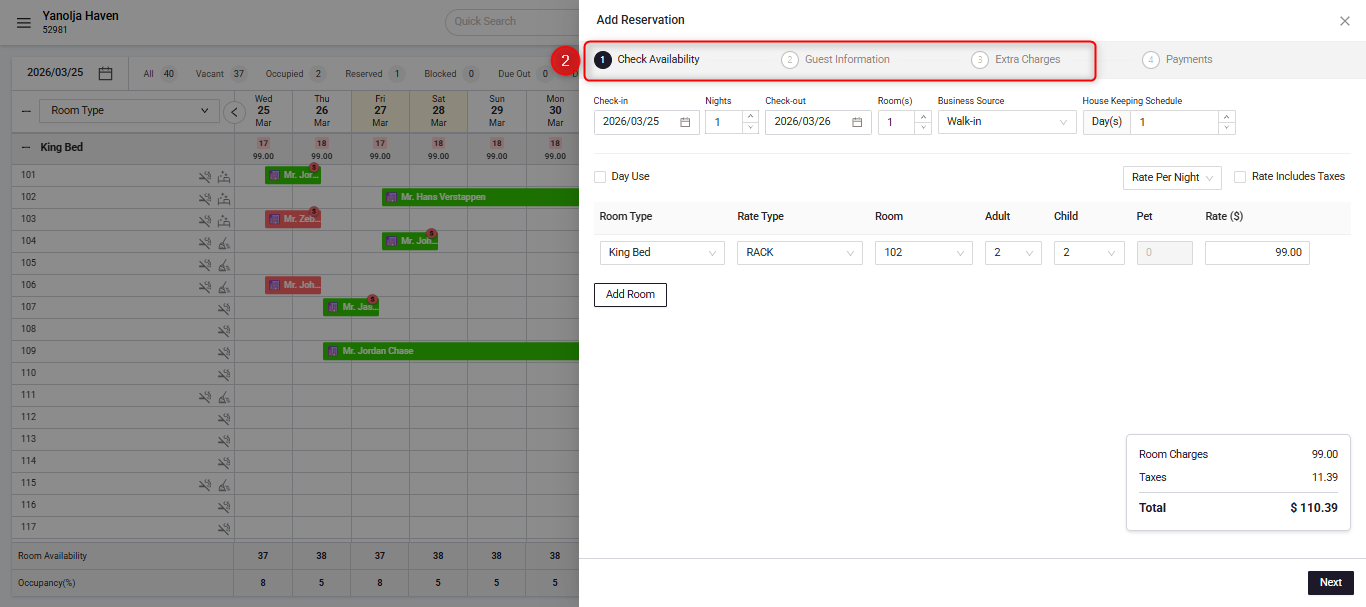
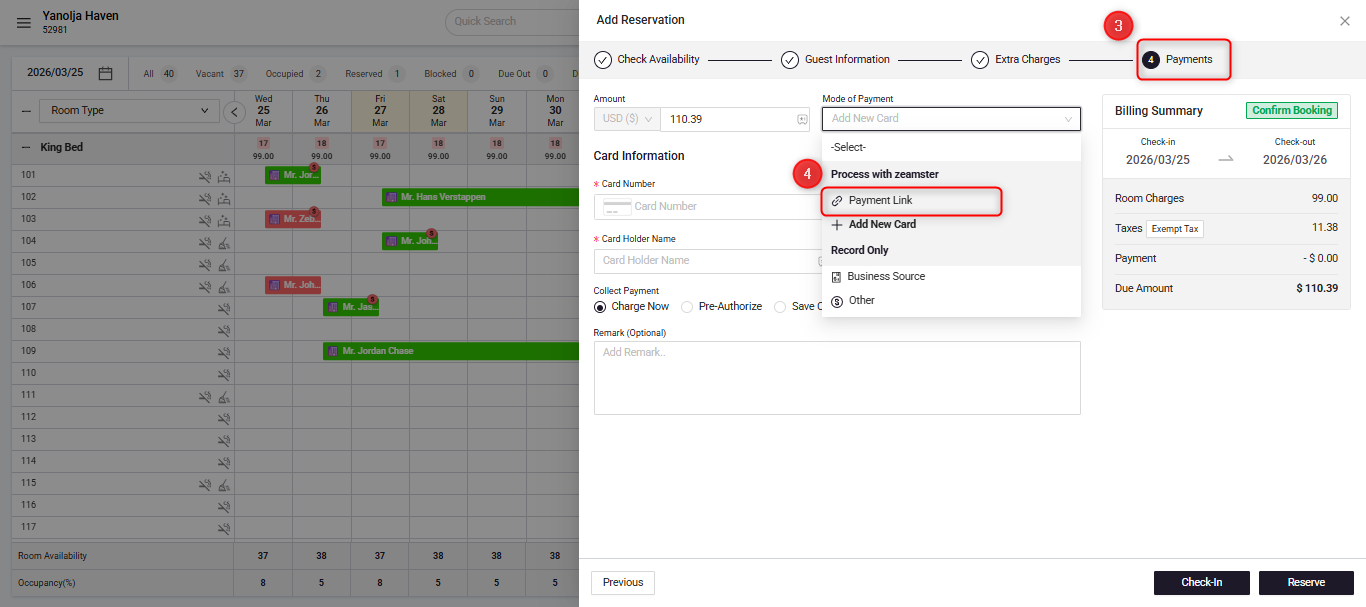
- Navigate to the Payment Screen.
- In mode of payment Select: Payment Link.
- Enter the Guests Email address.
- Click Check-In or Reserve depending on the type of guest.
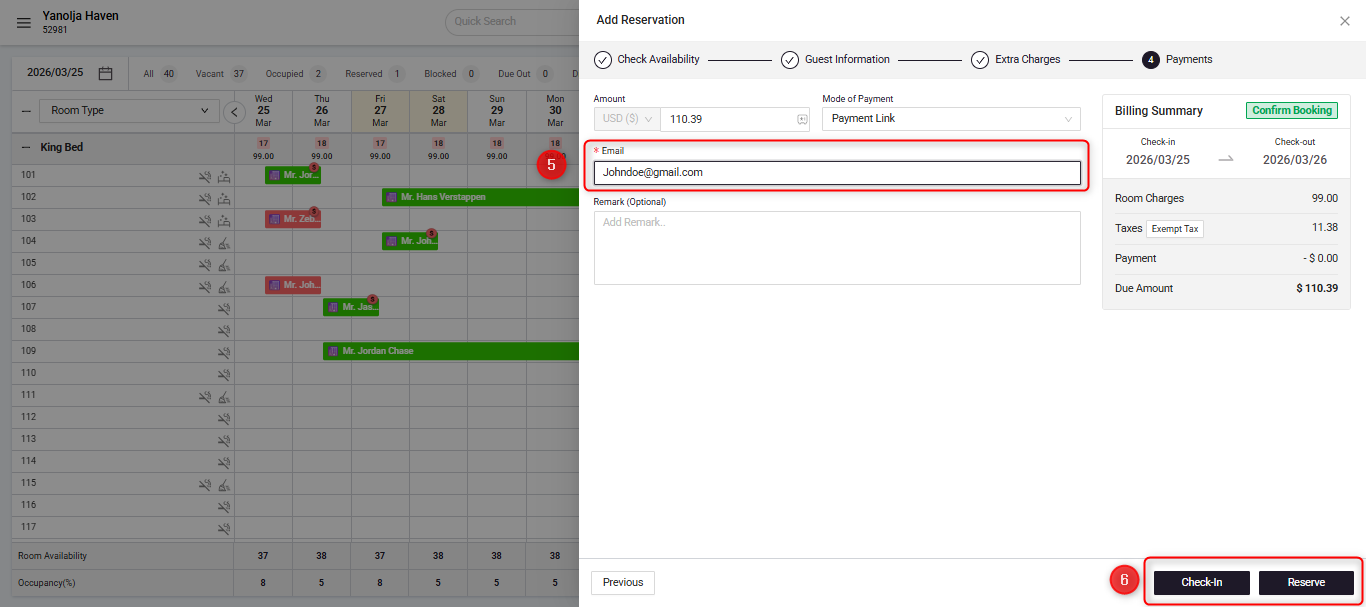
- This will send the link to the guest by clicking on which they can make the payment.
2: Sending the E - Payment Link After Making a Reservation
Steps:
- Go to Stay View → Select the reservation.
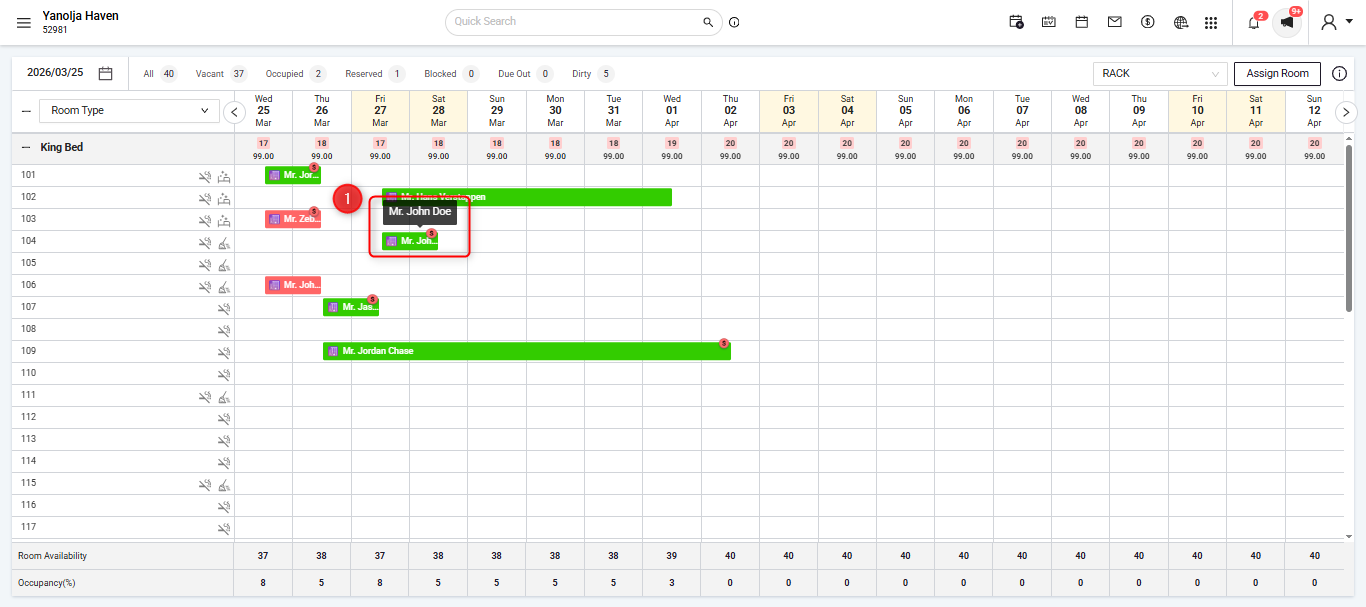
- Open the required reservation and click on more options and then select Add payment.
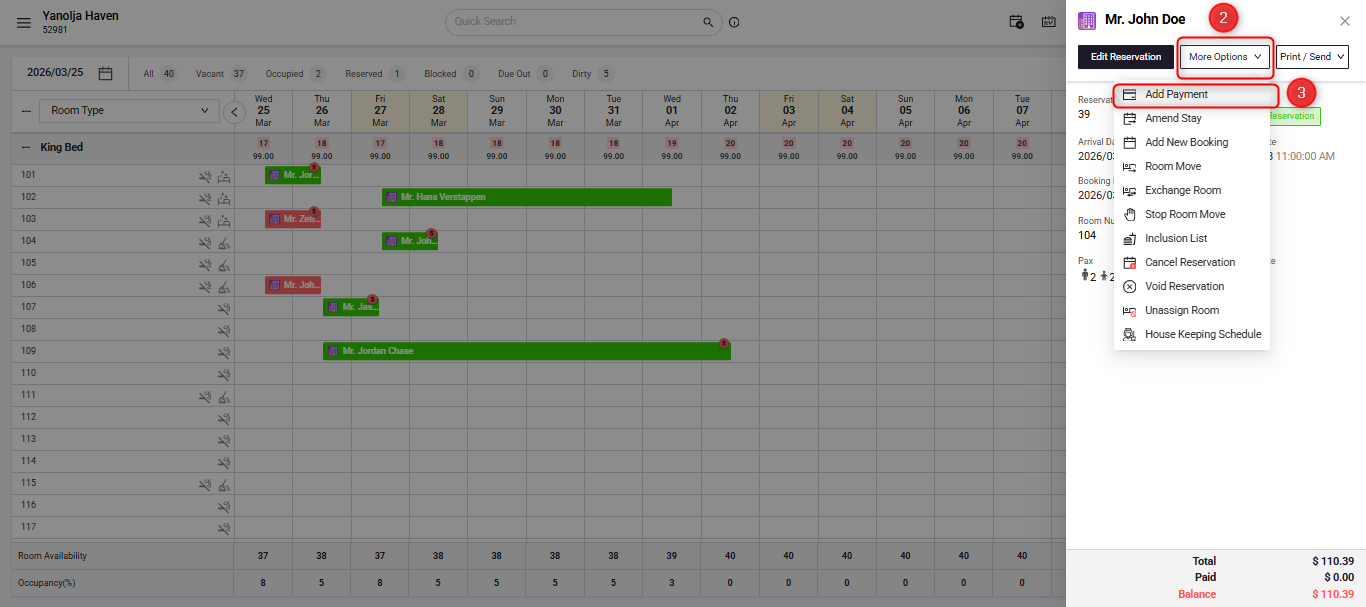
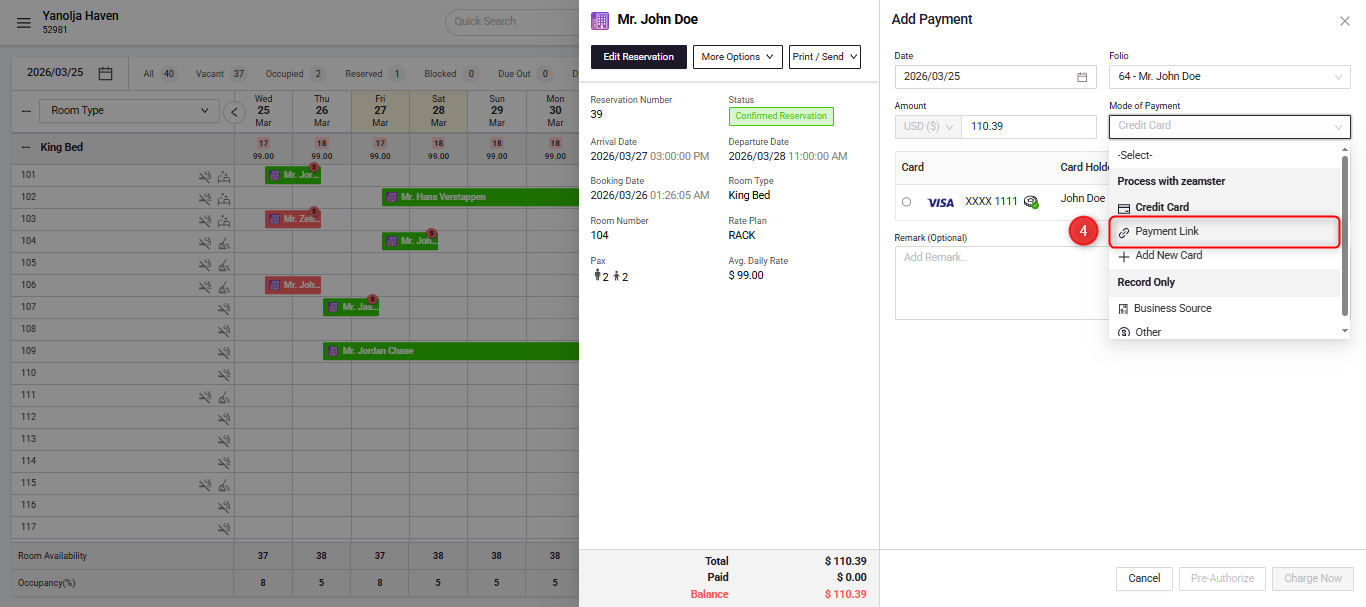
- In mode of payment you will find Payment Link.
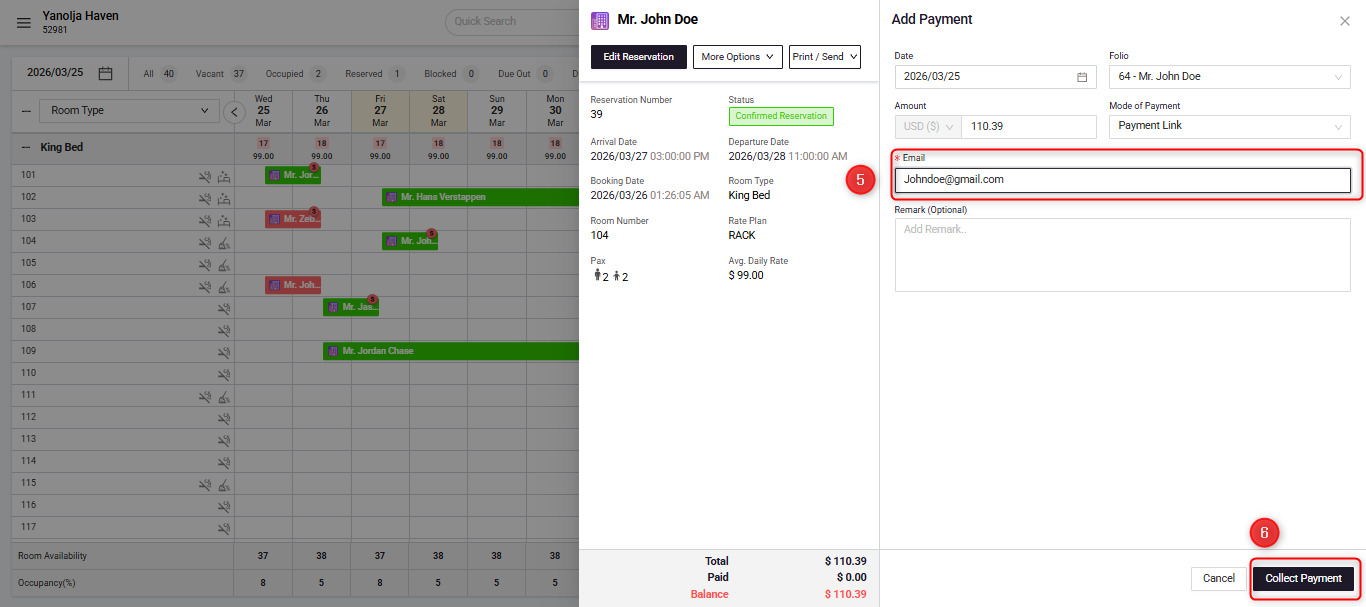
- Fill out the Guests Email address and then click on Collect Payment.
B. How the guest will receive email and make the payment.
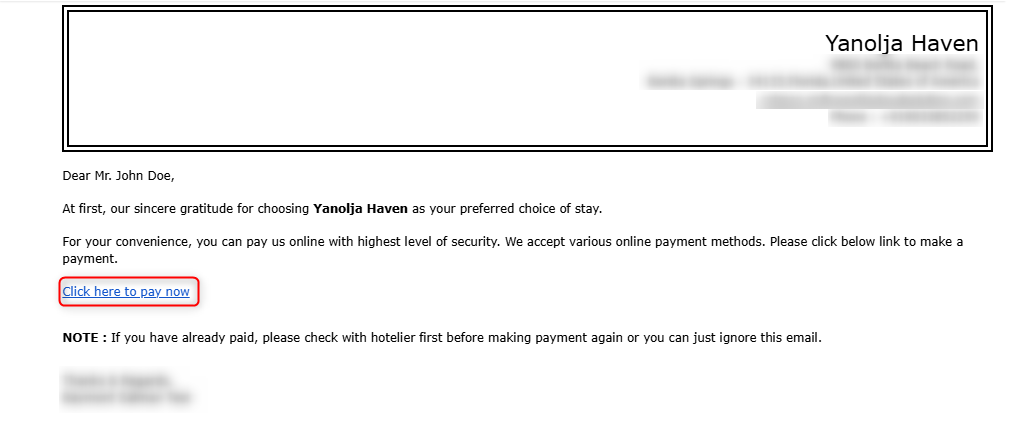
This is the format in which the guest will receive the email.
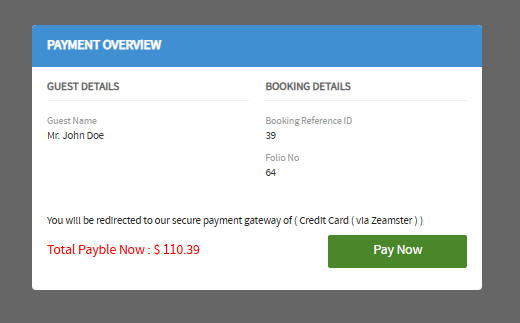
Guest will see this when he clicks on the link.
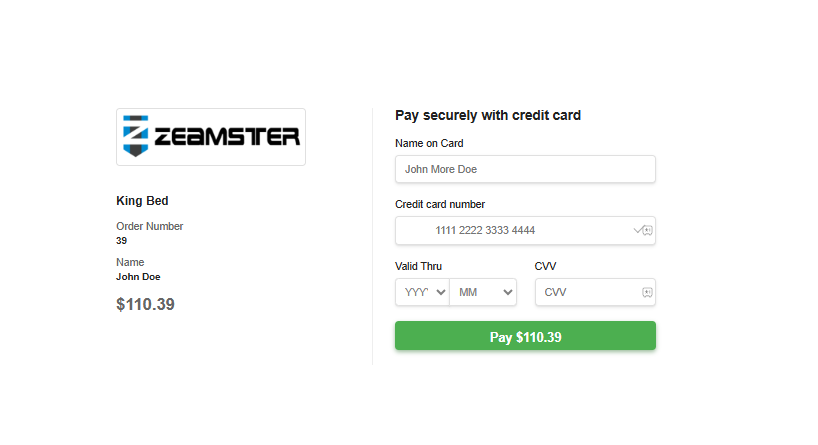
Once the guest clicks on pay now, it will take them to the payment gateway page.
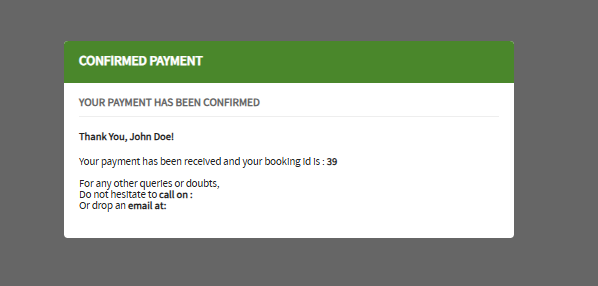
Once the payment is completed, the guest will see the confirmation.
After the successful payment, you will be able to see the payment entry on the folio.
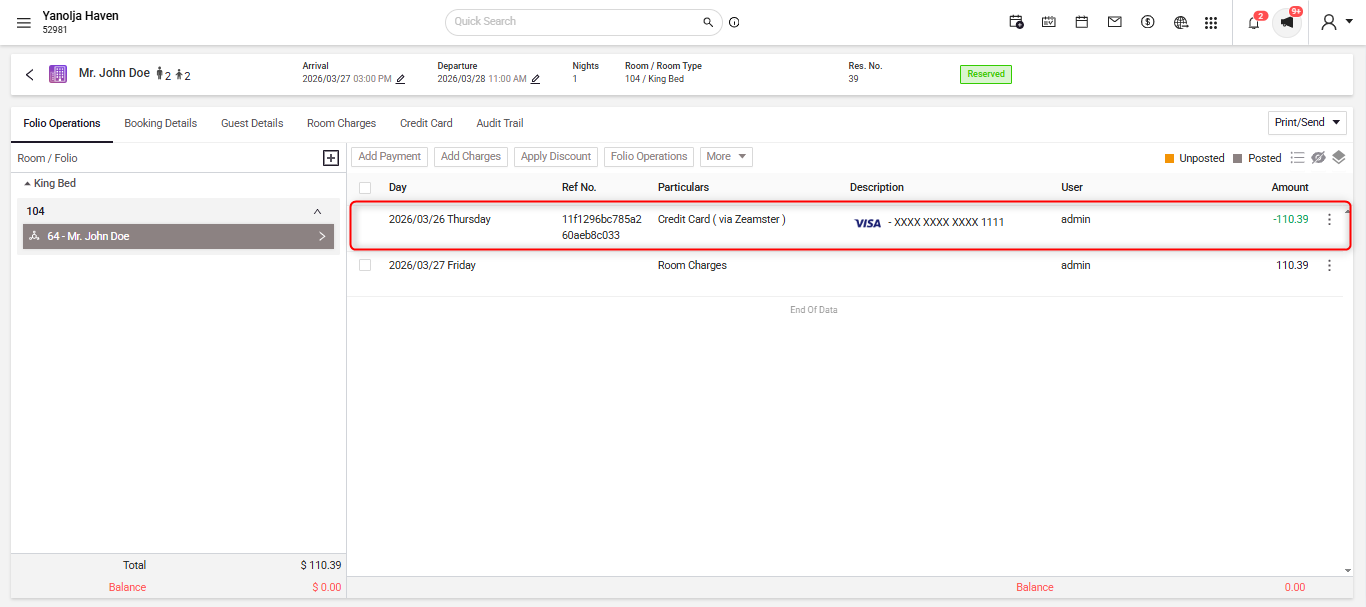
C. Where can this be seen in the reports.
The system logs all transactions in reports, which can be reviewed daily for revenue monitoring.
To check Click (☰) menu. Then navigate to reports section.
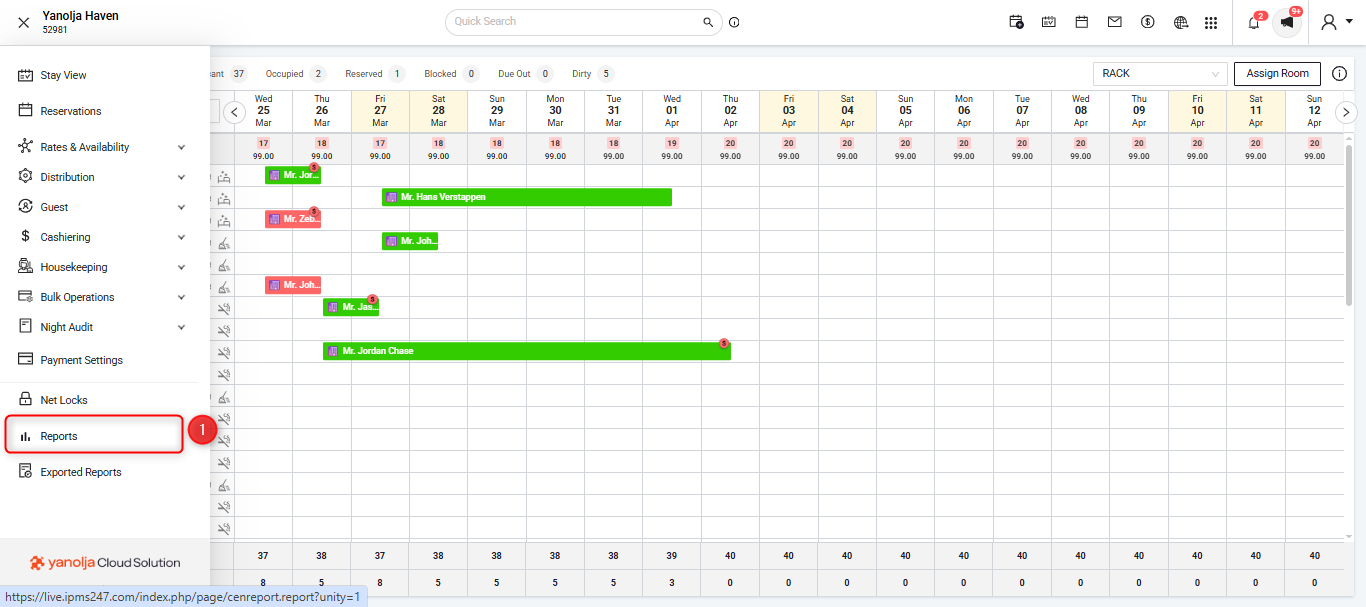
- A new window will open displaying all available reports. Search for Daily Receipt – Detail.
- Select the Daily Receipt – Detail report from the list.
- In the Filters section, the current working date will auto-populate. You can adjust other filters as required.
- Click Report to generate the report in PDF format, or select Export to Excel to download the data in Excel format.
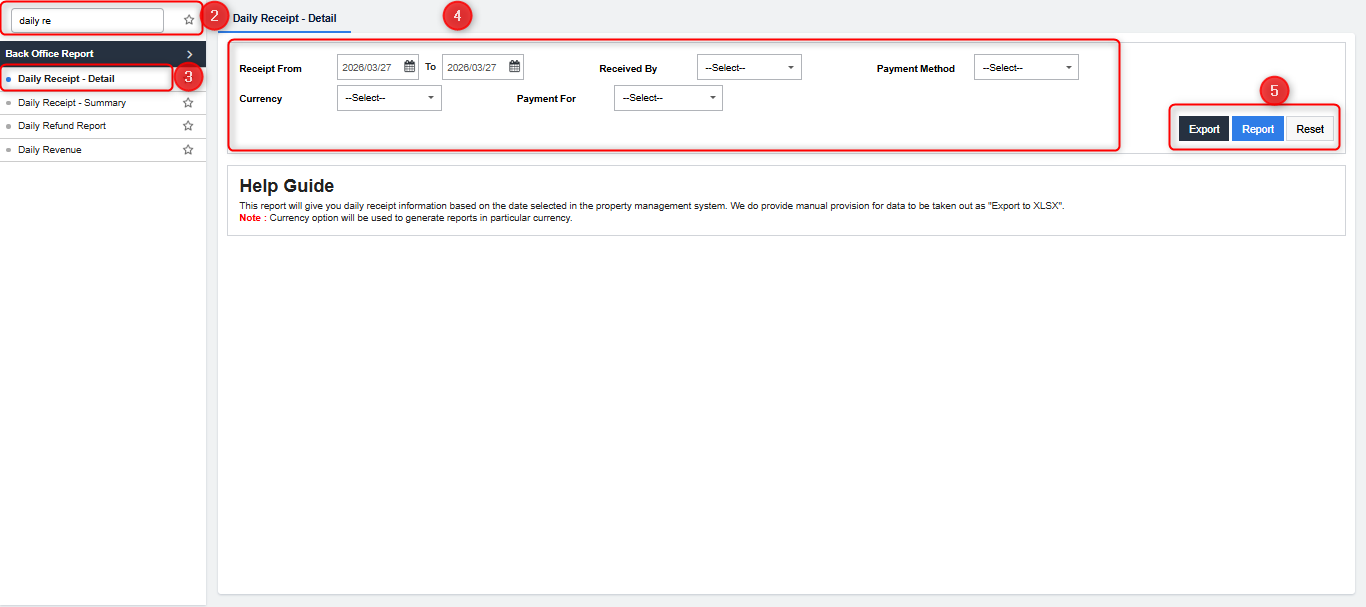
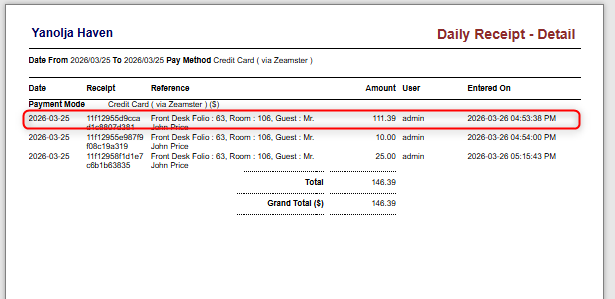
- A new window will open displaying the report, where you can view the transactions, categorized according to the payment mode.
Was this article helpful?
That’s Great!
Thank you for your feedback
Sorry! We couldn't be helpful
Thank you for your feedback
Feedback sent
We appreciate your effort and will try to fix the article