This article explains how you can create a walk-in reservation using the Quick Reservation screen in the Property Management System (PMS) under Yanolja Cloud Solution. The entire process can be completed in four steps, allowing front desk staff to create a reservation and check in the guest efficiently.
Step 1: Check Availability
Add Reservation or Drag & Select: From the Stay View screen, drag and select the required room or click add new reservation.
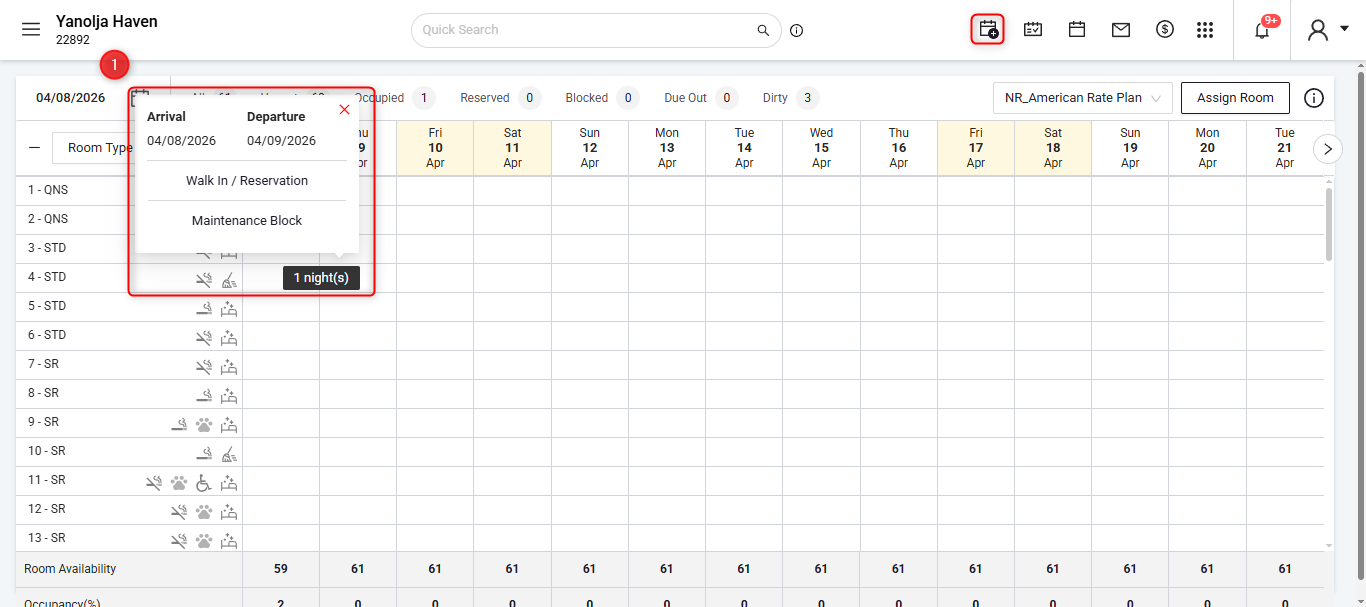
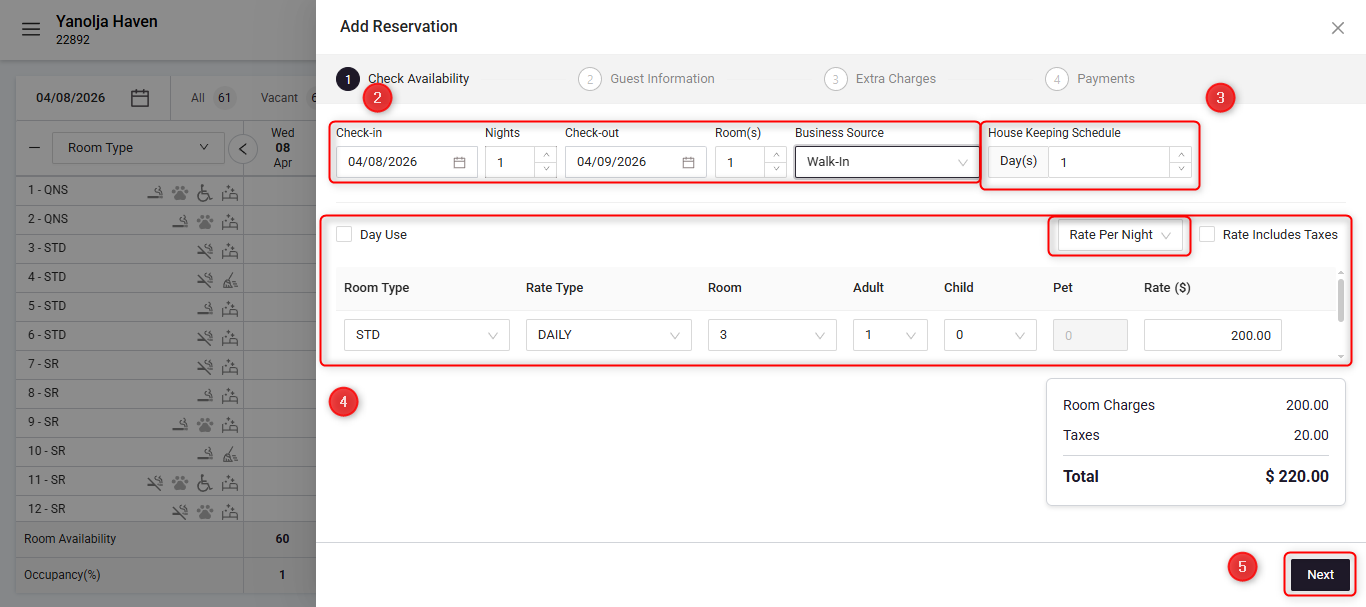
Reservation Details: On the first page titled Check Availability, fill in the Check-In, Check-out, Number of nights, Room number and Business source details.
Housekeeping Schedule: This defines the frequency (in days) after which the room will be marked as dirty in the system for housekeeping.
Rate Options: Select the room type, rate type, room number, Pax count and You will find Multiple rate entry options:
Rate Per Night: Rate per night allows you to put rates in nightly order.
Total Rate for the Stay: Total rate for stay gives you the option to input the rate for the total stay and it divide accordingly to the number of nights
Rate Including Tax: When this option is selected, you can enter the rate including tax, and the system will automatically calculate the base rate and tax.
After filling in the required details, click Next to proceed.
Step 2: Guest Information
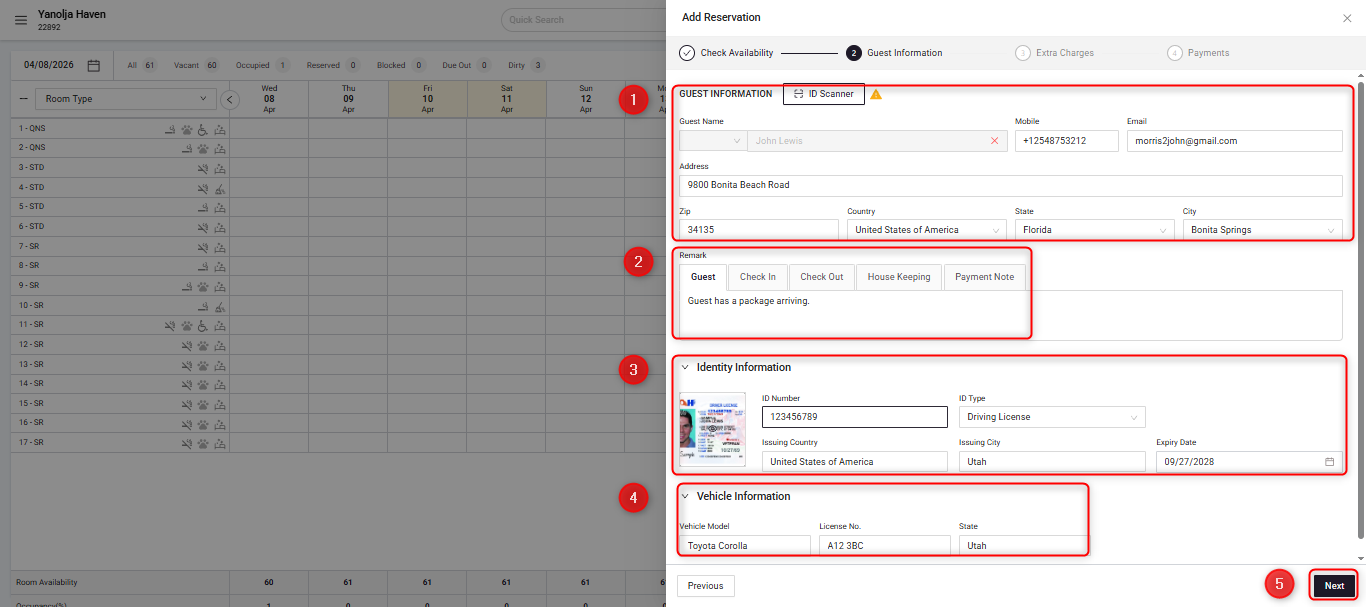
On the page, you can enter or capture the guest’s details.
Guest Information: If an ID Scanner is integrated, click ID Scanner and scan the guest’s driver’s license or ID. The system will automatically populate the guest details. Alternatively, you can manually enter the guest information.
Remarks Section: Below the guest information section, you will find the Remarks field where notes can be added for different departments if required.
Identity Information: If the ID was scanned, the details will auto-fill automatically. Otherwise, you can manually enter the details
Vehicle Details: Enter the guest’s vehicle details if applicable:
Click Next to continue.
Step 3: Extra Charges
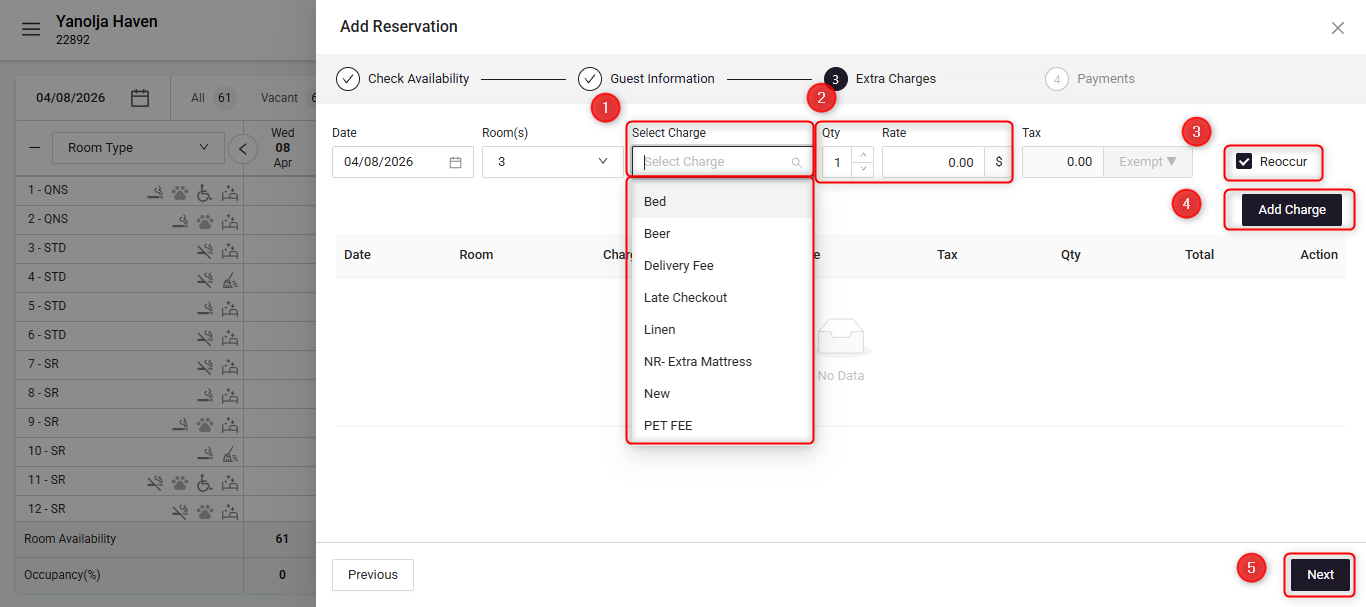
The page allows you to add additional services or fees to the reservation.
Extra Charge: Select the charge from the dropdown list.
Quantity and Price: Enter the number of quantity and price you want to take for that charge.
Reoccur option: Enable the Reoccur option if the charge should be applied repeatedly throughout the guest’s stay.
Click Add Charge to include the charge in the reservation.
You can repeat this process to add multiple extra charges if required.Once completed, click Next.
Step 4: Payment
The final step is to collect payment or save payment details for the reservation.
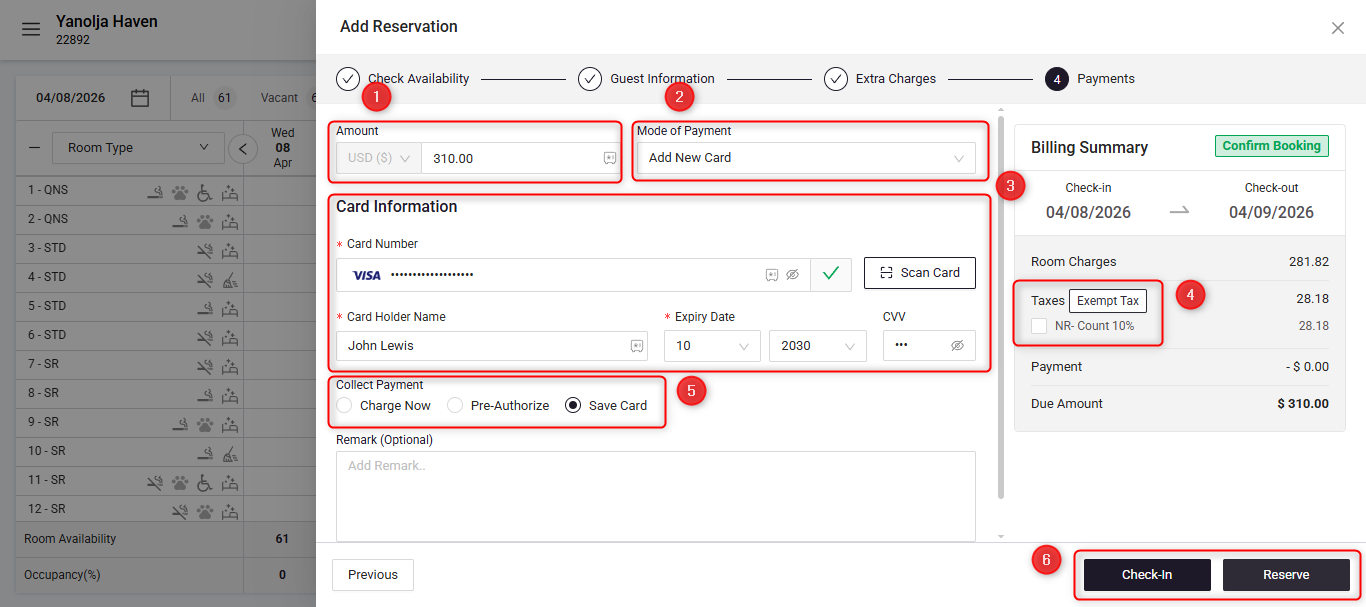
Amount: In the Amount field, enter the amount that needs to be charged.
Mode of Payment: Select the option best suitable for your process. You will find several options such as:
Add Card
Charge via Terminal
Send Payment Link
Other available payment methods
The most commonly used options while creating a walk-in reservation are:
Add Card
Charge via Terminal
Card details: Enter the details if adding a new card.
Tax Exemption: If required, you can enable tax exemption from the panel on the right.
Once all details are completed:
Collect payment: In collect payment choose the option of your preference from charge, authorize or save card.
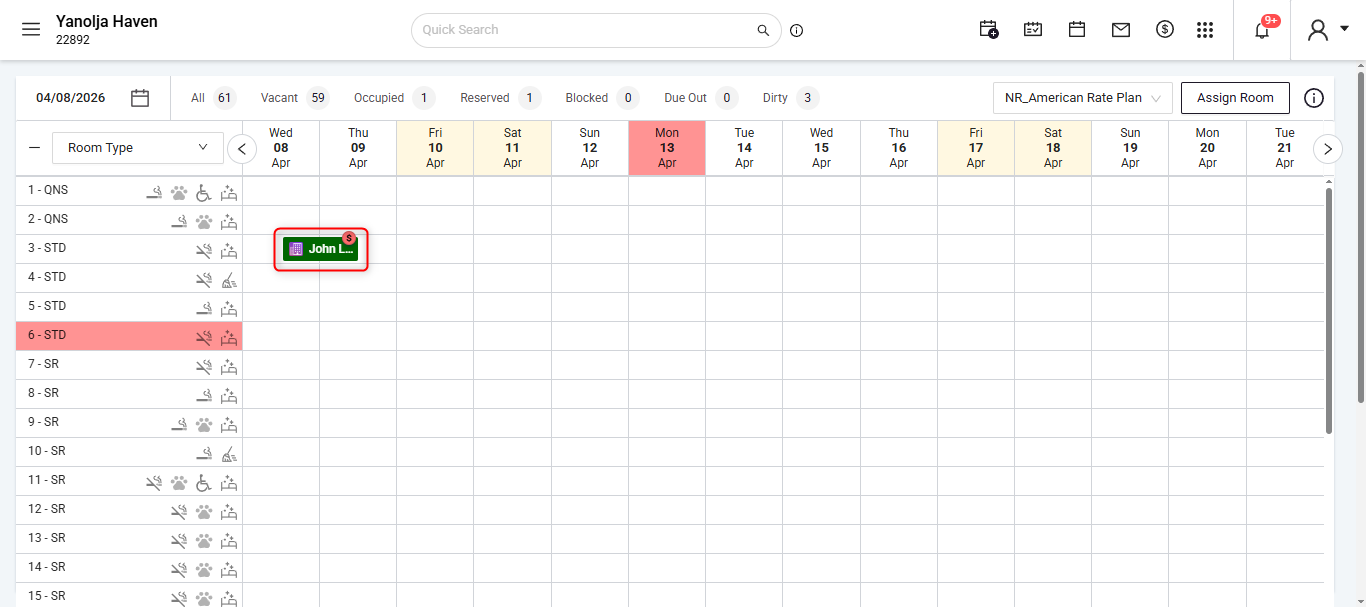
Click Check-in/Reserve to complete.
Was this article helpful?
That’s Great!
Thank you for your feedback
Sorry! We couldn't be helpful
Thank you for your feedback
Feedback sent
We appreciate your effort and will try to fix the article