In the Property Management System (PMS) under Yanolja Cloud Solution, a day-use reservation can be created directly from the Quick Reservation screen.
A Day-Use Reservation allows a guest to check in and check out on the same day. Major OTAs like Expedia, Booking.com, etc. do not support this, so it can only be created in the PMS.
Creating a Day-Use Reservation
The process is similar to creating a walk-in reservation using the Quick Reservation screen, with one additional step.
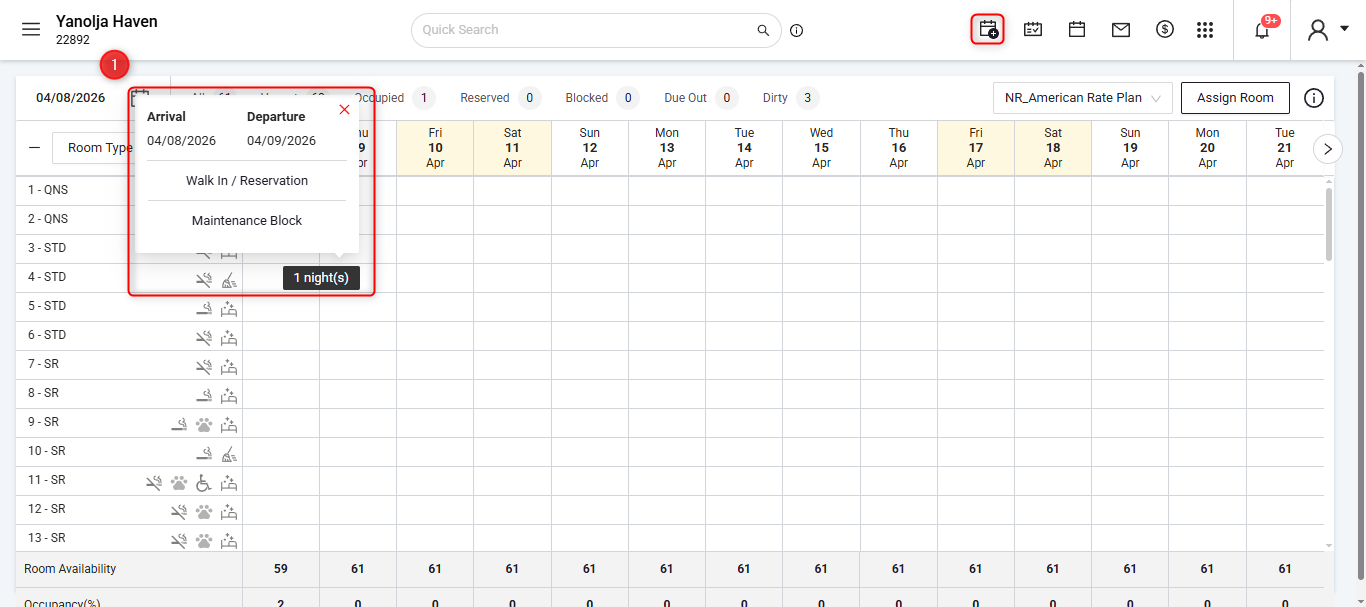
Add Reservation or Drag & Select: From the Stay View screen, drag and select the required room or click add new reservation.
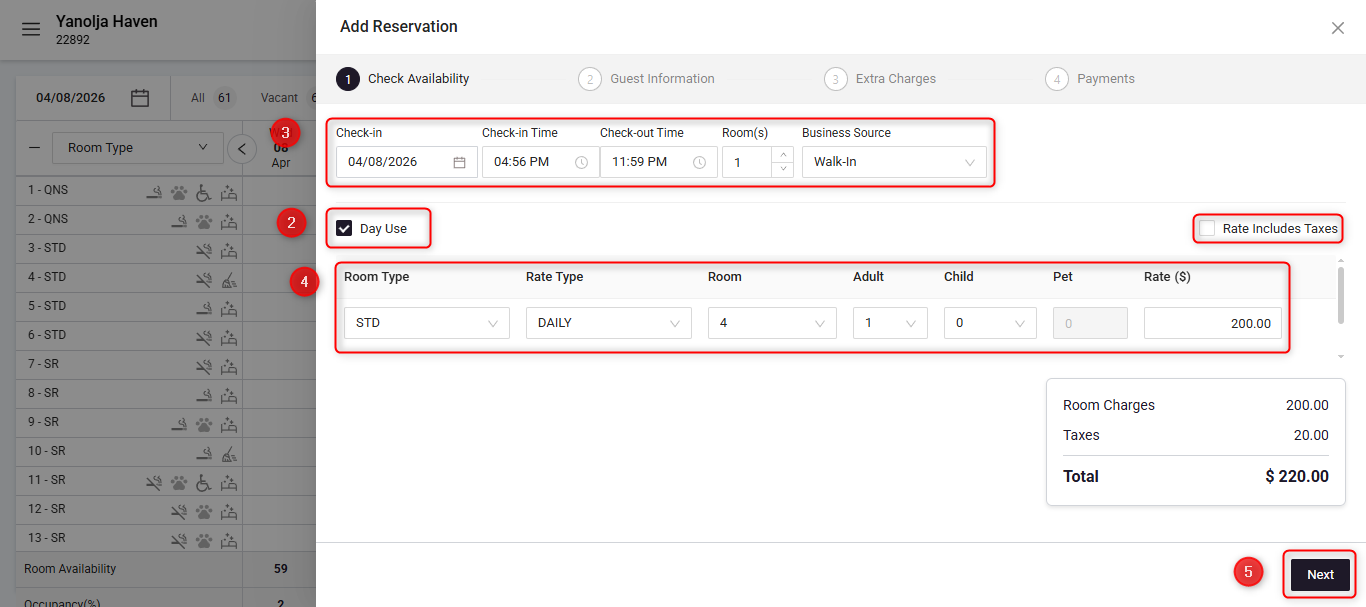
Day Use option: Enable the day use option to make this reservation as day use type.
Reservation Details: Fill in the Check-In date, Check-In &Check-Out time, No. of Room and Business source details.
Rate Options: Select the room type, rate type, room number, Pax count and the rate. Select Rate Including Tax for the amount to be included with tax.
Click next and fill out the rest of the details.
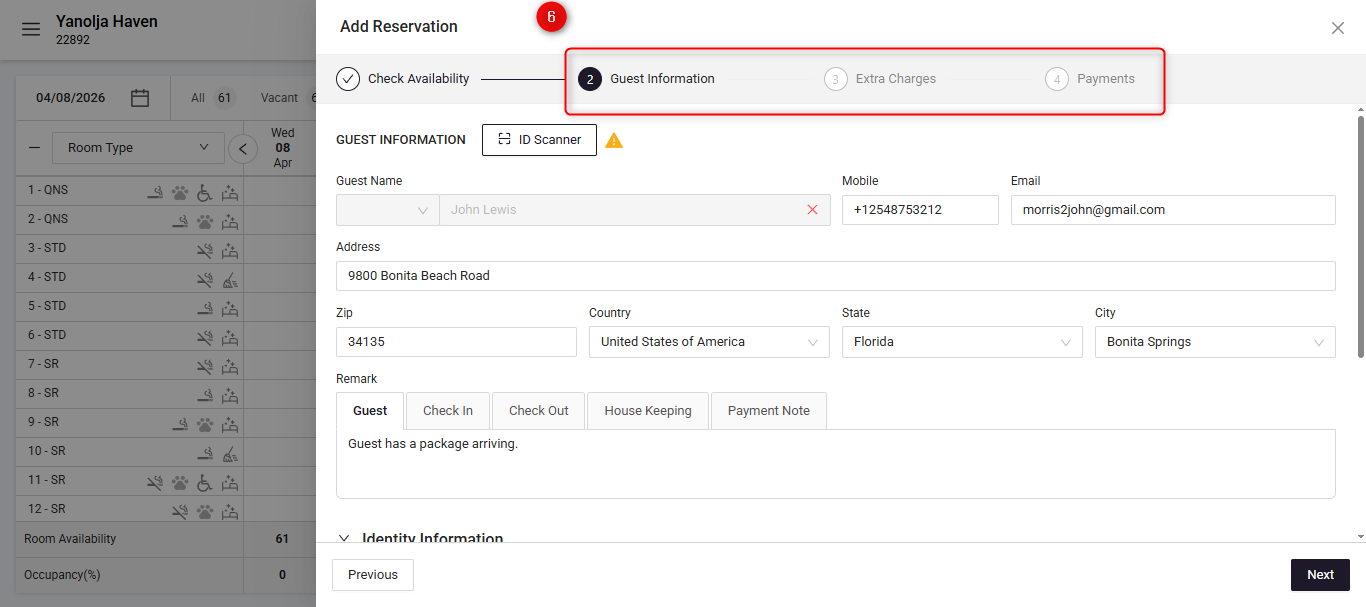
Proceed with the remaining steps including, Guest Information, Extra Charges and Payment.
Once all details are completed, click Reserve or Check-in to finalize the reservation.
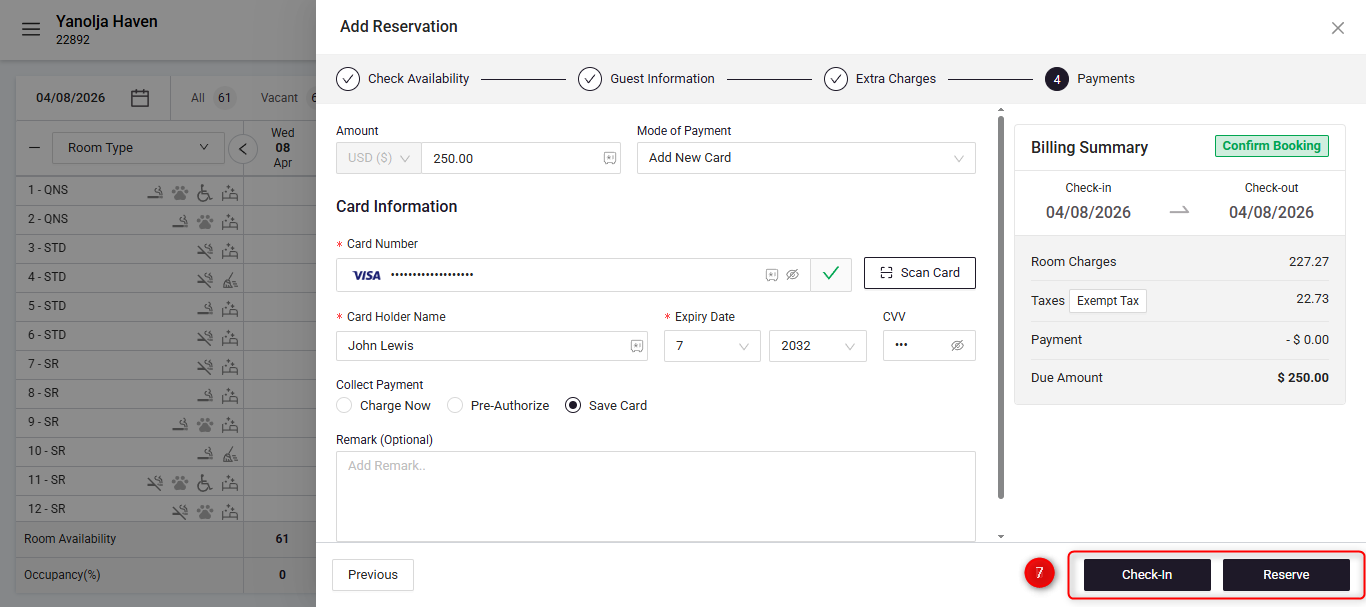
The reservation will now be created as a Day-Use booking, allowing the room to be used and released within the same day.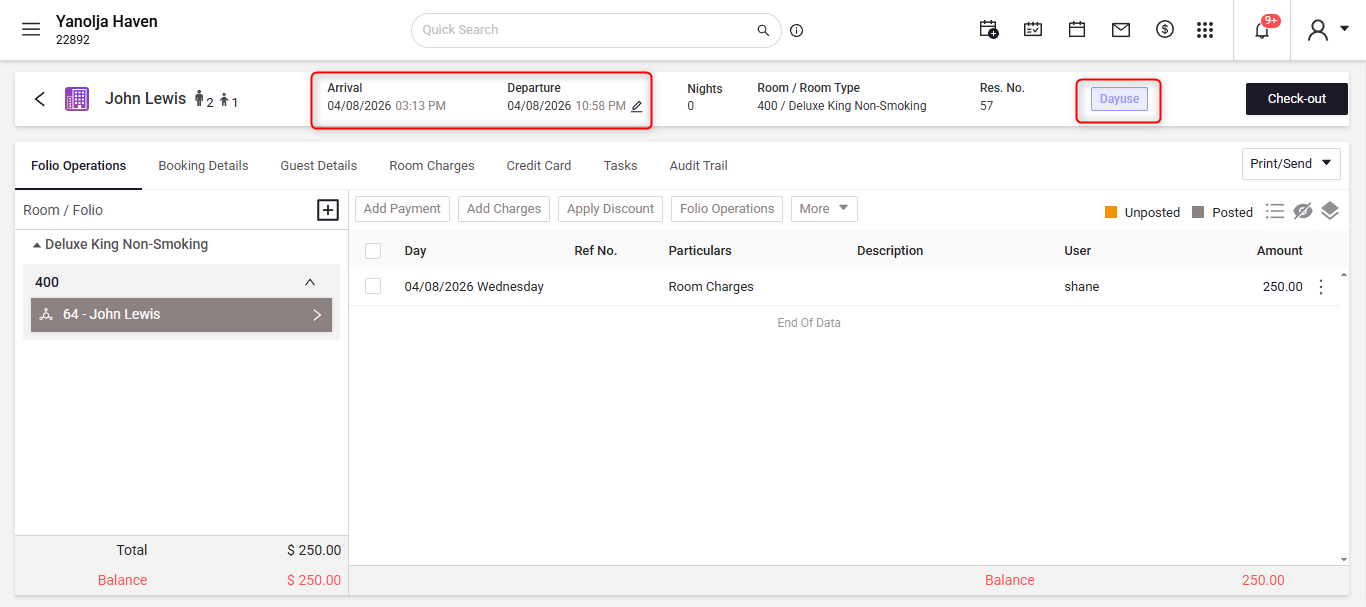
Was this article helpful?
That’s Great!
Thank you for your feedback
Sorry! We couldn't be helpful
Thank you for your feedback
Feedback sent
We appreciate your effort and will try to fix the article