This article explains how the Property Management System (PMS) under Yanolja Cloud Solution allows you to apply tax exemptions for eligible guests, such as military personnel, government officials, NGO's or University Students.
This option can be applied
- While creating a reservation using the Quick Reservation screen.
- Already on an existing reservation
- Also see the effect on the reports.
Apply Tax Exemption During Reservation Creation
The process for creating the reservation remains the same as creating a walk-in reservation using the drag and drop or add new reservation. The tax exemption option is available in the final payment step.
Add Reservation or Drag & Select: From the Stay View screen, drag and select the required room or click add new reservation. From the Stay View screen, click Add Reservation.
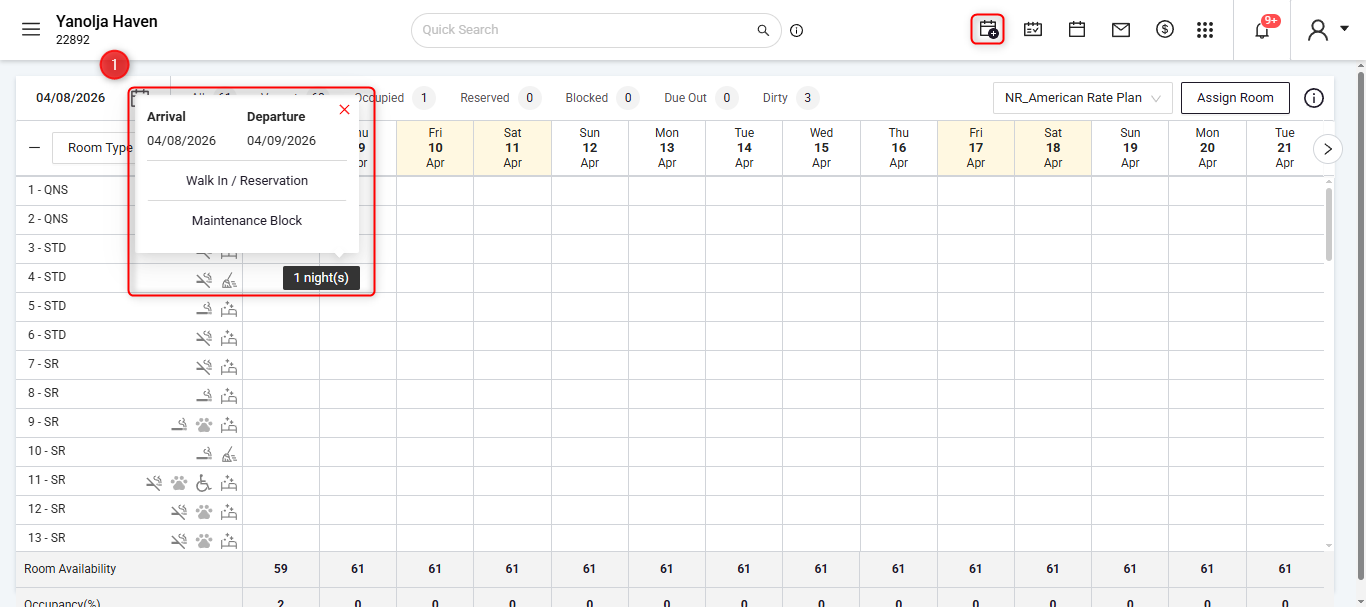
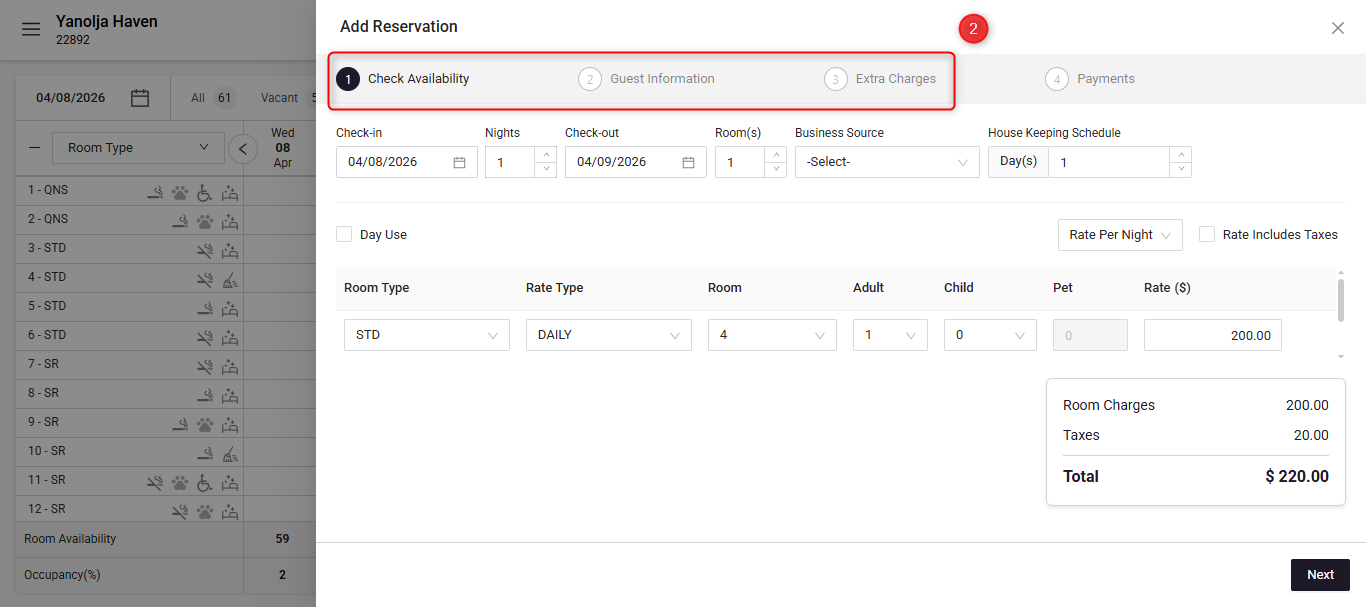
Complete the reservation steps including Check Availability, Guest Information, Extra Charges and proceed to the Payment screen.
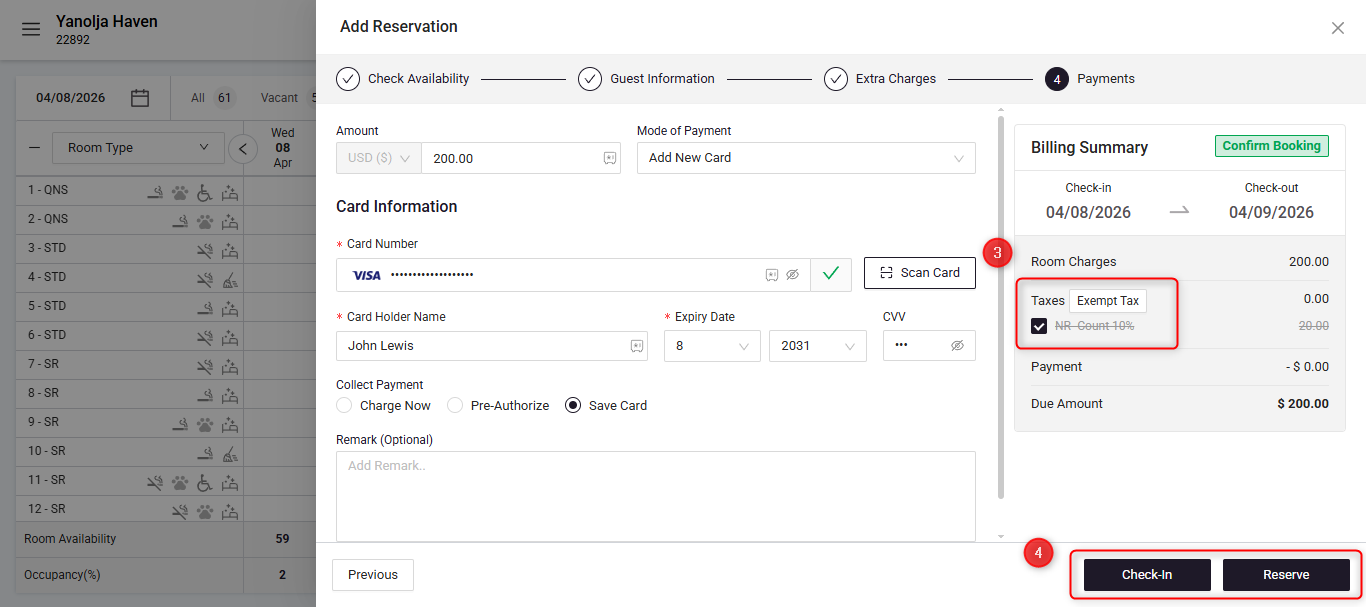
Exempt Taxes: Below Room Charges and next to Taxes, you will find an Exempt option. Click Exempt and Select the tax(es) you want to remove for the reservation. Once selected, the system will exclude the chosen taxes from the total reservation amount.
Complete the process by clicking Reserve or Check-in.
The reservation will now be created with the selected taxes exempted for the guest.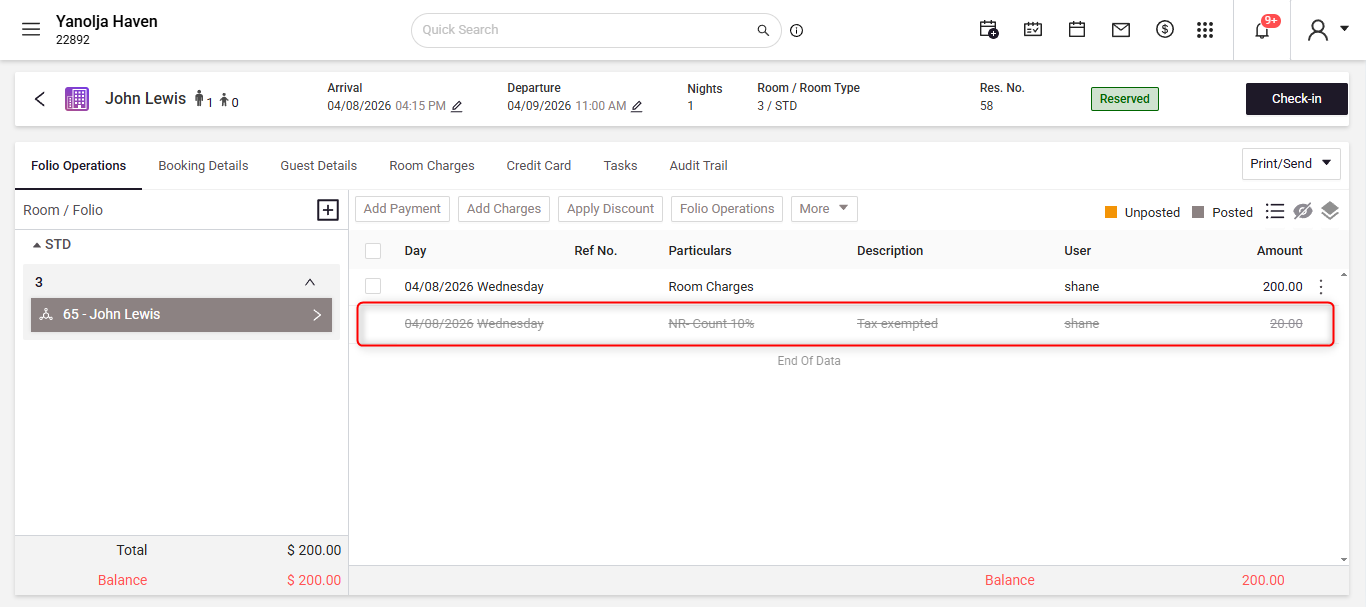
Apply Tax Exemption on an Existing Reservation
You can also apply tax exemption after the reservation has already been created.
- Edit Reservation: Open the required reservation and click on edit reservation.
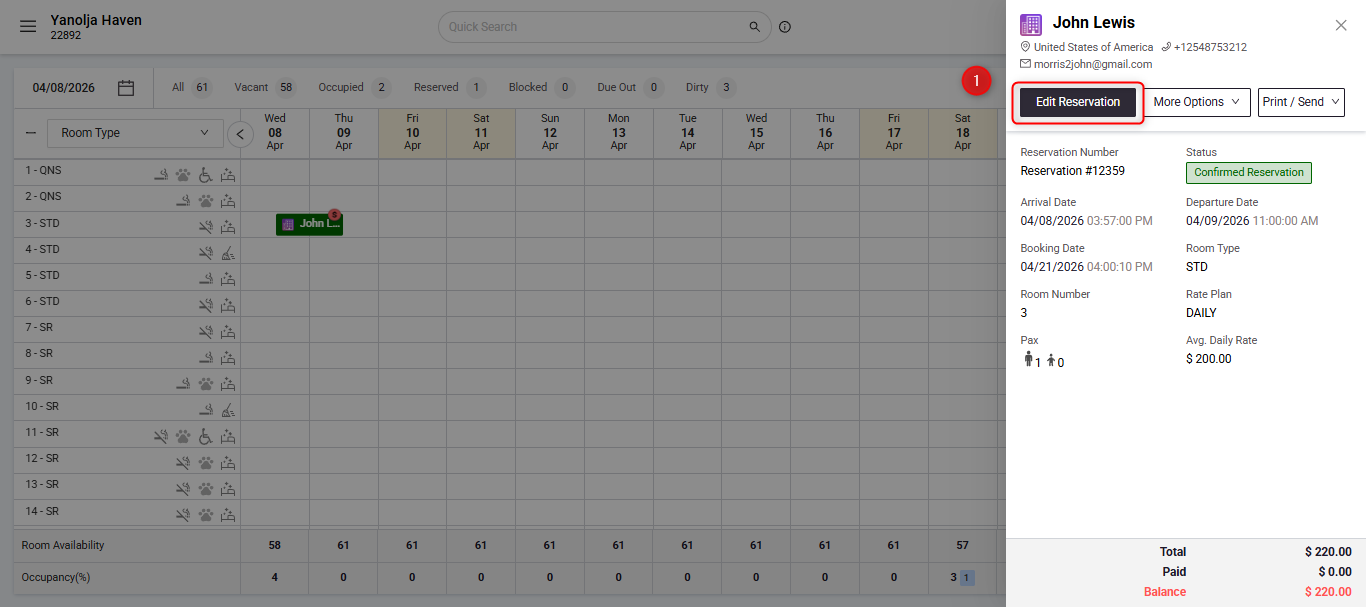
- Folio Operations: Reservation screen should open up, go ahead and click on Folio Operations.
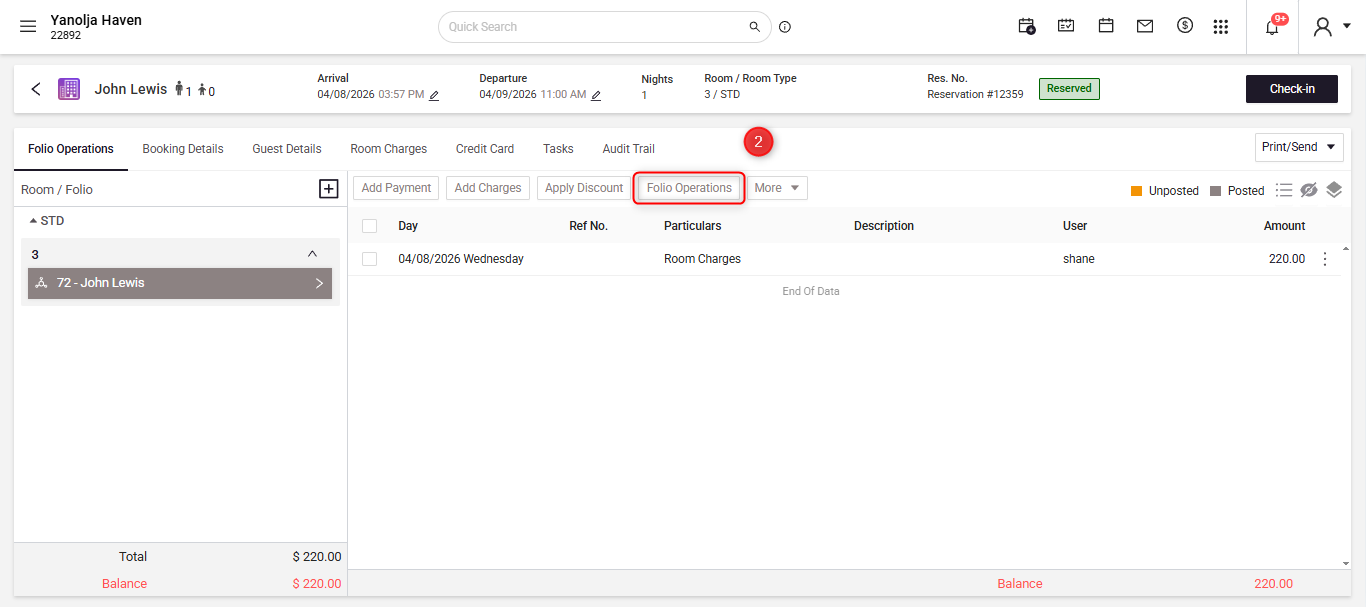
- Tax Operation: As you are on the folio operations screen click on Tax Operations.
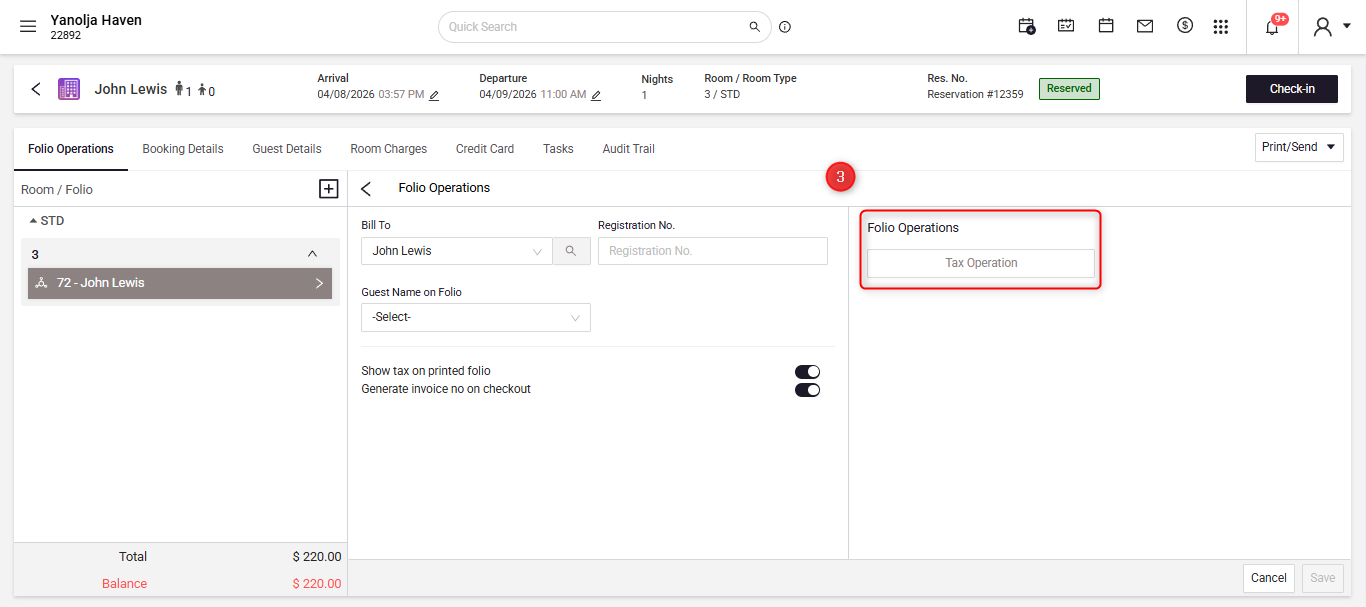
- Exempt Taxes: A new Tax Operation window should pop up. Select the Date Range to see the room charges.
- Use Apply Tax On to select the type of charge that you want to exempt.
- Select the date you wish to exempt the tax on.
- Select the exempt option to remove the taxes on the folio.
- Lastly select the Taxes that you want to exempt from the taxes list.
- Apply: Hit apply to confirm the operation.
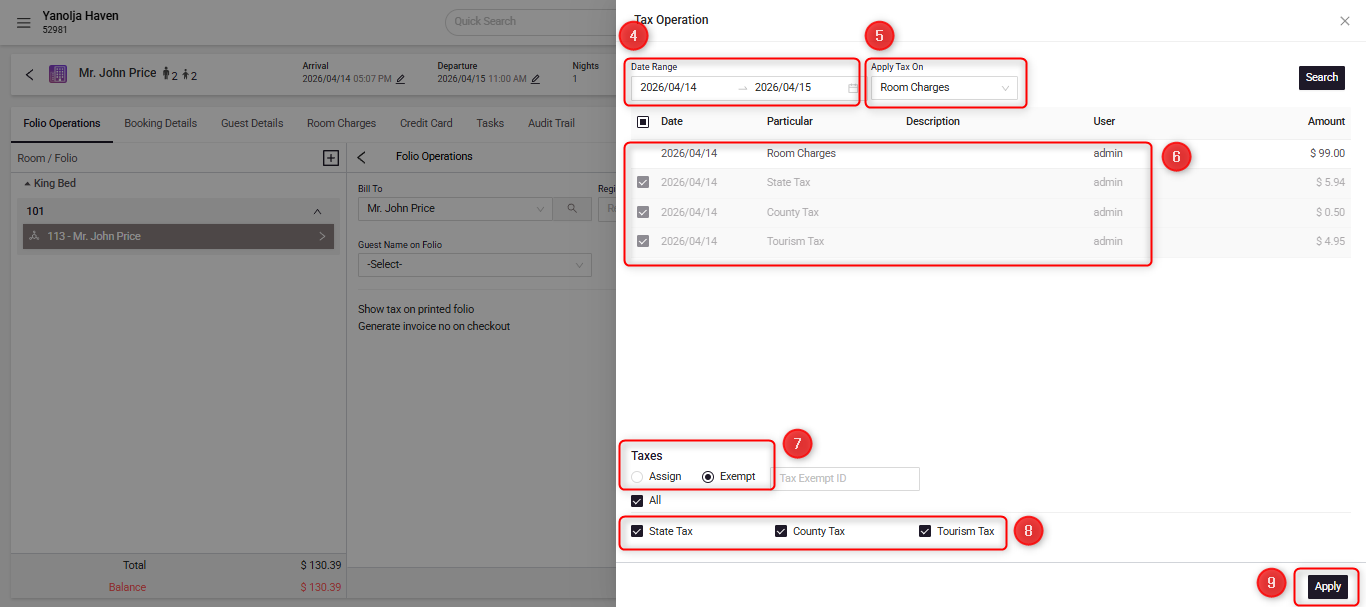
The system will update the reservation and recalculate the total amount excluding the selected taxes.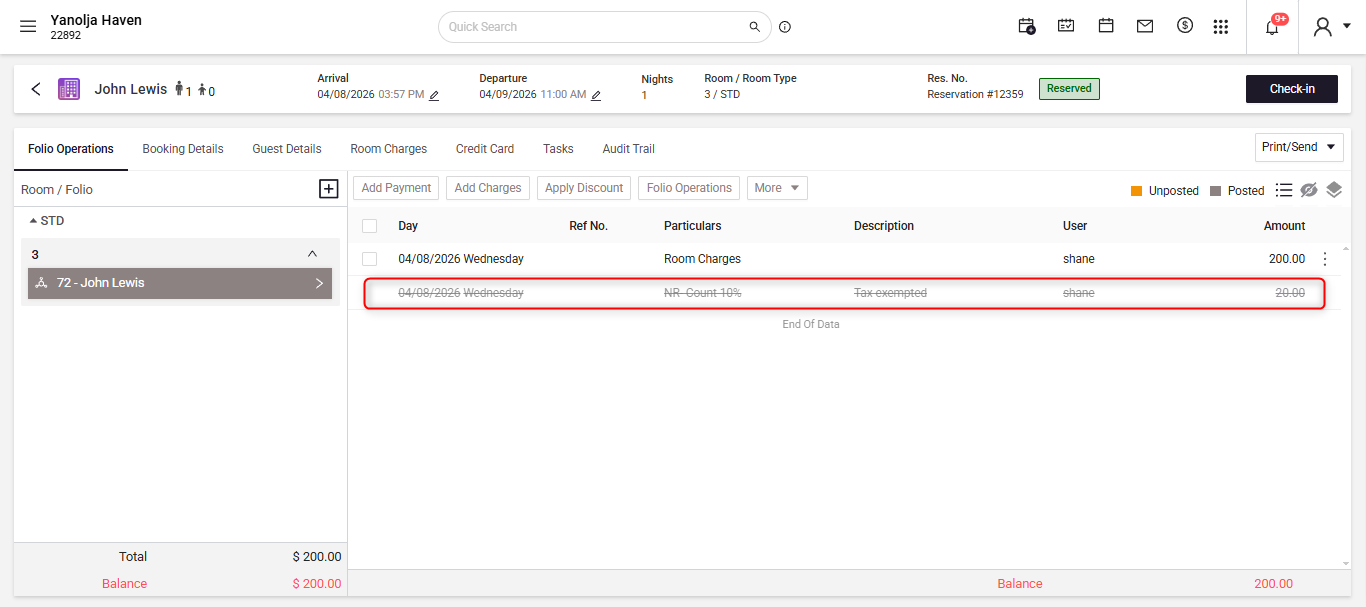
View Tax Exemption in Reports
You can verify the impact of tax exemptions through reports. There are Multiple reports which will reflect these effects, Daily Financial, Monthly Financial, Monthly Room Tax.
- Open the Reports section.
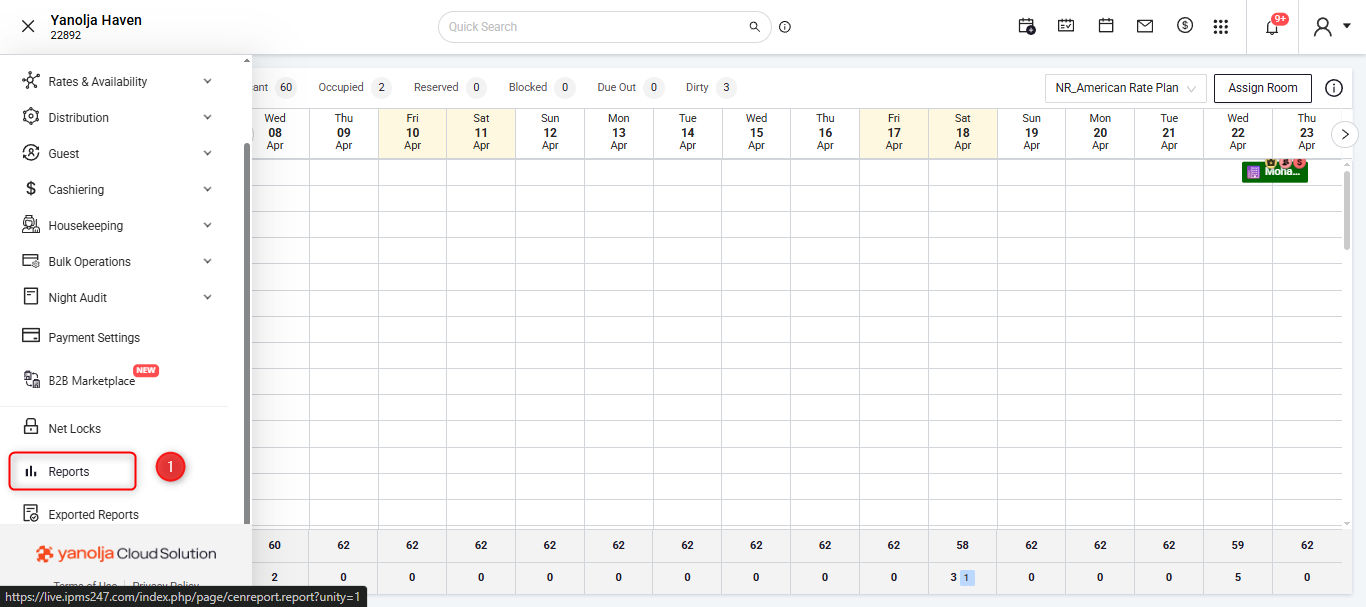
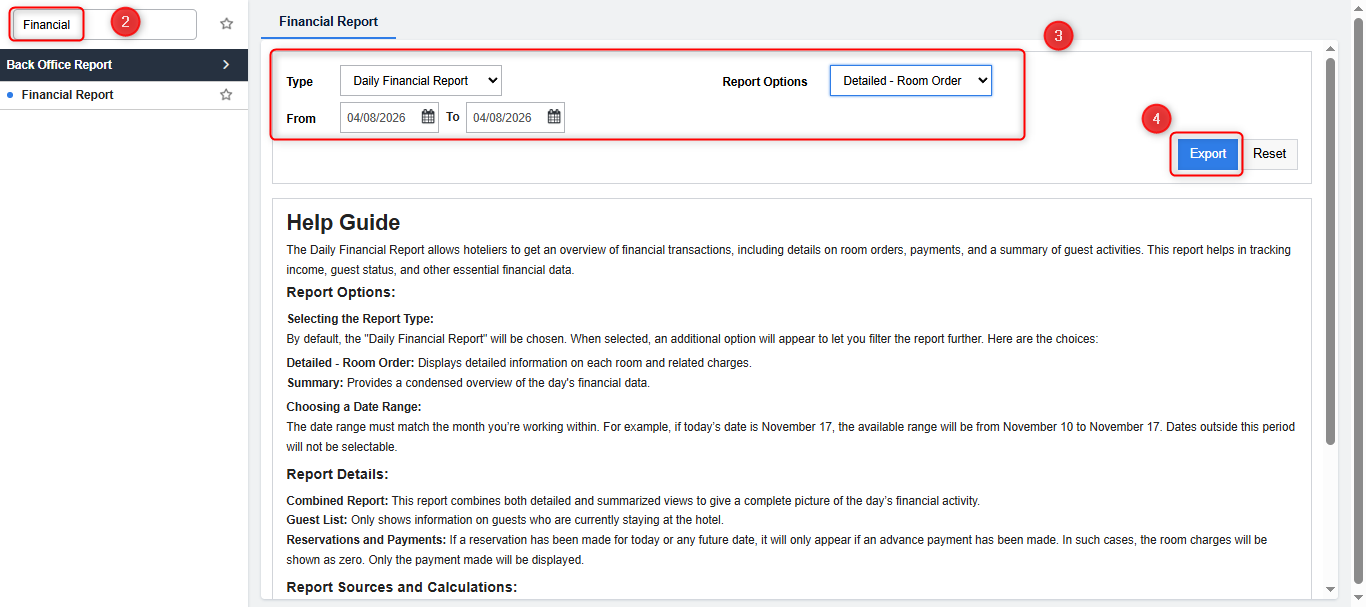
- A new window will open displaying all available reports. Search for Financial.
- In the Filters section, the current working date will auto-populate. You can adjust other filters as required.
- Click Export to generate the report.
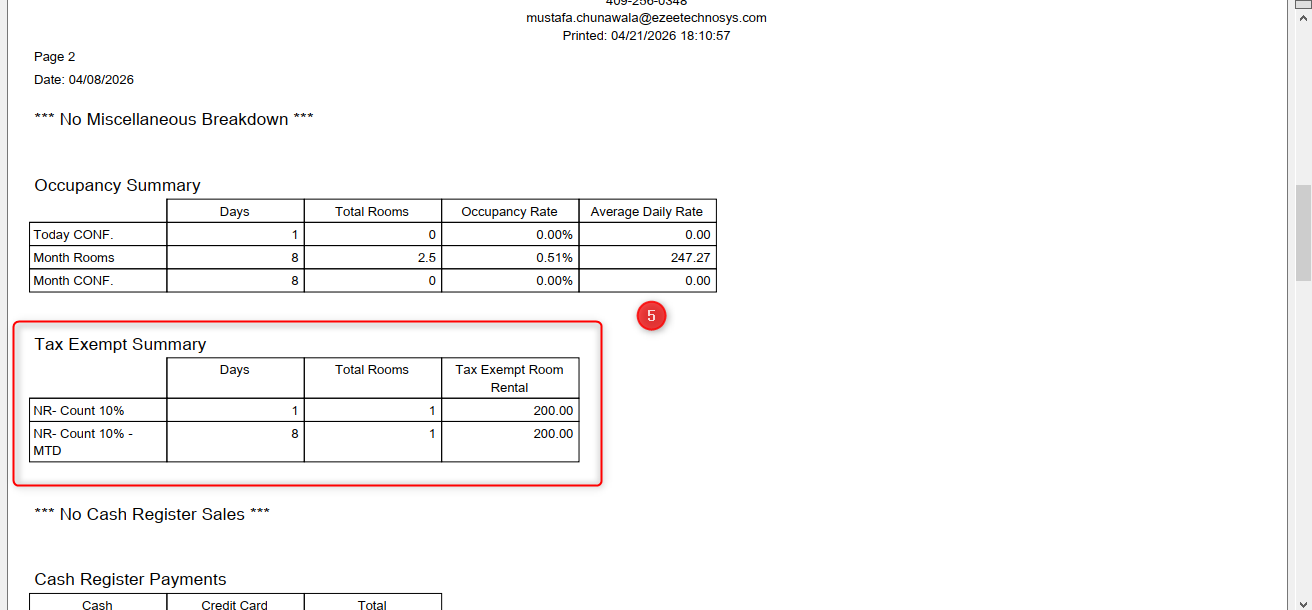
- Scroll down to the tax exempt summary and you should find the entry there.
Was this article helpful?
That’s Great!
Thank you for your feedback
Sorry! We couldn't be helpful
Thank you for your feedback
Feedback sent
We appreciate your effort and will try to fix the article