This article explains the different methods to pre-authorize a credit card in the Property Management System (PMS) under Yanolja Cloud Solution:
Pre-authorizing a credit card via Payment Terminal
Pre-authorizing a saved card from the reservation
Pre-authorizing credit cards in bulk
Required user permissions
Viewing pre-authorization transactions in reports
Pre-Authorize Credit Card via Terminal
Follow the steps below to pre-authorize a credit card using a payment terminal:
Start creating a new reservation and complete Steps 1–3.
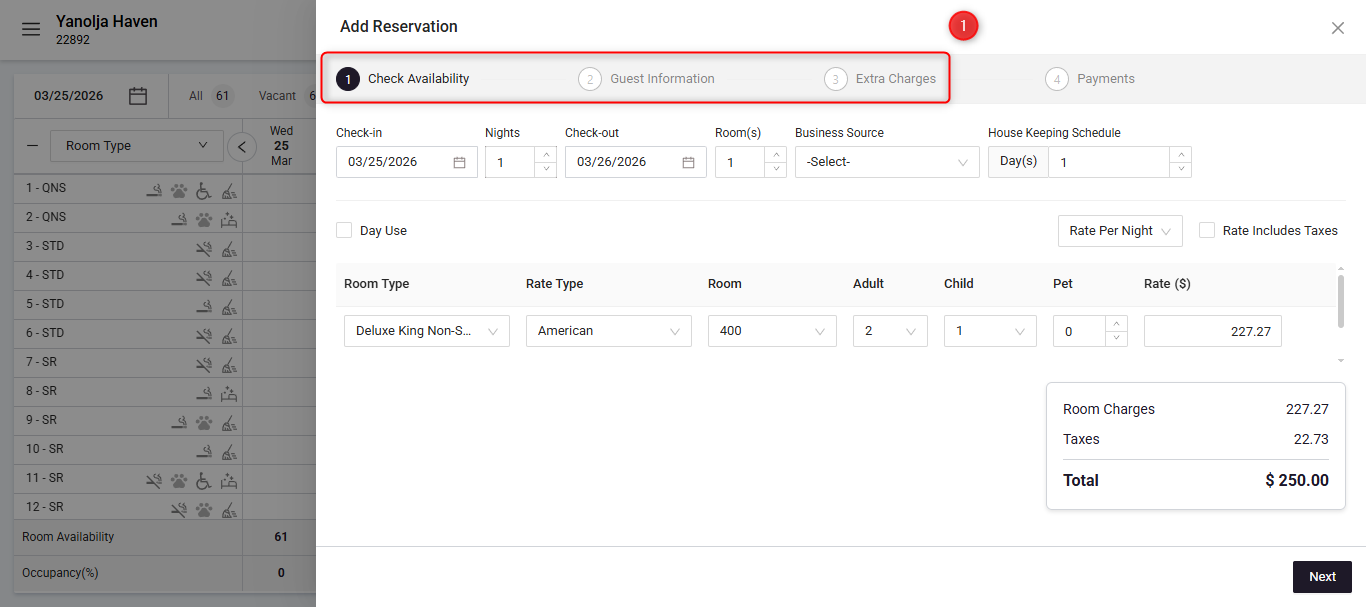
When you reach the Payment screen, select Charge via Terminal as the Mode of Payment.
Under Collect Payment, choose Preauthorize.
Click Reserve or Check-in to complete the reservation.
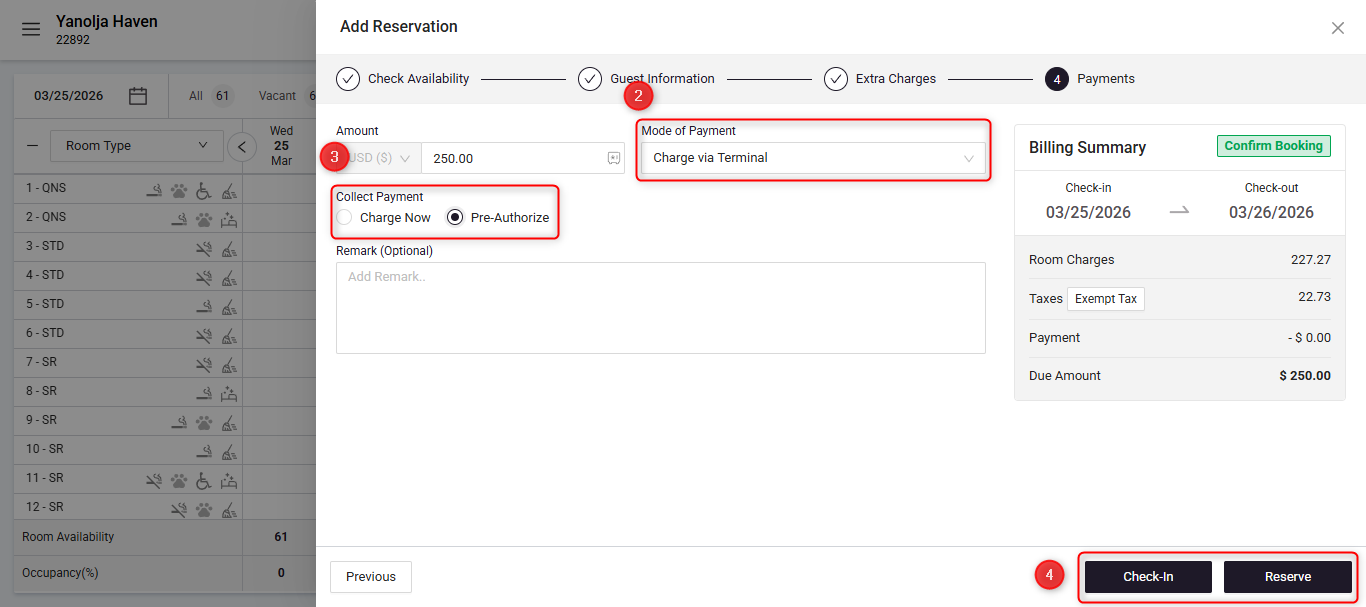
The system will process the pre-authorization through the selected terminal.
Pre-Authorize Credit Card via Card on File
If a credit card is already saved in the reservation, it can be pre-authorized directly.
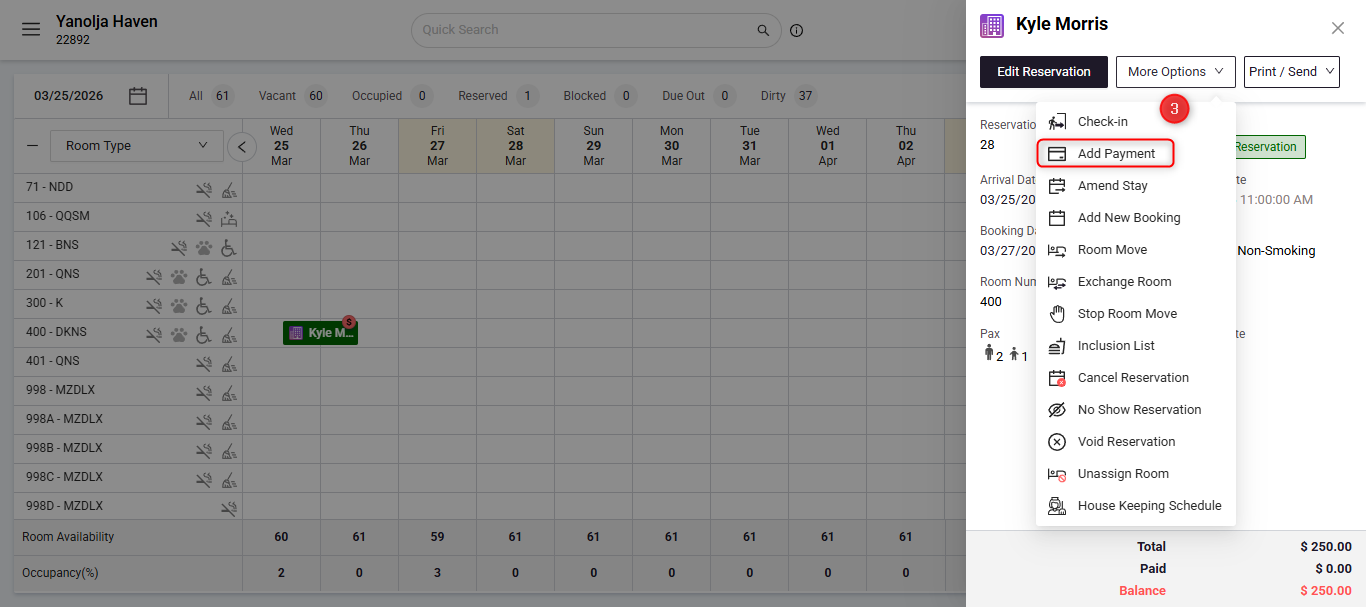
Open the required reservation.
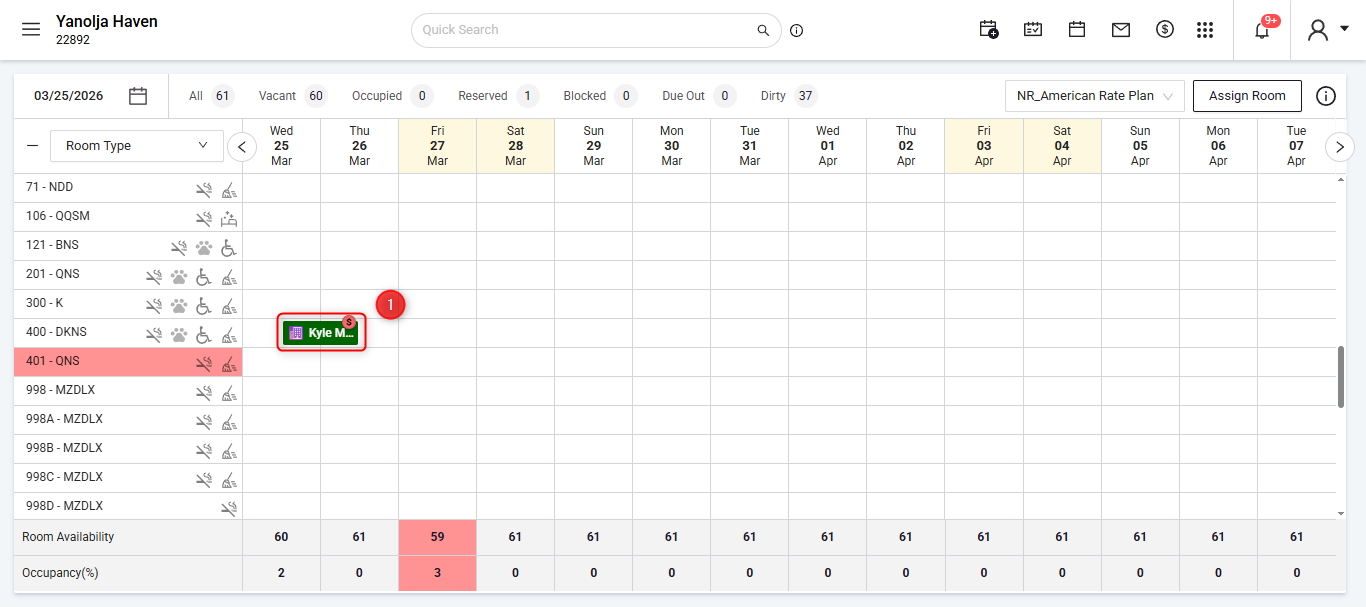
Click on More Options next to Edit Reservation.
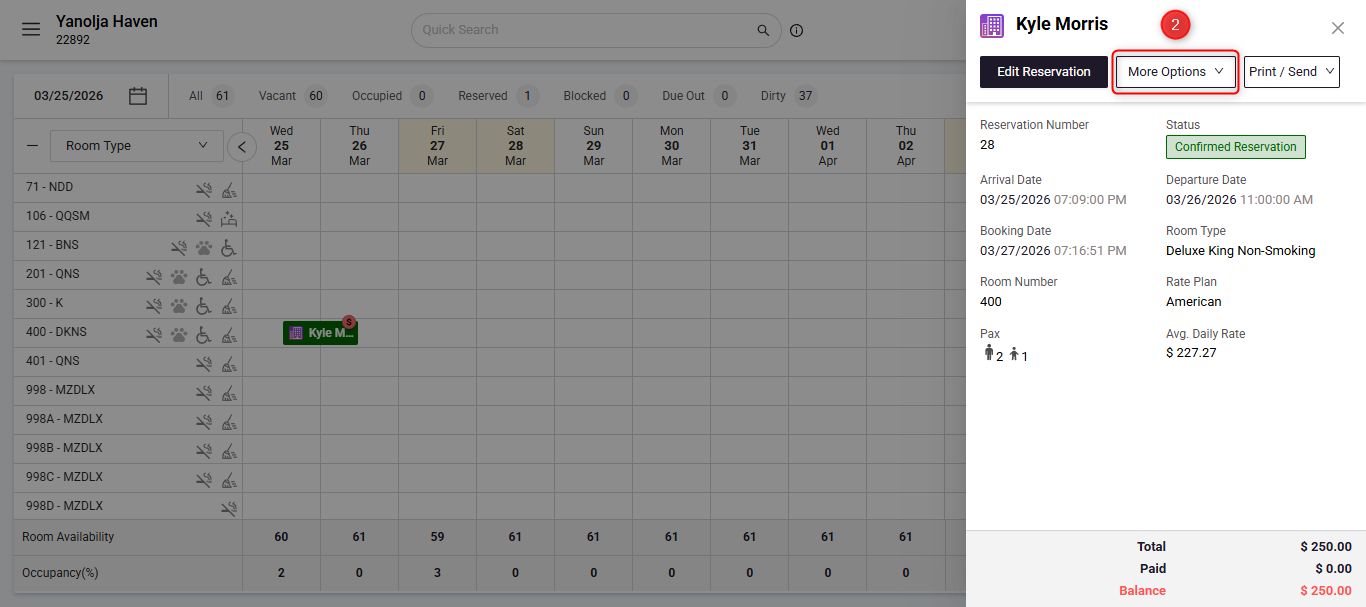
Select Add Payment.
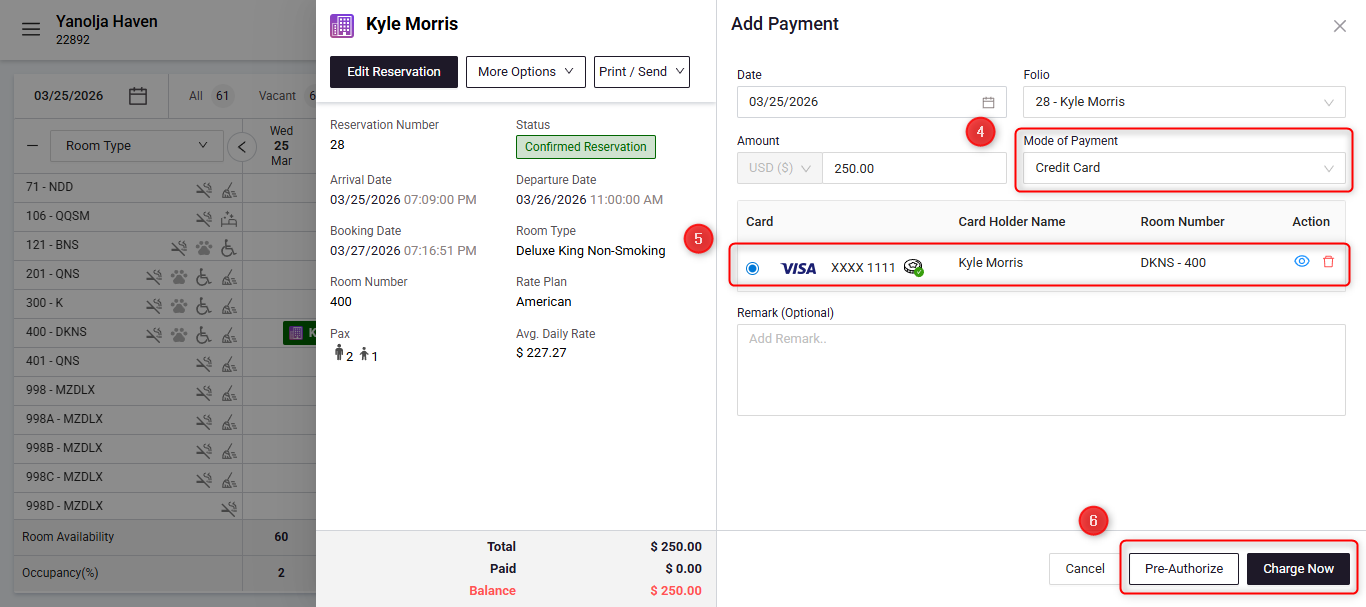
A payment window will open. If a card is already saved, it will auto-populate in the Mode of Payment section. (If required, you can add a new card.)
Select the desired card using the radio button.
Click Authorize to pre-authorize the card.
Pre-Authorize Credit Cards in Bulk
You can pre-authorize multiple reservations at once using Bulk Authorizations.
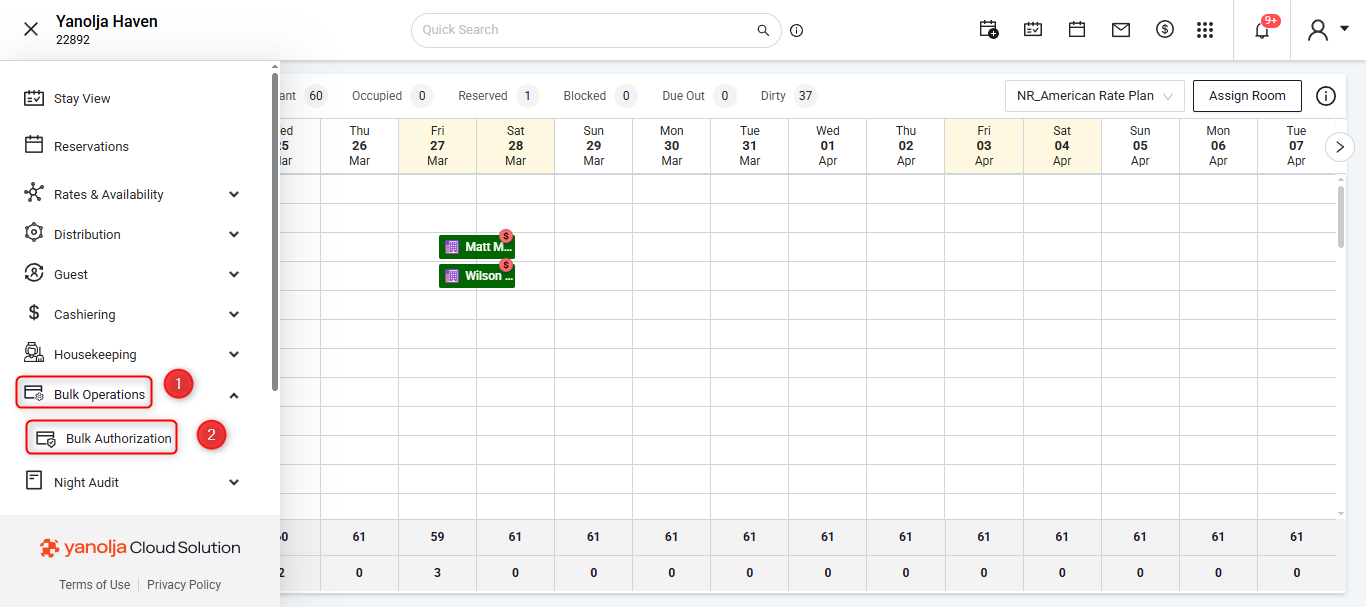
Click the three-bar menu and navigate to Bulk Operations.
Select Bulk Authorizations.
 You will see a list of reservations with saved credit cards for the current day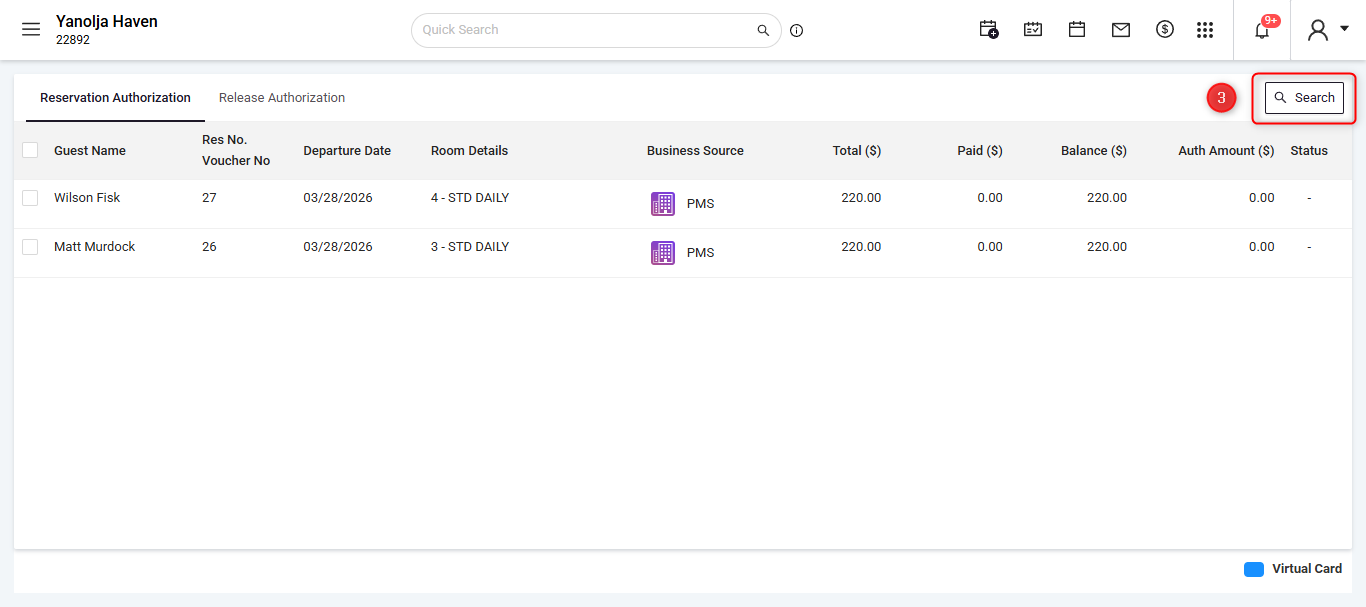
Use the Search icon in the top-right corner to apply filters.
In the filter window, you can select future arrival dates to display additional reservations.
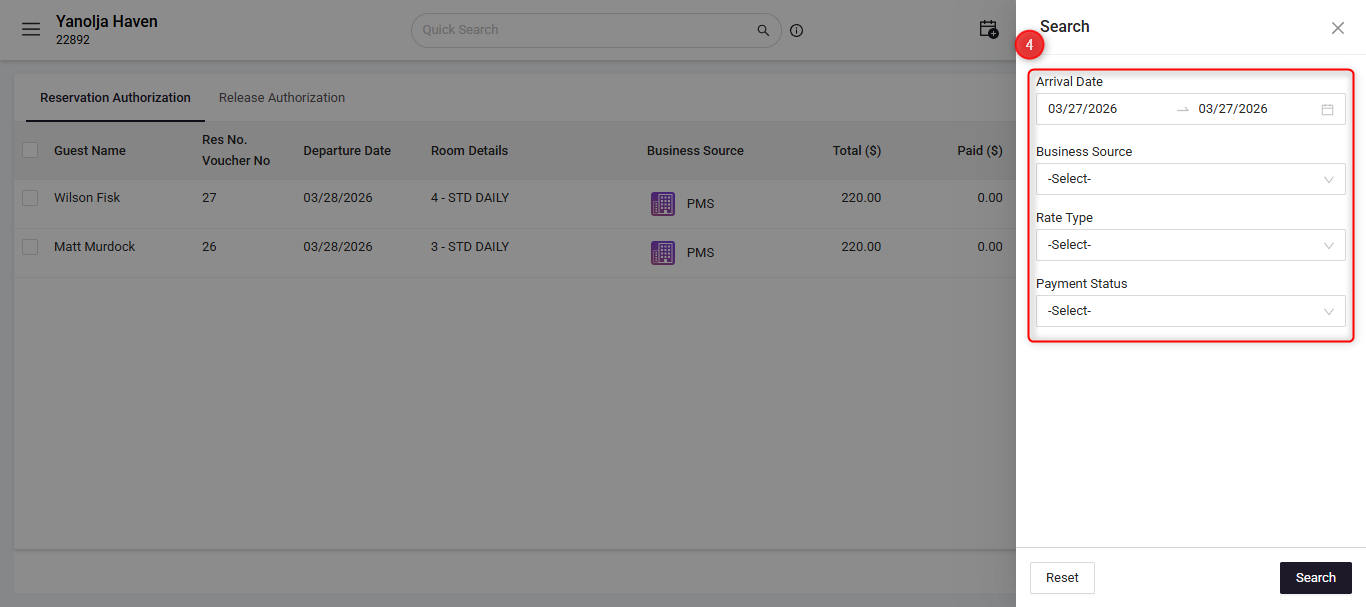
To pre-authorize multiple reservations:
5. To select all reservations at once, choose the top checkbox.
6. After selecting reservations, the Charge For option will appear with the following options:
Full Stay
One Night
Custom Amount
7. Select the required option and choose Authorize.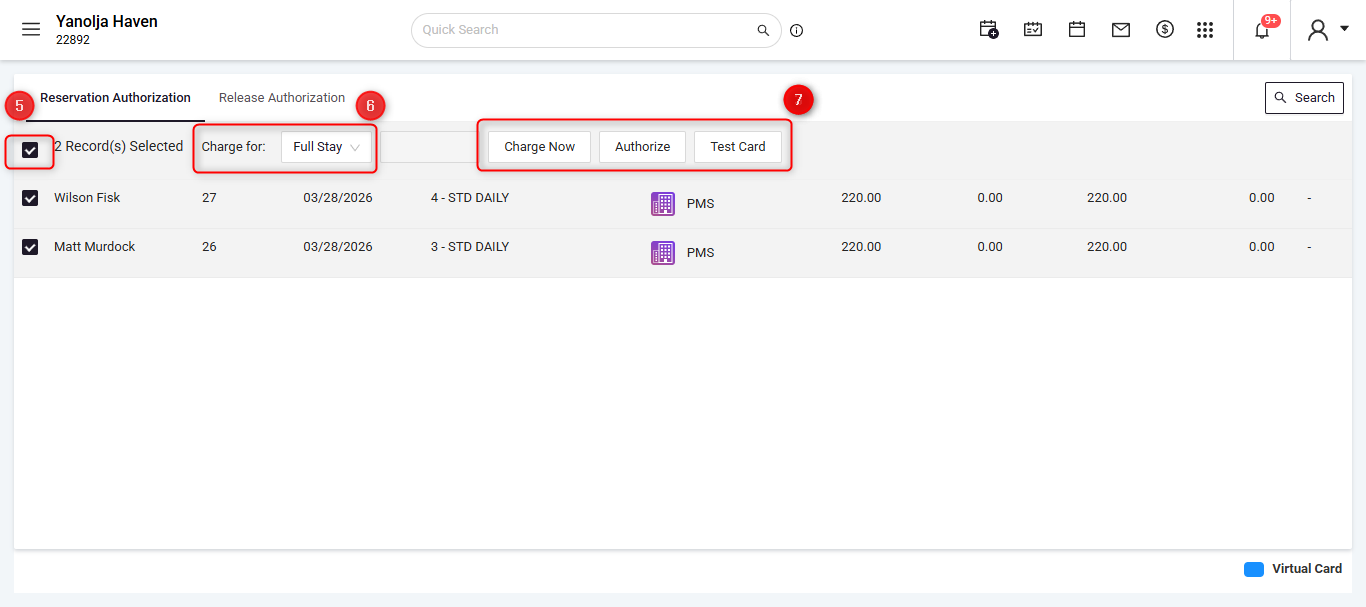
Once completed, the system will process the cards and display a confirmation after processing.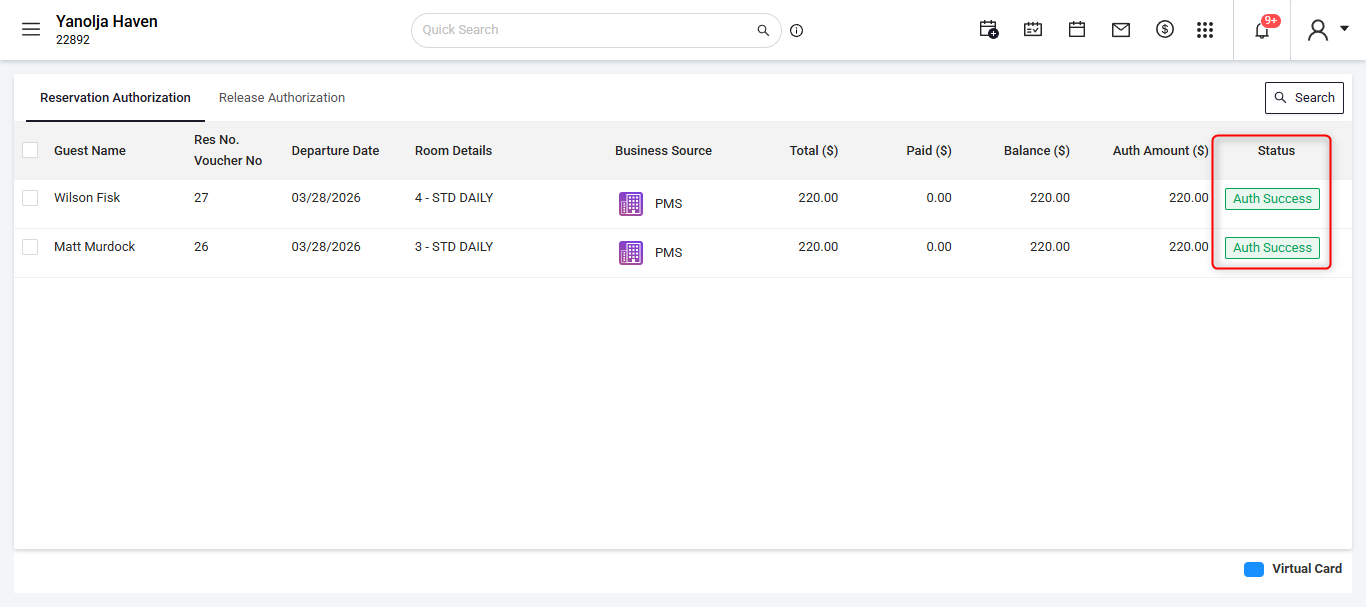
User Privilege Requirement
To use bulk authorization feature, ensure that the user has the required privileges enabled:
1. Navigate to Configuration
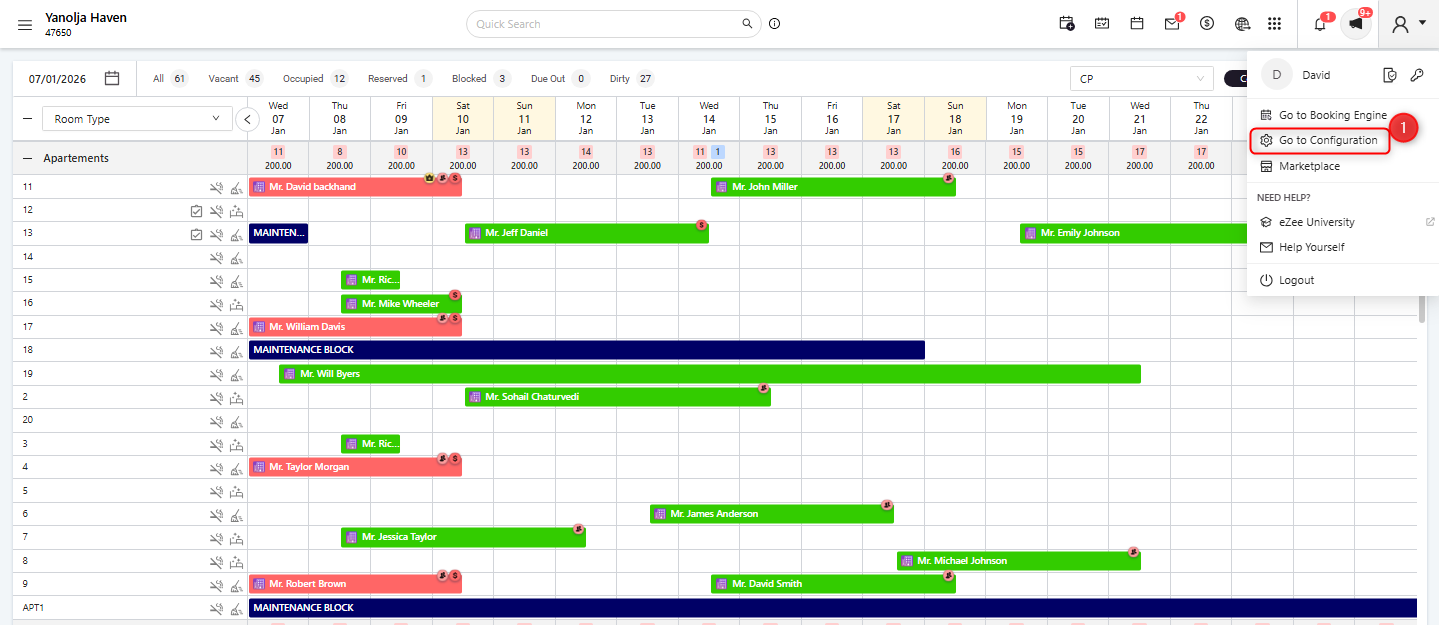
2. Go to User Managements
3. Click on Users
4. Select the required user.
5. Click Edit User.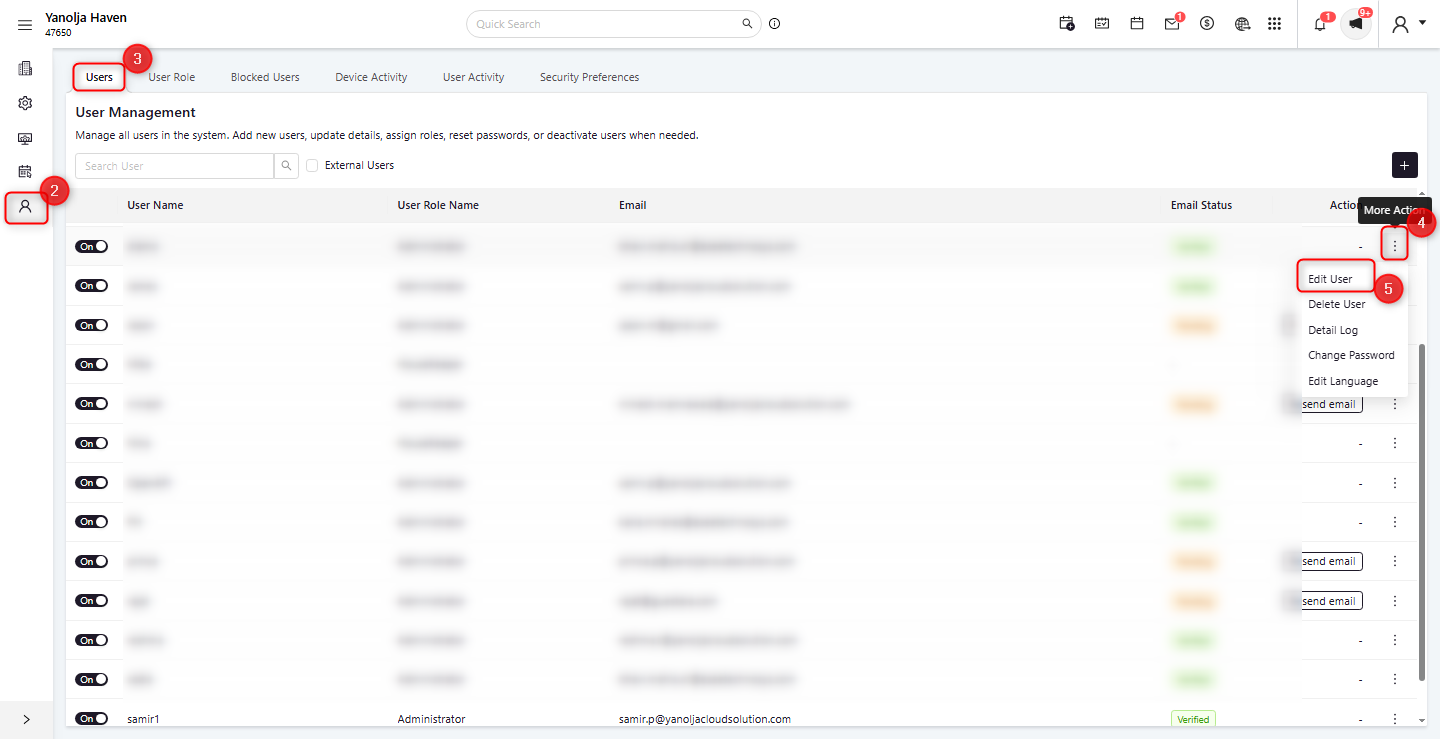
6. Click on Privilege Tab Option
7. Open Front Office Privileges
8. Confirm that Access to Allow to perform bulk authorization is enabled for the user.
9. Update the changes.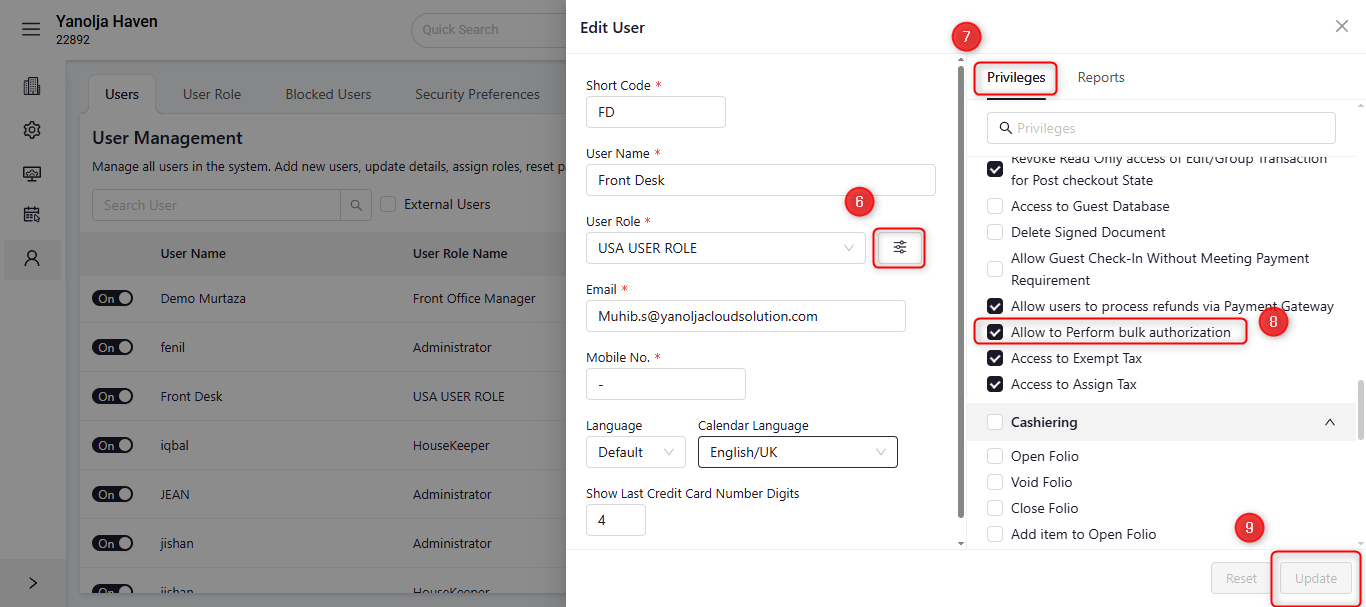
View Authorization on a Credit Card in a reservation/
Once you take pre-authorization using any of the methods mentioned about, you can confirm the authorisation in the reservation and then convert that into sale as well.
Follow the steps below:
Open the Reservation and navigate to credit card section.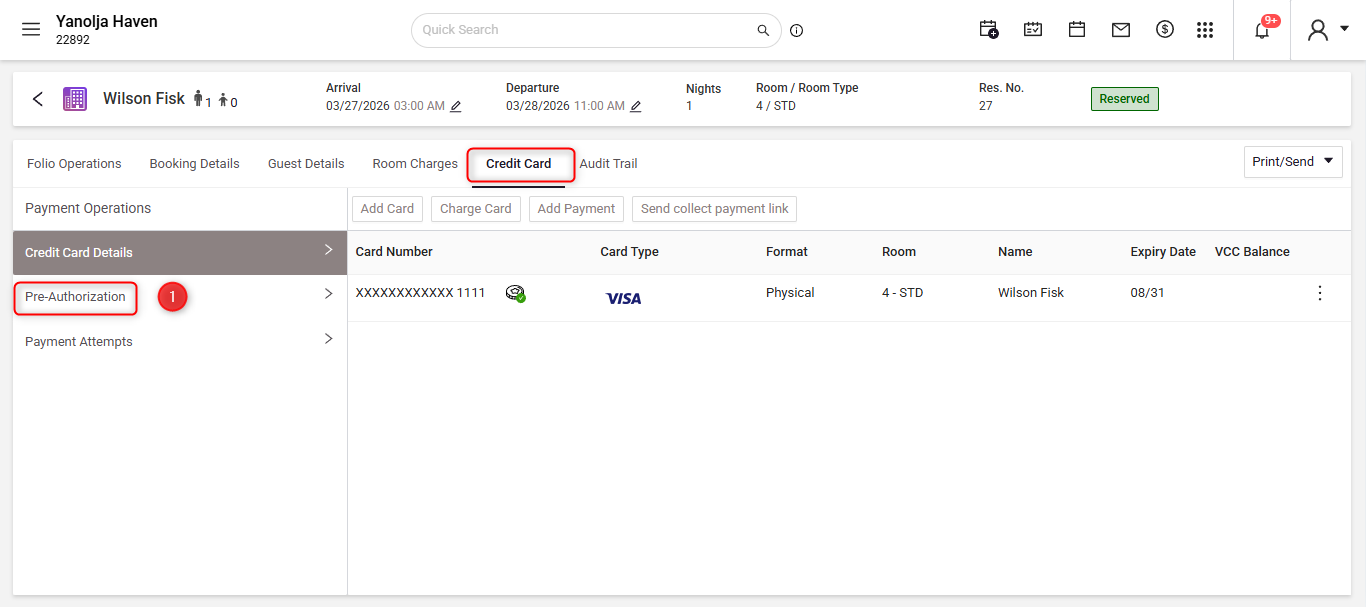
On the credit card screen go to pre-authorization tab.
There you should see your authorized entry there. Captured status says no at the moment as we still have not converted this authorization to charge.
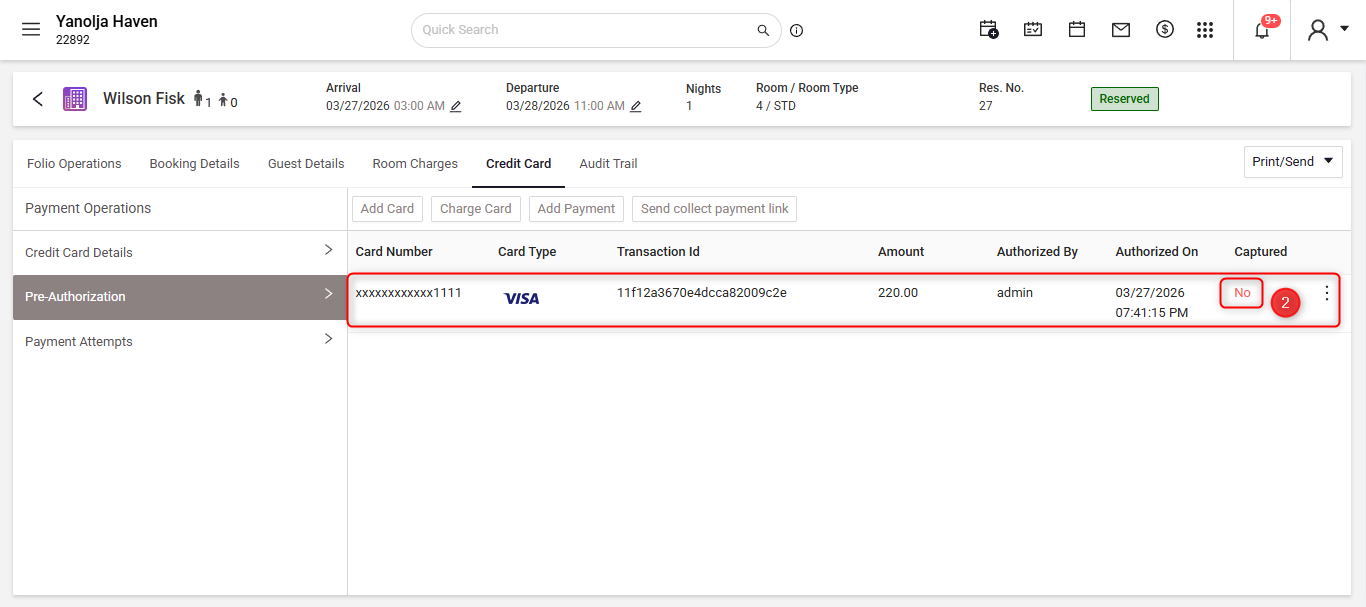
To convert the authorization into charge, hover over the 3 dots.
Click on charge.
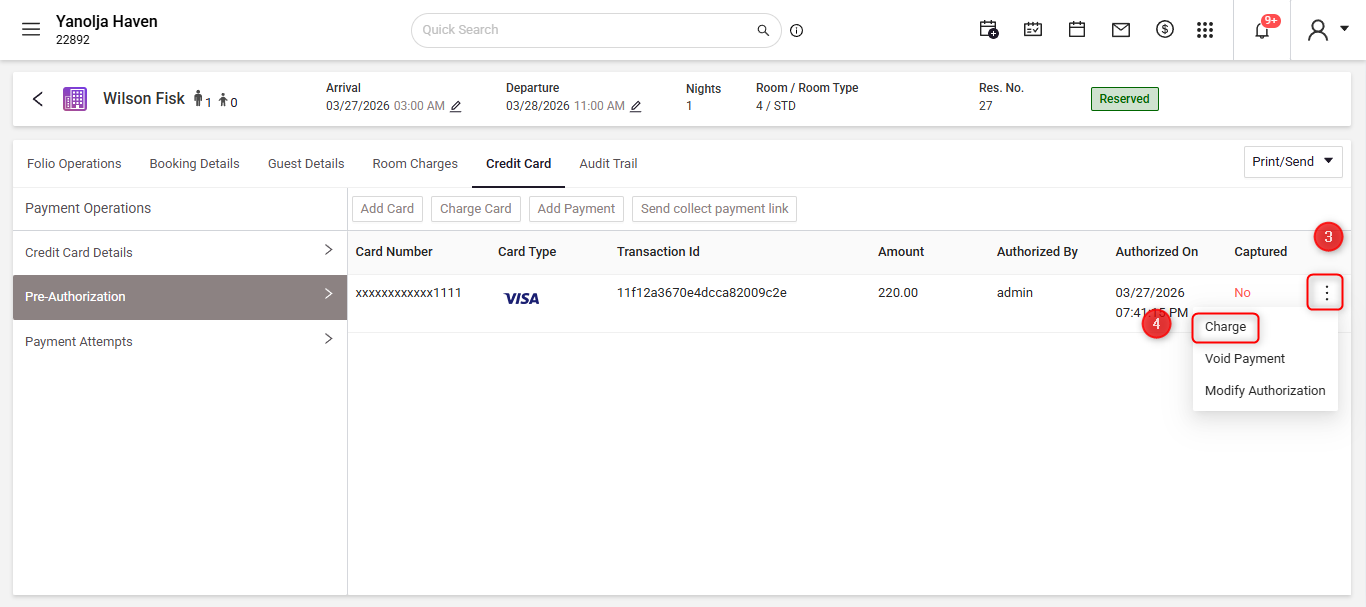
Upon clicking charge a window will open, amount section will auto populate the full amount authorized. You can lower the amount if you want as well
Lastly click on charge to convert the amount into sale.
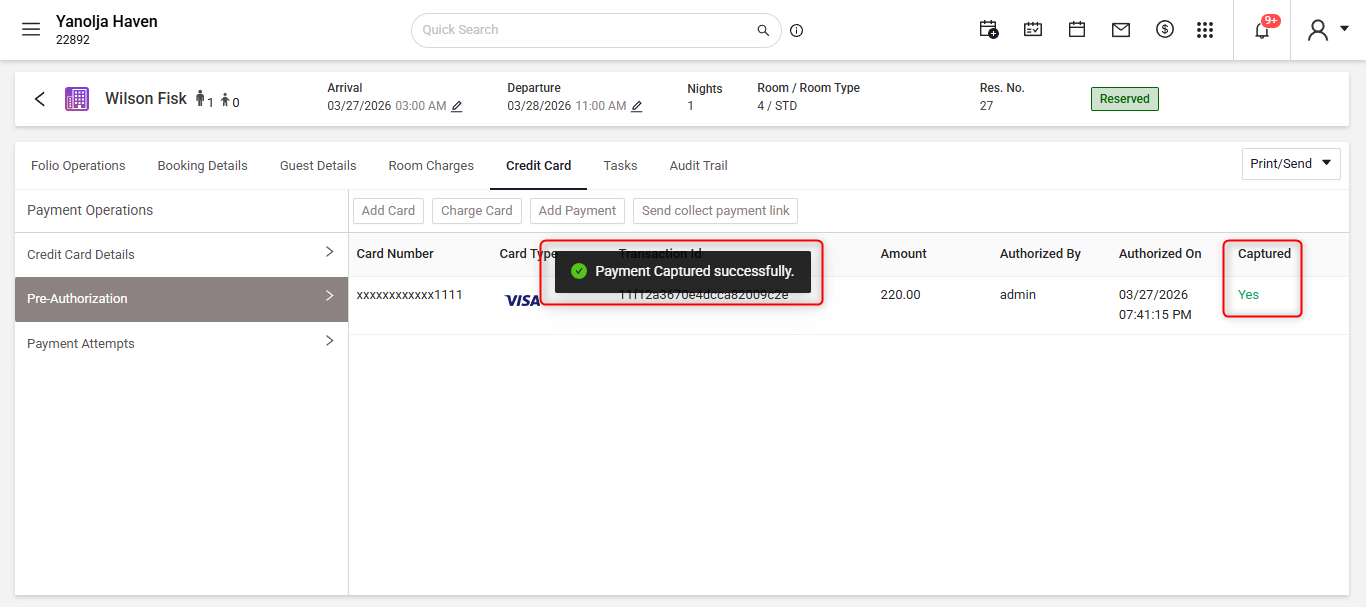 Once you click charge it will give you a confirmation and the authorization will be converted into sale.
Was this article helpful?
That’s Great!
Thank you for your feedback
Sorry! We couldn't be helpful
Thank you for your feedback
Feedback sent
We appreciate your effort and will try to fix the article