This article explains the different methods to convert a pre-authorized credit card into a charge (sale) in the Property Management System (PMS) under Yanolja Cloud Solution:
Charging a pre-authorization via Add Payment
Converting an authorization to a sale from the Credit Card screen
Viewing the transaction in reports
Charge a Pre-Authorization via Add Payment
Once a credit card has been pre-authorized, you can convert that authorization into a charge directly from the reservation.
Open the required reservation.
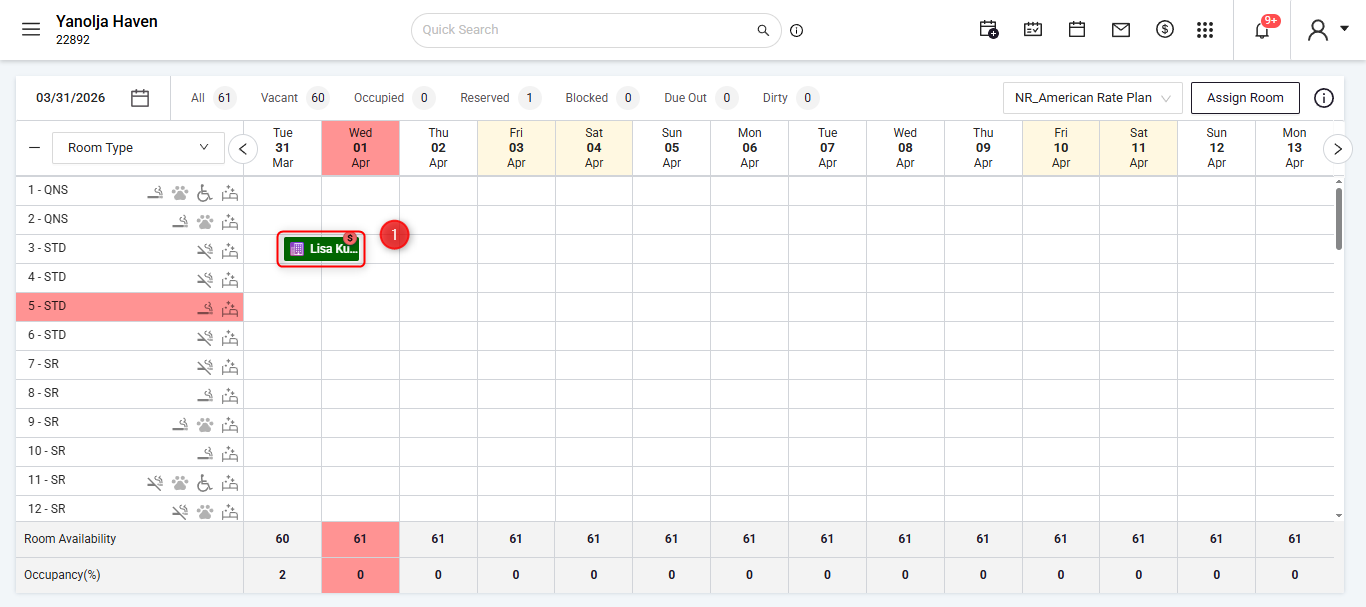
Click More Options next to Edit Reservation.
Select Add Payment from the drop-down menu.
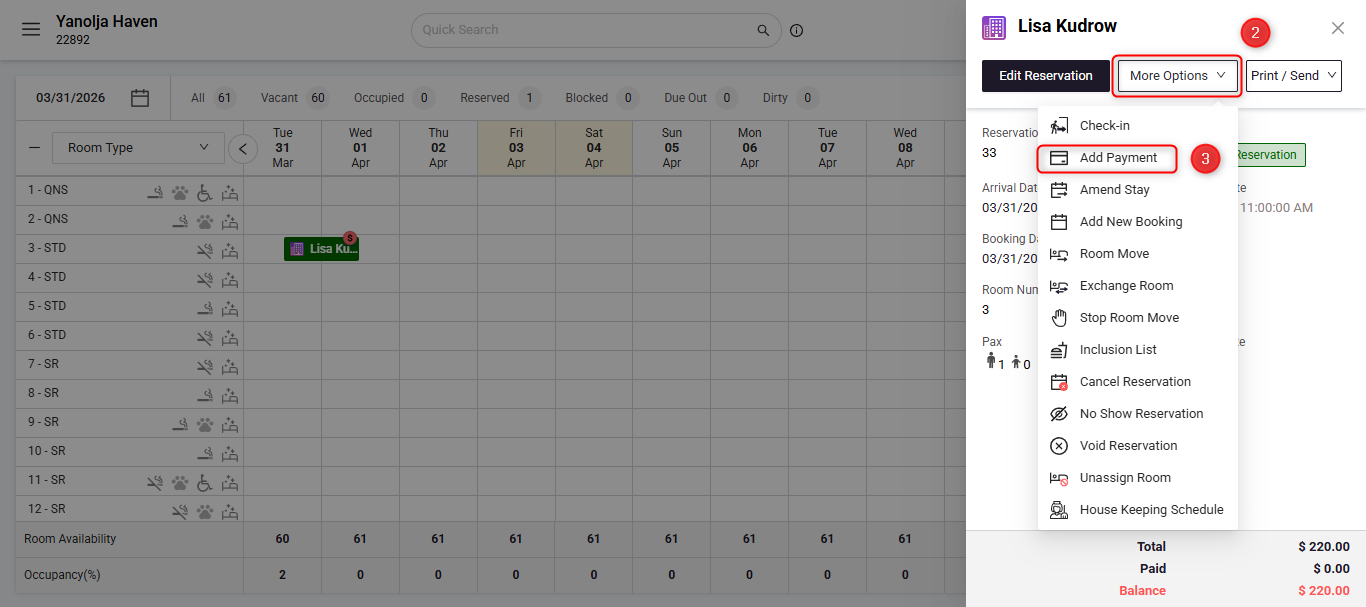
A new payment window will open. Select Charge Authorized Amount as the Mode of Payment.
The card with the existing authorization will be displayed. Select the card using the radio button.
Click Charge Now.
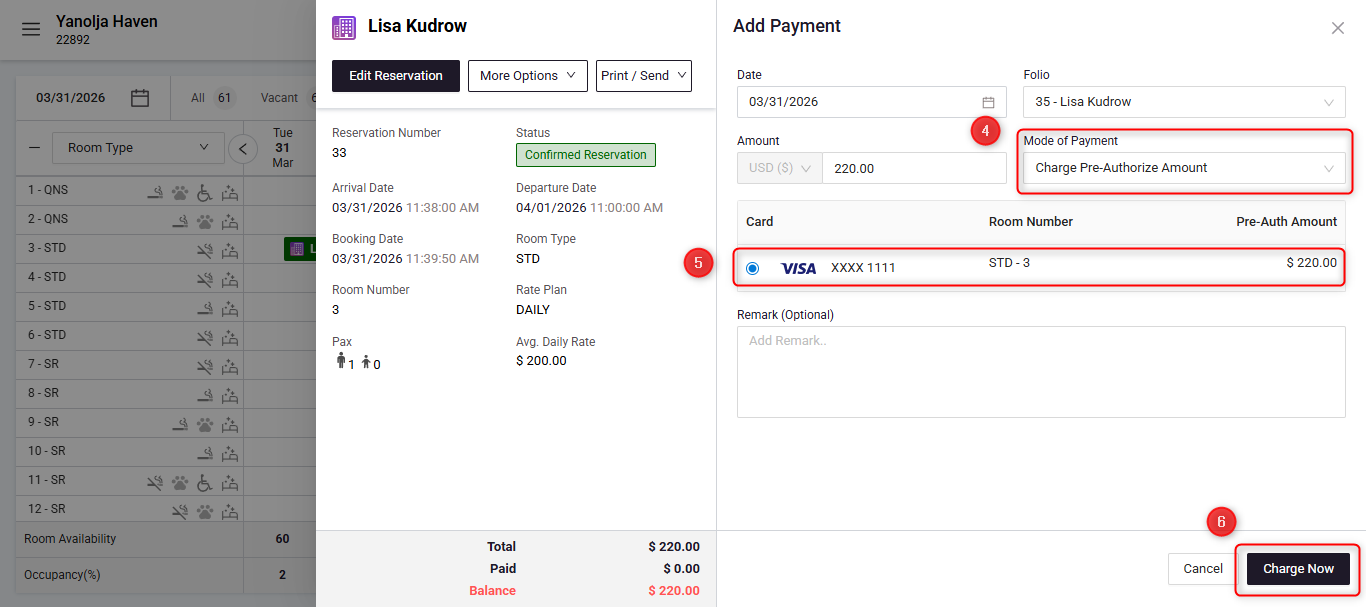
The system will convert the authorization into a sale transaction.
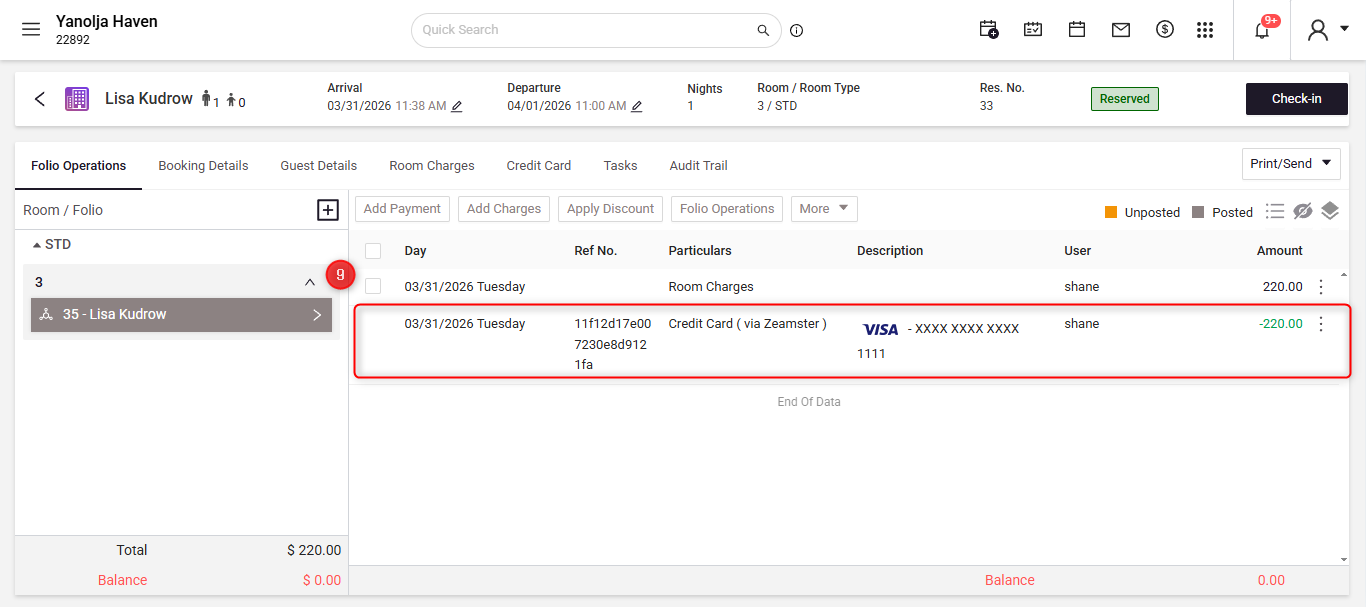
To verify the transaction:
Open the reservation. Navigate to Folio Operations where the charged transaction will be recorded.
Convert Authorization into Sale from the Credit Card Screen
You can also convert a pre-authorization into a charge directly from the Credit Card section of the reservation.
Open the required reservation.
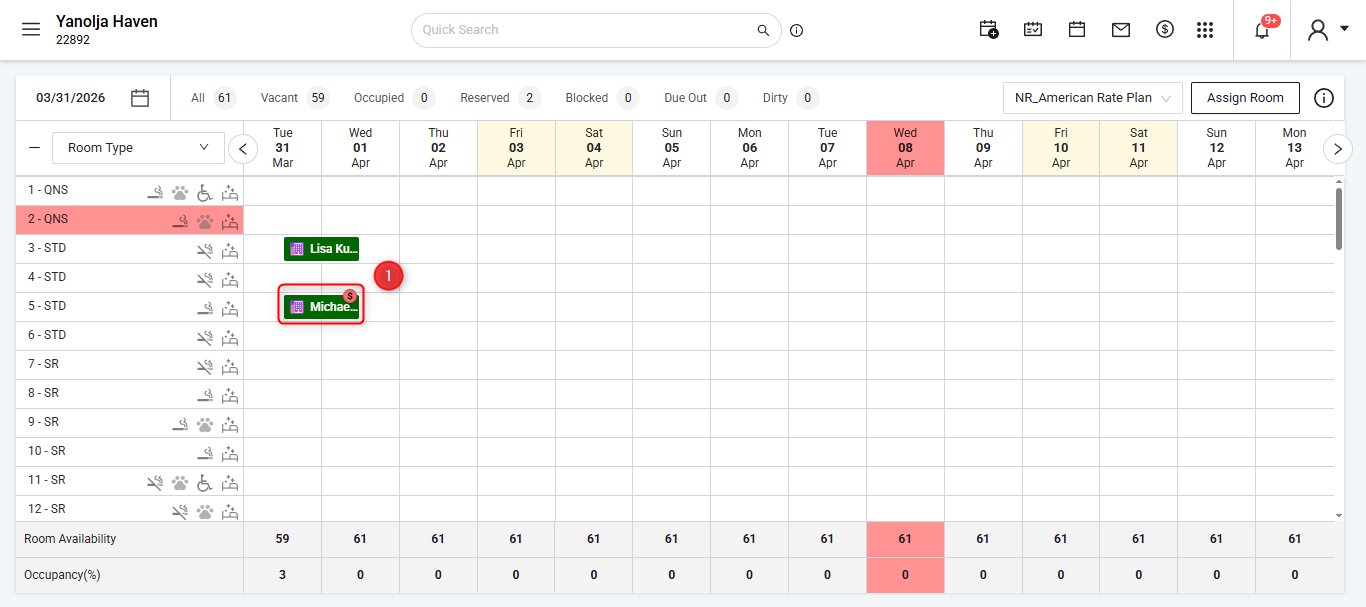
Navigate to the Credit Card section.
Click on the Preauthorizations tab.
You will see the list of cards that are currently pre-authorized.
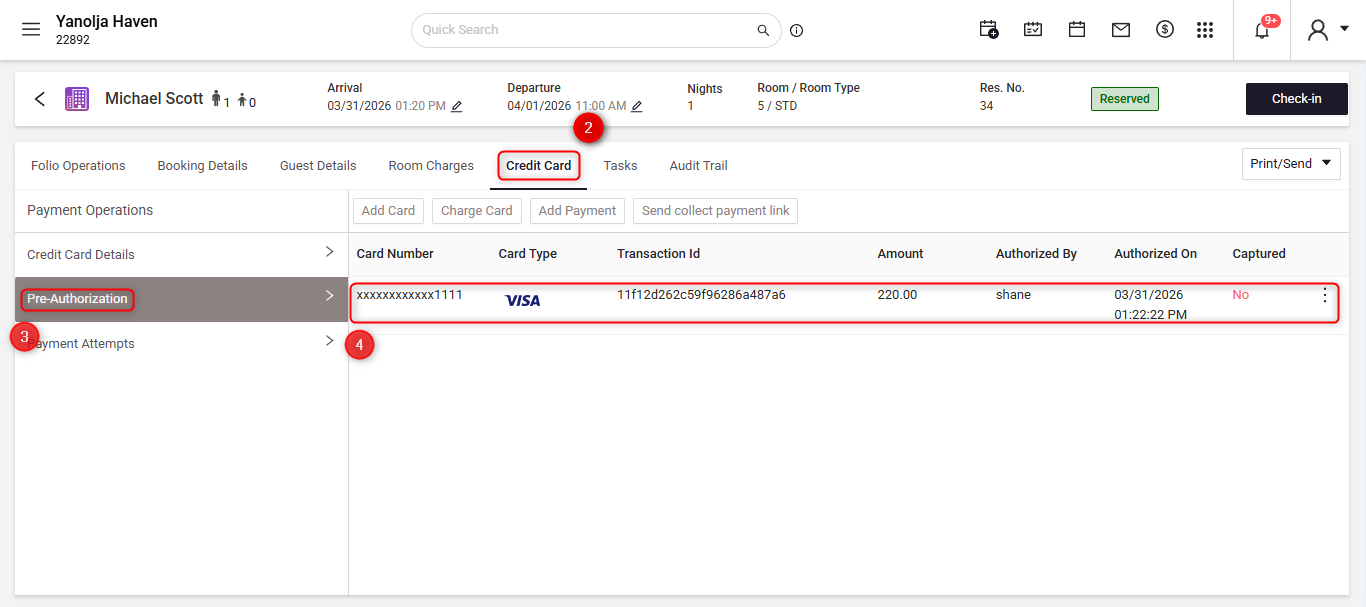
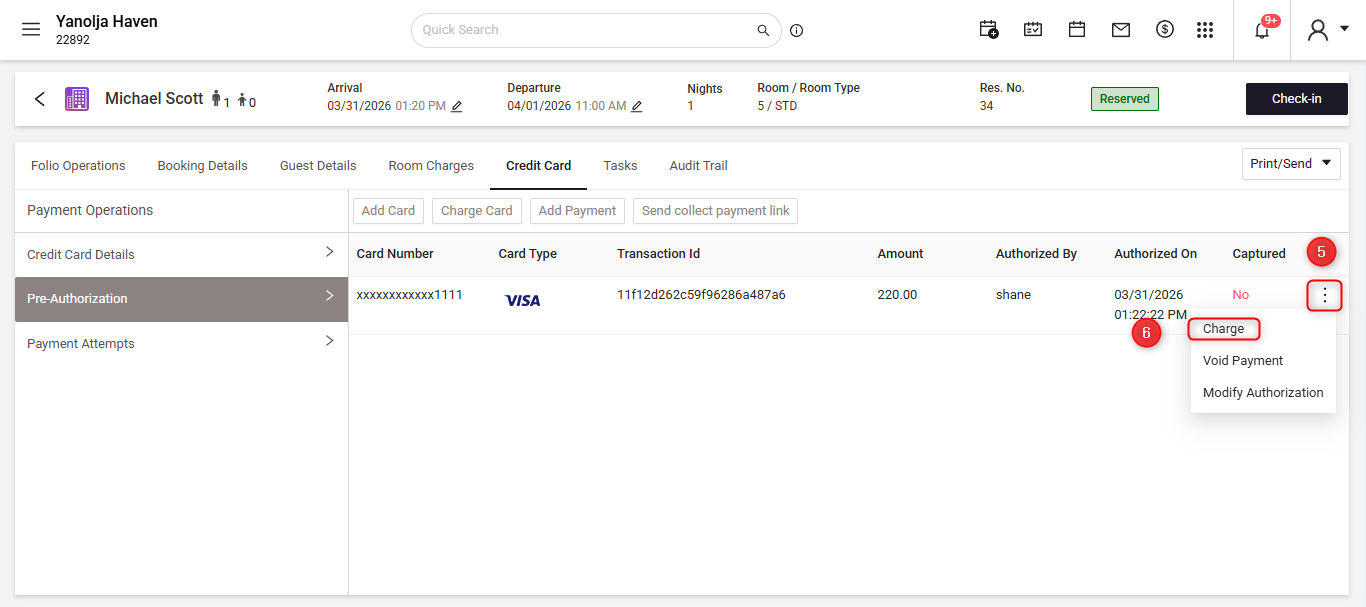
Click on the three dots (⋯) next to the required authorization.
Select Charge.
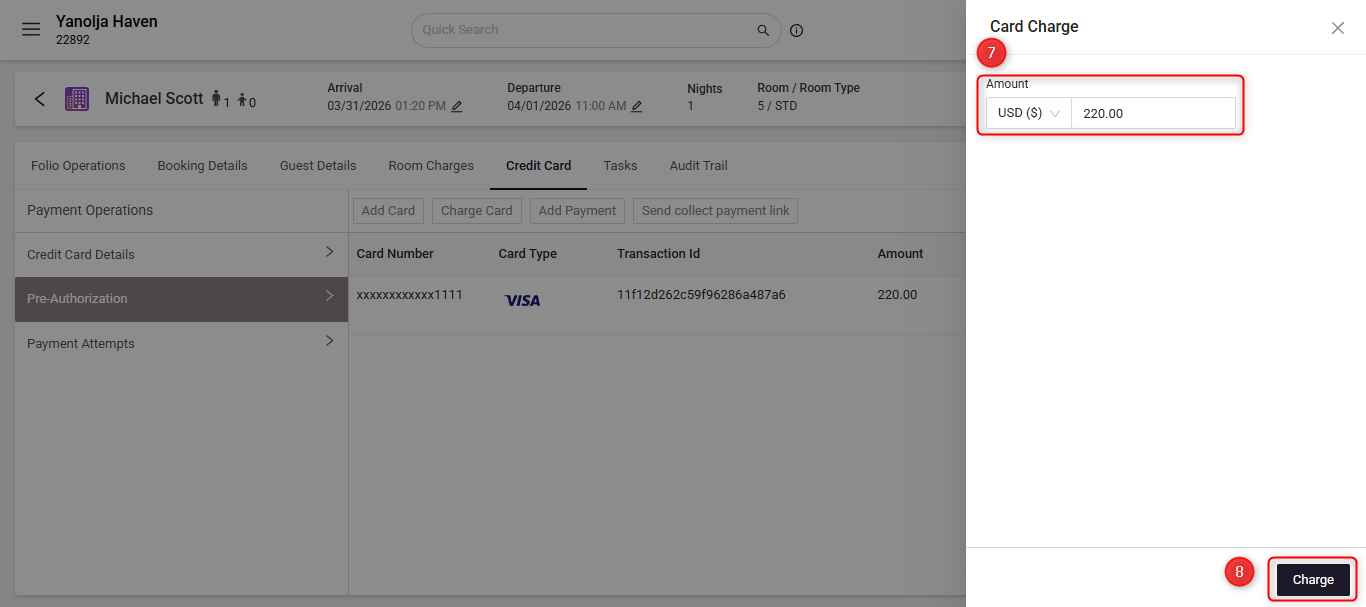
A new window will appear:
The authorized amount will auto-populate.
Click Charge.
The system will convert the authorization into a sale, and a confirmation message will appear on the screen. The Captured status will update to Yes once the transaction is completed.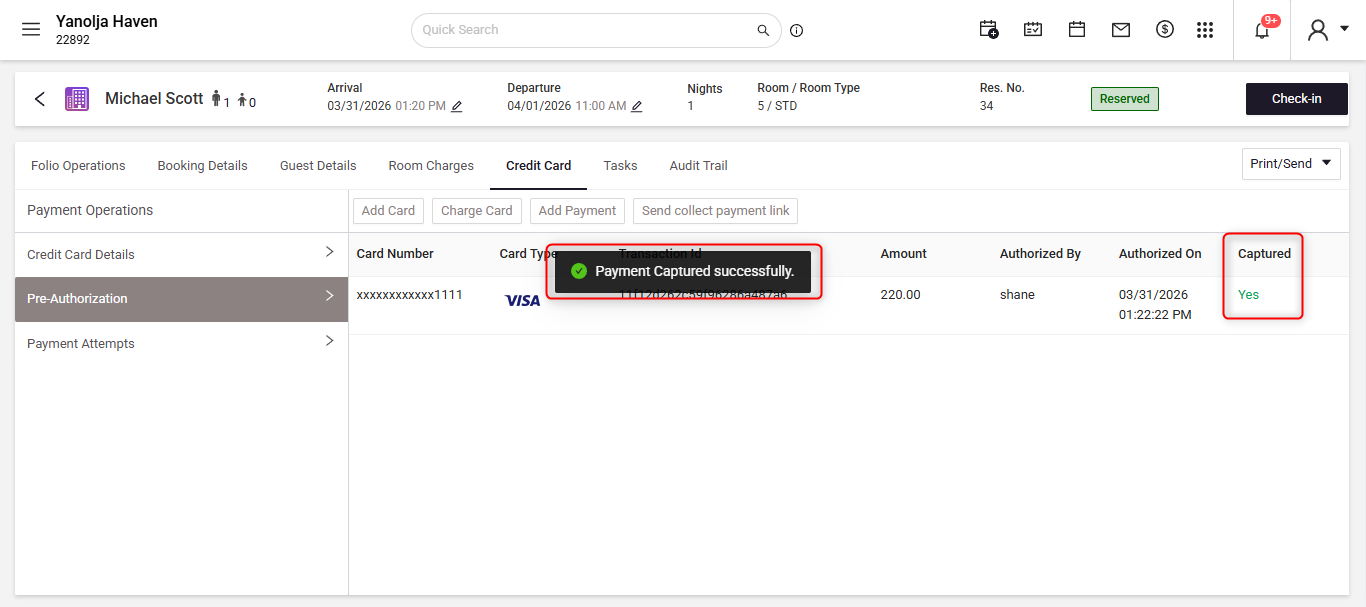
View Charge and Authorization Transactions in Reports
You can review charge through reports. Navigate to the Reports section
A new window will open displaying all available reports. Search for Daily Receipt – Detail.
Select the Daily Receipt – Detail report.
In the Filters section, the current working date will auto-populate. You can adjust other filters as required.
Click Report to generate the report in PDF format, or select Export to Excel to download the data in Excel format.
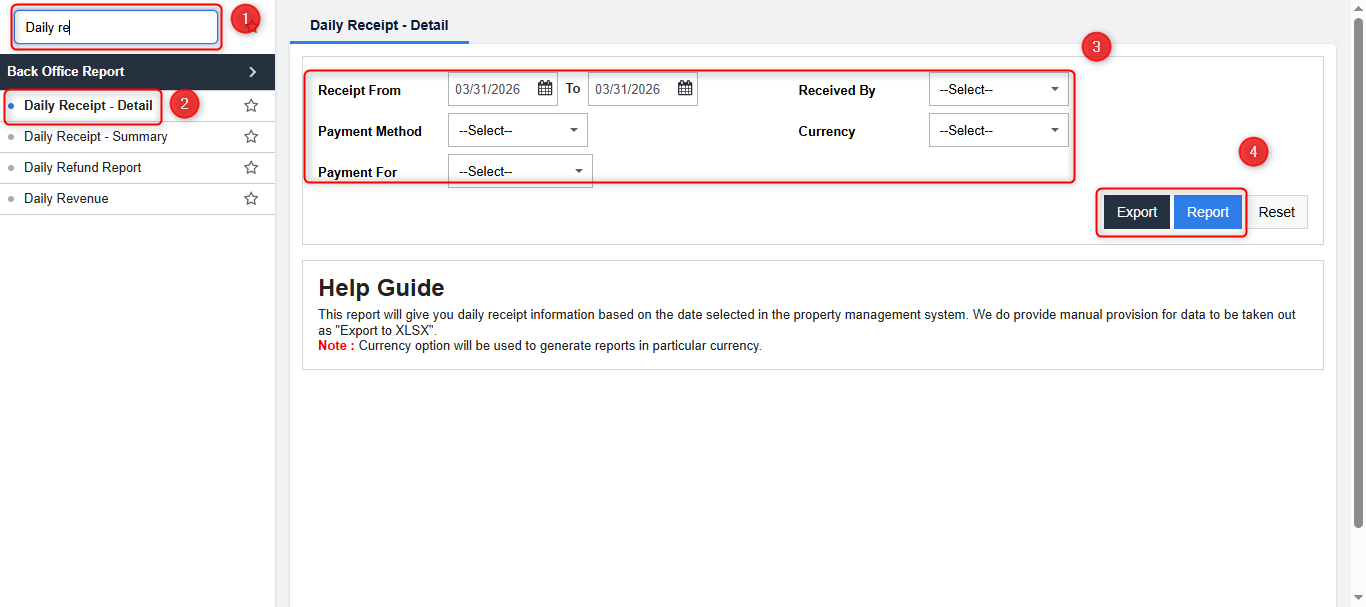
The report will open in a new window where you can review charged transactions categorized by payment mode.
Was this article helpful?
That’s Great!
Thank you for your feedback
Sorry! We couldn't be helpful
Thank you for your feedback
Feedback sent
We appreciate your effort and will try to fix the article