This article explains how to release a pre-authorization in the Property Management System. Releasing a pre-authorization removes the temporary hold placed on a guest’s credit card as a security deposit, making the funds available again once the hold is no longer required.
There are multiple ways to manage the release of a pre-authorization:
- Using the Credit Card Screen on the reservation.
- Using the Bulk Authorization Screen for multiple transactions.
- Configuring User Privilege for Bulk Authorization.
- Using the Auto Release setting.
1. Using the Credit Card Screen on the reservation.
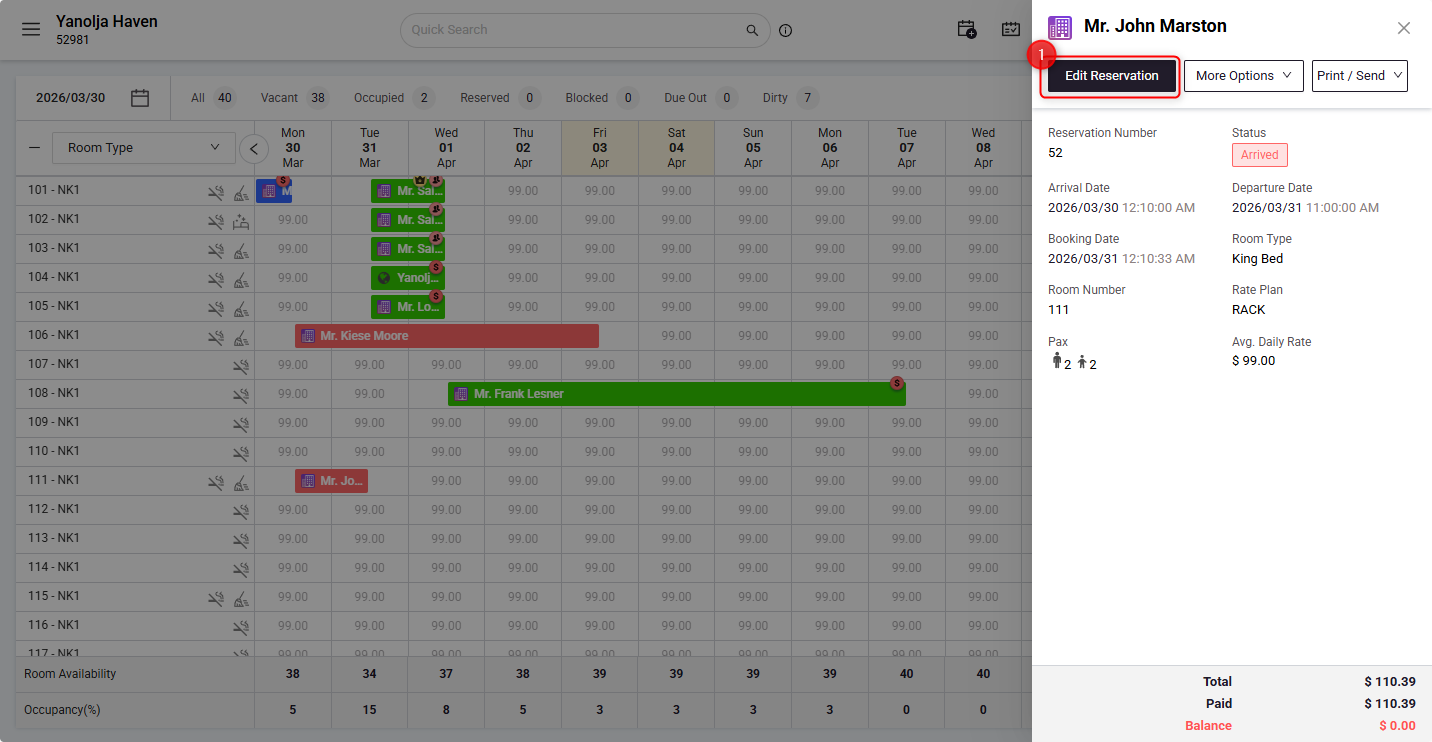
- Open the Guest Folio and click on Edit Reservation.
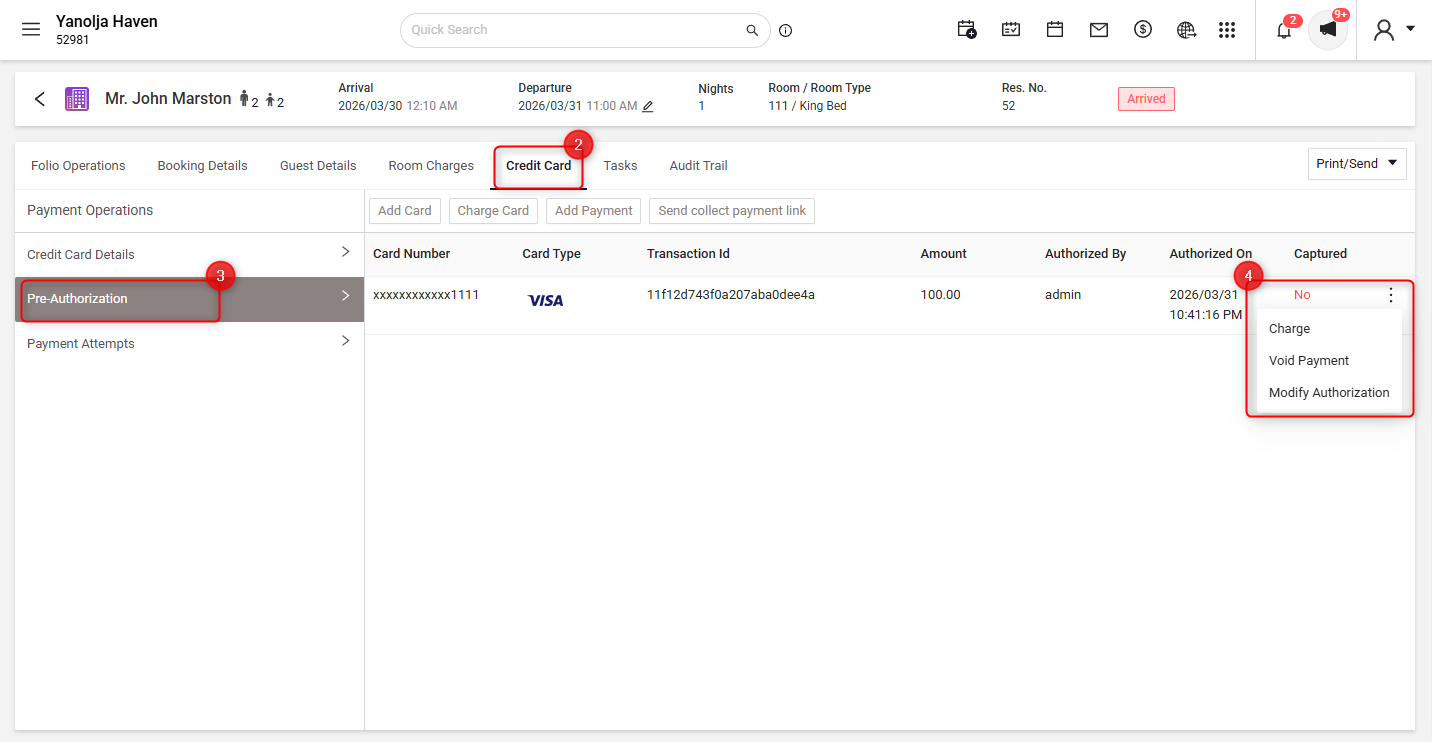
- Navigate to the Credit Card section.
- Click on Pre-Authorization to view all pre-authorizations for the reservation.
- Click on the three dots (⋮) next to the transaction to open the menu. Then, Select Void Payment.
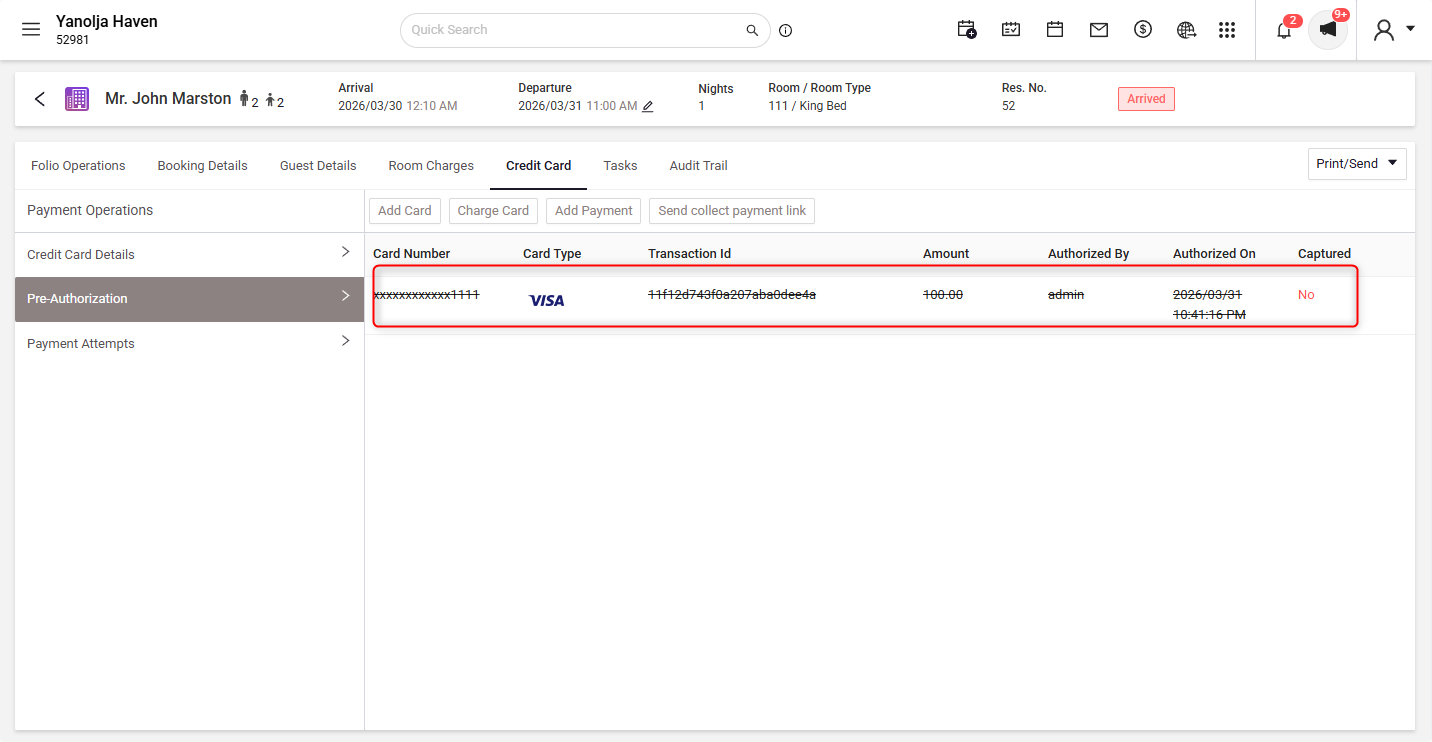
The pre-authorization will be released, and the entry will appear struck out.
2. Using the Bulk Authorization Screen for multiple transactions.
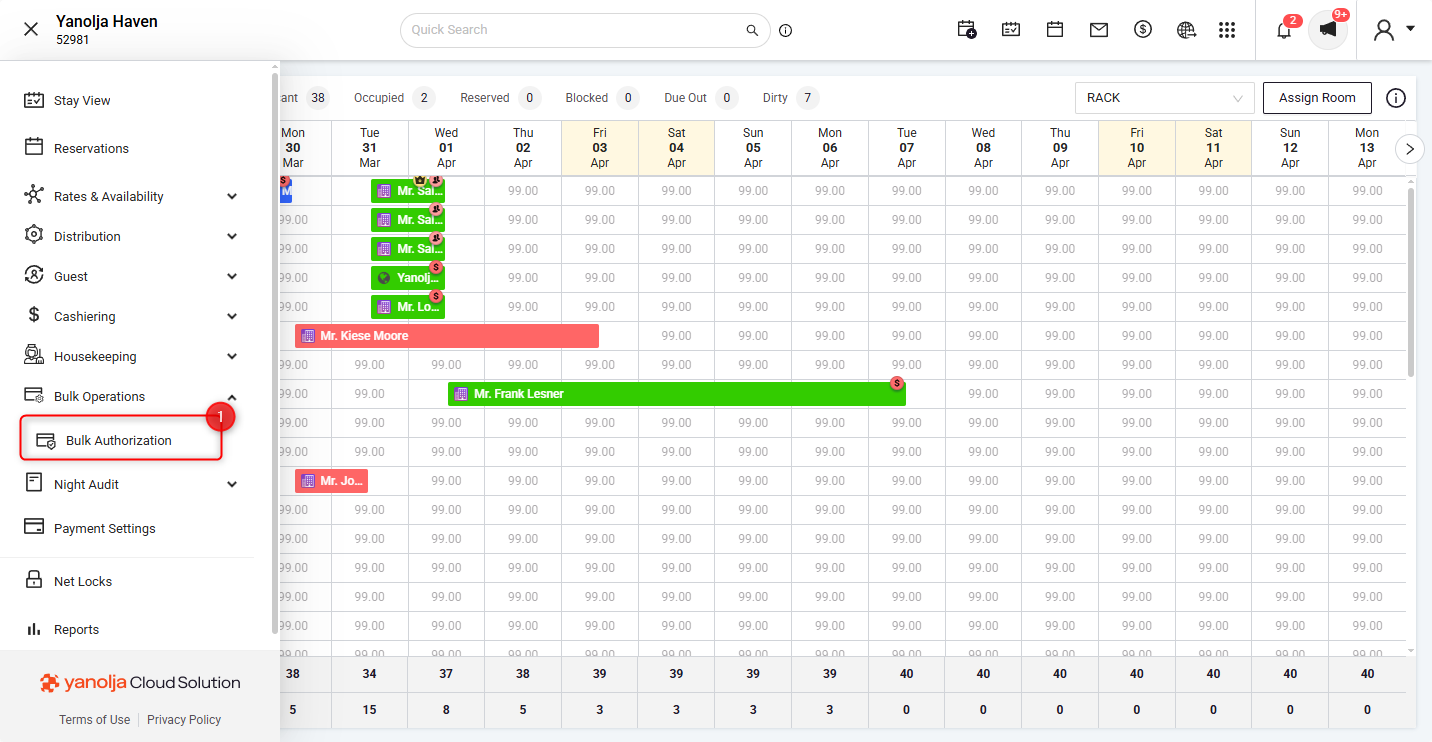
- Navigate to Bulk Authorization under the Bulk Operations section.
- Go to Release Authorization. This will display all pre-authorizations for checked-out guests.
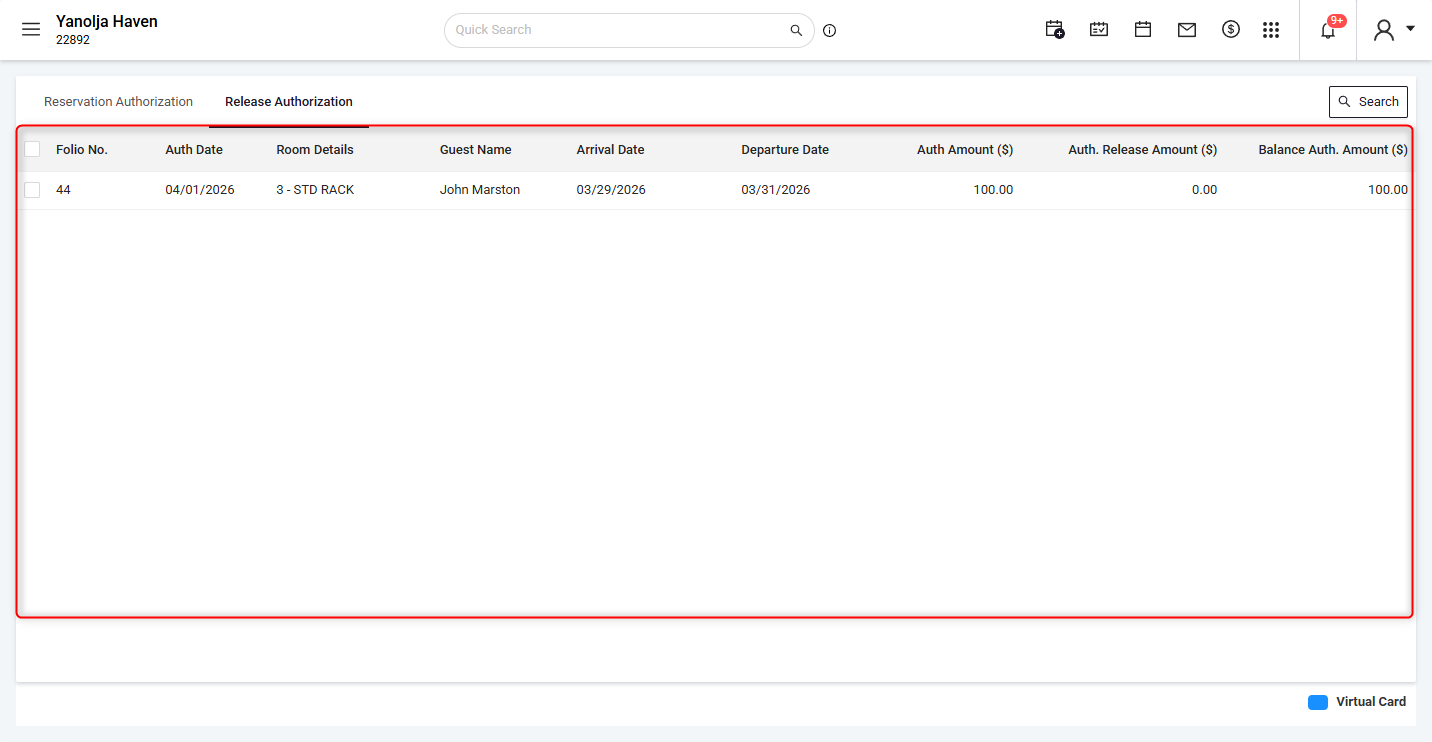
- Select the pre-authorizations you want to release.
- Click on Release to complete the action.
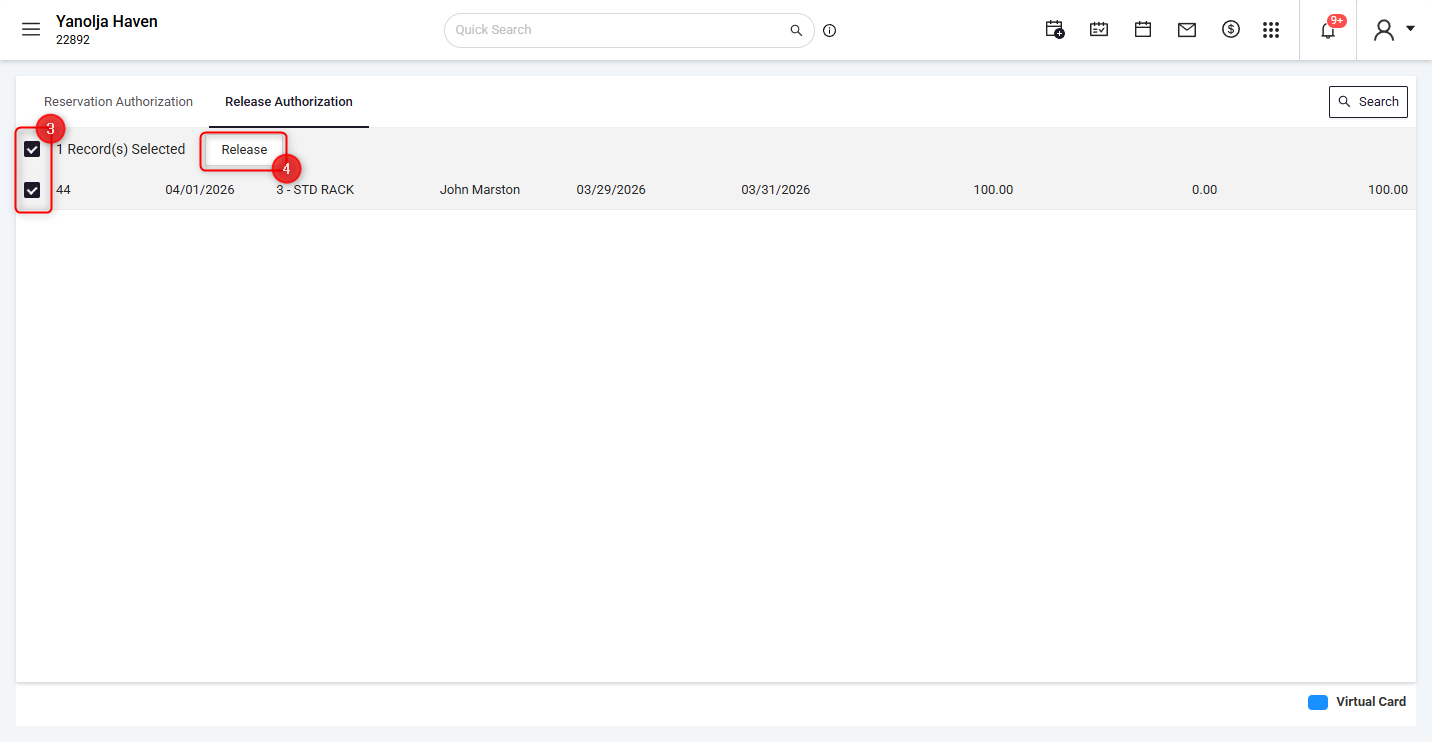
The bulk release option saves time by allowing you to release multiple pre-authorizations in a single action, ensuring faster processing and improved operational efficiency.
3. User Privilege for Bulk Authorization
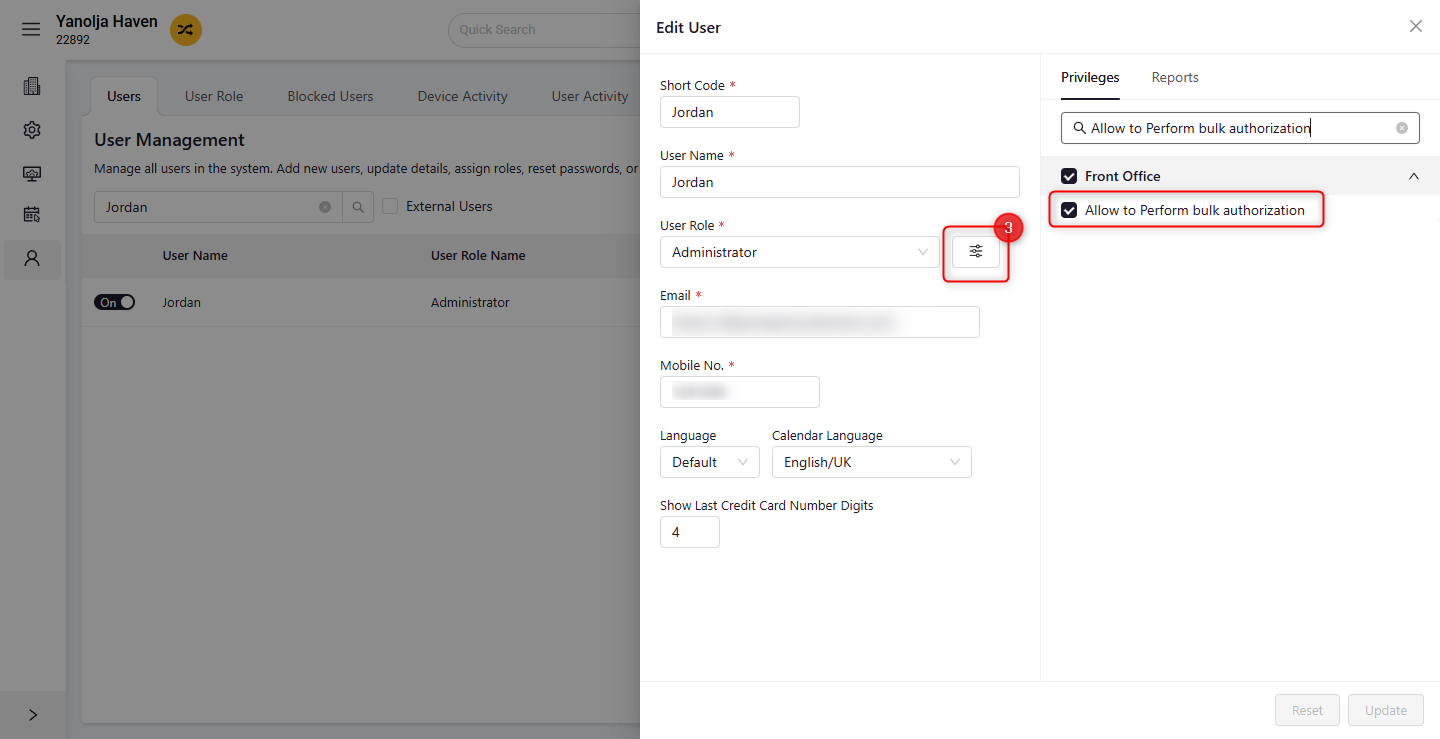
Please note that access to bulk authorization actions is controlled via user rights. Ensure the user is allowed to perform bulk authorization
Steps to Enable:
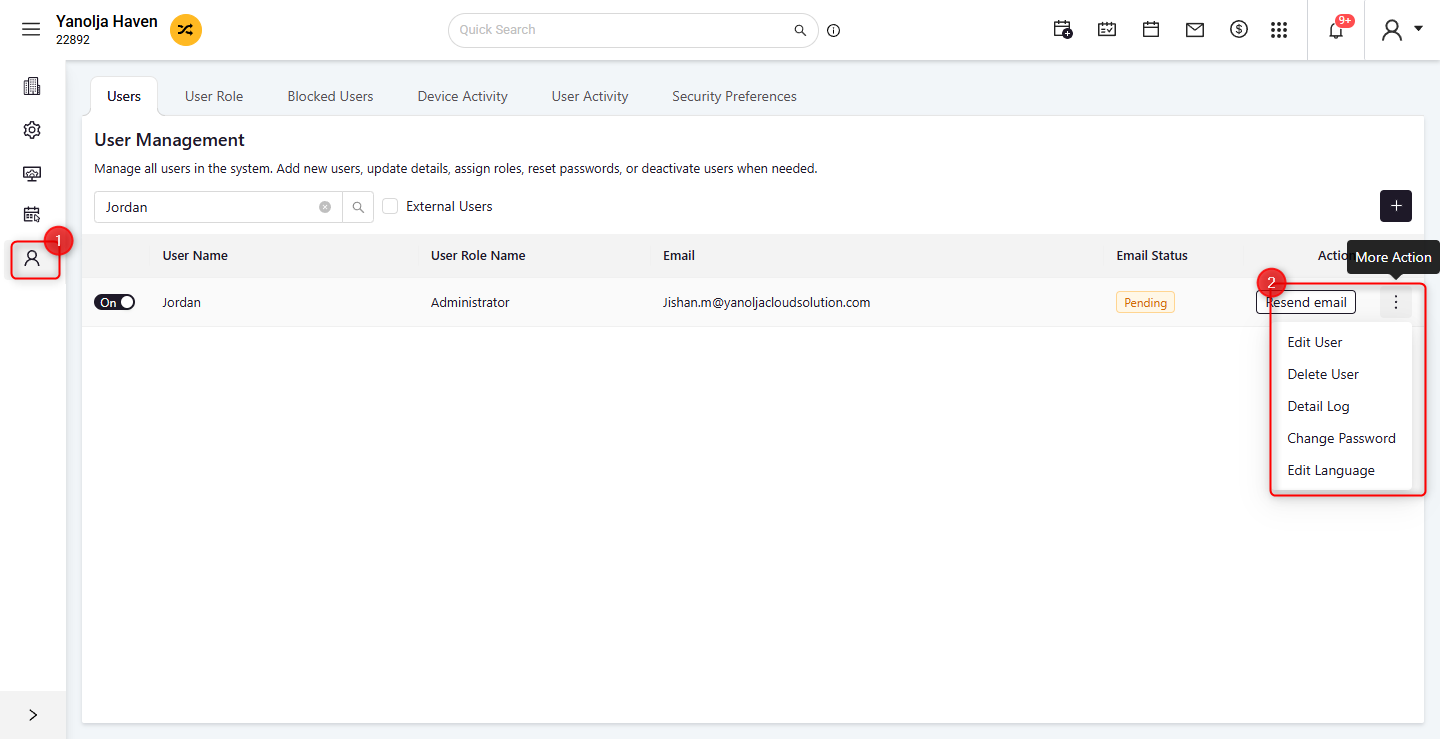
- Go to Configuration and navigate to User Management.
- Click on the three dots (⋮) next to the user to open the menu. Then, click on Edit User.
- Enable Allow to Perform Bulk Authorization.
4. Auto Release Setting
The system allows automatic release of pre-authorizations to reduce manual effort.
Steps to Enable:
- Go to Configuration and locate General Settings.
- Navigate to Regional Settings.
- Enable "Auto-Release Pre-Authorizations at Night Audit for Checked-Out Guests".
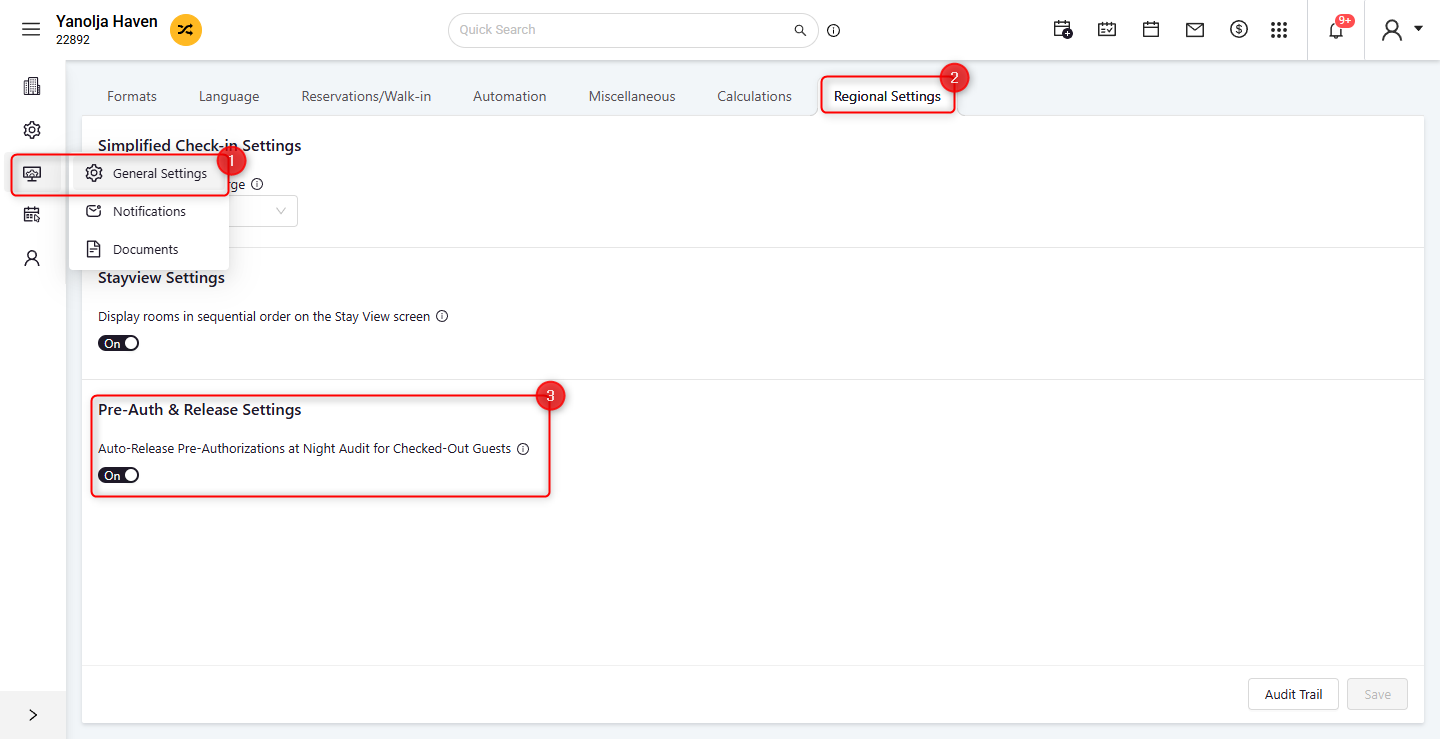
Once enabled, the system will automatically release pre-authorizations during the night audit for checked-out guests.
Was this article helpful?
That’s Great!
Thank you for your feedback
Sorry! We couldn't be helpful
Thank you for your feedback
Feedback sent
We appreciate your effort and will try to fix the article