This article explains how you can add a guest to Blacklist and then also how to identify them in the Property Management Software (PMS) under Yanolja Cloud Solution.
How to Add a Guest to the Blacklist.
How the System Alerts for Blacklisted Guests During Reservation
How to look for Blacklisted Guest in the Guest Database
How to Add a Guest to the Blacklist.
1. Select the reservation of the guest you want to add to the blacklist i.e. Do Not Rent List.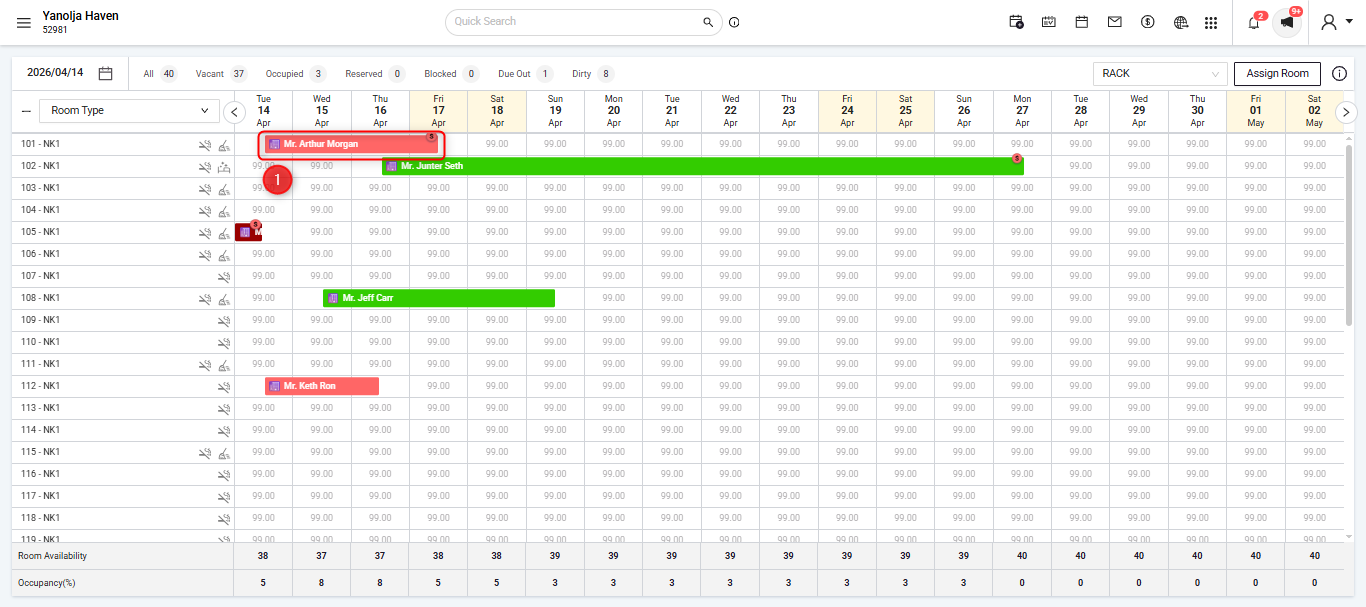
2. Click on "Edit Reservation"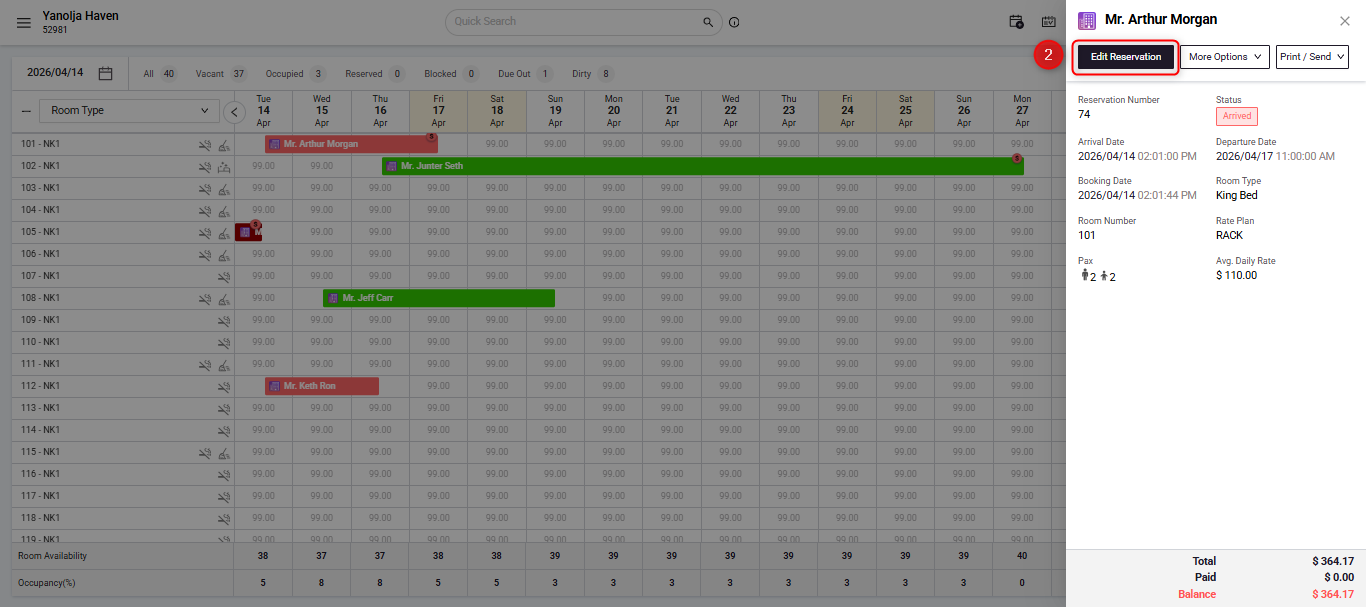
3. Go to "Guest Details" tab and then select the "Do Not Rent List" option.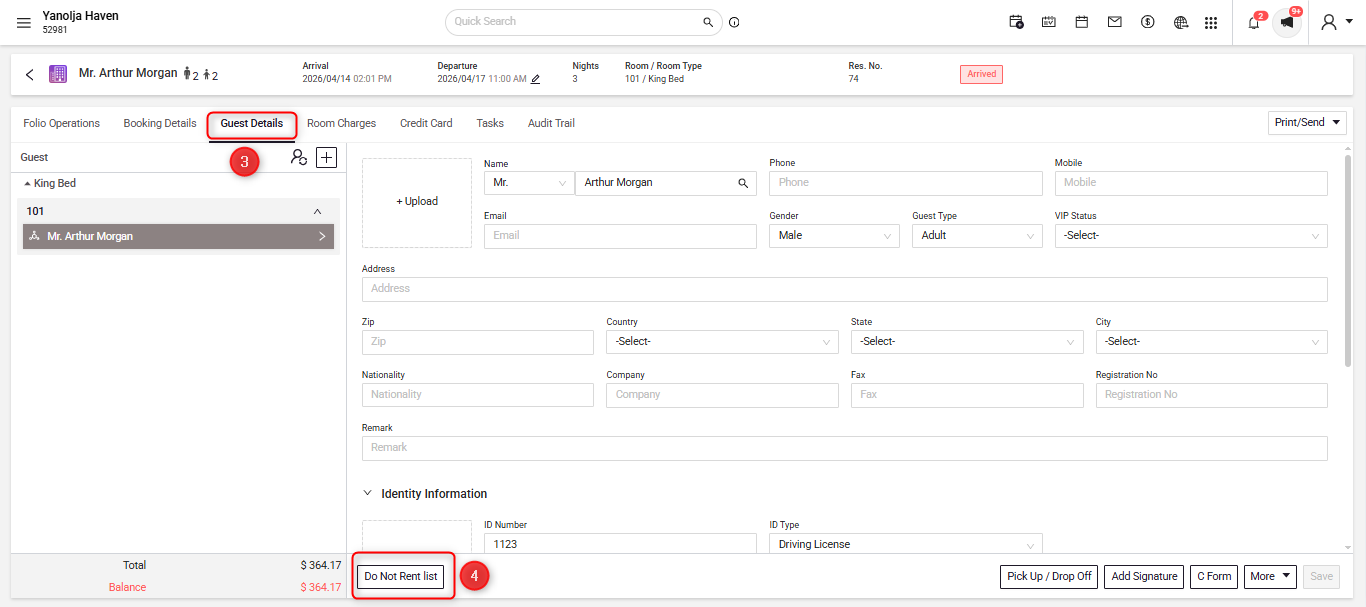
4. The system will ask you for a reason to add them to the list. On this screen, you can either add a new reason or select from an existing one and then save it. The system has now saved the guest in the Do Not Rent List.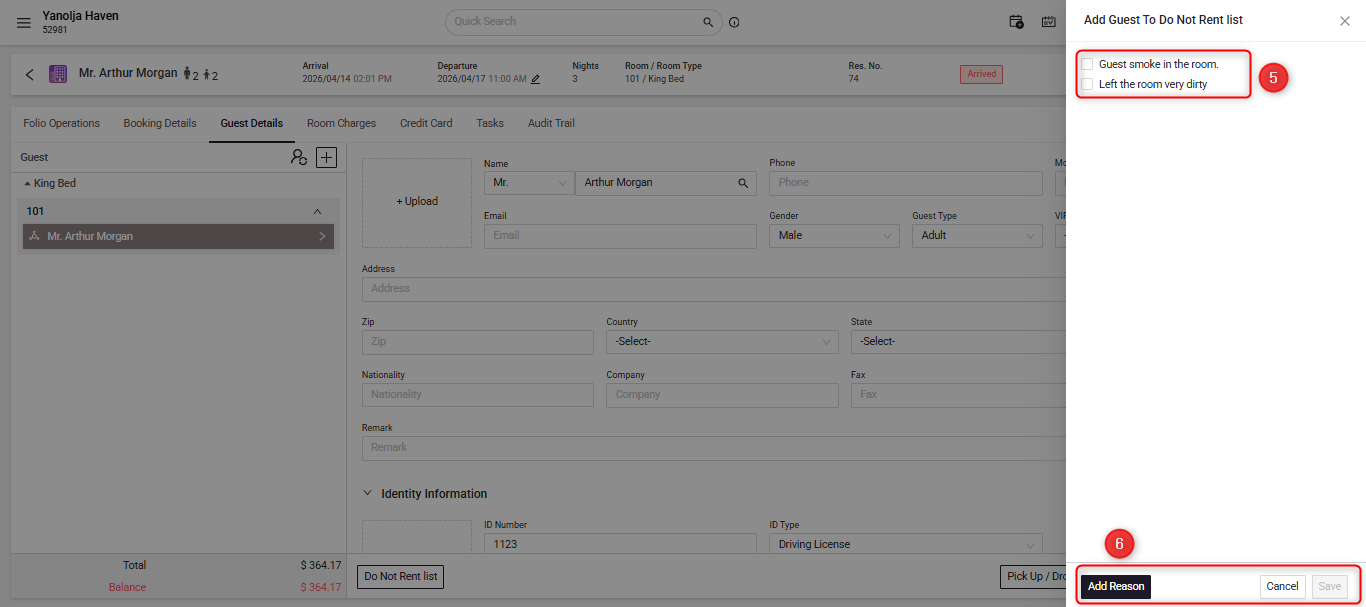
How the Blacklisted Guest will Pop-Up While Making a Reservation
- Click on New Reservation.
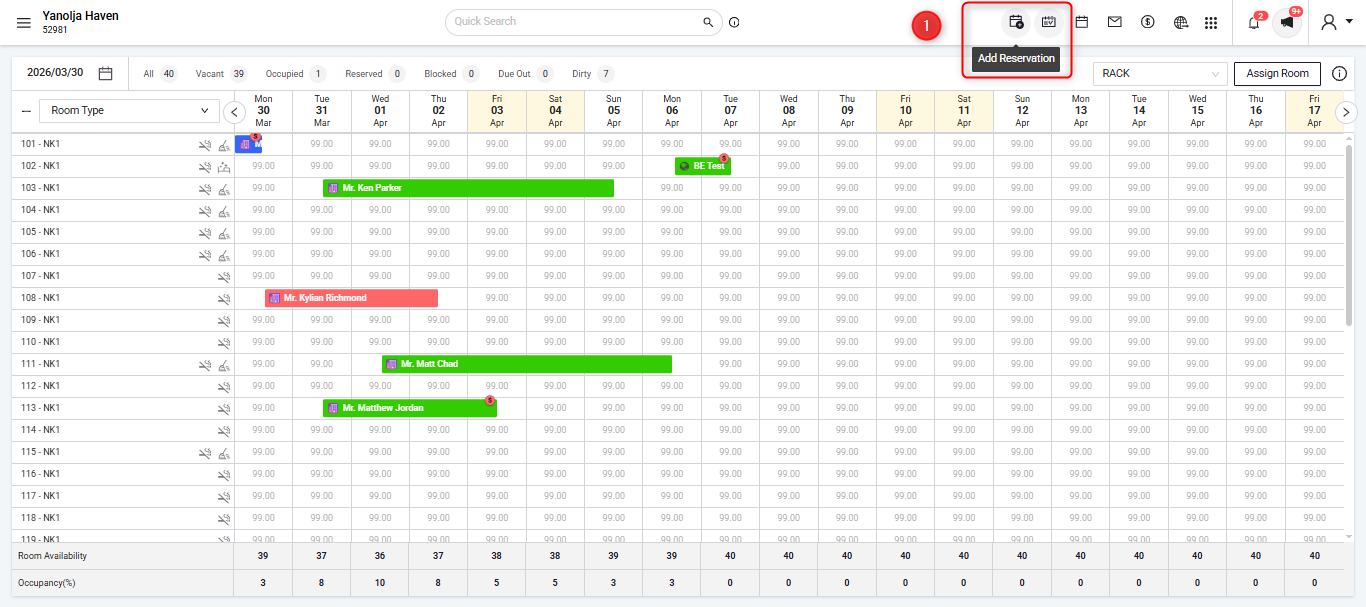
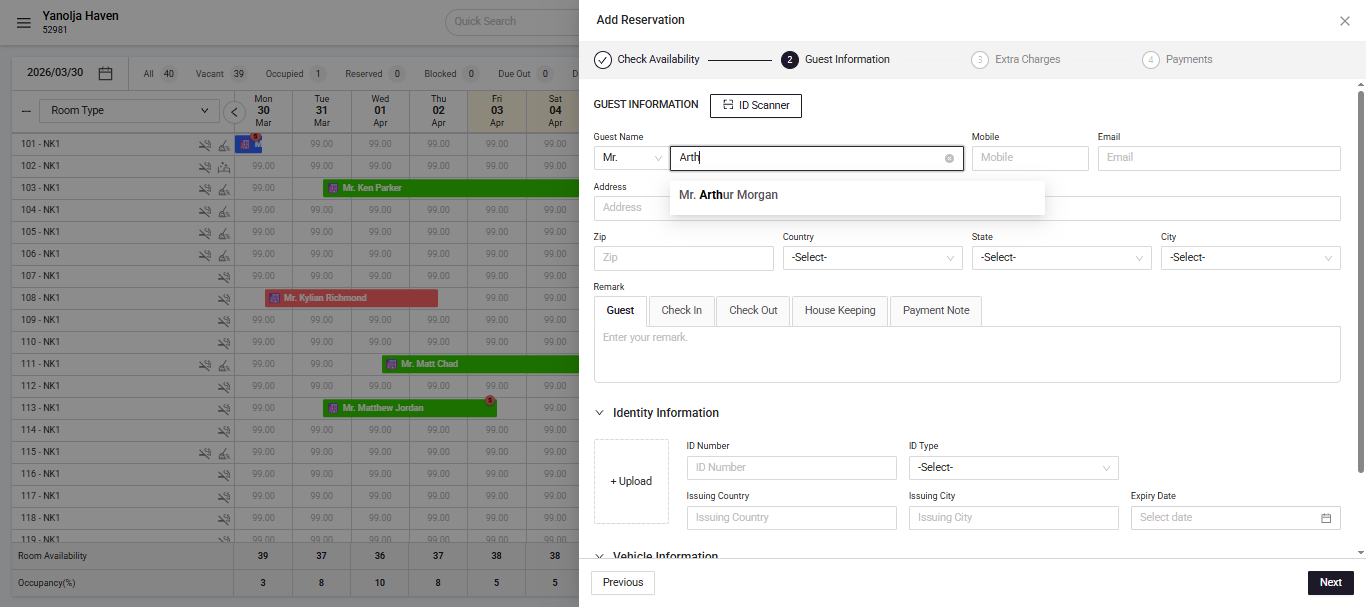
- On the Guest information tab, when you type the guest name it will give you a suggestion from the guest database.
- When you click on the suggested guest and if they were previously marked under "Do Not Rent List" then a pop will show up. Showing you that the guest was Blacklisted and also the reason.
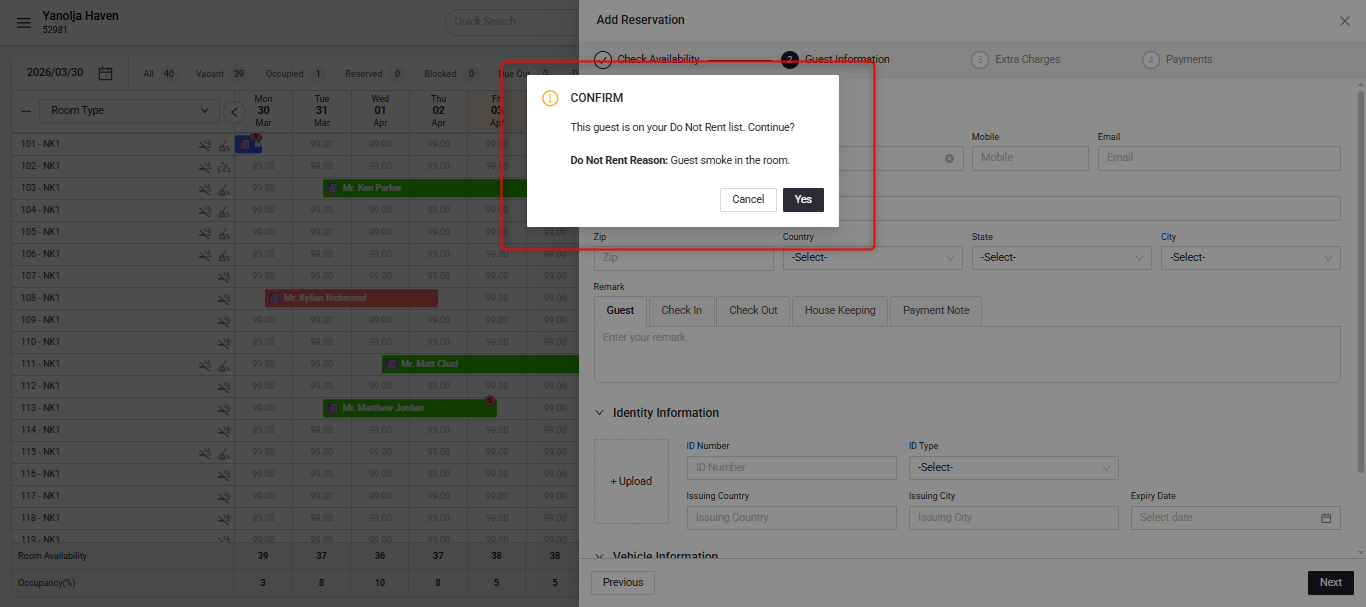
- Only after you have clicked on "Yes", it will allow you to continue making the reservation for that guest.
How to look for Blacklisted Guest in the Guest Database
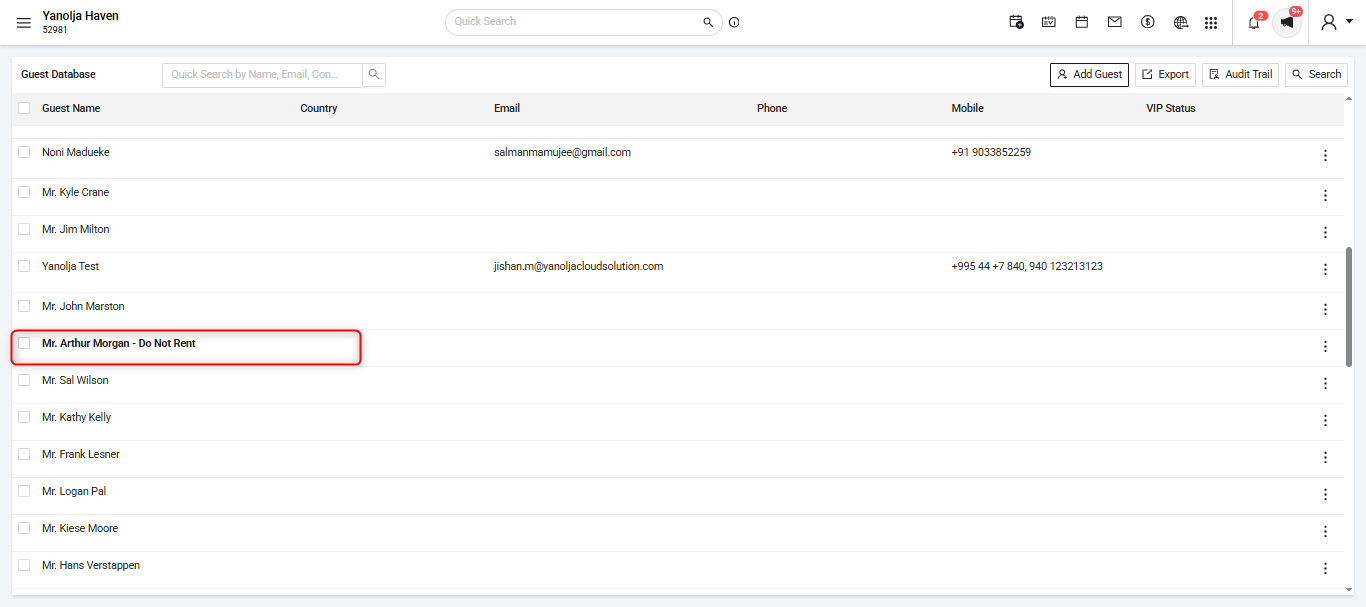
To check Click (☰) menu. Then navigate to Guest Database.
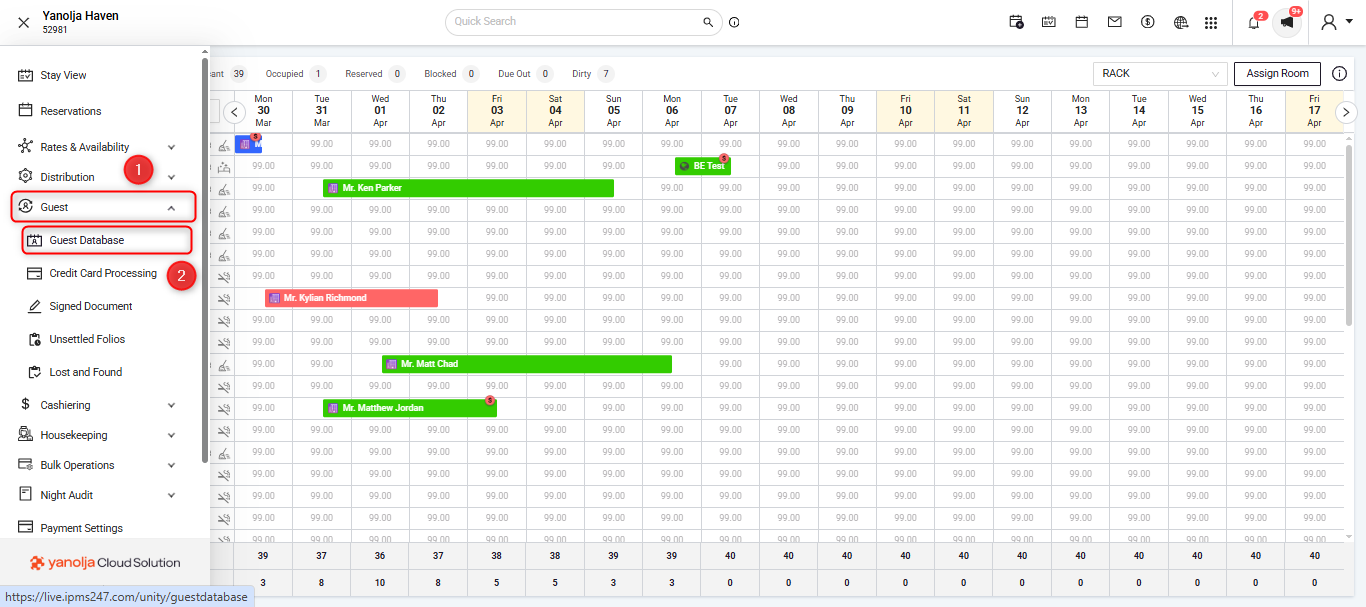
The Blacklisted guest will appear in Bold.
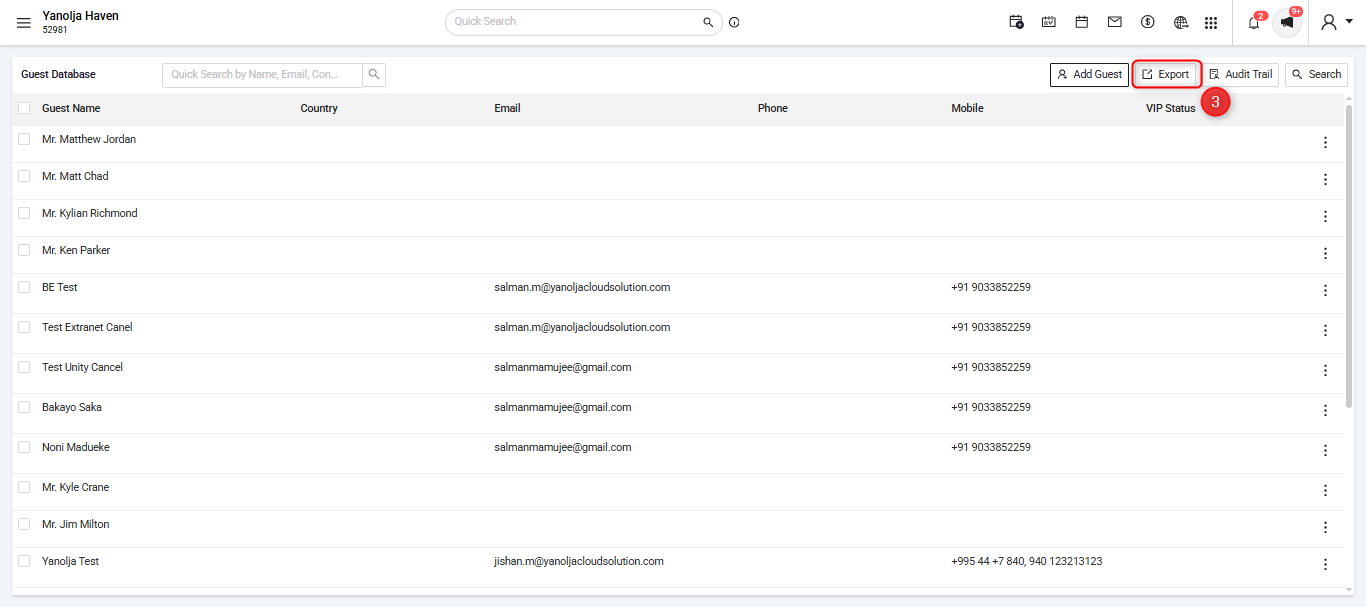
Click on "Export" and this will download the whole guest database in an excel.
In the Excel sheet, scroll to the right and in the last second column you will see "Blacklist Reason".
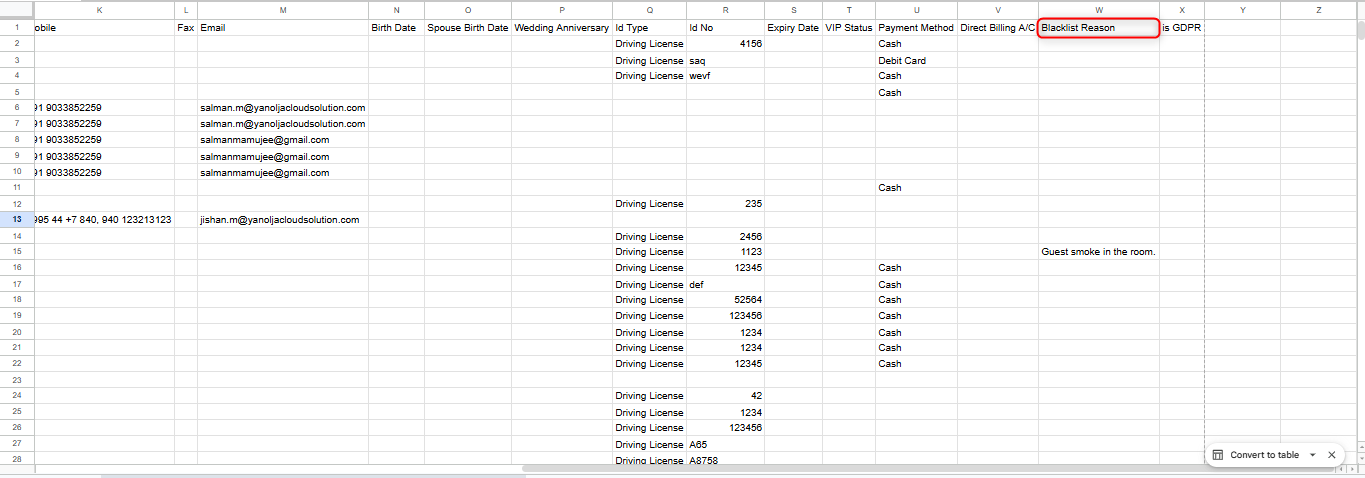 Here you can see all the Blacklisted guests in your Database.
Was this article helpful?
That’s Great!
Thank you for your feedback
Sorry! We couldn't be helpful
Thank you for your feedback
Feedback sent
We appreciate your effort and will try to fix the article