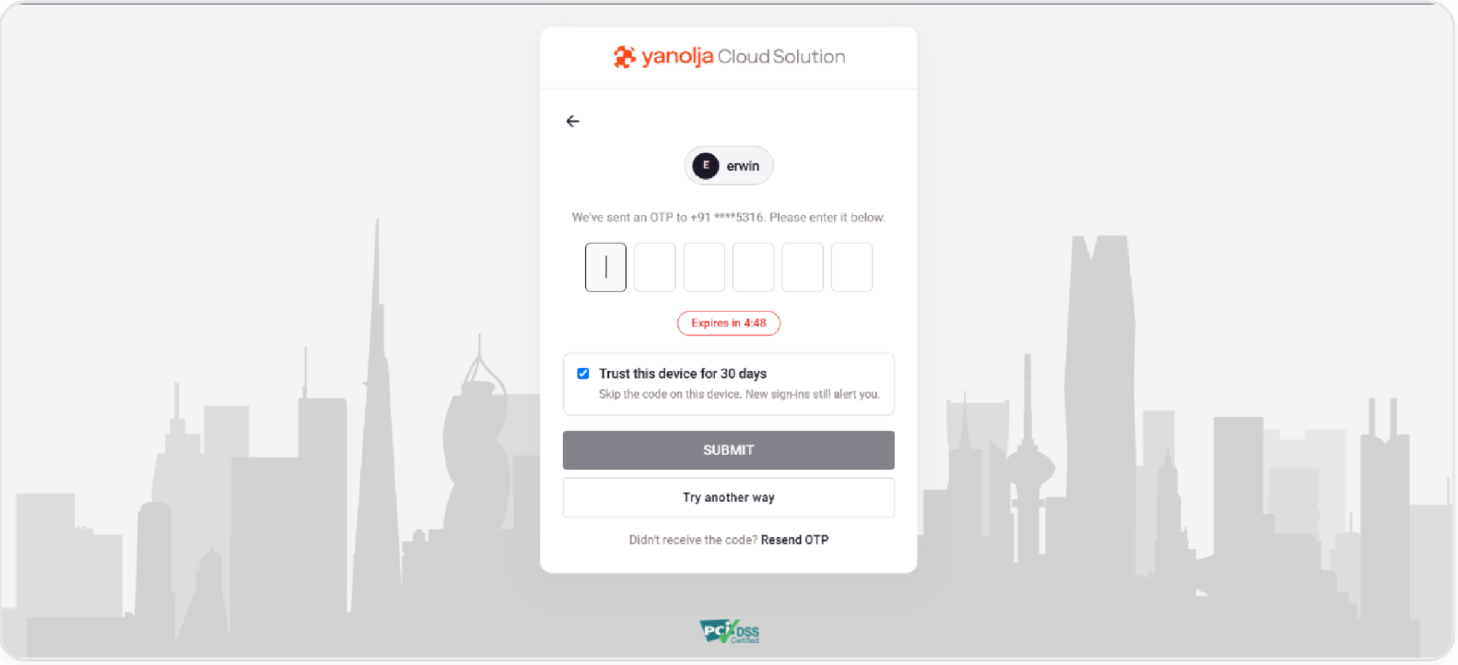
Trusting a device is something you choose - it is not switched on automatically after your first verification. You decide to trust a device at the moment you enter an OTP, by ticking a checkbox on the code-entry screen.
How a device becomes trusted
1. After you have verified at least once, a later sign-in asks you for an OTP from any of your verified sources.
2. On the OTP entry screen, a "Trust this device for 30 days" checkbox appears.
3. Tick the box before you verify, and this browser becomes a Trusted Device for the next 30 days.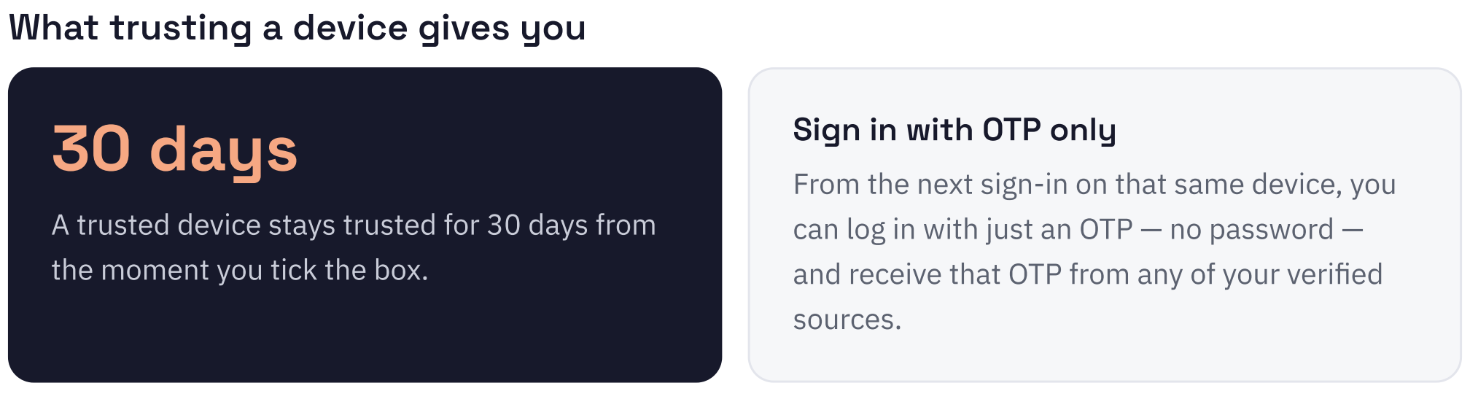
NOTE
Trust applies to one browser on one device. On a different browser or a new device you'll verify again. Every trusted device appears under Active Sessions, where you can remove it at any time (see Section 14). Avoid trusting shared or public computers.
Login After Trusted Device Expiry
Once the 30-day trusted period ends, your next sign-in simply asks you to verify again - and you can renew the trust in the same step.
1 Sign in with your usual credentials (or use Login with OTP).
2 The system prompts you for a one-time code.
3 Choose where to receive it from any verified source - SMS, WhatsApp, Email, or Authenticator App.
4 Enter the code, tick "Trust this device for 30 days" again, and verify - the device is trusted for another 30 days.
TIP
If you don't tick the checkbox, you'll simply be asked to verify again on your next sign-in - nothing is lost, and your account stays protected.
Was this article helpful?
That’s Great!
Thank you for your feedback
Sorry! We couldn't be helpful
Thank you for your feedback
Feedback sent
We appreciate your effort and will try to fix the article