This article explains how you can create a new discount that can be applied to Room Charges and Extra Charges in the Property Management System (PMS).
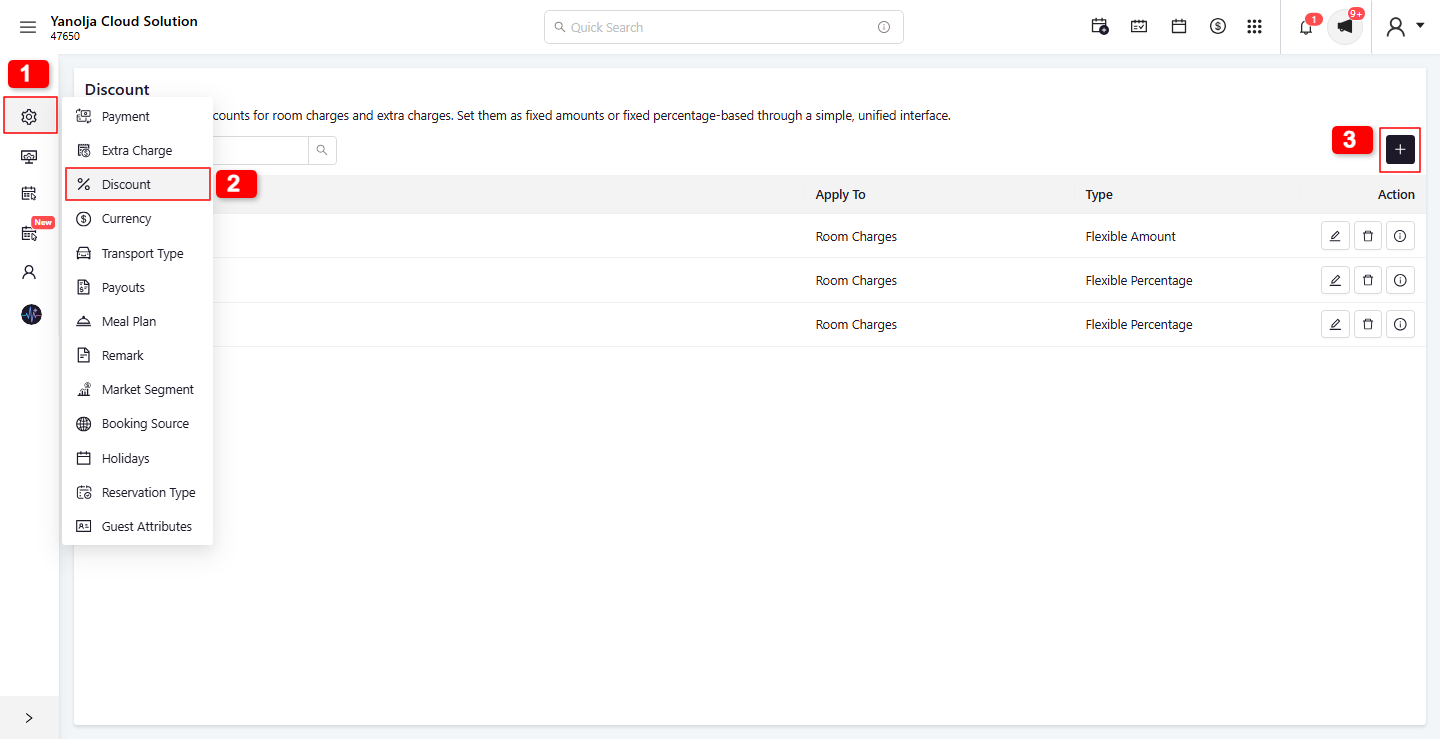
1. Go to Configuration and click on Settings.
2. Click on Discount.
3. Click on the (+) icon to add a new discount. A side panel will open.
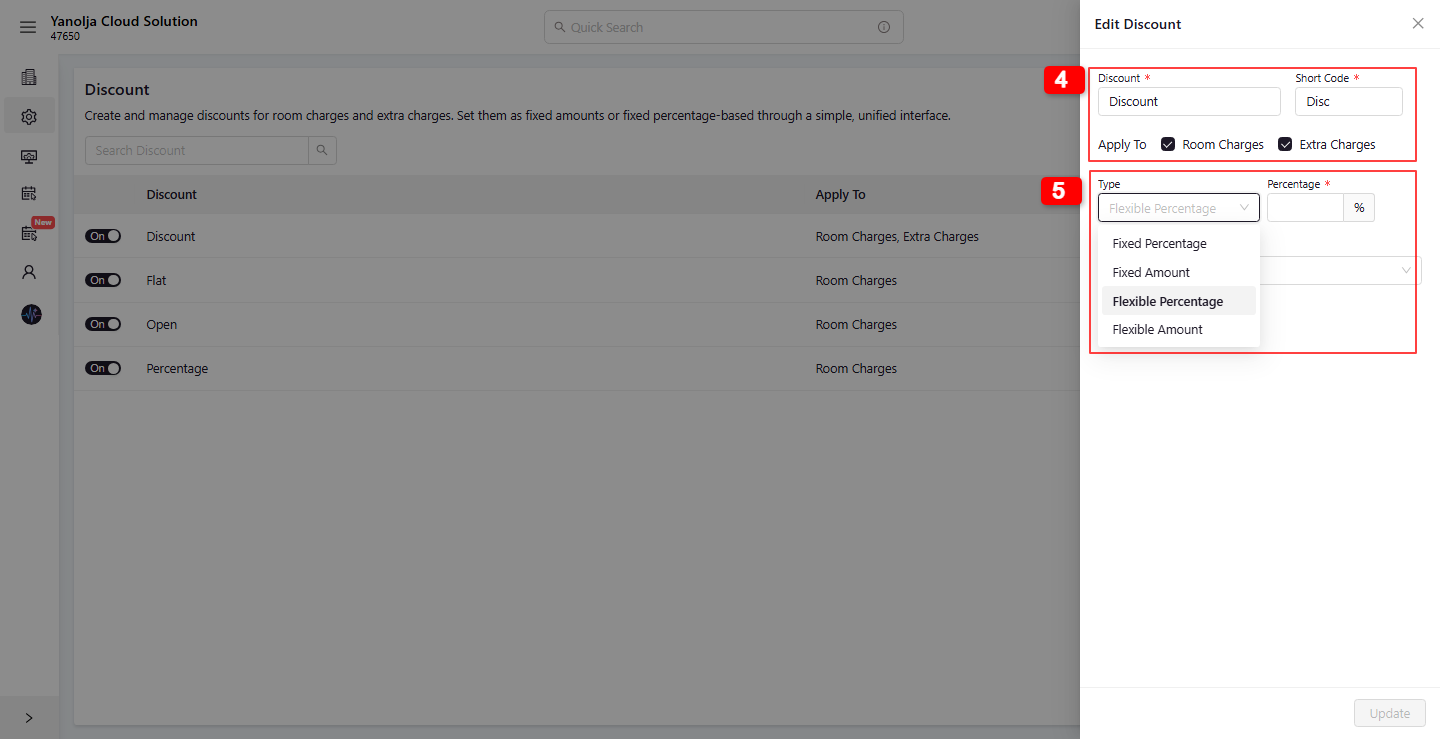
4. Enter the mandatory details such as Discount Name and Short Code. Then select whether the discount should be applicable on Room Charges, Extra Charges, or both.
5. Select the Discount Type. You can choose from the following options:
Fixed Amount: Applies a predefined fixed discount amount.
Fixed Percentage: Applies a predefined percentage discount.
Flexible Amount: Allows the user to enter the discount amount at the time of applying the discount.
Flexible Percentage: Allows the user to enter the discount percentage at the time of applying the discount.
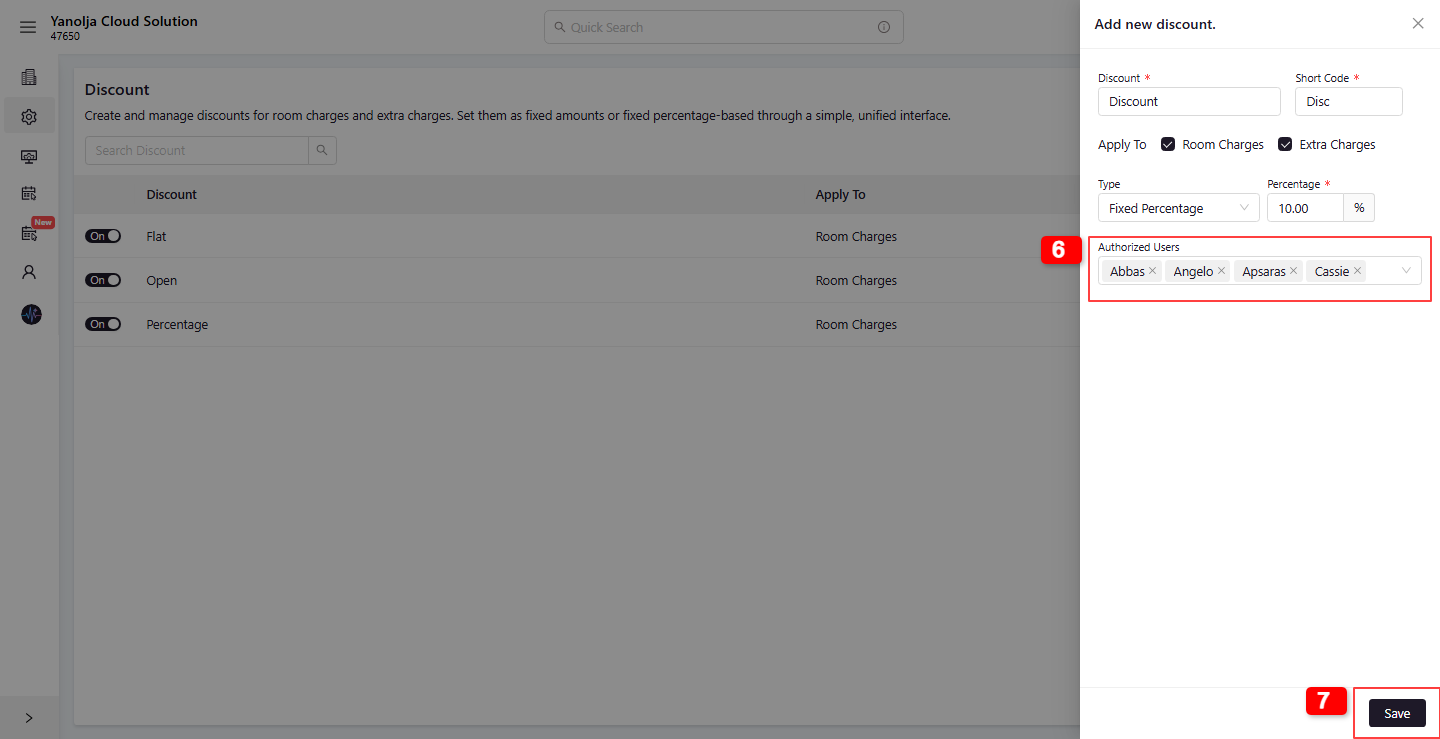
6. Under Authorized Users, select the users who should have permission to apply this discount on reservations.
7. Click Save to create the discount.
Was this article helpful?
That’s Great!
Thank you for your feedback
Sorry! We couldn't be helpful
Thank you for your feedback
Feedback sent
We appreciate your effort and will try to fix the article