Applying or Removing a Stop Sell in the Unity
In the Unity, a Stop Sell can be applied or removed using three different methods:
1. For Multiple Days (1–14 Days) via Rate & Inventory
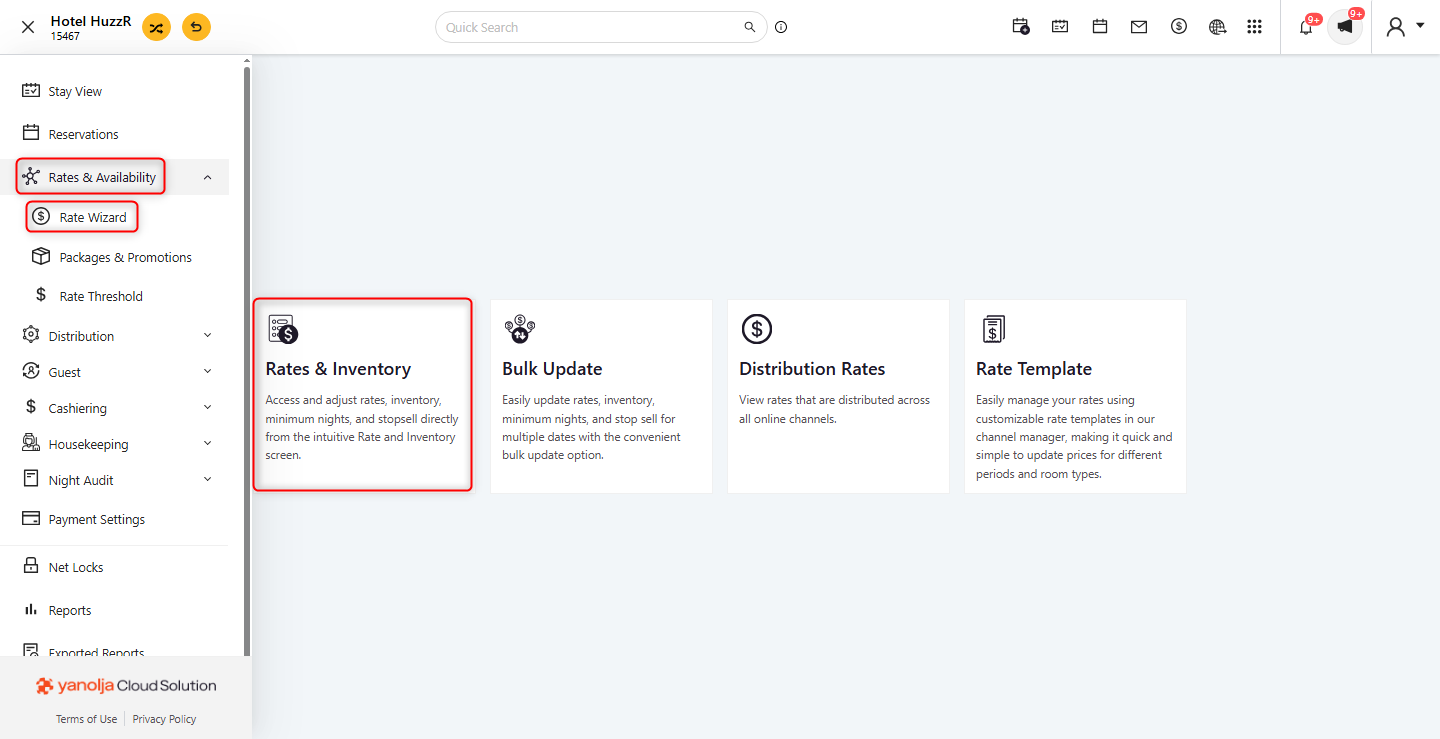
Navigate to Rate & Availability>> Rate Wizard >> Rates & Inventory >> Stop Sell.
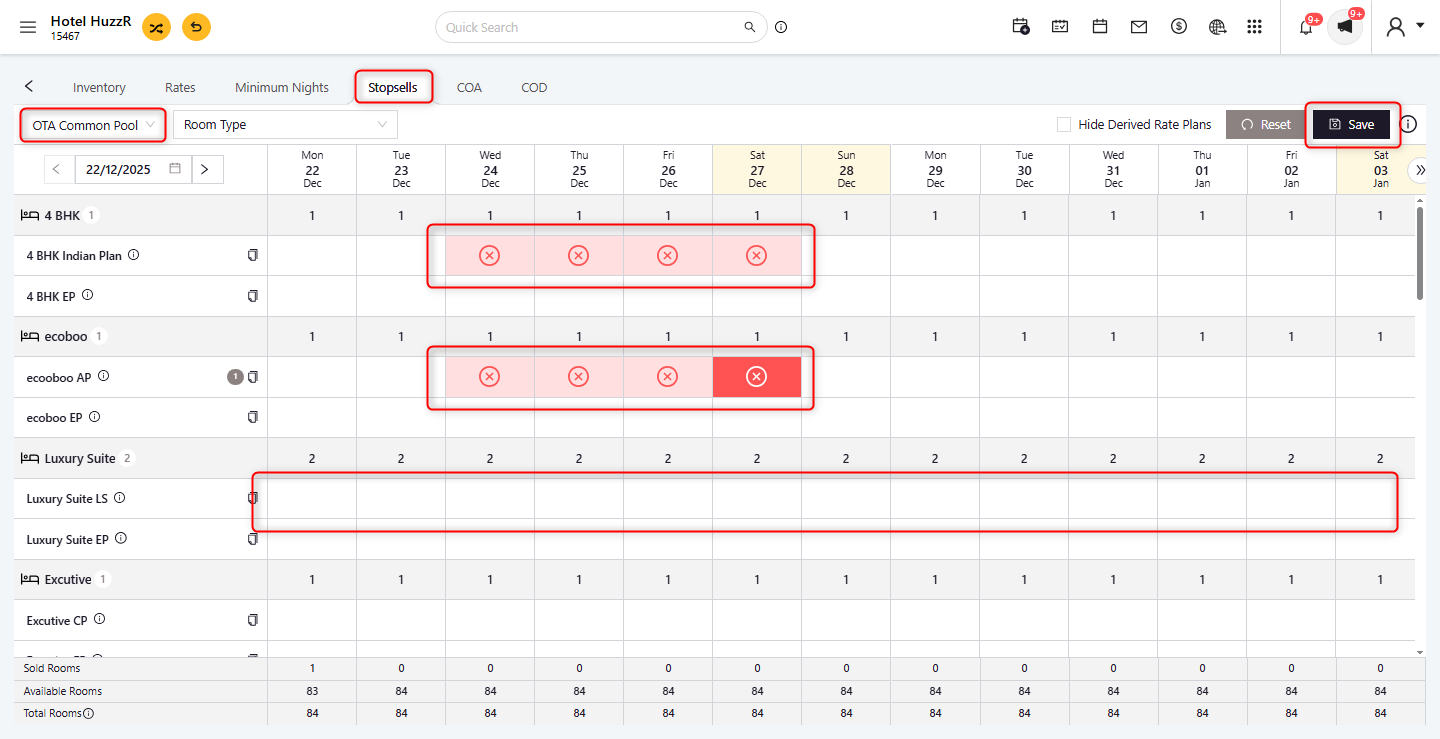
Choose the dates on which to apply the Stop Sell. A blank cell indicates that no Stop Sell is currently applied.
Click the cross mark to activate the Stop Sell; it will change to a check mark (×), indicating the Stop Sell is active.
Red cross on the calendar indicate dates with active Stop Sells.
Click Save to confirm.
To remove a Stop Sell, click the check mark; it will revert to a cross mark.
2. For Periods Longer Than One Month (Bulk Update)
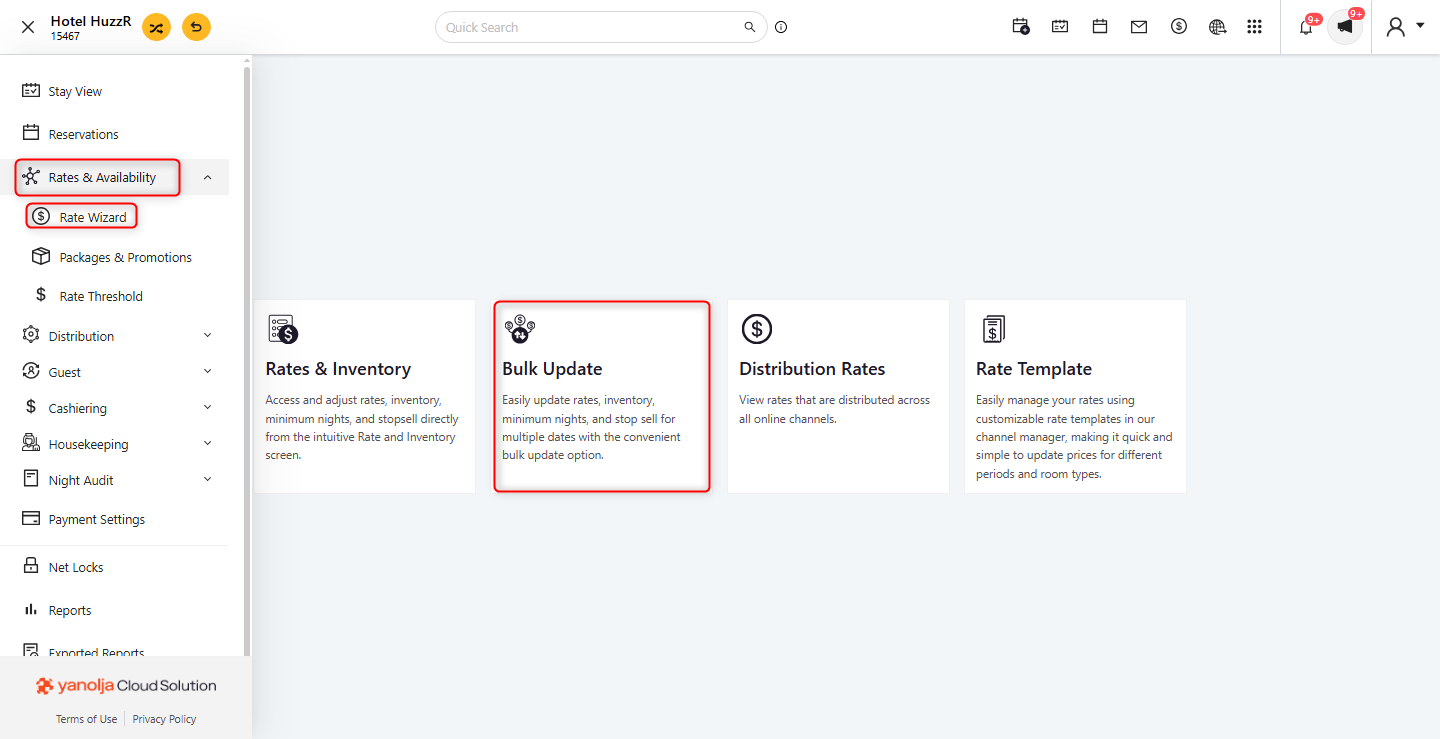
Go to Rate & Availability>> Rate Wizard >> Bulk update >> Stop sell.
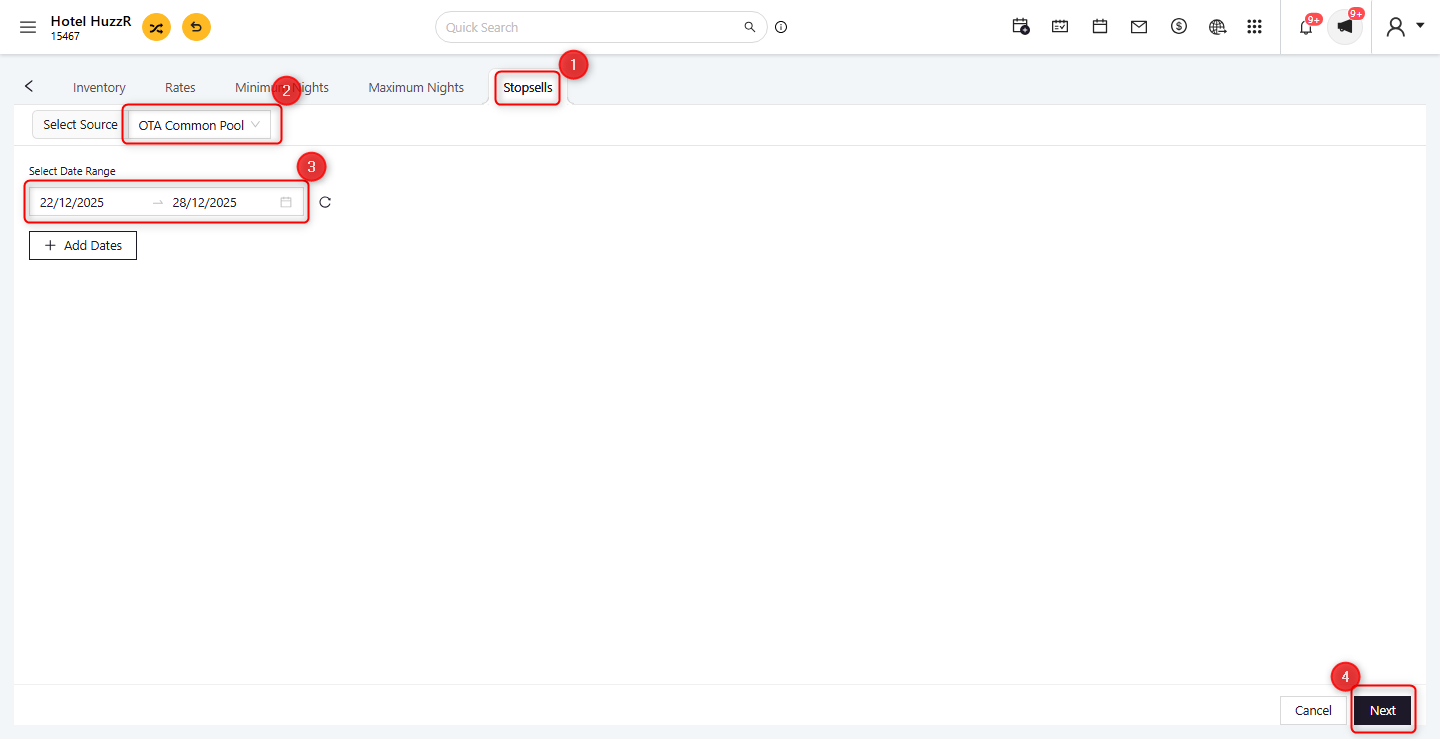
Select the appropriate Source.
Select the desired date Range. Click Next to proceed.
Choose the Room Type. Click Next to proceed.
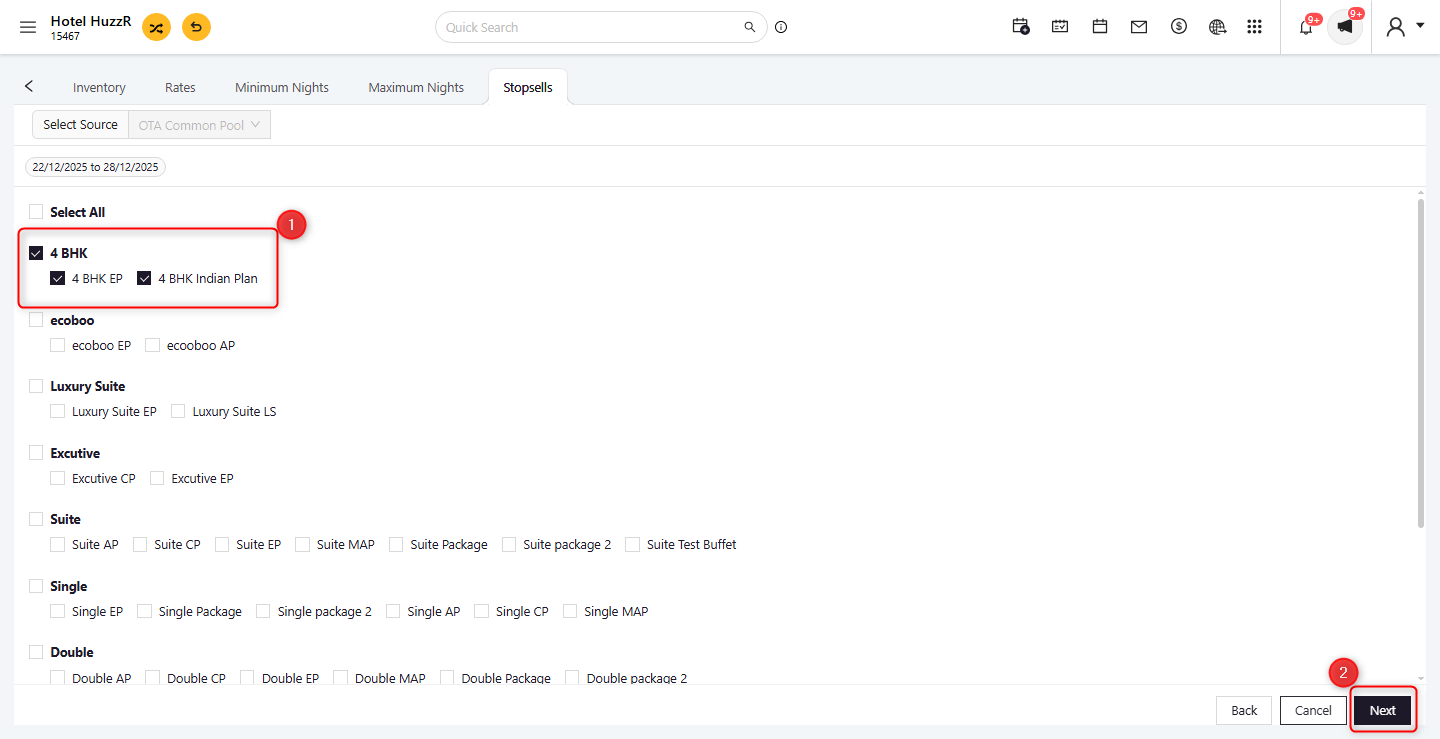
Select Every Day to apply the Stop Sell across all selected days.
Click Update to apply the changes.
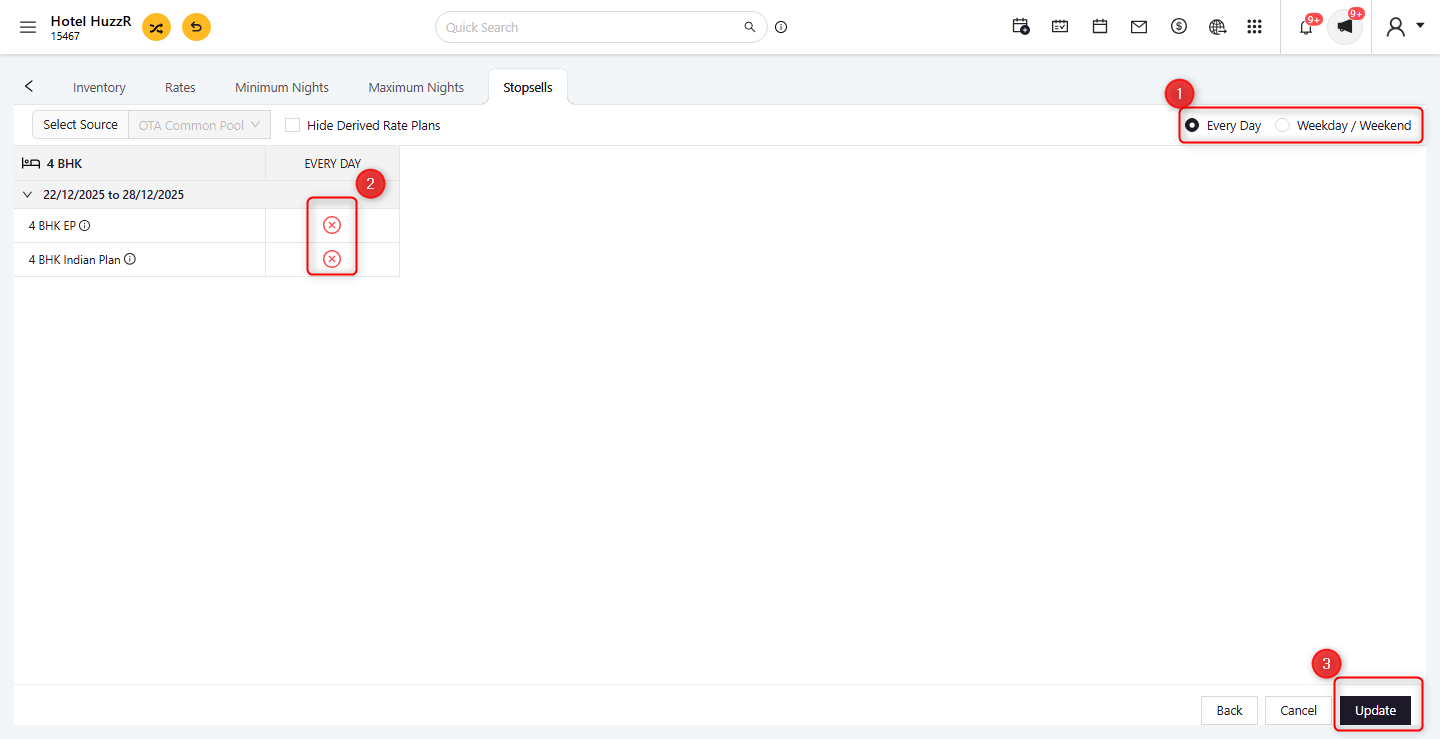
To remove a Stop Sell, follow the same steps.
Was this article helpful?
That’s Great!
Thank you for your feedback
Sorry! We couldn't be helpful
Thank you for your feedback
Feedback sent
We appreciate your effort and will try to fix the article