If you need to update values for a specific time period, you can use the Rate Wizard >> Bulk Update, which allows you to update multiple dates and rate plans simultaneously.
To update multiple dates at once in the System using the Bulk Update, please follow the steps below:
Access the Rate Wizard:
1. Navigate to the Rate & Inventory section.
2. Select Rates Wizard.
3. Click on Bulk Update to proceed.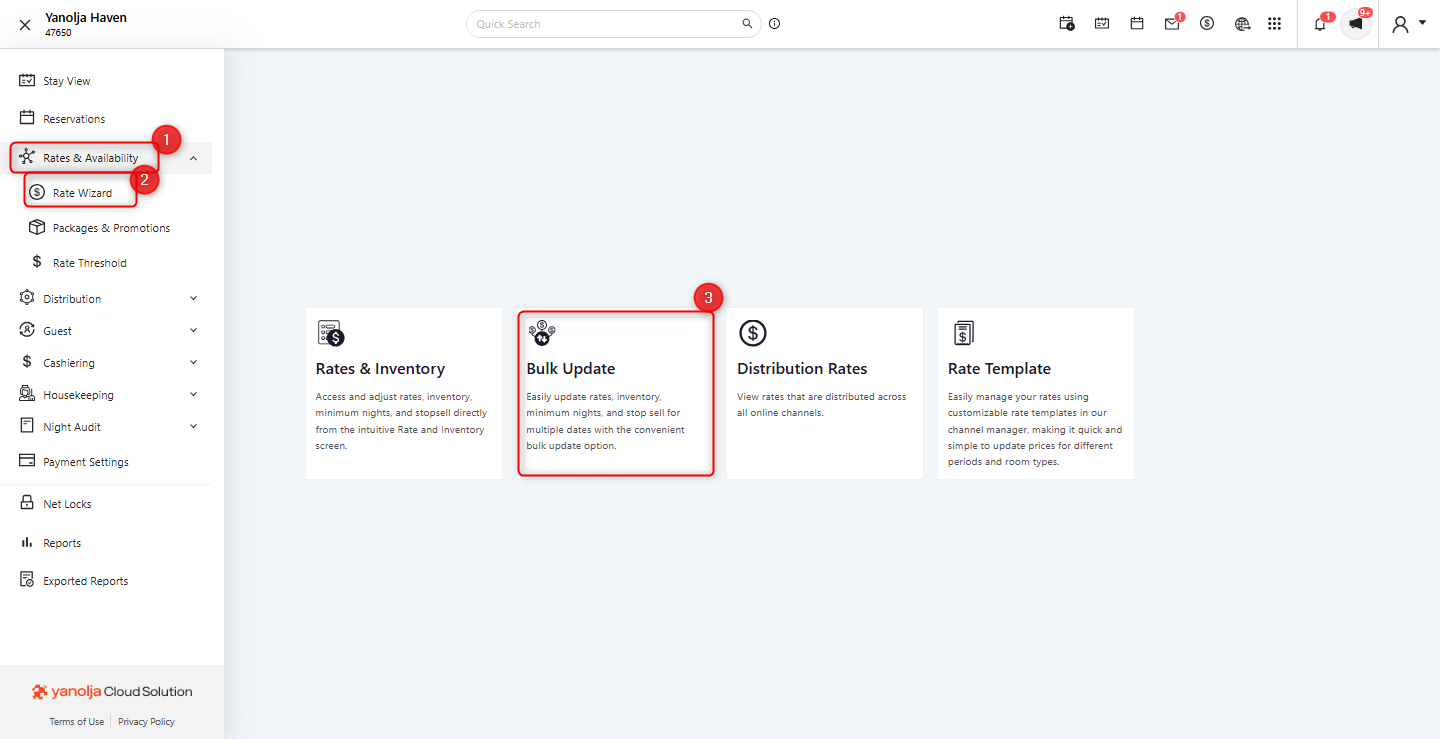
Select the required parameters:
4. Select the Update Option based on the action you want to perform, including updating Rates, Inventory, Minimum Nights, or applying/removing Stop Sell.
5. Choose the appropriate Source, such as OTA Common Pool for Online Travel Agencies or WEB for the booking engine.
6. Select the start date and end date for the update. Click Add Another to include additional date ranges, if required.
7. click on Next to Proceed.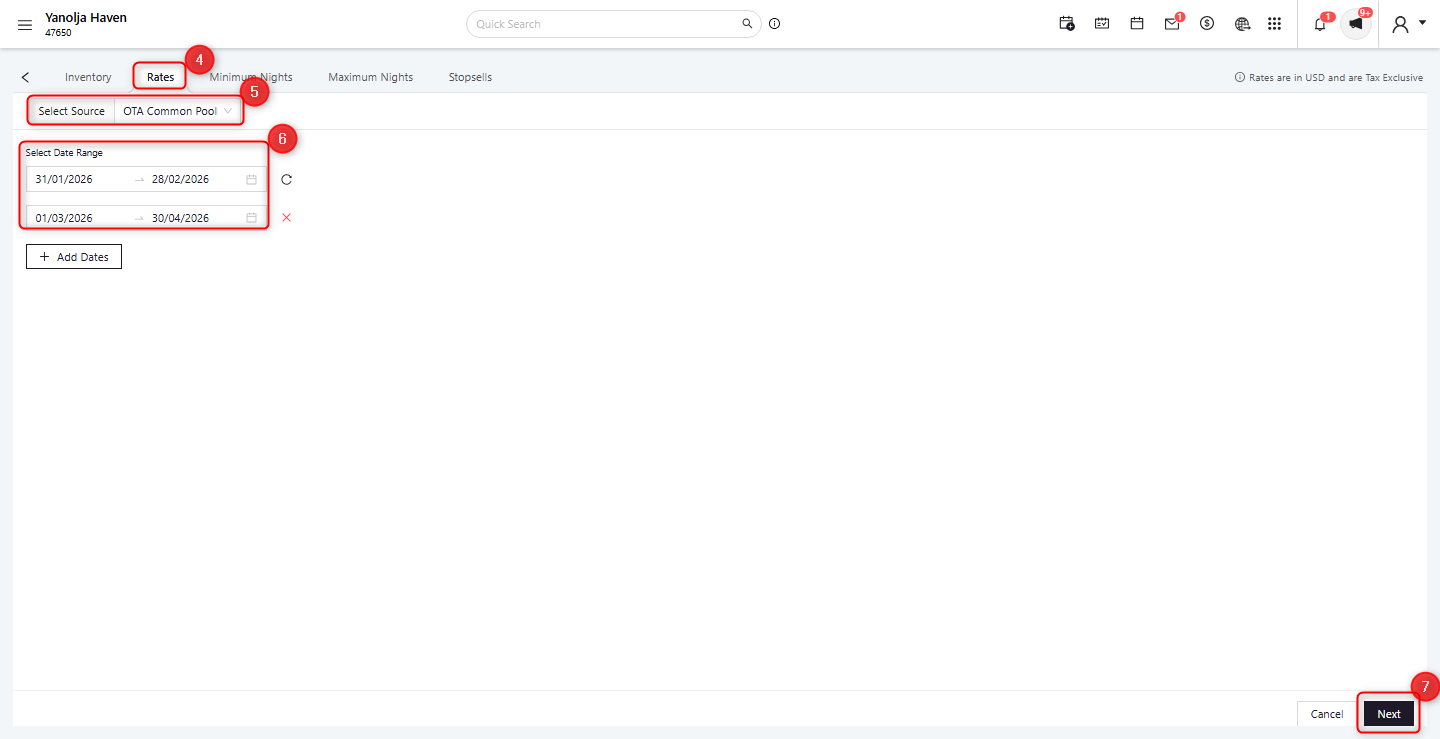
8. Select the applicable Room Types and Rate Plans. Multiple selections are supported.
9. Click on Next to Proceed.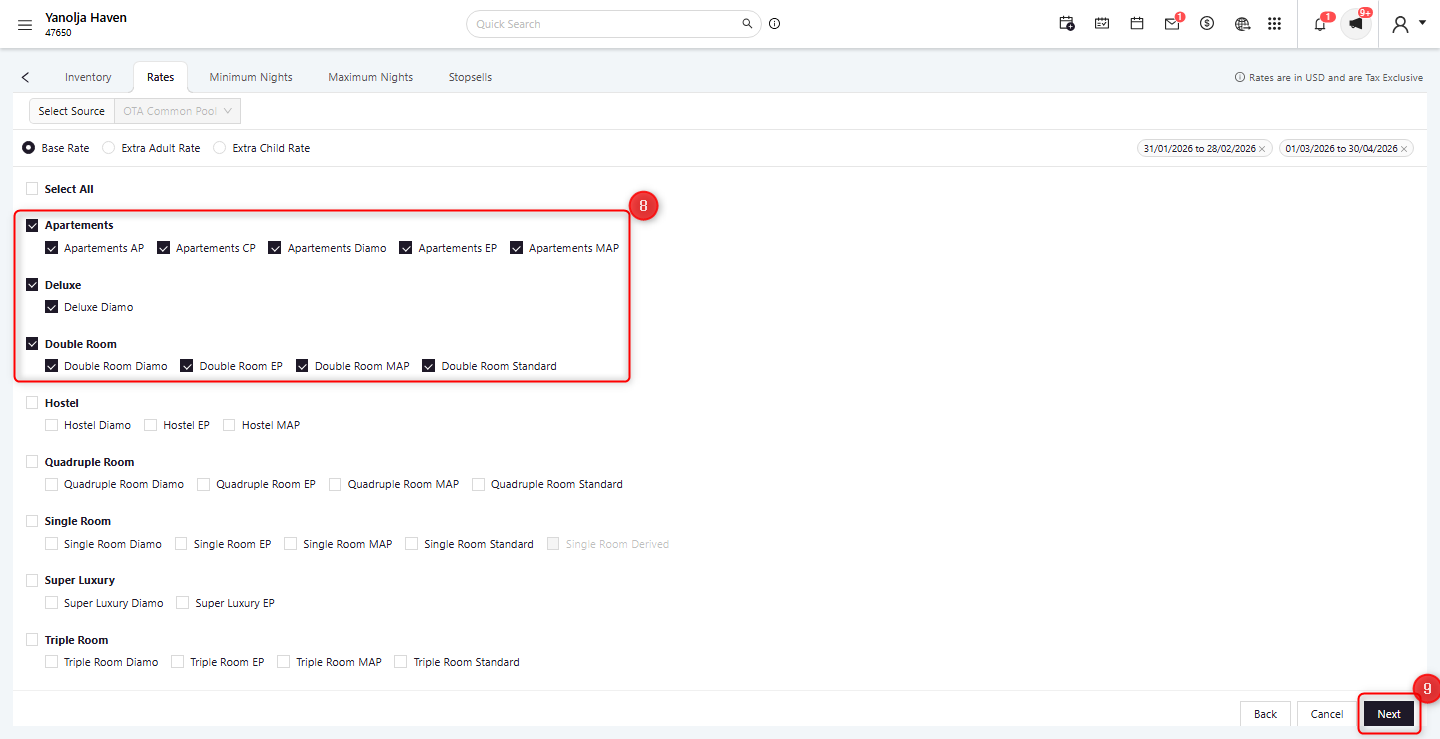
Define the application days:
10. Select Every Day to apply updates to all days within the selected date range, or choose Weekday/Weekend to apply updates to specific days only.
11. Enter details and apply Updates.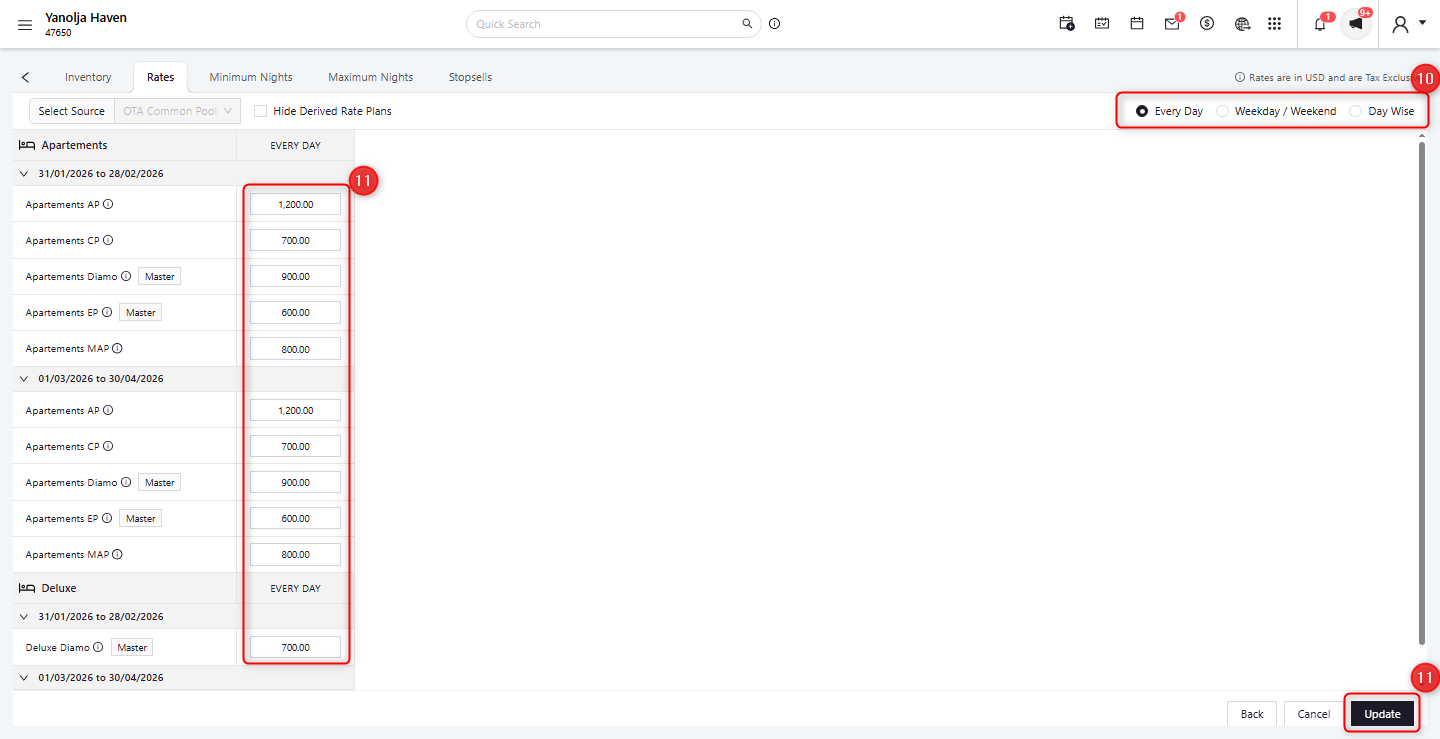
To update Rates, enter the Base Rate, Adult Rate, and Child Rate, then click Update to apply the changes.
12. To update Inventory, enter the inventory quantity and click Update to proceed.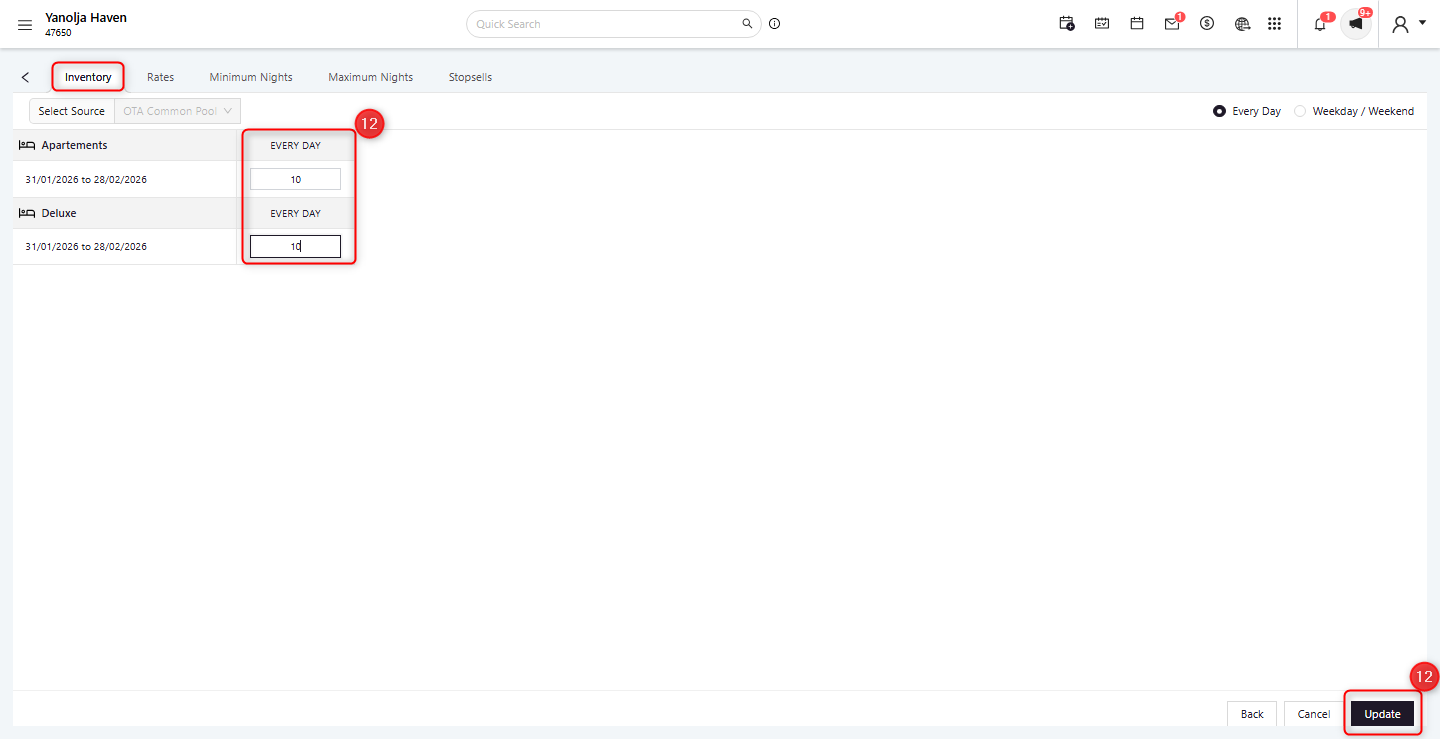
13. To apply or remove Stop Sell, toggle the switch On or Off, then click Update.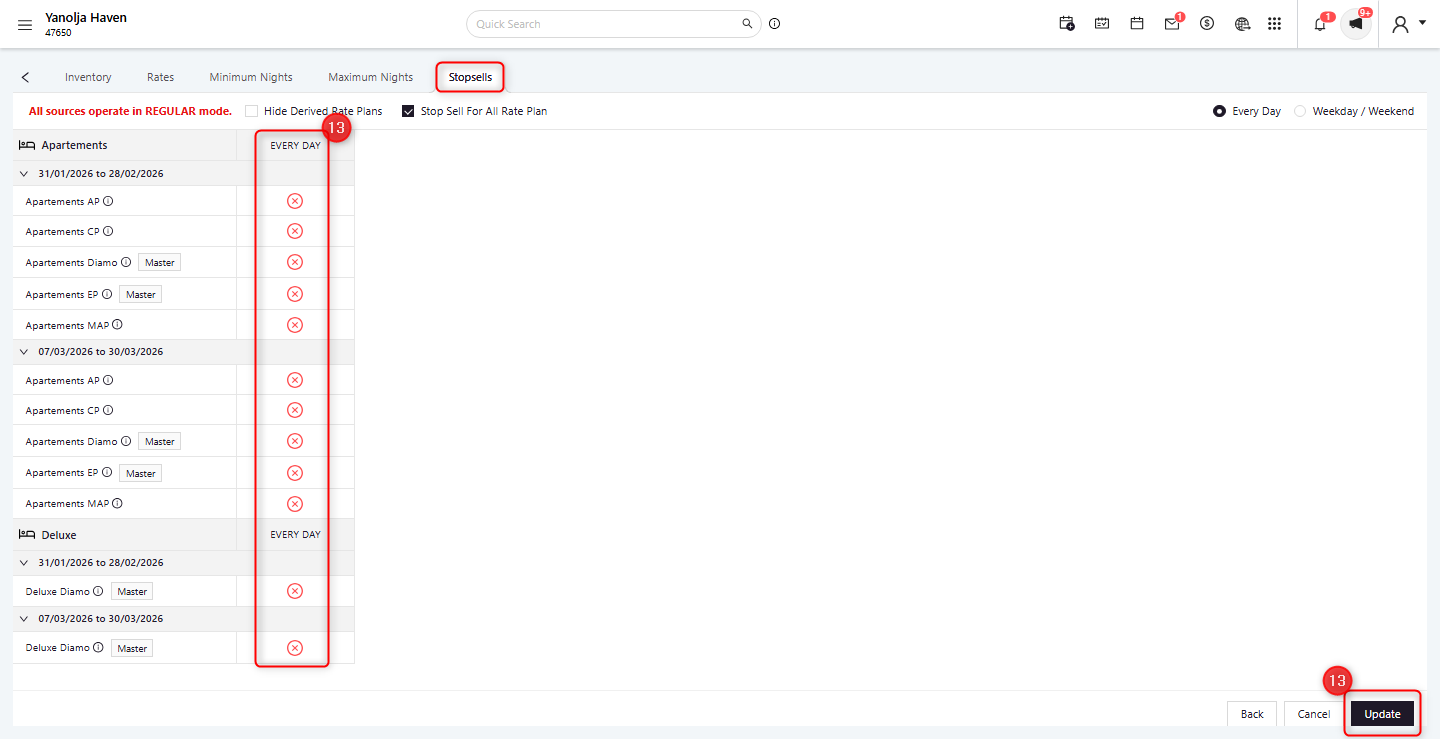
Once the update is submitted, the system will process the changes and display a confirmation notification upon successful completion.
Was this article helpful?
That’s Great!
Thank you for your feedback
Sorry! We couldn't be helpful
Thank you for your feedback
Feedback sent
We appreciate your effort and will try to fix the article