Yes, the Physical Stock Taking Report is available in eZee Optimus.
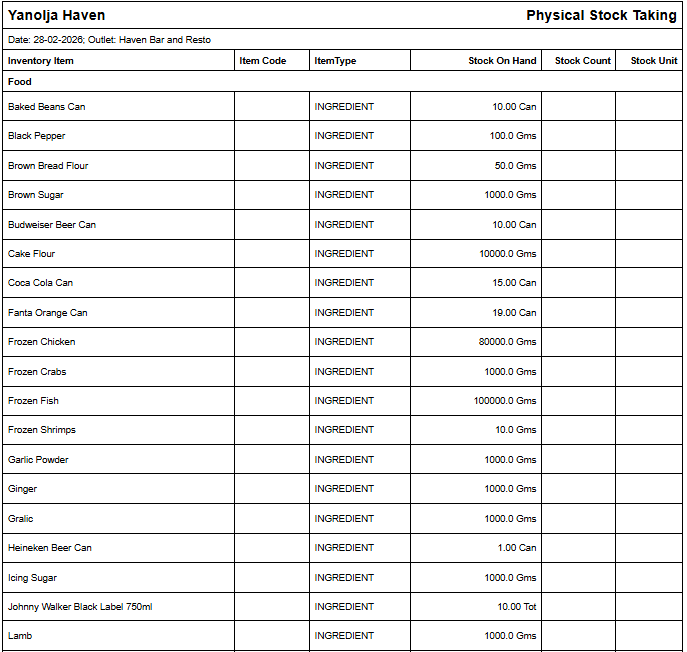
The Physical Stock Taking Report provides detailed data required to conduct physical inventory counting by item category or storage location.
This report assists storekeepers by allowing them to:
* Print the stock details for manual counting, or
* Export the information for digital stock verification
It includes all necessary information required to perform accurate stock counting.
Additionally, the report provides an option to include the Book Stock field for comparison between system stock and physically counted stock.
Steps to Access the Physical Stock Taking Report
1. Click on Order Summary.
2. Navigate to the Manager section.
3. Click on Reports.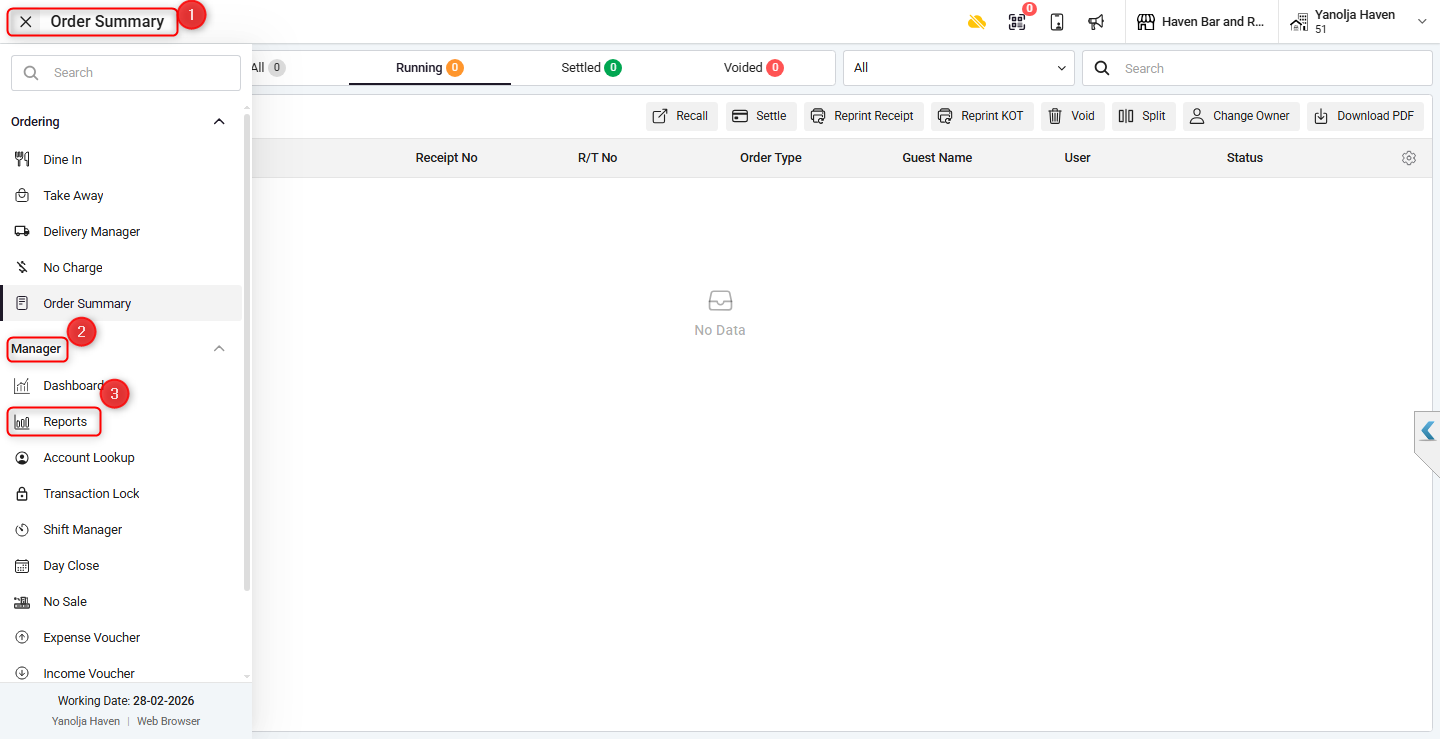
4. Select Stock Report.
5. Choose Physical Stock Taking.
6. Fill in all mandatory fields before fetching the report.
7. Select the date for which you want to check the stock.
8. Choose the required Category.
9. Ensure you tick “Show Stock on Hand” to view your in-house stock details.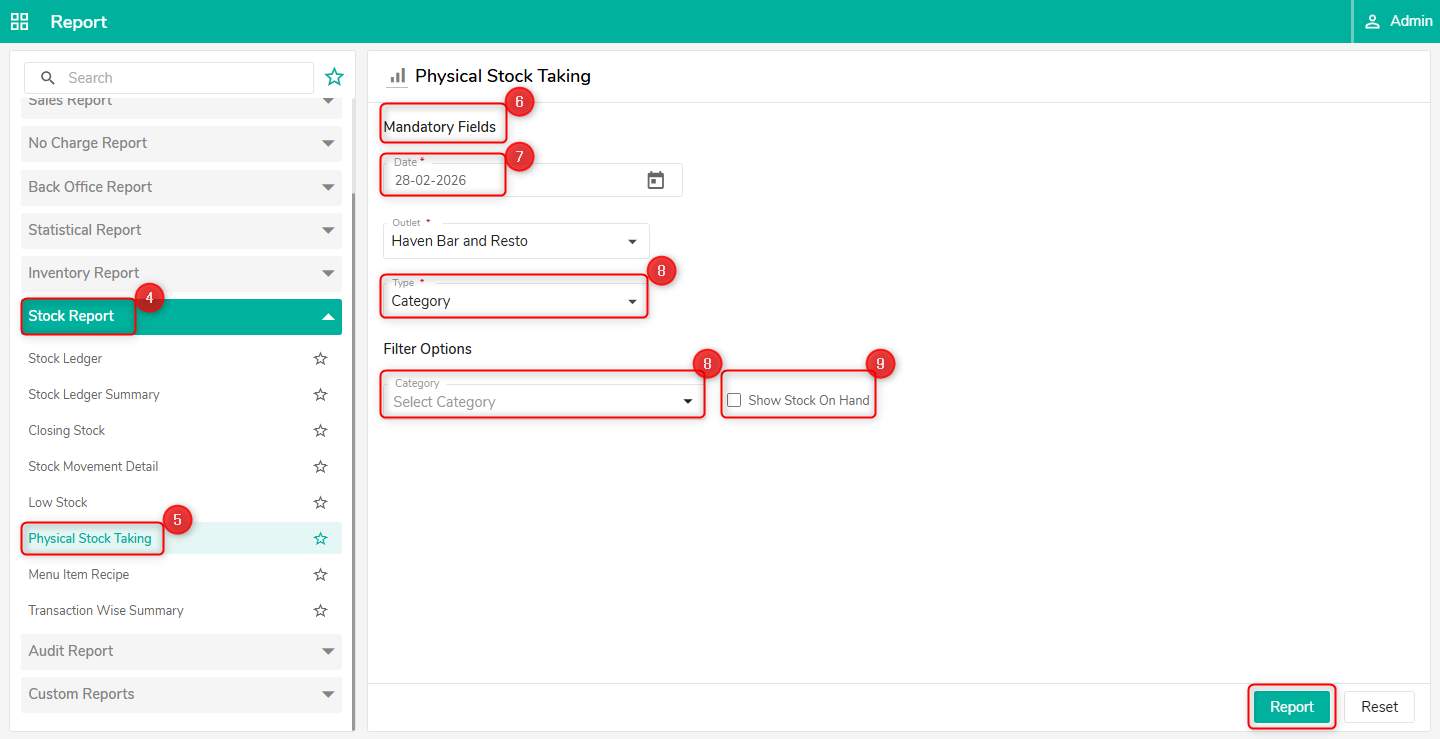
Was this article helpful?
That’s Great!
Thank you for your feedback
Sorry! We couldn't be helpful
Thank you for your feedback
Feedback sent
We appreciate your effort and will try to fix the article