What is an Income Voucher?
In eZee Optimus, an Income Voucher is used to record additional petty cash income that is not part of regular sales transactions.
Examples:
- Sale of swimming costumes
- Sale of scrap newspapers
- Miscellaneous petty cash income
- This ensures proper financial tracking and reporting within the system
How do I create an Income Voucher?
Step 1: Open Income Voucher
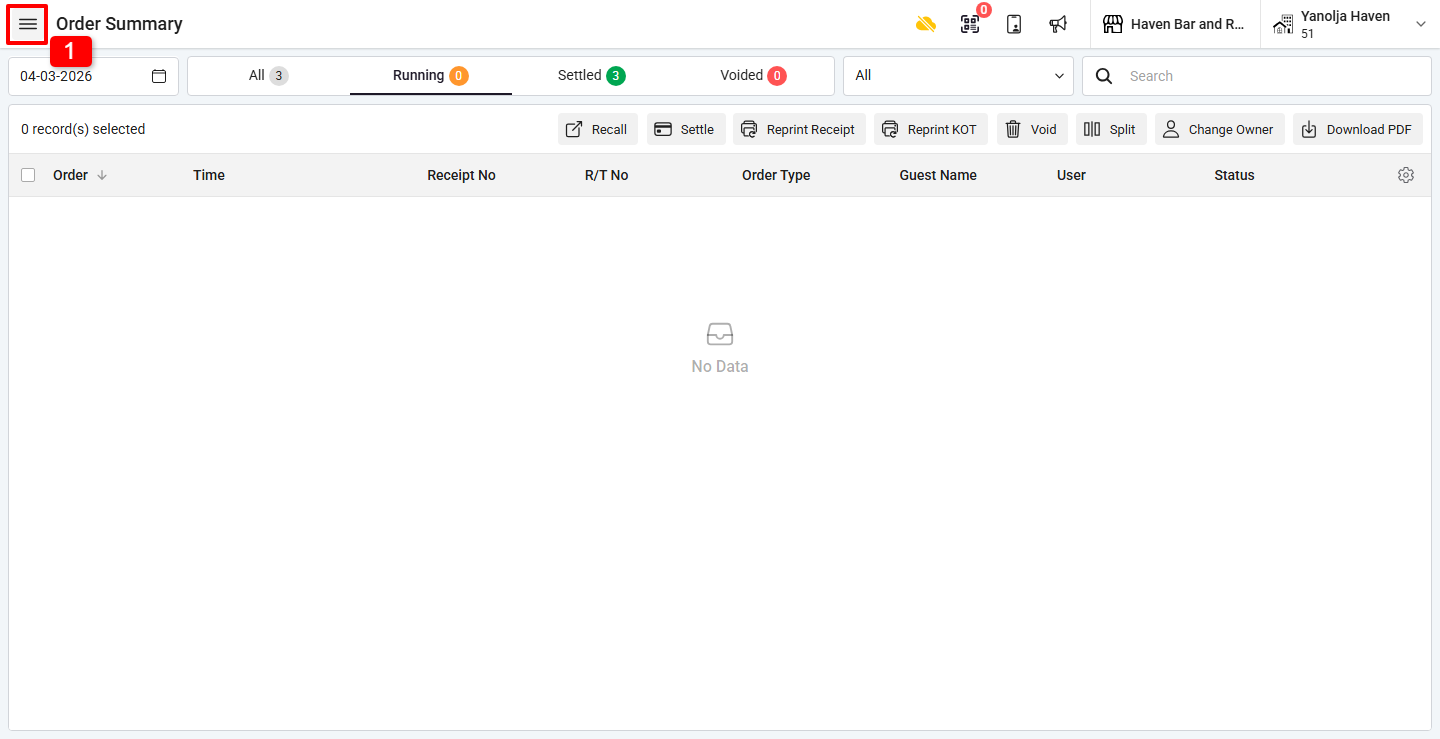
1. Click on the ☰ (Three Lines Menu).
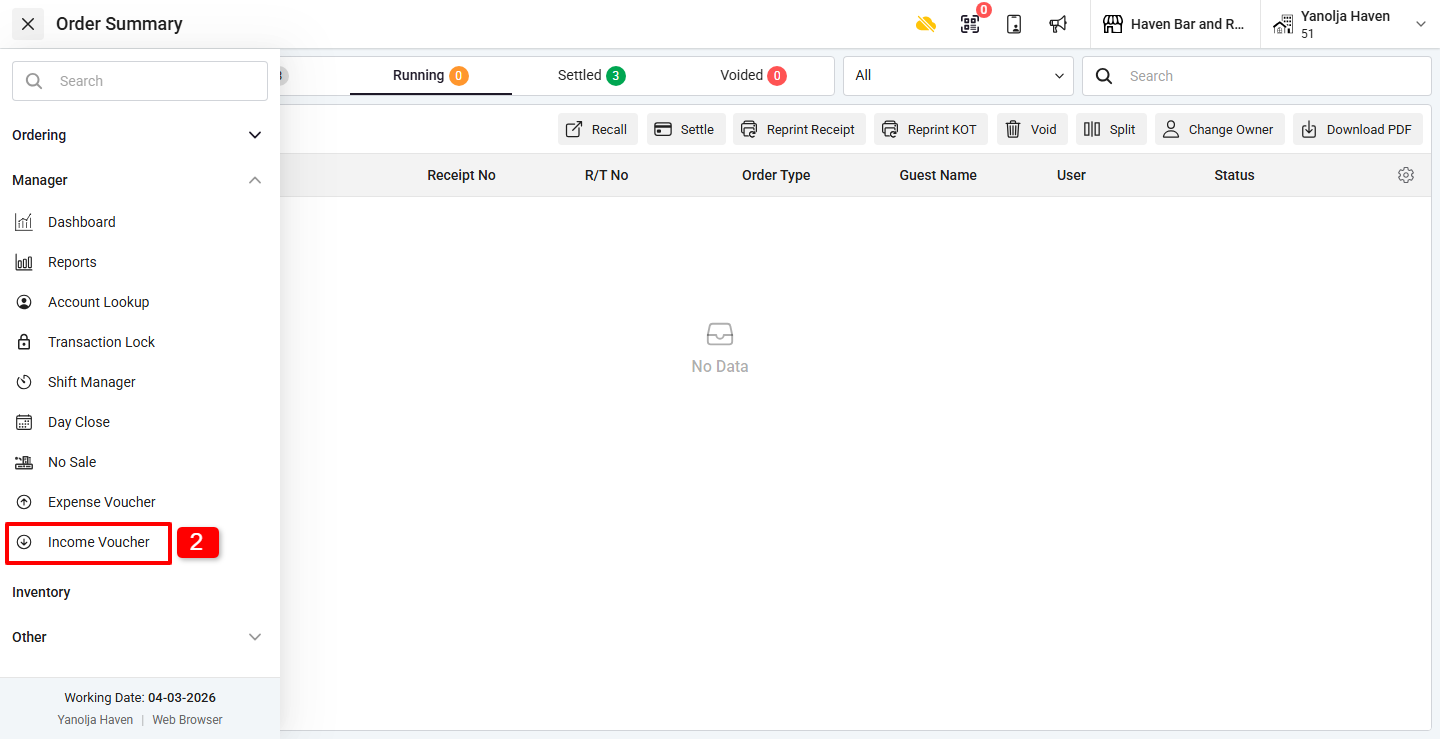
2. Under Manager, click on Income Voucher.
Step 2: Add Income Voucher
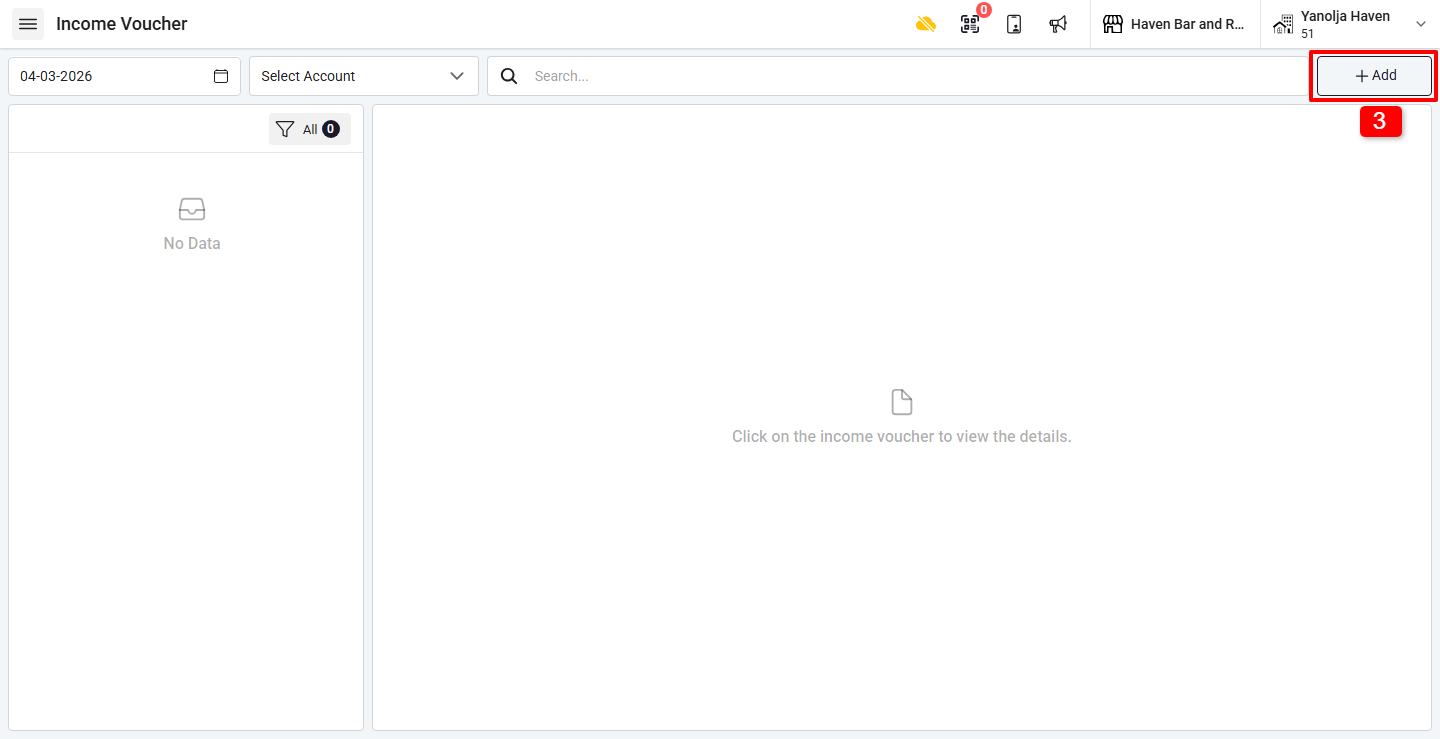
3. Click on the “+ Add” button.
Step 3: Add Charge & Payment
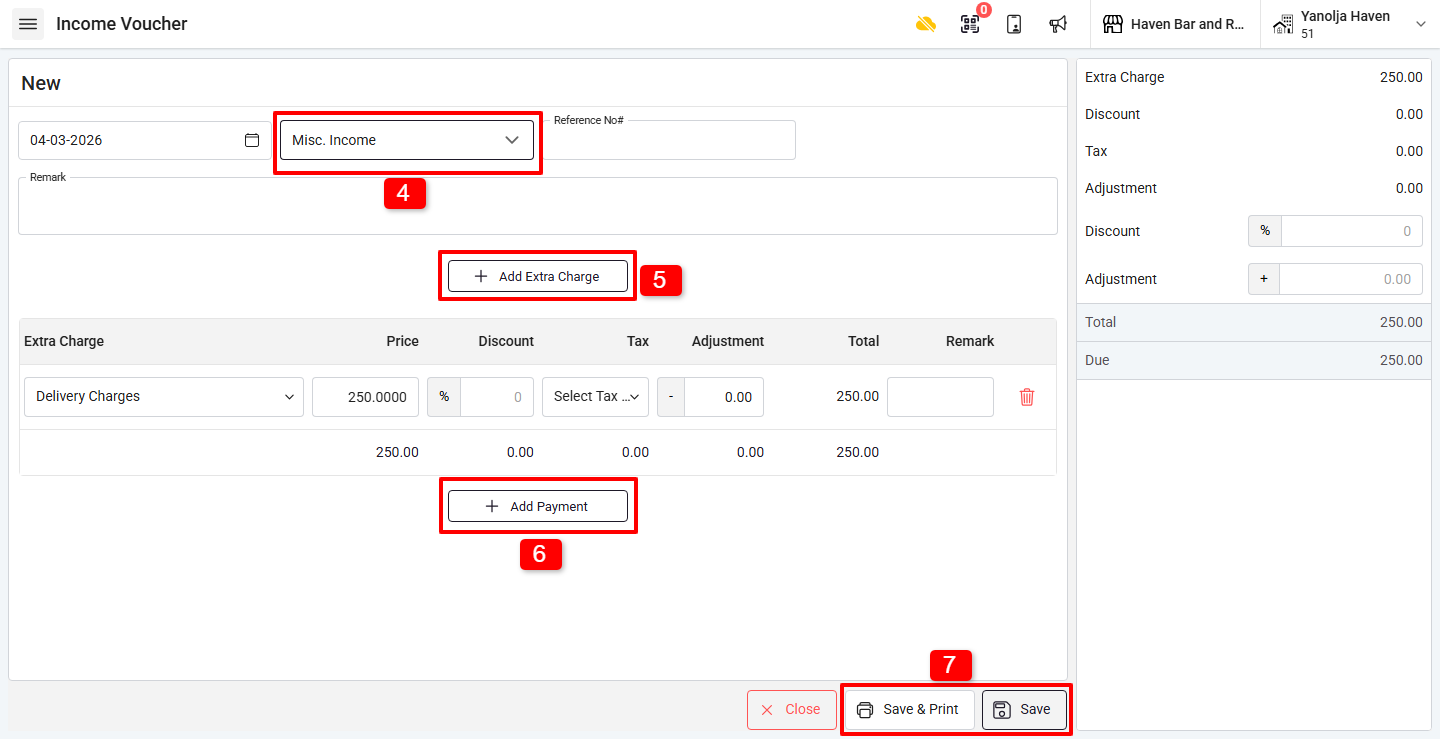
4. Select the Income Account
5. Click on “+ Add Extra Charge” to select the income reason.
6. Click on “+ Add Payment” to select the payment mode in which the amount was received.
7. Once both Extra Charge and Payment are added:
- Click Save & Print to save and print the voucher.
- Click Save to save the voucher without printing.
Where can I view Income Voucher details in reports?
You can view all Income Voucher entries in:
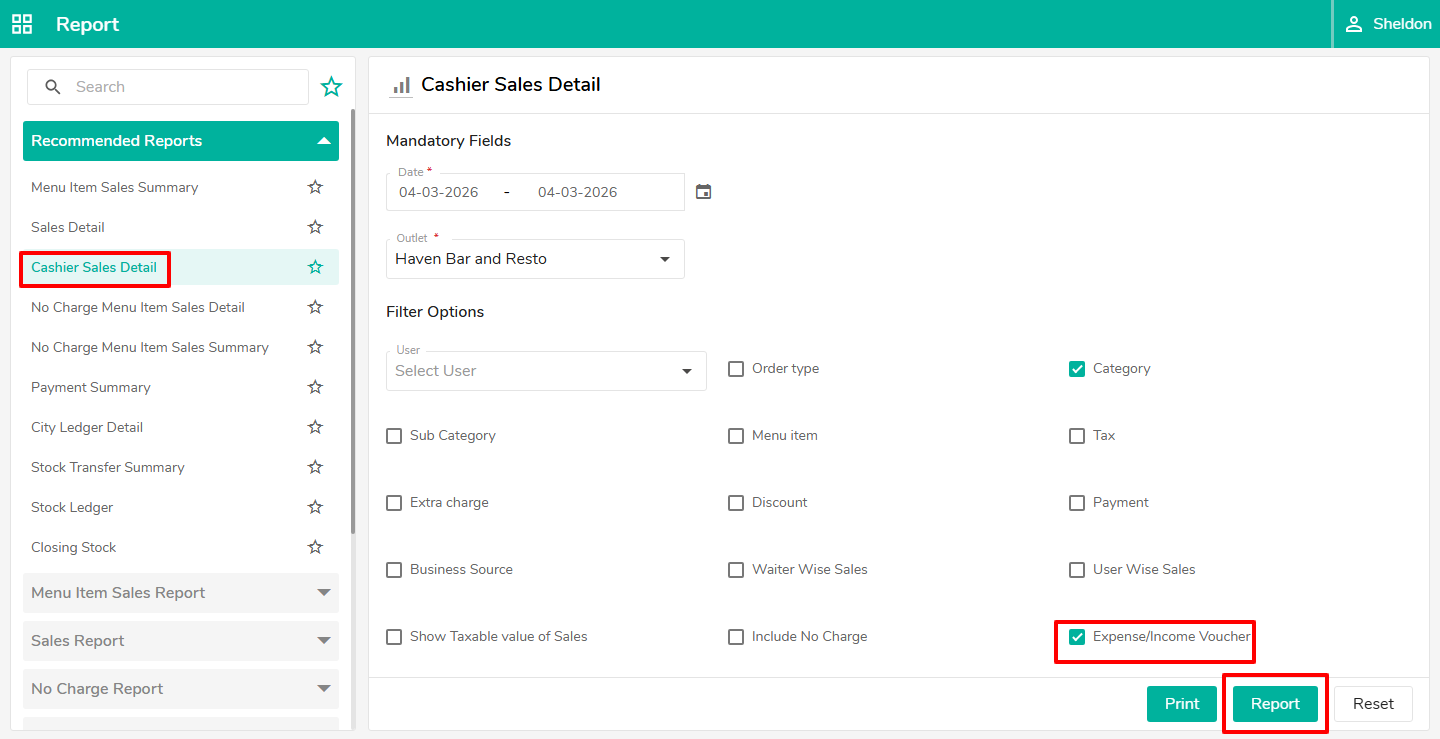
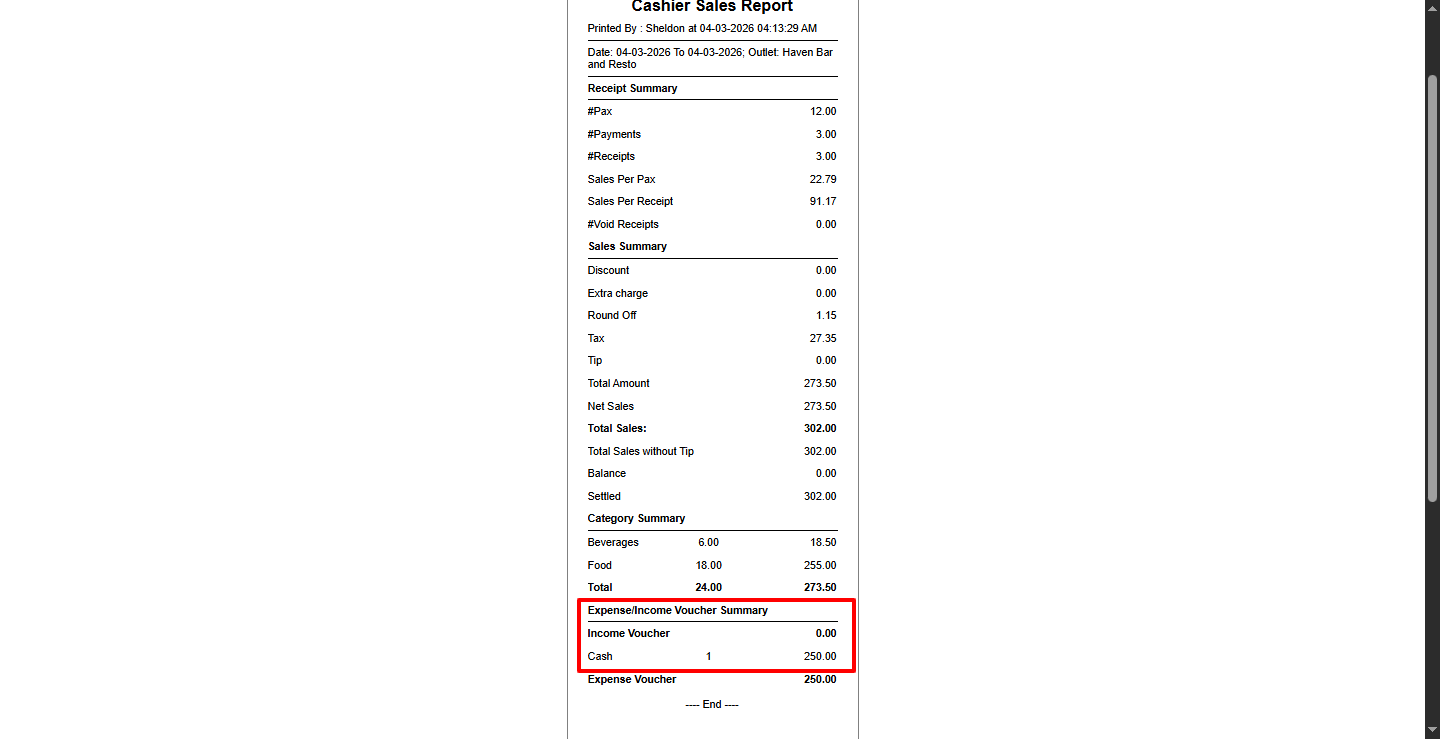
Cashier Sales Details Report
? While generating the report, tick the option:
Expense / Income Voucher
This will display all related income and expense voucher entries.
How do I create an Income Voucher Account?
Follow the steps below:
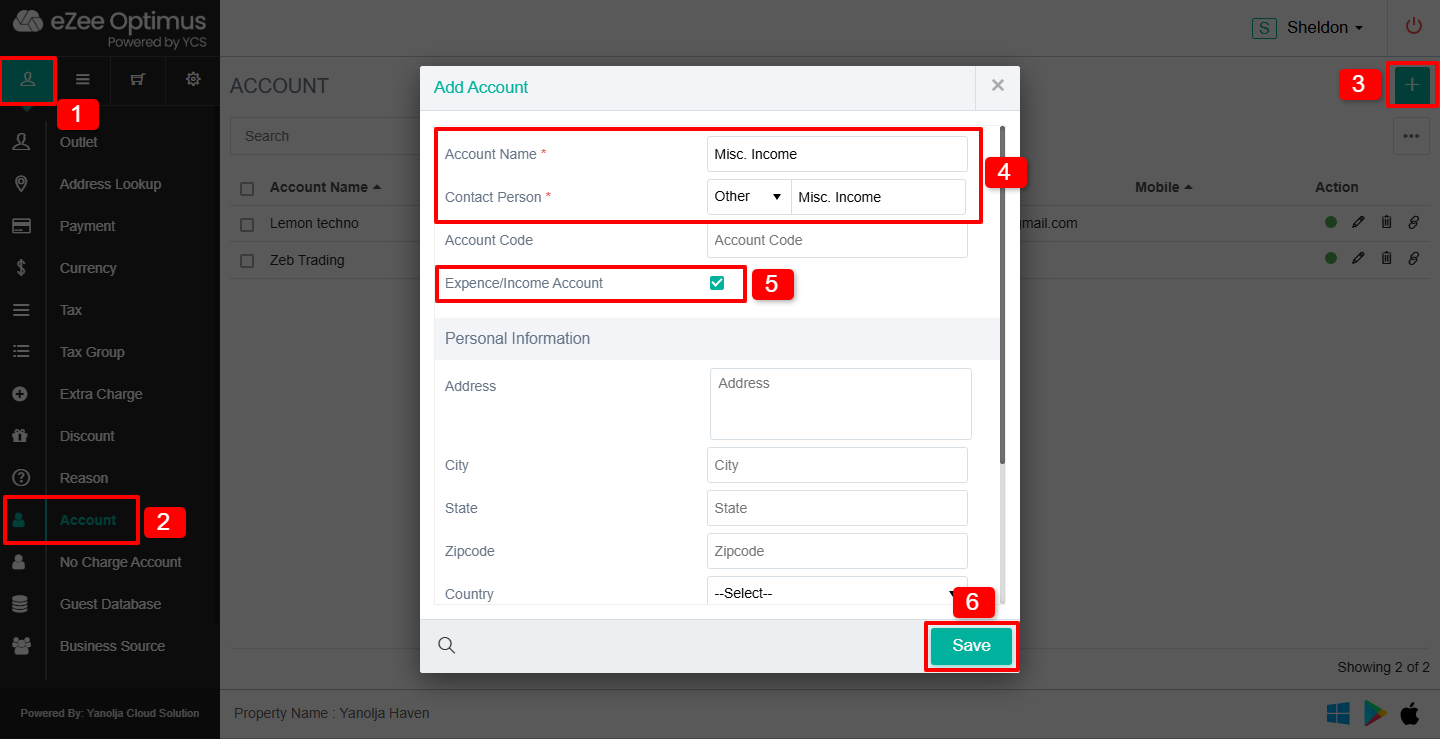
Switch to Back Office
- 1. Click on the Master button (half-body person icon).
- 2. Click on Account.
- 3. Click on the “+” button to create a new account.
- 4. Enter the following details:
- l Account Name
- l Contact Person (You may enter the same name as the Account Name)
- 5. Checkmark Expense / Income Account to activate it for voucher usage.
- 6. Click on Save to create the account.
How to Create an Extra Charge for Income Voucher
Before creating an Income Voucher, an Extra Charge must be created in Back Office.
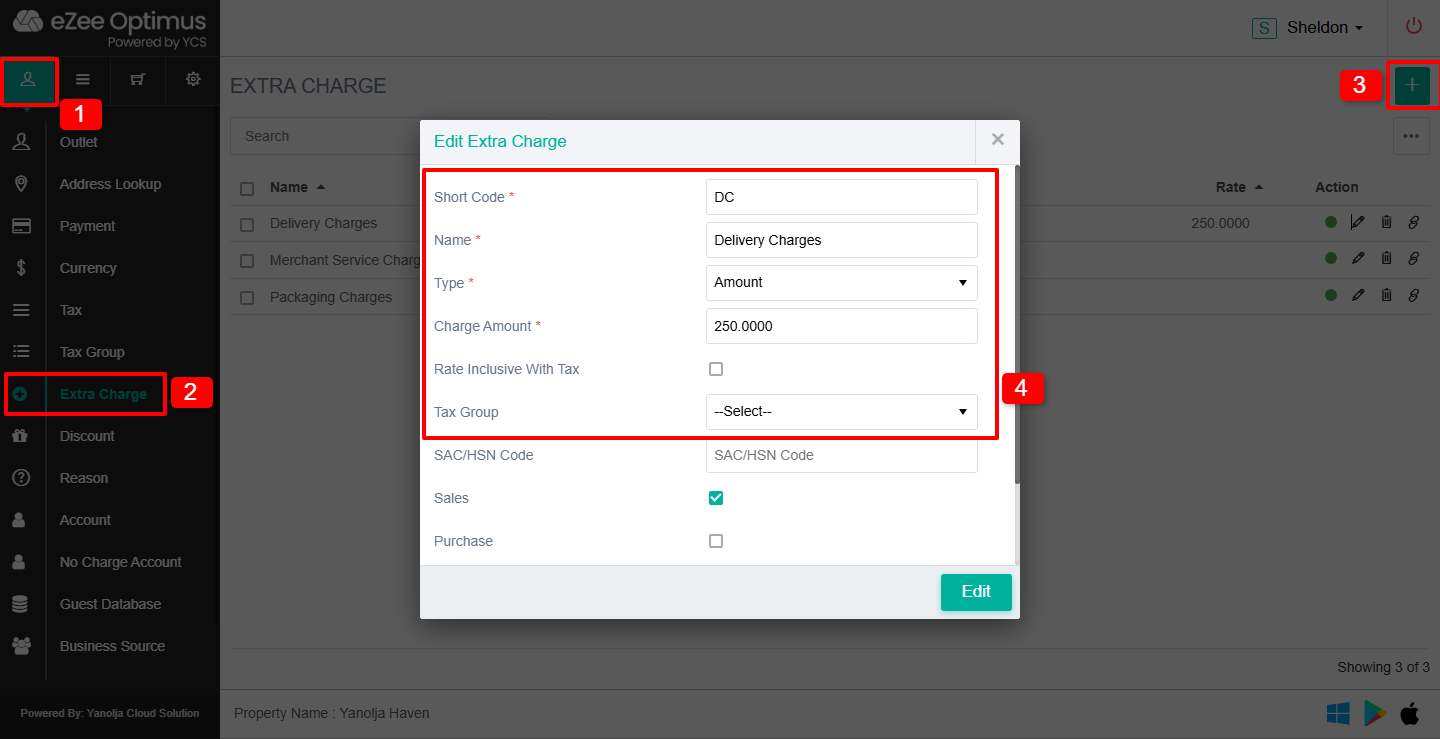
Switch to Back Office:
1. Click on the Master button (half-body person icon).
2. Click on Extra Charge.
3. Click on the “+” button.
4. Enter the following details:
- Short Code
- Name
- Type
- Charge Amount
- Select if Rate is Inclusive of Tax
- Select the appropriate Tax Group
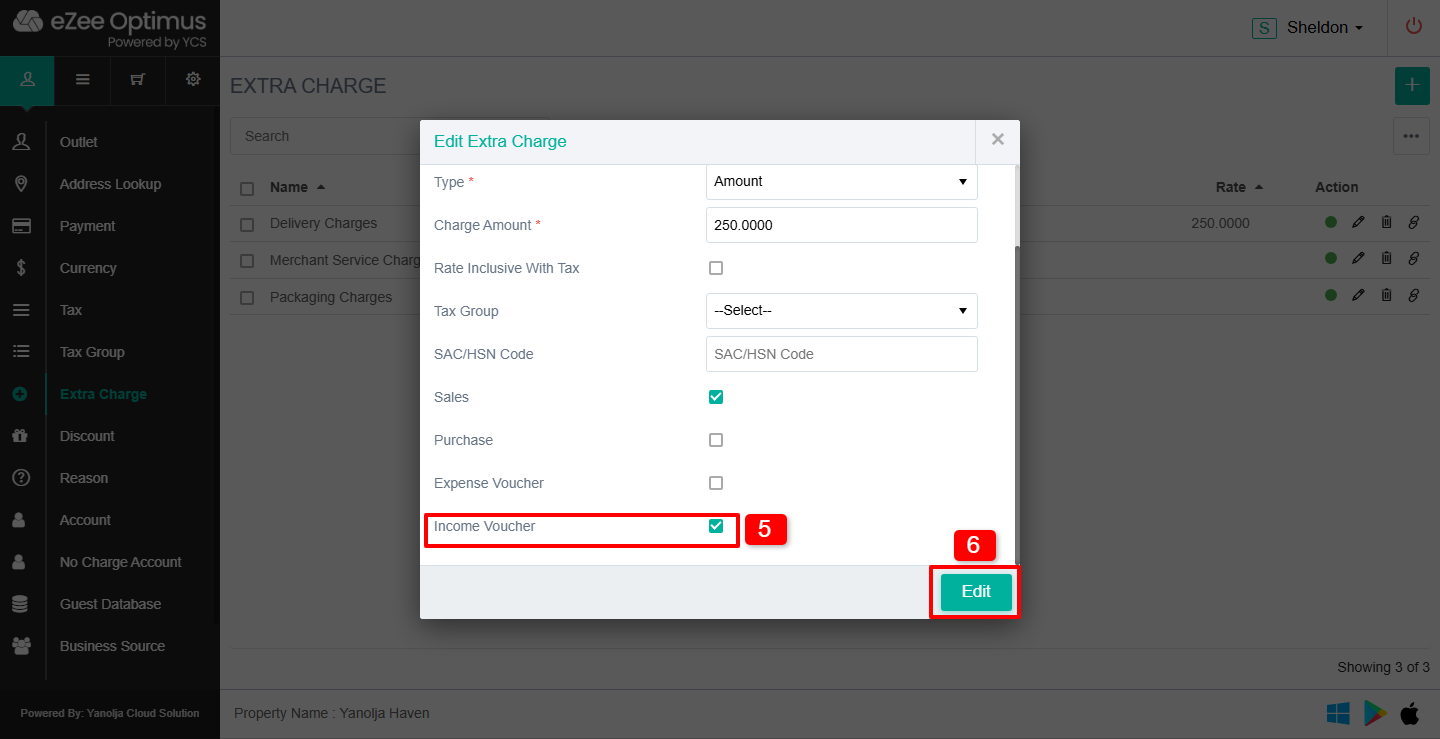
- Checkmark Income Voucher to activate it for Income Voucher usage.
5. Click on Edit to save.
How to Give Privilege for Income Voucher
To allow a user to create or manage Income Vouchers:
Switch to Back Office:
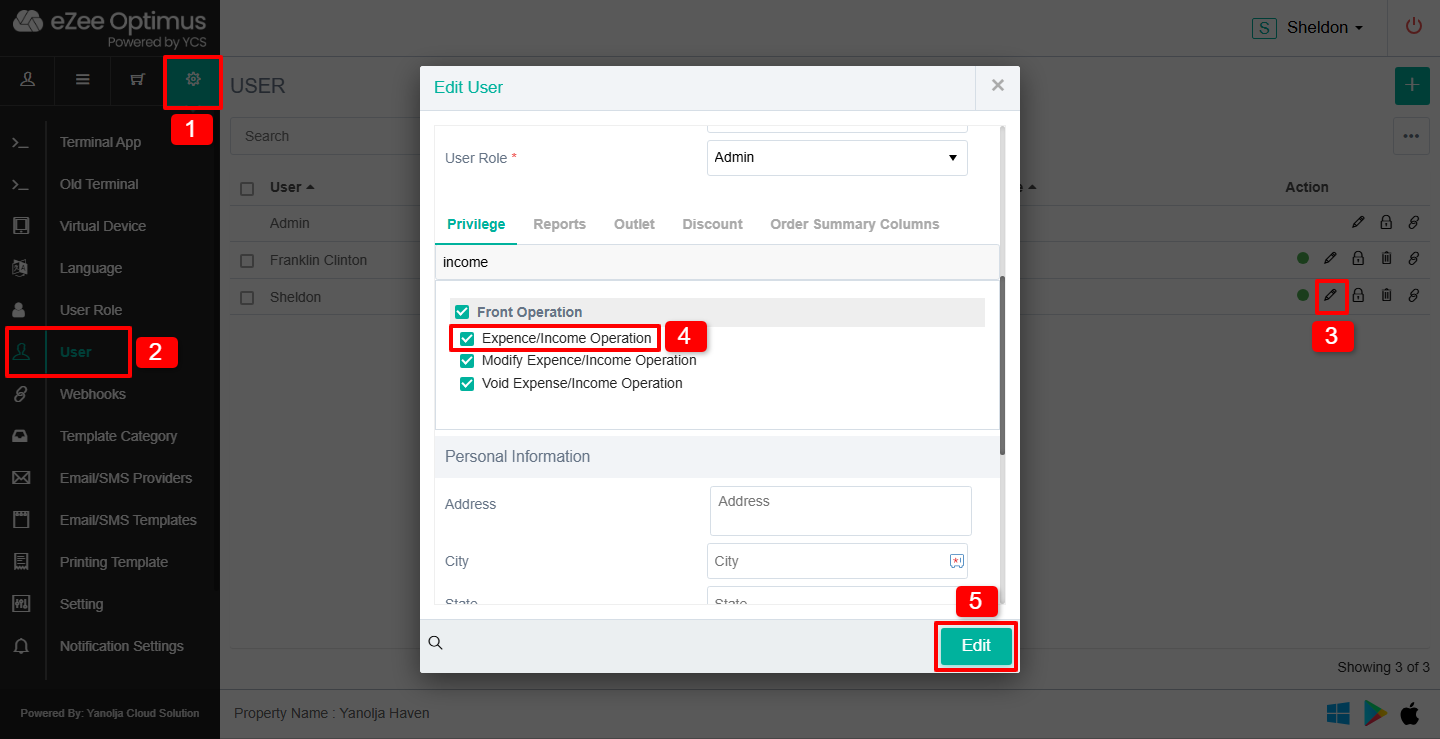
1. Click on Settings
2. Click on User
3. Click on the Pencil/Pen (Edit) icon next to the user
4. Checkmark Expense / Income Operation
5. Click on Edit to save the changes
Was this article helpful?
That’s Great!
Thank you for your feedback
Sorry! We couldn't be helpful
Thank you for your feedback
Feedback sent
We appreciate your effort and will try to fix the article