Enabling Multi-Factor Authentication (MFA) in enhances the security of your account by requiring an additional verification step during login. Follow the steps below to activate MFA:
Before users can configure MFA, an 'admin' user must first enable the MFA security settings from the PMS Configuration.
https://yanoljacloudsolution.freshdesk.com/en/support/solutions/articles/9000275181-what-is-multi-factor-authentication-mfa-and-why-is-mfa-important-
(Skip to the next steps if this is already done.)
Activate MFA for Specific Users:
Click on the user name.
Select Two-Factor Authentication.
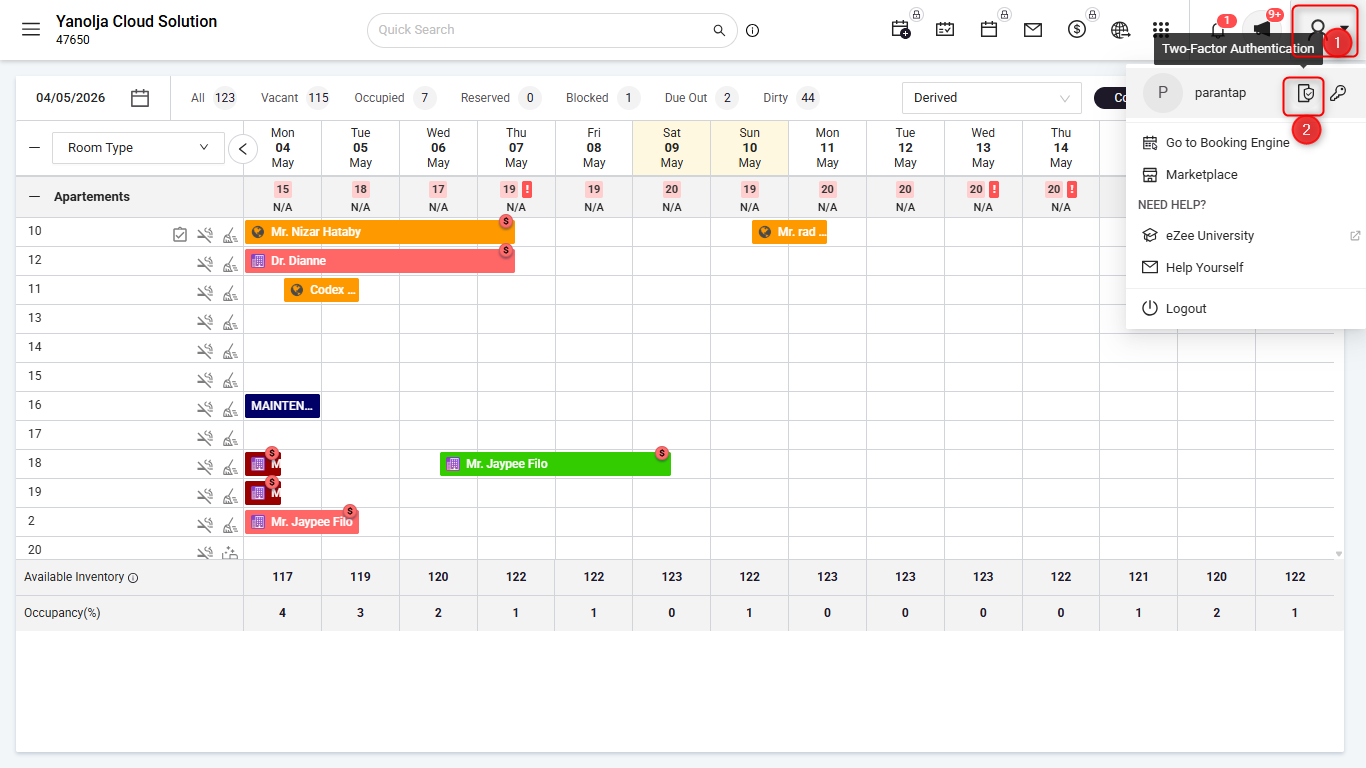
Configure the Authenticator App:
- A QR code will be displayed on the screen.
- Open your preferred authenticator app (e.g., Google Authenticator) on your Android or iOS mobile device.
- Scan the QR code using the app.
- The app will generate a 6-digit verification code.
- Enter this code in the 2FA Code field in PMS and save the changes.
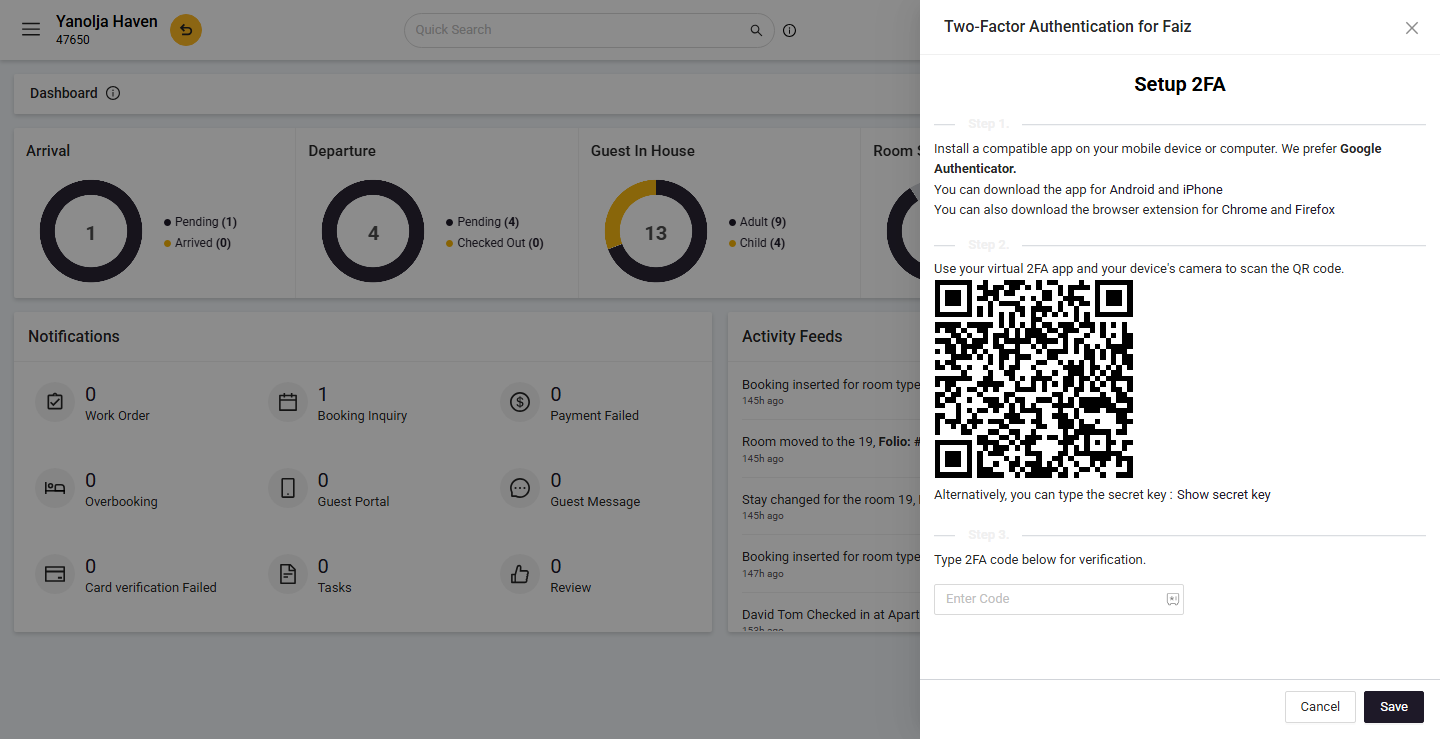
Logging In with MFA:
- After setting up MFA, log out of your account.
- During the next login, after entering your username, password, and hotel code, you will be prompted to enter the 6-digit code from your authenticator app.
- Enter the code to complete the login process.
Was this article helpful?
That’s Great!
Thank you for your feedback
Sorry! We couldn't be helpful
Thank you for your feedback
Feedback sent
We appreciate your effort and will try to fix the article