If the user has lost his QR code and wants a new one, he can reset it and generate a new QR code. To do so, please follow the steps below
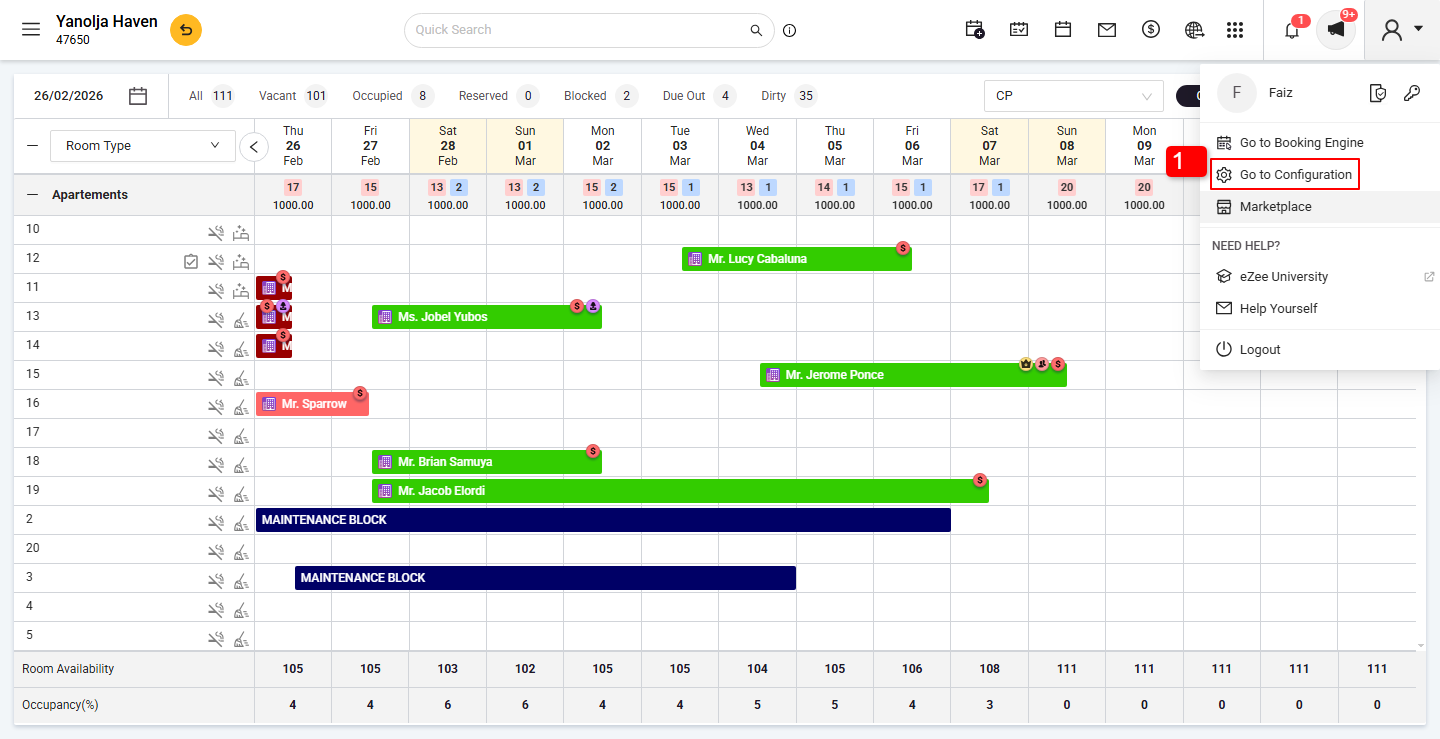
1. Click on Go to Configuration.
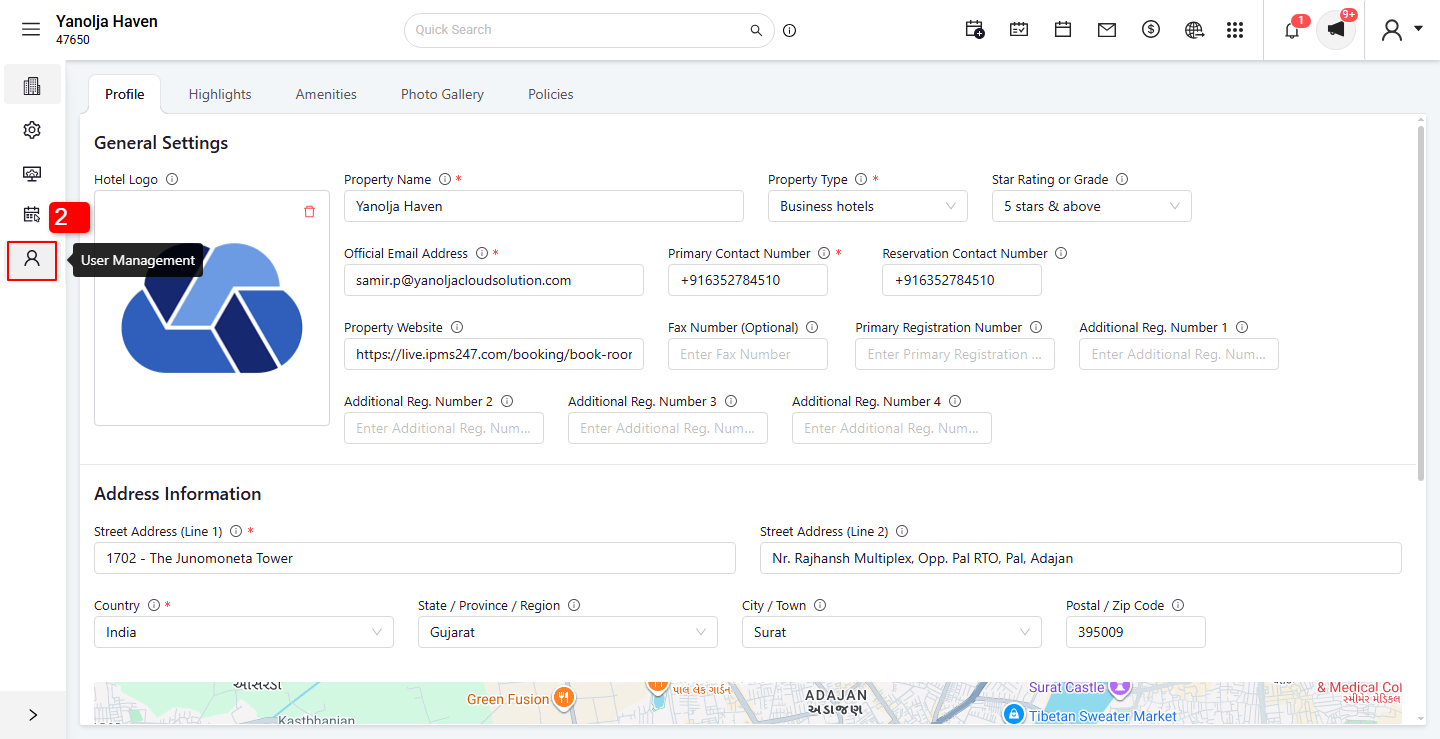
2. Click on User Management option.
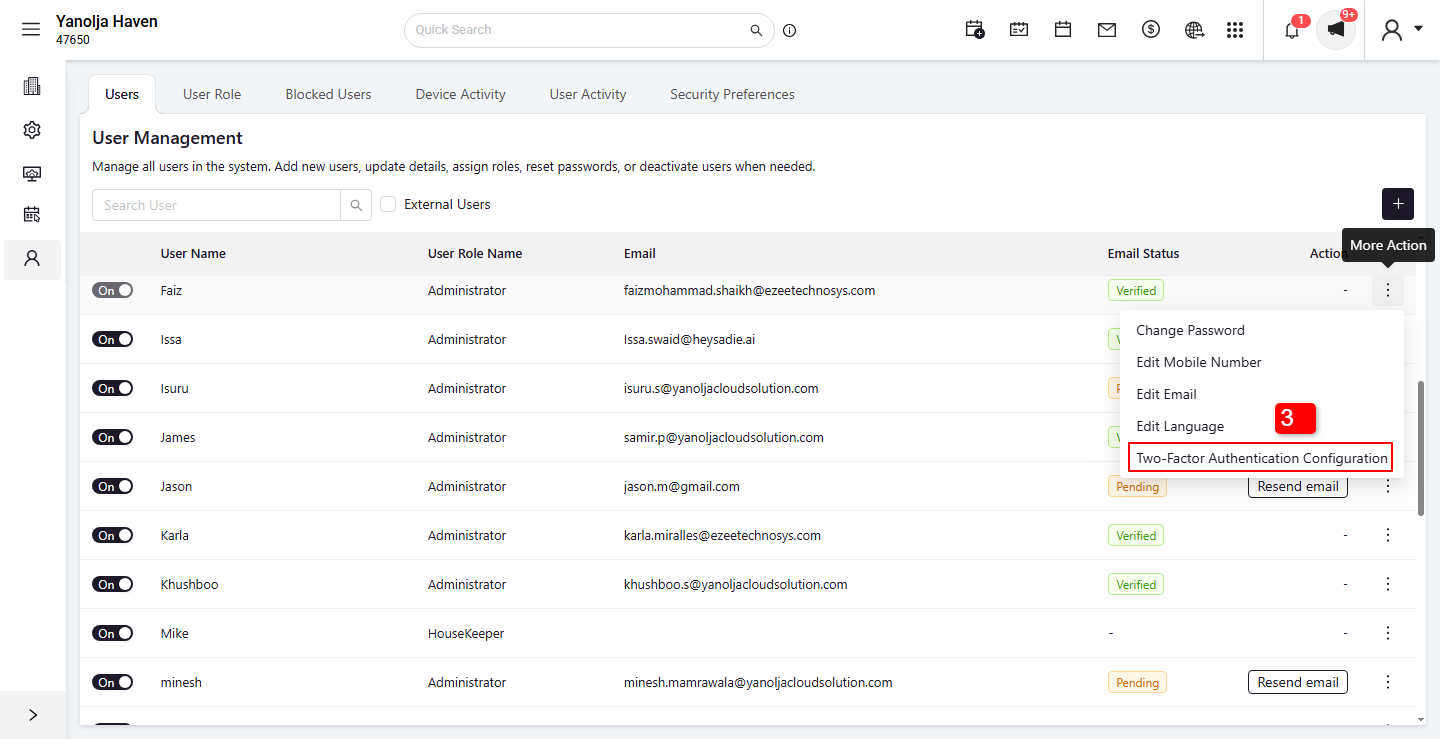
3. Click on the three dots and select Two-Factor Authentication Configuration.
4. Click on the Reset button.
5. Click on Save.
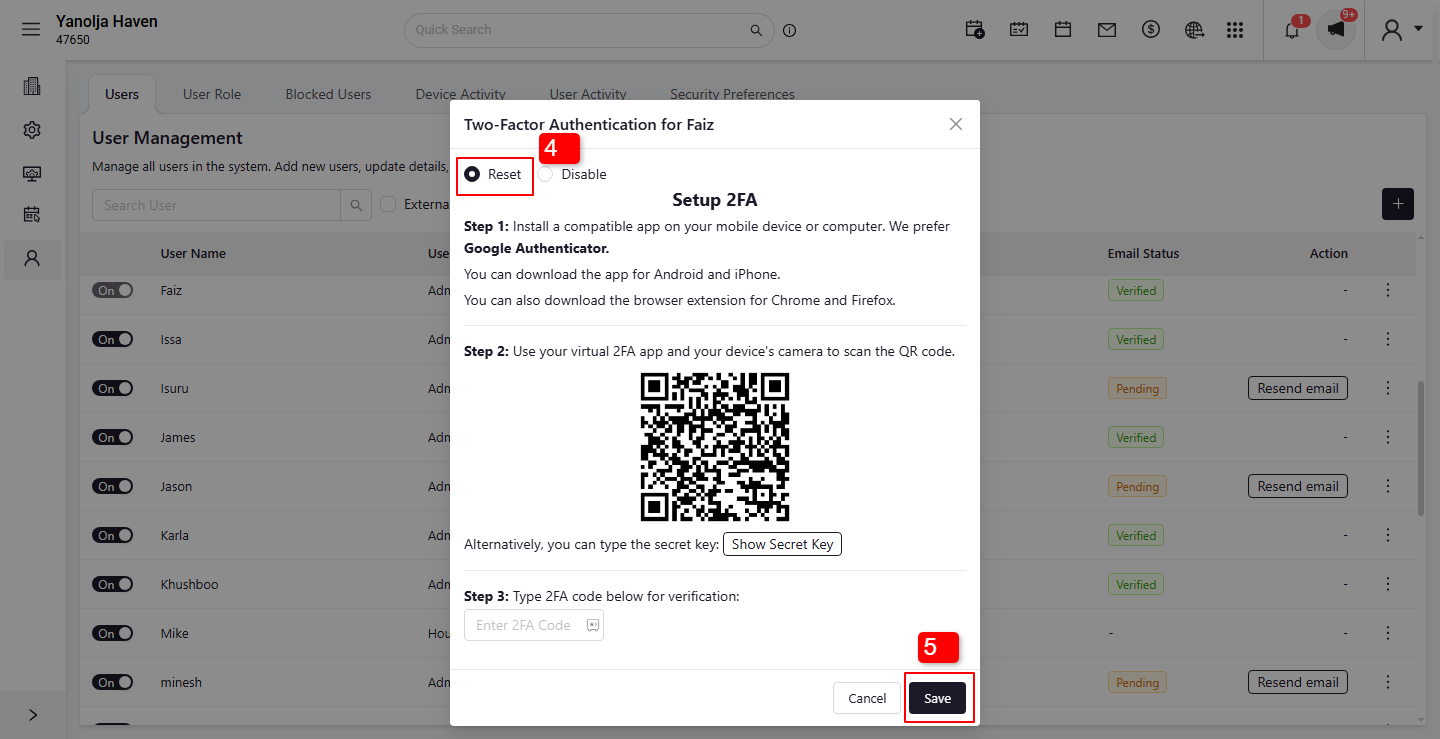
Once you click on the Reset option, the Setup 2FA option will be shown. Then again follow the same steps which are explained earlier. Scan the code using the Authenticator app, type 2FA code and save. 2FA has been reset.
Apart from the back-end configuration, the Logged-in user can also set up and reset his 2FA from the PMS Front panel. To do so, please follow the below steps.
Please login to the PMS Front panel. Click on the Hotel Name available on the right side of the header. You will see a new icon for 2FA.
We prefer Google Authenticator to scan the QR code and follow the instructions which are the same as mentioned in the PMS Configuration above in this document.
Once the setup process is completed, the user has to log out and try to log in again. The user has to enter a 2FA code to login into the system.
Was this article helpful?
That’s Great!
Thank you for your feedback
Sorry! We couldn't be helpful
Thank you for your feedback
Feedback sent
We appreciate your effort and will try to fix the article