To update or change a user's login password in PMS System, follow these steps:
Log in with Administrator Rights:
- Ensure you are logged in as a user with administrative privileges.
Navigate to User Management:
- Access Configuration Panel:
Click on the User Icon.
Click on Go To Configuration.
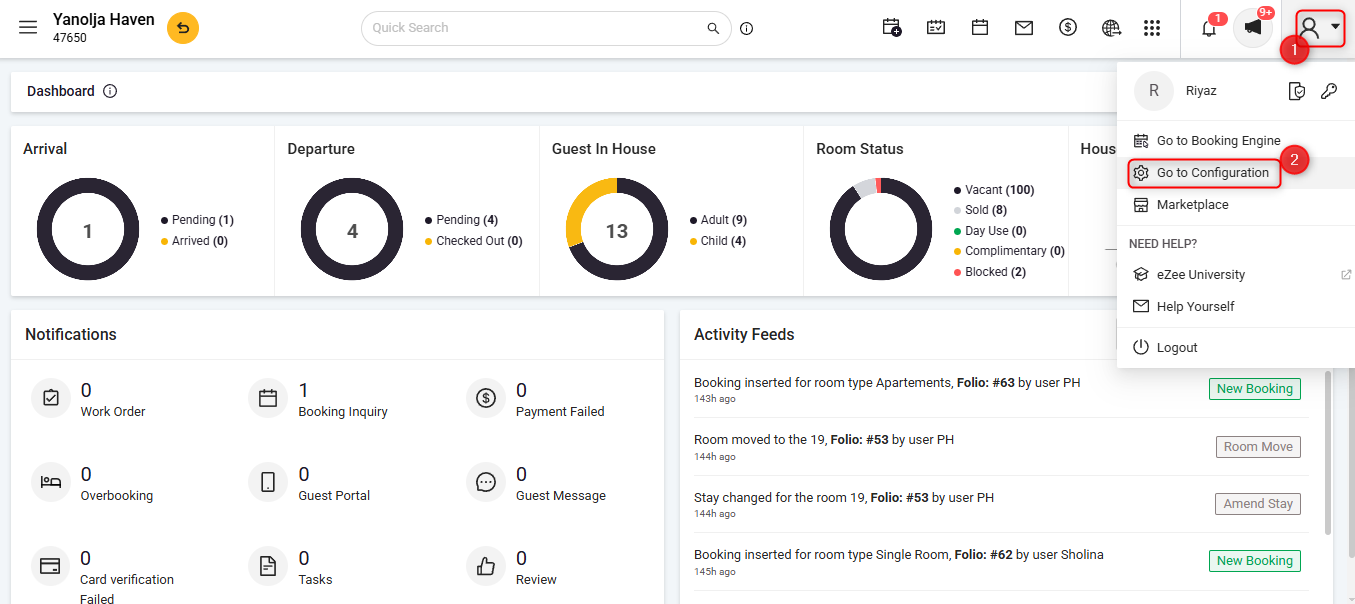
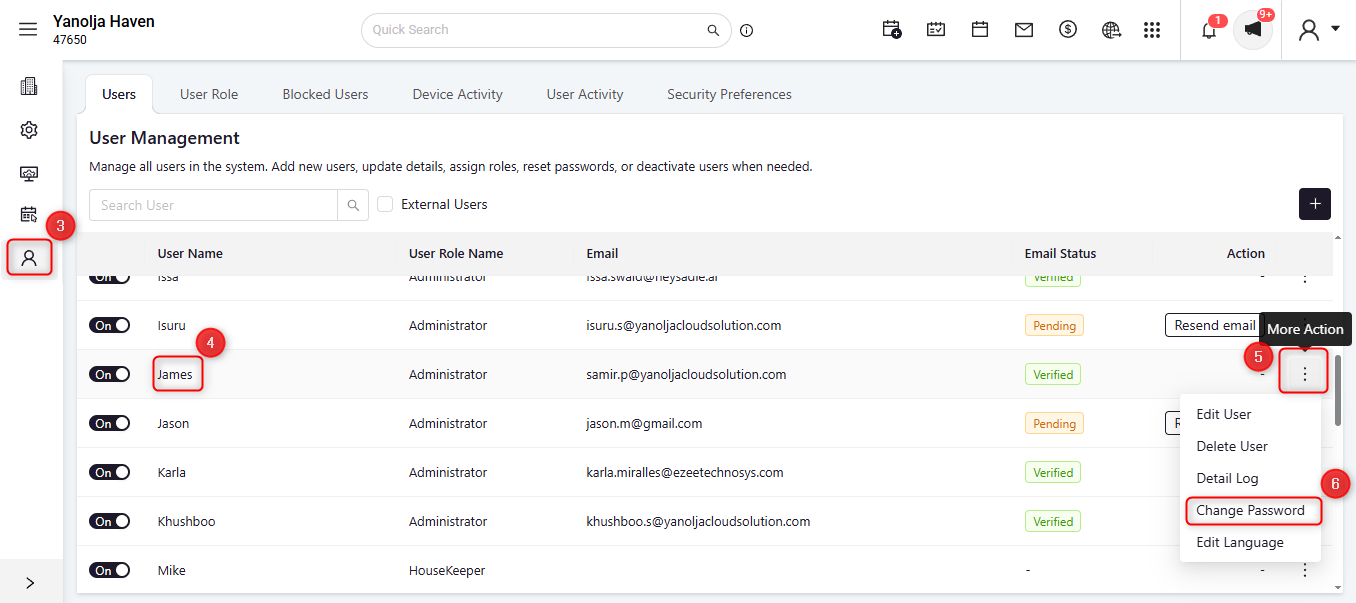
Click on User Management.
Select the required User.
Click on the three-dot menu (More Options).
Click on Change Password.
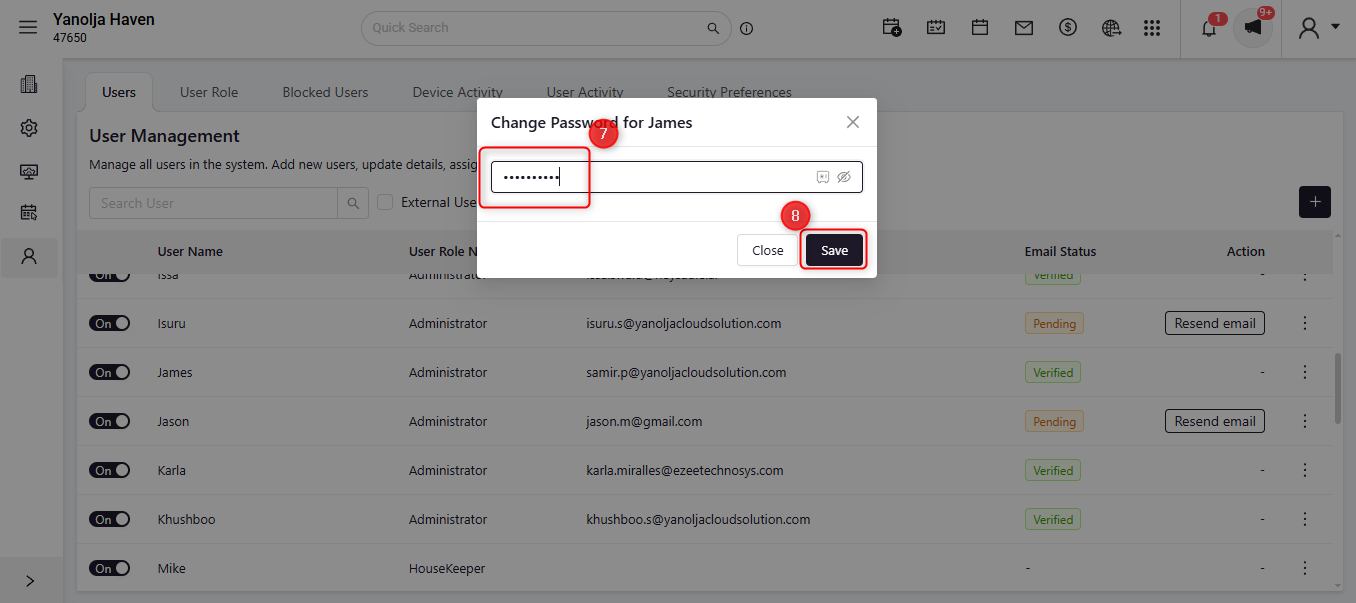
- Click on the three-dot menu (More Options).
- Click on Change Password.
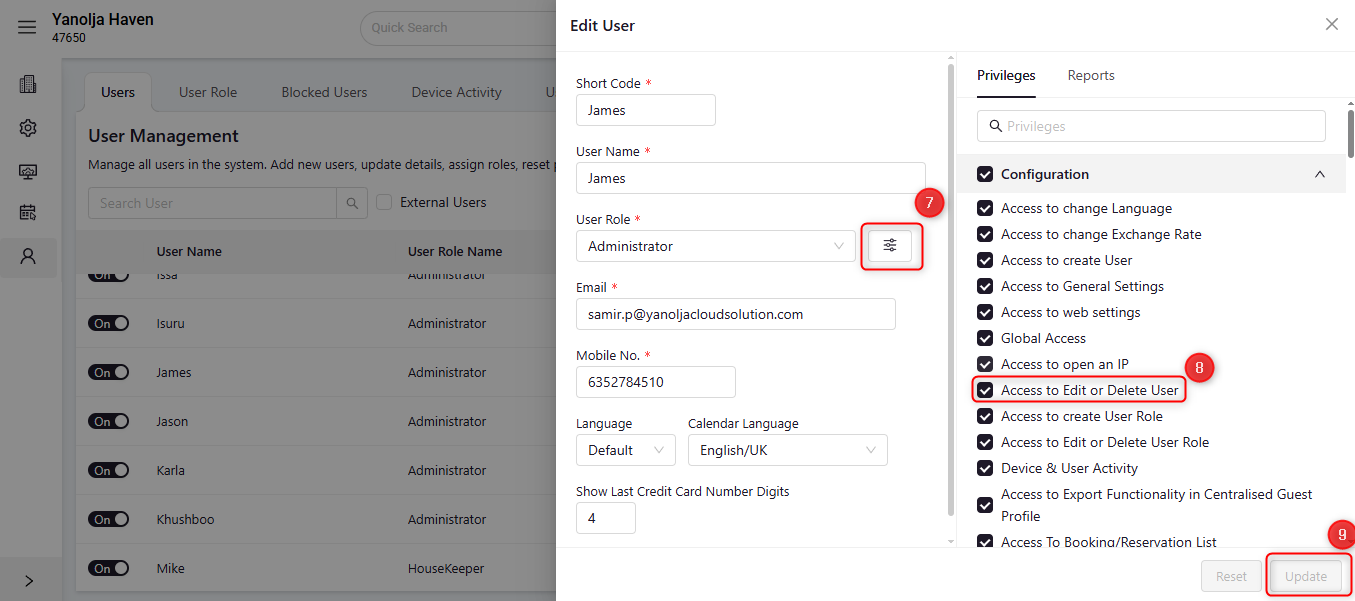
User Privileges Required:
- Ensure the following permission is enabled:
- Access Configuration Panel:
Click on the User Icon.
Click on Go To Configuration.
Click on User Management.
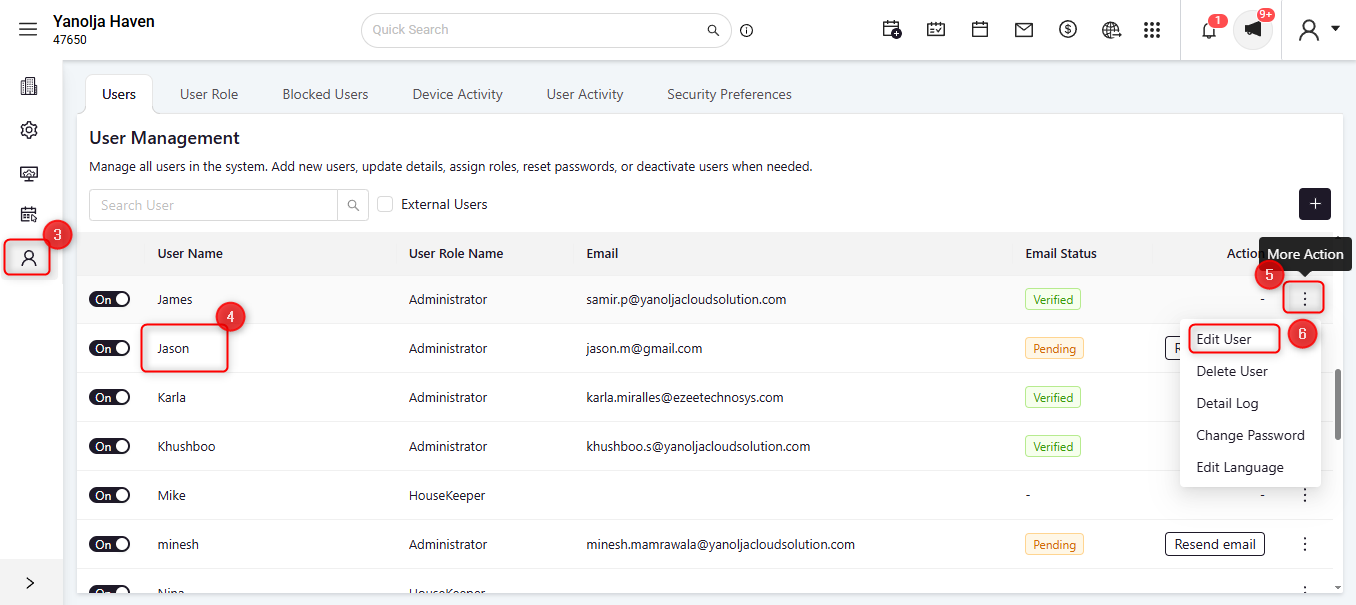
Select the required User.
Click on the three-dot menu (More Options).
Click on Edit User.
- Access Configuration Panel:
Under User Role:
Click on the ≡ (three lines) menu.
Under Front Office Privileges, enable the Access to Insert Transaction privilege.
Save the changes by clicking on Update.
Was this article helpful?
That’s Great!
Thank you for your feedback
Sorry! We couldn't be helpful
Thank you for your feedback
Feedback sent
We appreciate your effort and will try to fix the article