When more than one room is required for a booking with minimal effort, this is managed as a Group Reservation within the Unified Solution. Occasionally, you may need to separate a specific guest's transaction from the group to manage it as an individual booking or to generate a separate invoice.
How to Remove a Guest Transaction from a Group Reservation
To move a transaction into an individual booking, follow these steps:
Access Group Reservations:
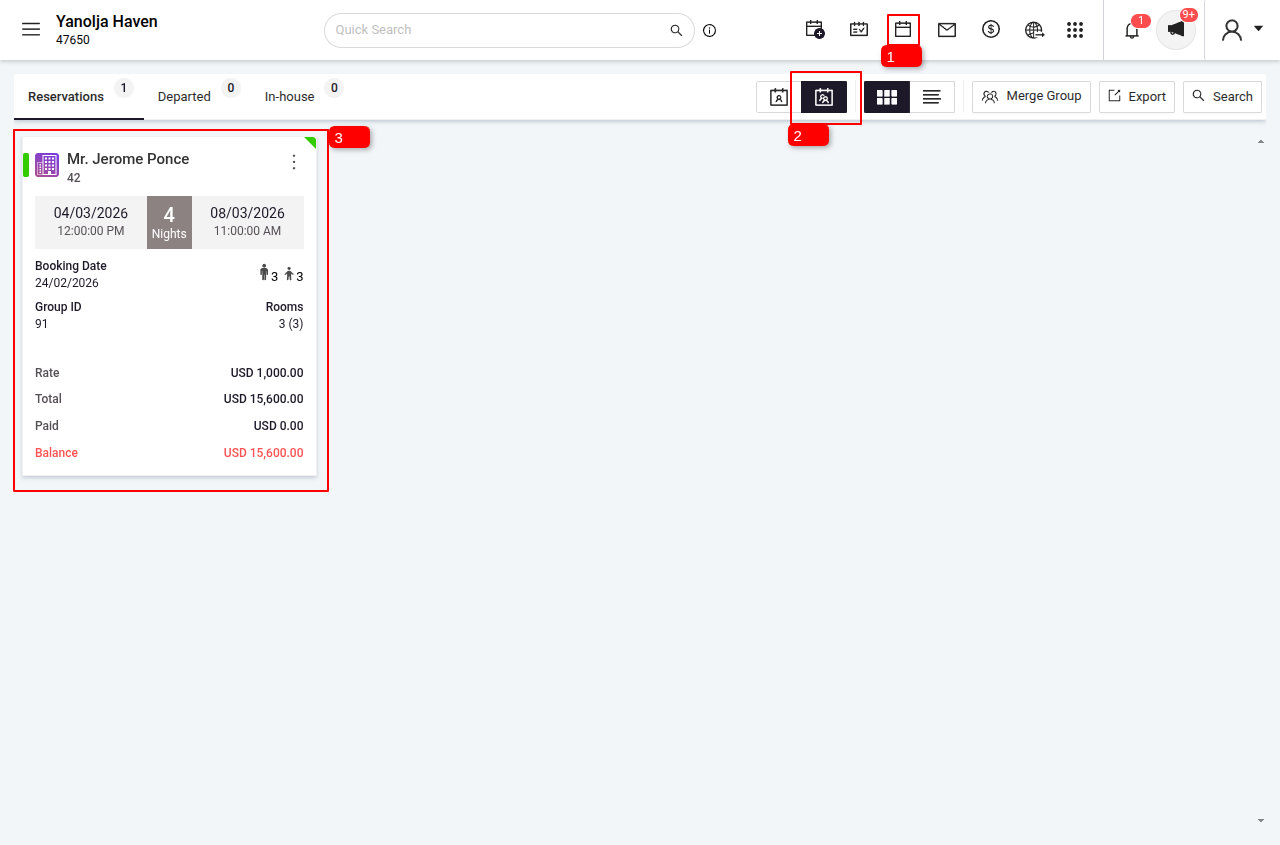
Navigate to Reservations > Group View.
Locate the specific group reservation containing the transaction.
Select and Edit the Reservation:
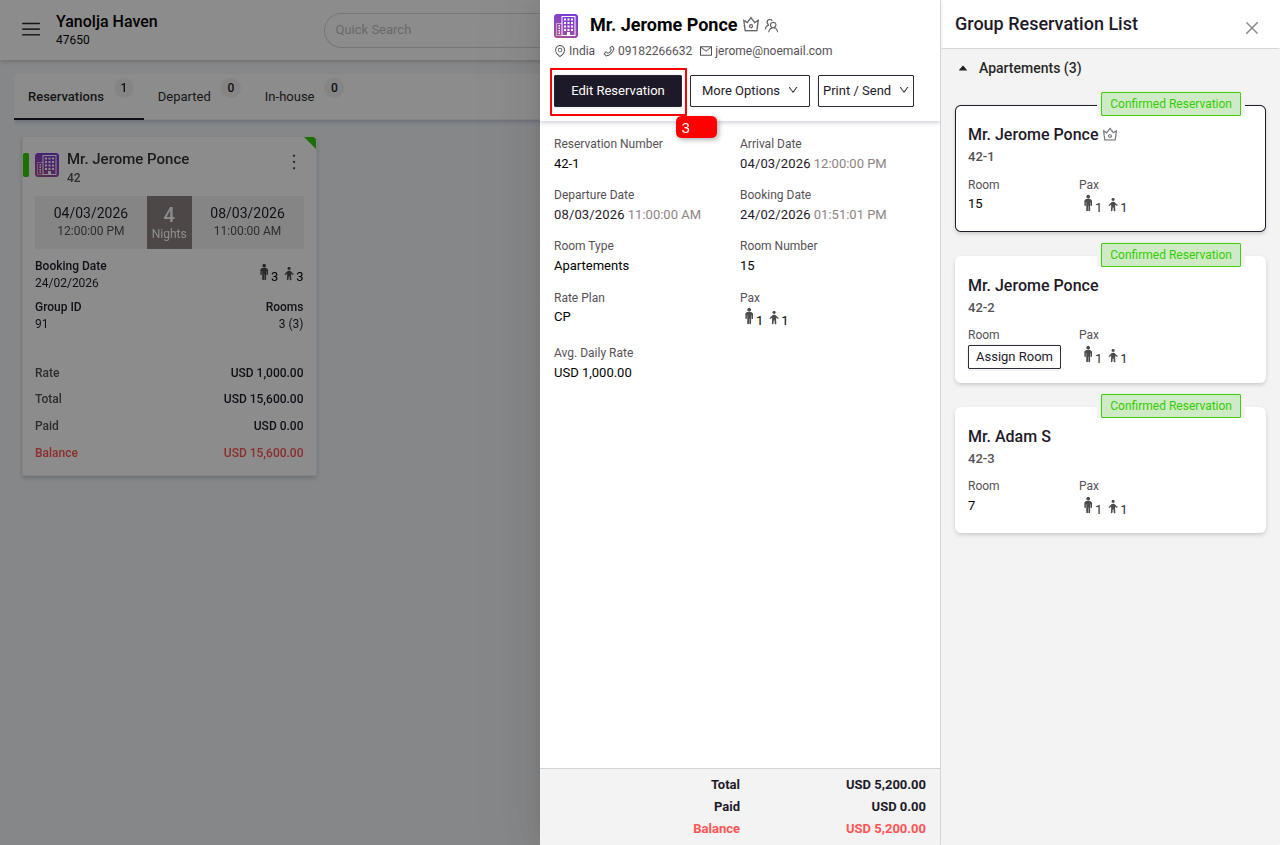
3. Select the Reservation.
4. Click on Edit Reservation.
Access Room Charges and Group Info:
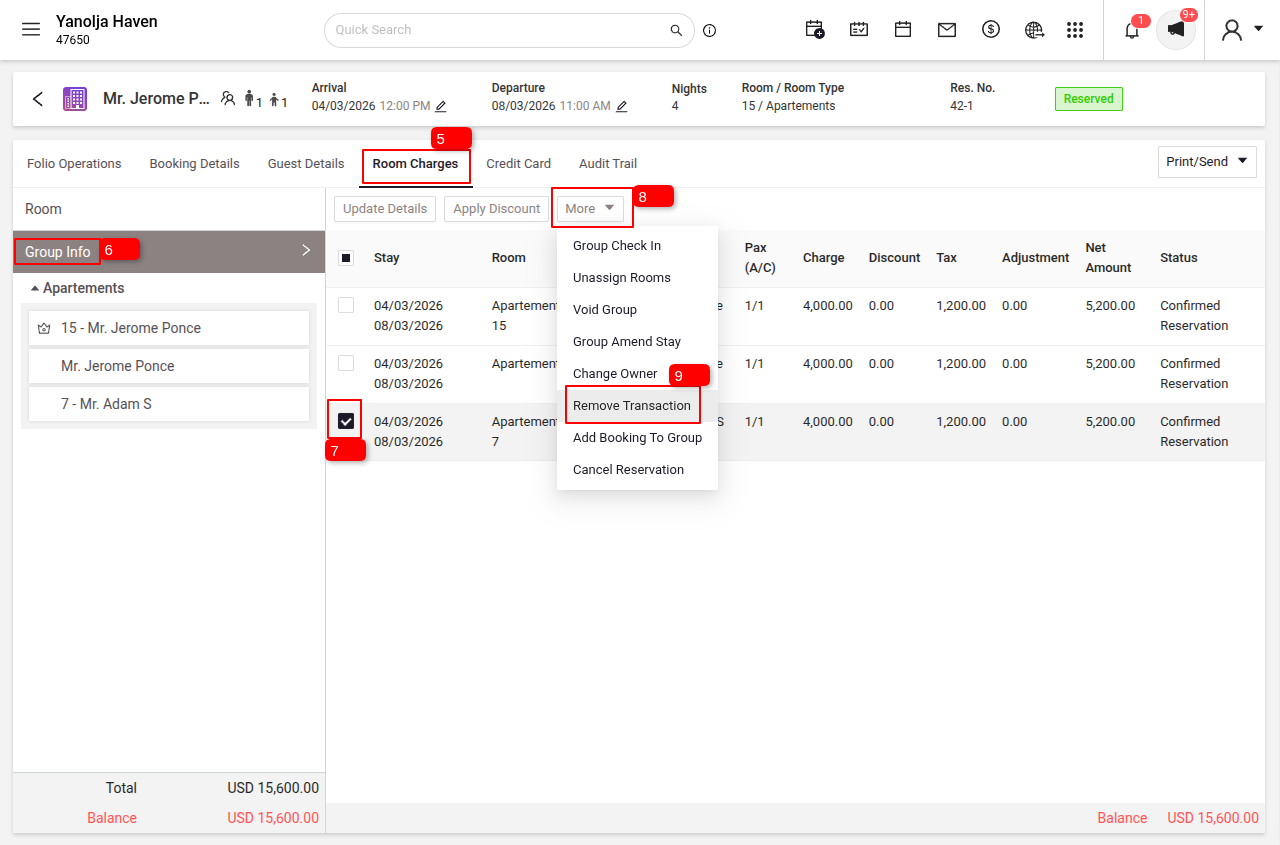
5. Navigate to the Room Charges section.
6. Click on Group Info.
Remove the Transaction:
7. Identify and select the specific guest transaction to be separated.
8. Click on the More options menu.
9. Select Remove Transaction.
Confirm & Save:
The selected transaction will now be managed independently as an individual booking. You can locate and manage this booking directly from your main Reservation List.
Note: Once a transaction is removed from the group, it becomes a standalone reservation available in your primary list for individual invoicing and updates.
Was this article helpful?
That’s Great!
Thank you for your feedback
Sorry! We couldn't be helpful
Thank you for your feedback
Feedback sent
We appreciate your effort and will try to fix the article