What is Take Away?
In eZee Optimus, Take Away is an order type used when guests place an order and collect their food to take with them instead of dining at the restaurant.
This process is commonly used in quick-service restaurants such as McDonald's and Domino's, where guests:
- Stand in a queue
- Place their order
- Wait for the order to be prepared
- Take the food with them
The Take Away Order Type in the POS helps manage this workflow efficiently.
How do I create a Take Away order?
Step 1: Open Take Away Ordering
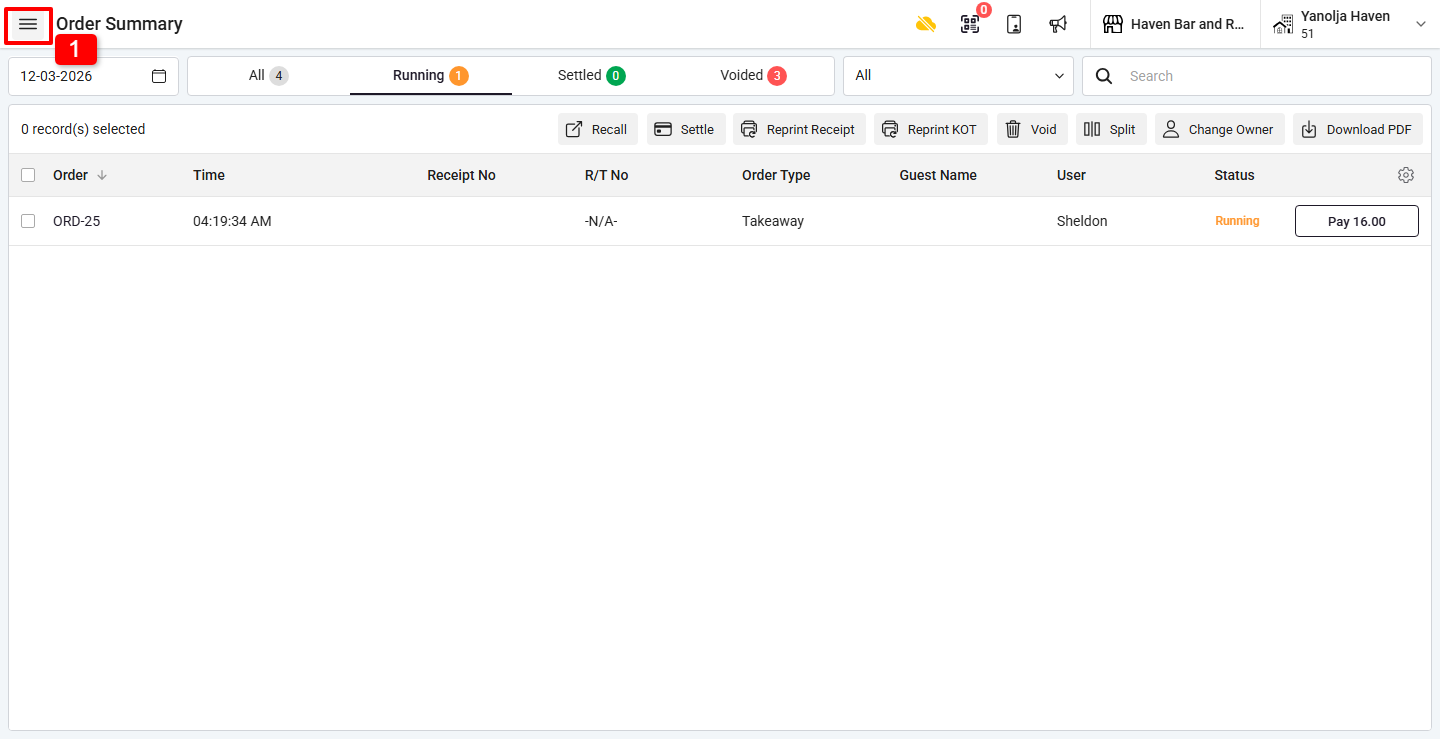
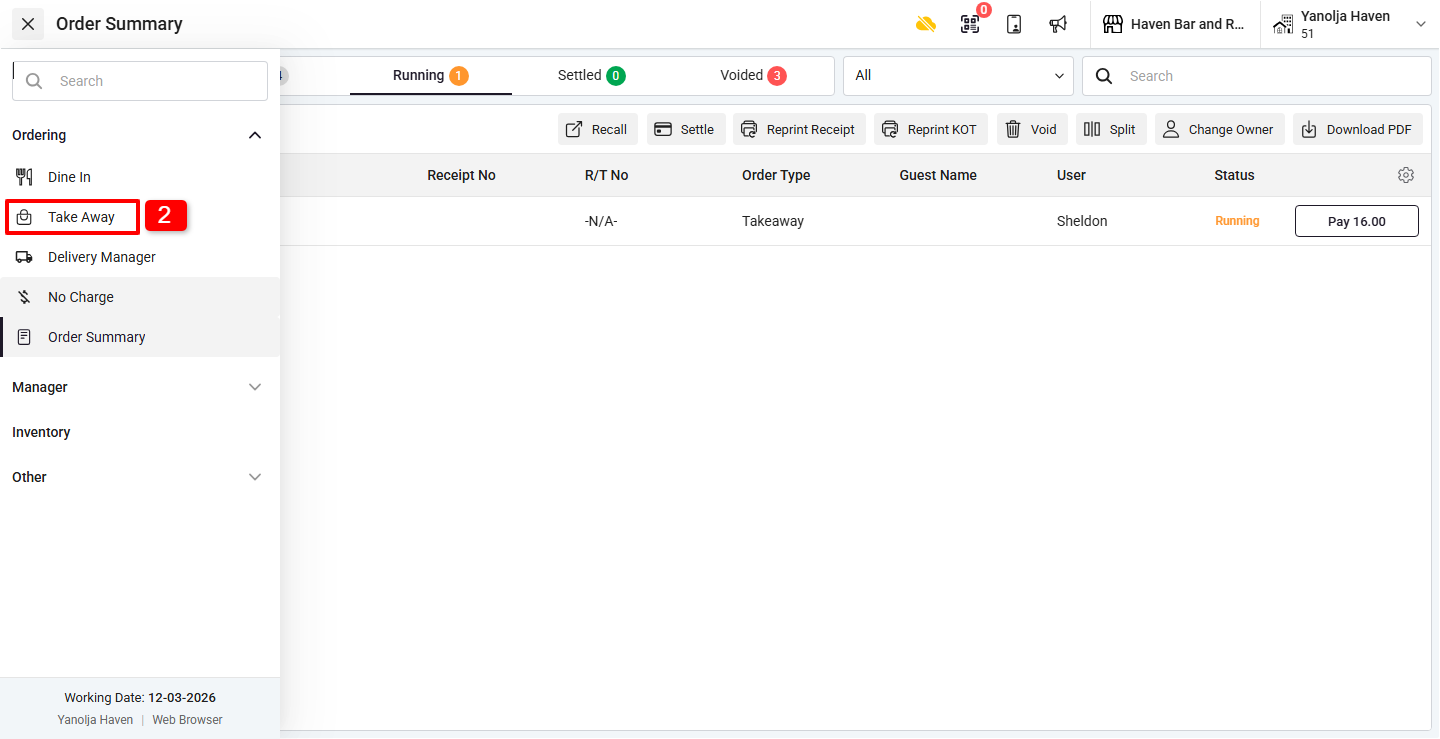
1. Click on the ☰ (Three Lines Menu).
2. Under Ordering, select Take Away.
How do I punch the guest order?
Step 2: Add Order Items
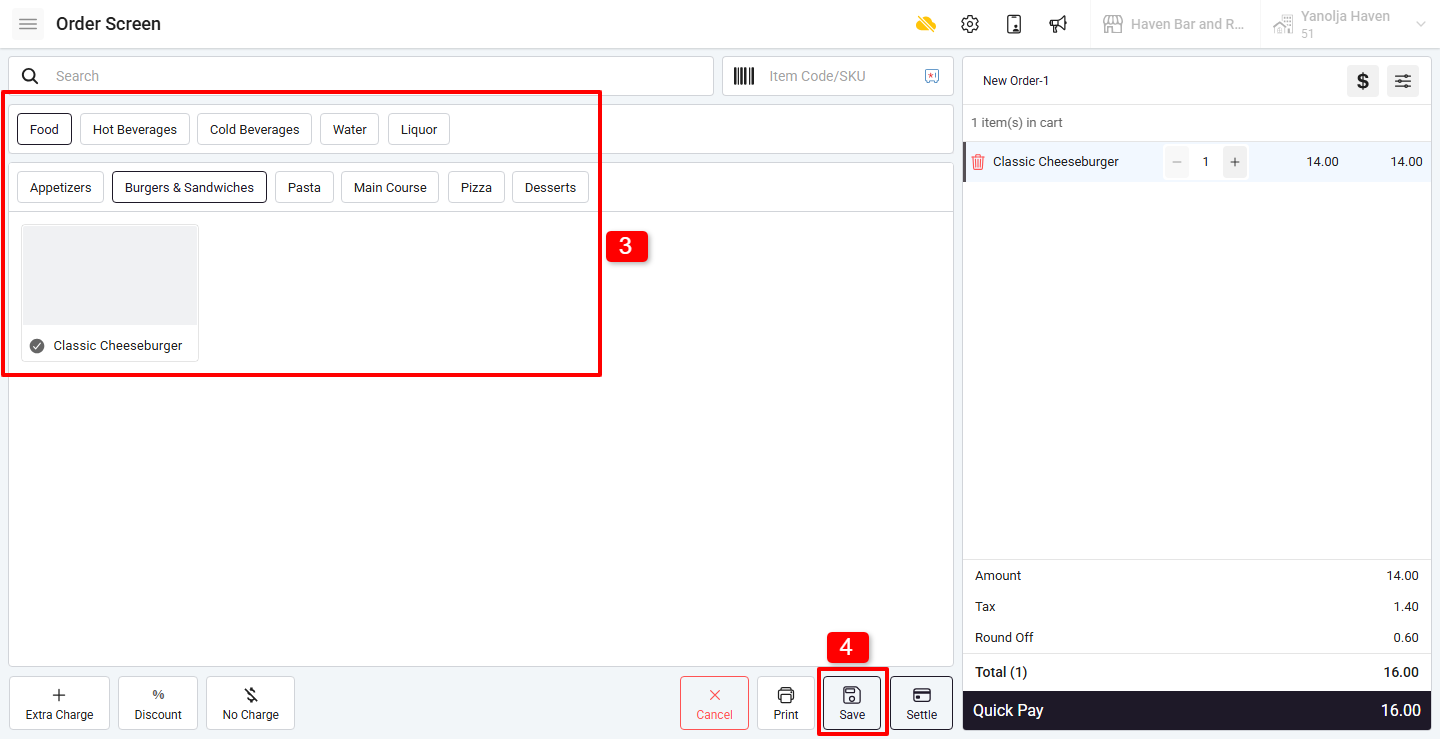
3. Select the menu items to punch the guest order.
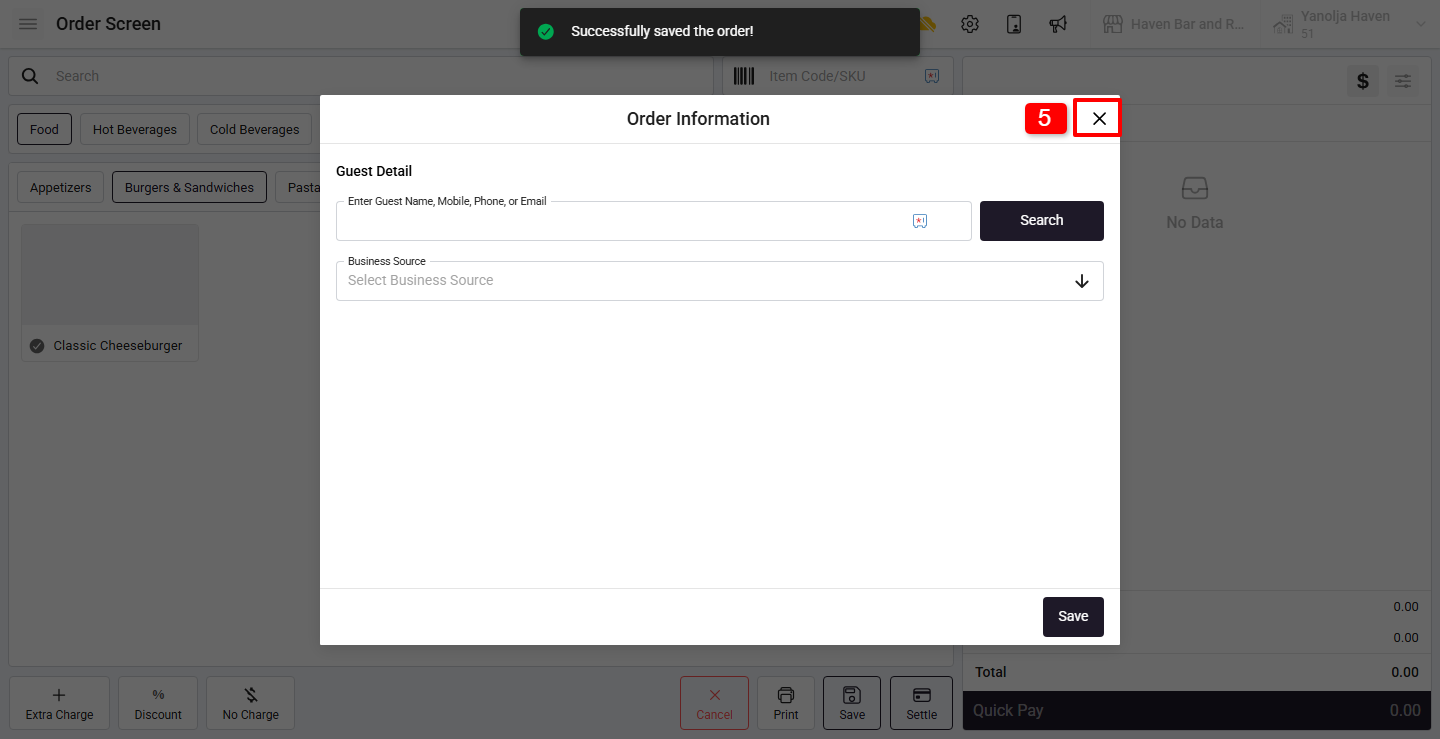
4. Click on Save to generate the KOT (Kitchen Order Ticket).
5. Click on the “X” button to close the Take Away ordering window.
How do I settle a Take Away order?
Step 3: Payment from Order Summary
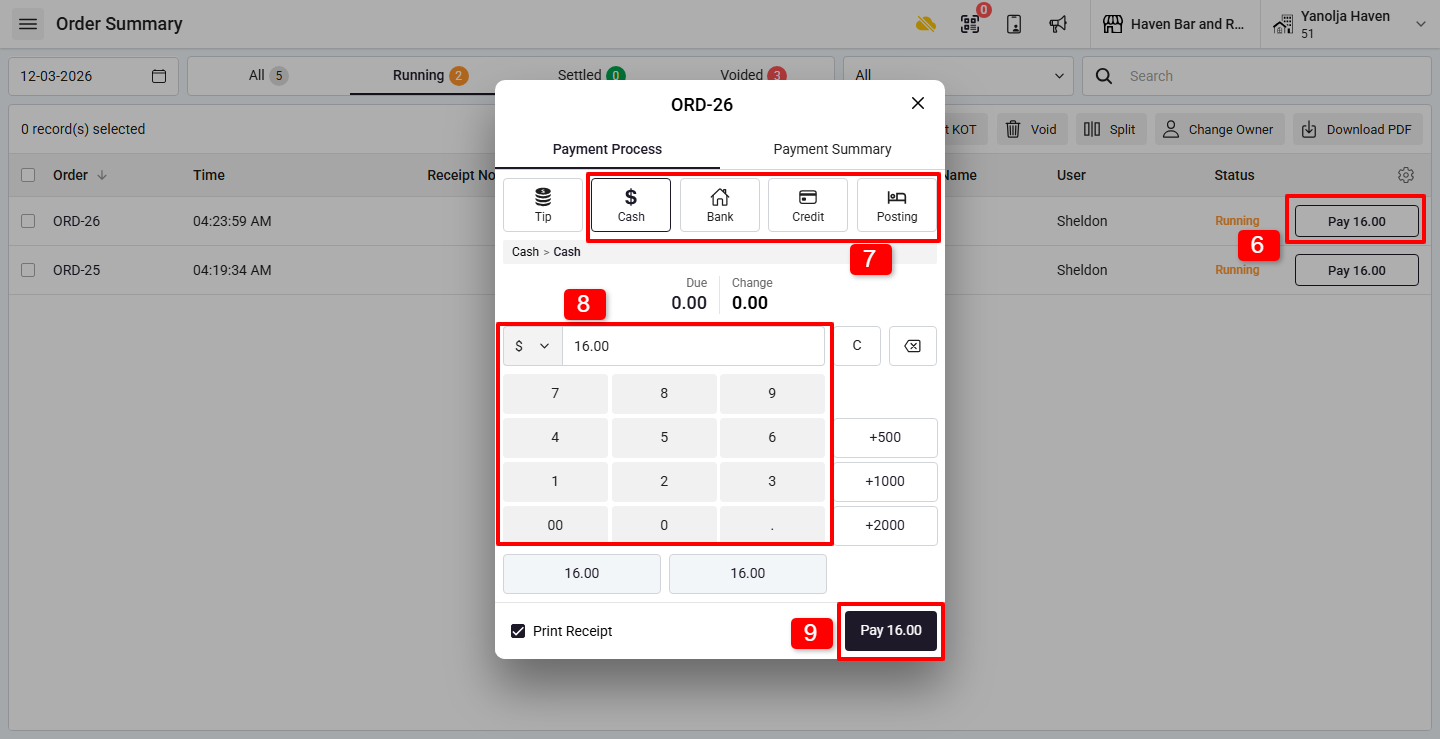
6. After saving the order, the system will redirect to the Order Summary Page.
7. Click on the Pay button.
8. Select the Settlement Mode, such as:
- Cash
- Card
- City Ledger (Bill to Company)
- Room Posting
9. If the payment mode is Cash:
10. Enter the amount received from the guest
11. The system will automatically display the change due
12. Click Pay to complete the settlement.
Is there an alternative way to settle a Take Away order?
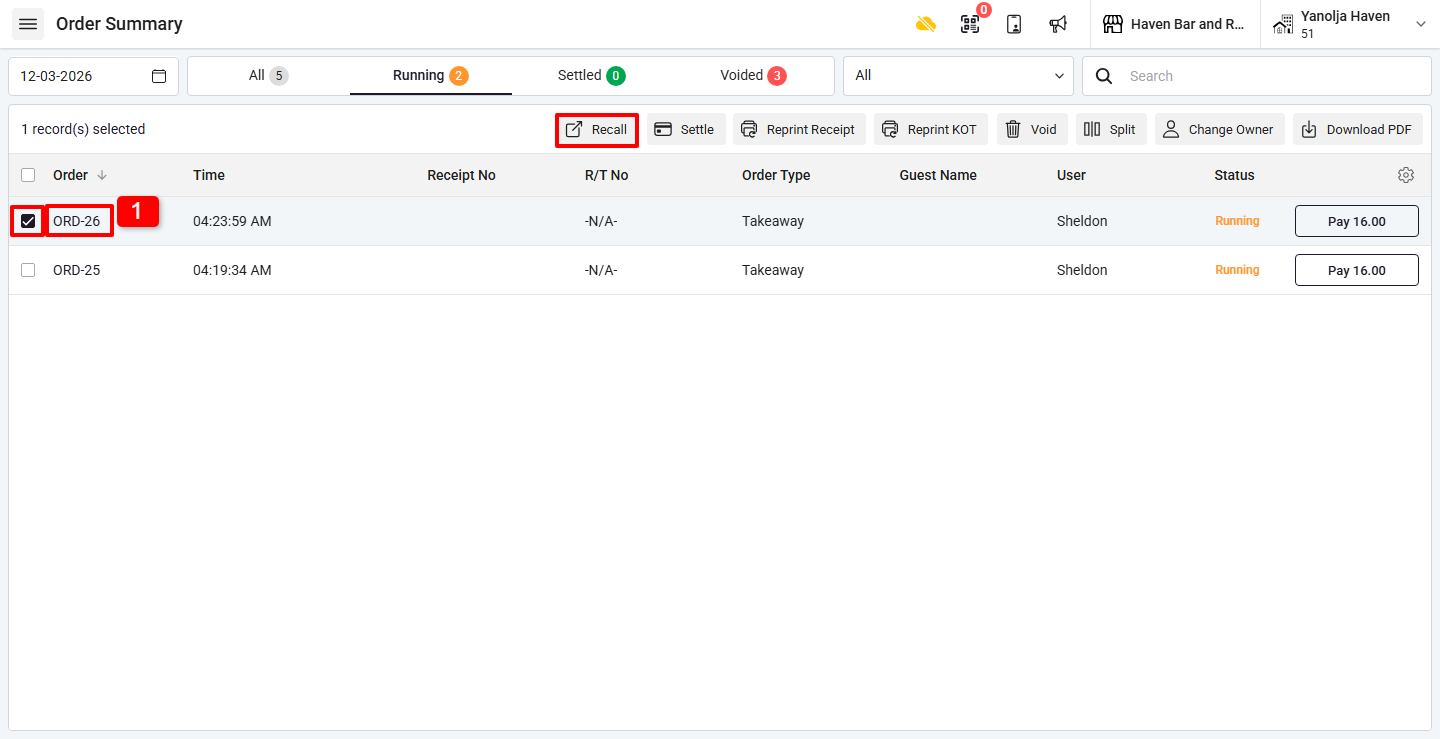
Yes, you can also settle the order using the Recall option.
Step 4: Alternative Settlement Method
1. Click on the Order Number or select the order and click Recall.
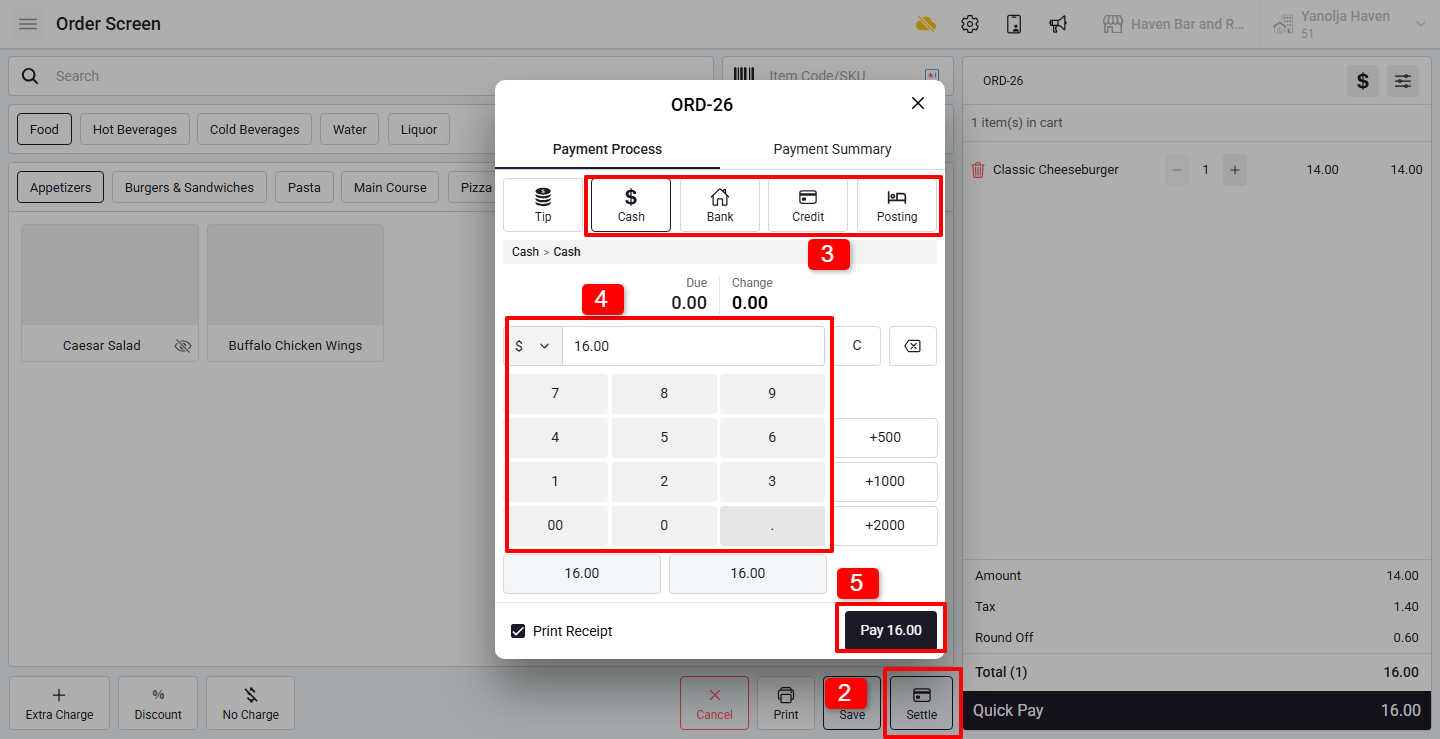
2. Click on the Settle button.
3. Choose the Settlement Mode (Cash, Card, City Ledger, or Room Posting).
4. If selecting Cash, enter the amount received to calculate the change due.
5. Click Pay to complete the settlement.
Was this article helpful?
That’s Great!
Thank you for your feedback
Sorry! We couldn't be helpful
Thank you for your feedback
Feedback sent
We appreciate your effort and will try to fix the article