Can different rates be set for different order types or floors?
Yes. In eZee Optimus, you can configure multiple rate plans for different Order Types and restaurant sections.
Examples:
Order Type Based Rates
- Dine-In
- Takeaway
- Delivery
Section/Floor Based Rates
- Beach Deck
- Bar
- Garden Area
- Rooftop
This allows restaurants to charge different prices depending on the location or service type.
Can I change the rate plan while taking an order?
Yes. If required, you can manually switch the rate plan while punching an order.
For example:
- A guest is seated in the Bar section
- But you want to charge Beach Deck pricing
You can select the Beach Deck rate plan while placing the order.
How do I change the rate plan on the ordering screen?
Follow the steps below:
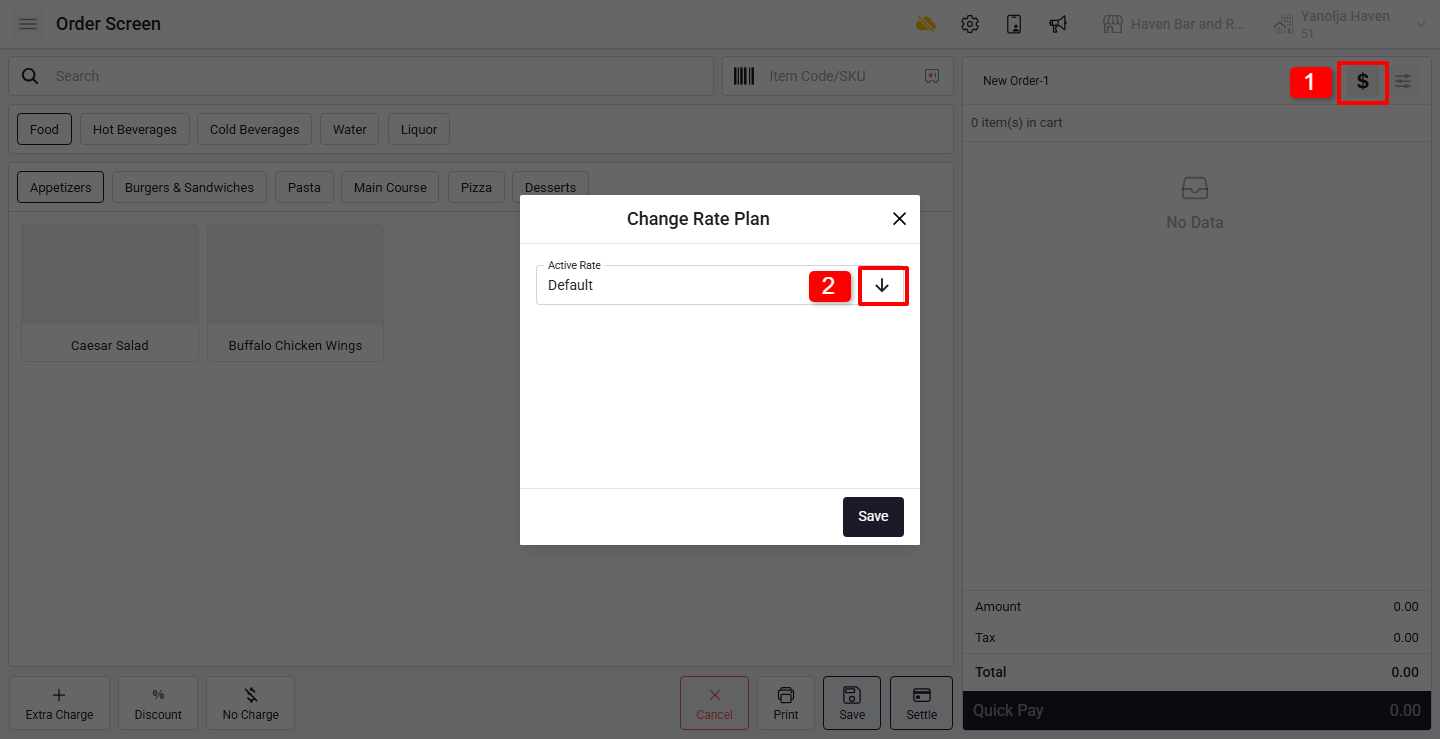
1. On the Ordering Page, click on the “$” (Rate Plan Icon) before adding items.
2. Click on the Dropdown Menu.
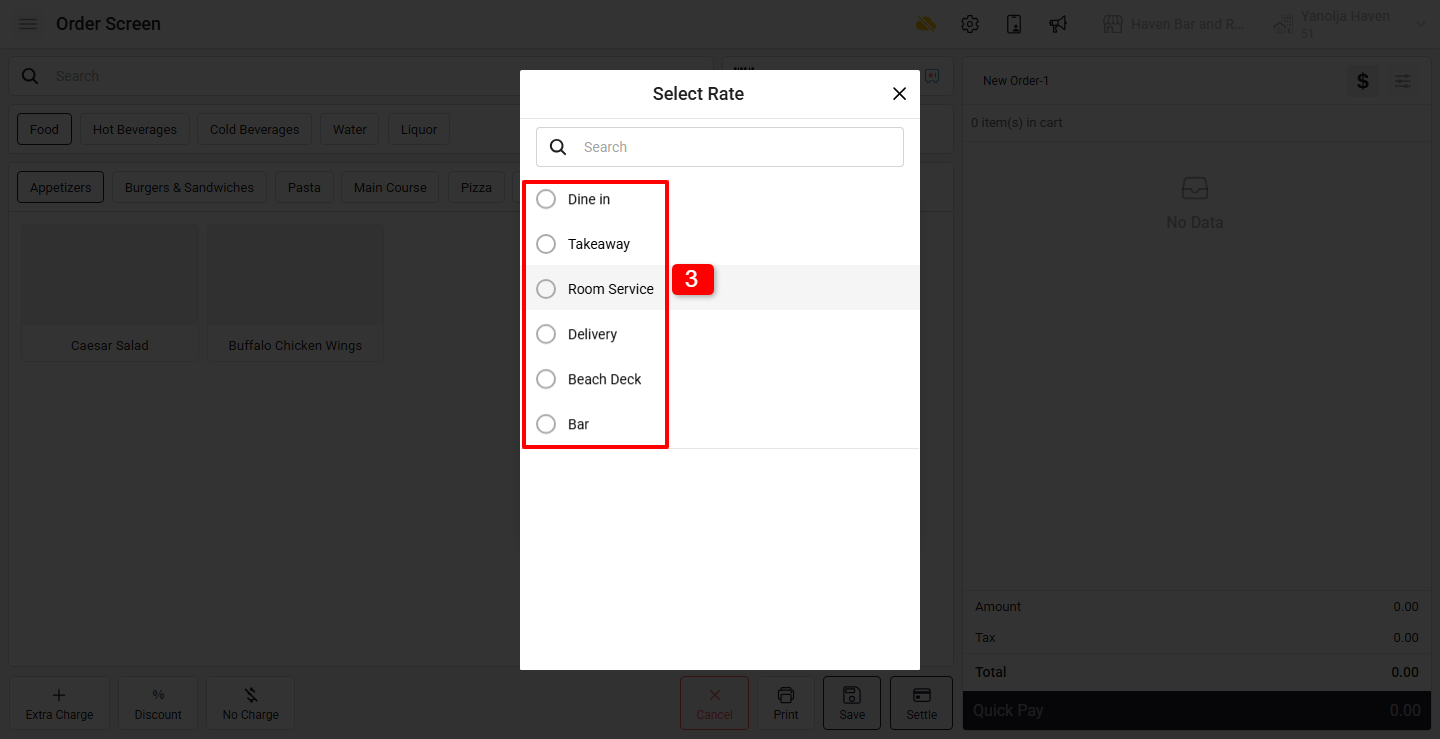
3. Select the Rate Plan you want to apply.
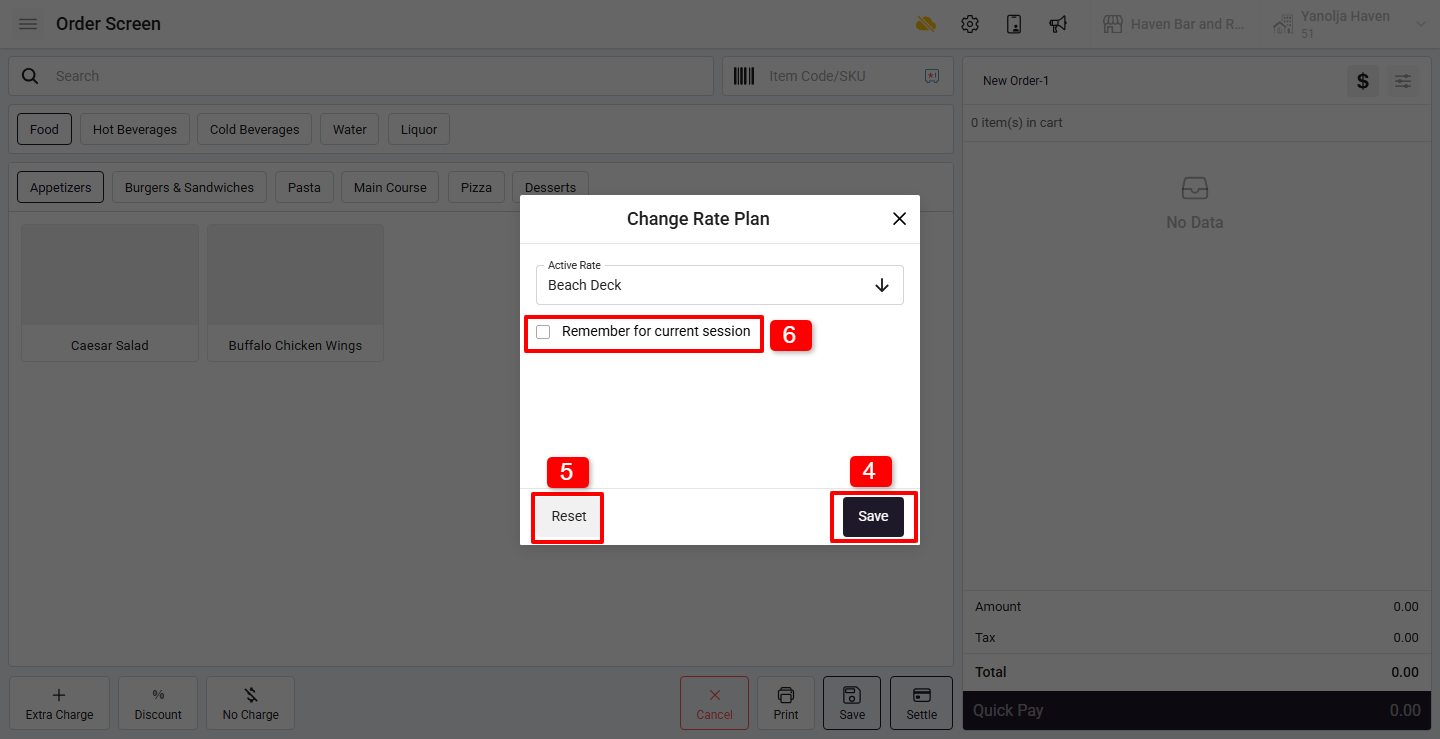
4. Click on Save to apply the selected rate plan.
5. If you want to revert to the original rate plan:
- Click on the Reset button.
- This will restore the default rate plan configured for that order type or floor.
6. Once this option is selected:
- It will apply to all orders placed during the current login session
- The rate plan remains active until the user logs out of the software
Was this article helpful?
That’s Great!
Thank you for your feedback
Sorry! We couldn't be helpful
Thank you for your feedback
Feedback sent
We appreciate your effort and will try to fix the article