Goods Return
Goods Return is used to control inventory deduction when a store sends items back to a vendor. This may happen when items are expired, damaged, broken, or need replacement. When a goods return is created, the quantity is deducted from the respective store inventory.
Steps to Create a Goods Return :
1. Go to the Menu.
2. Click on the Inventory section.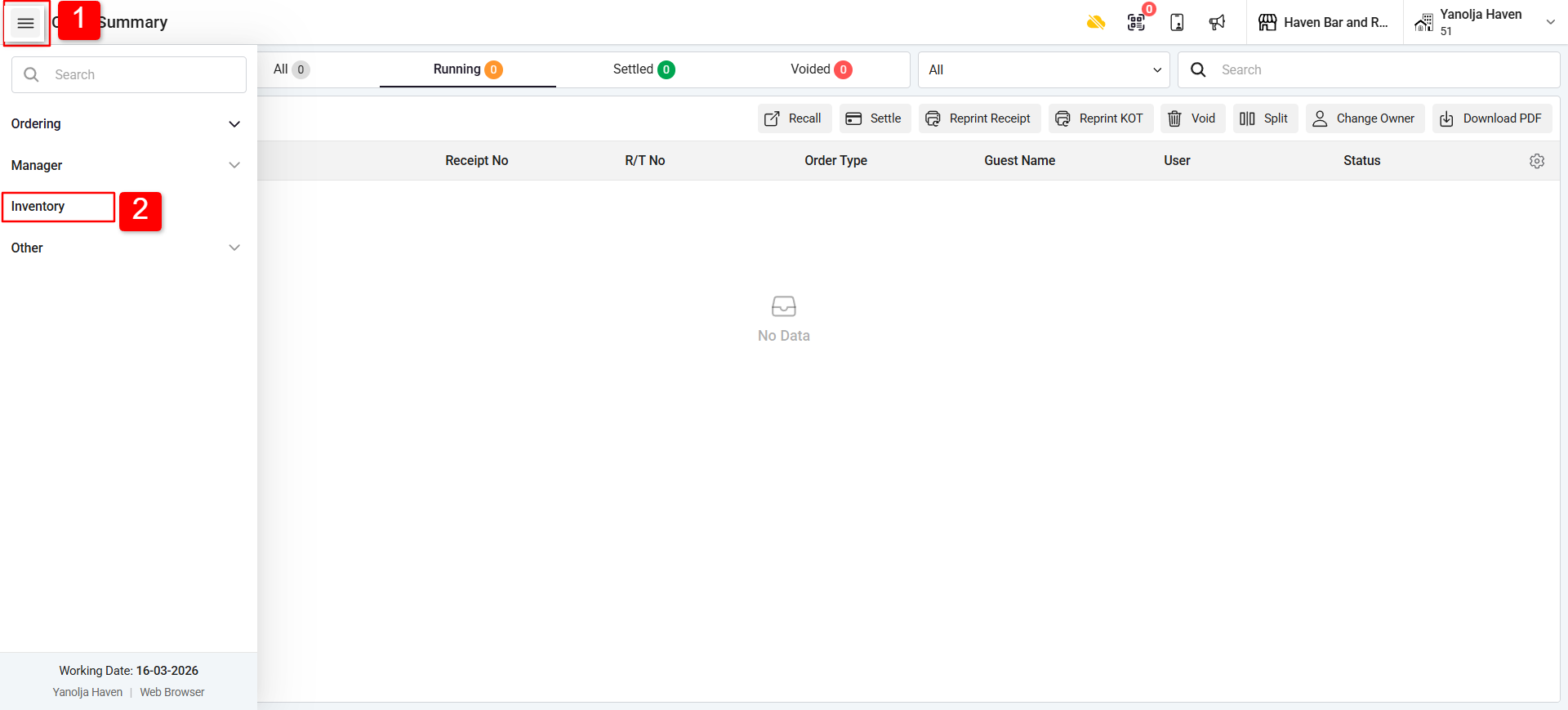
3. Select Goods Return.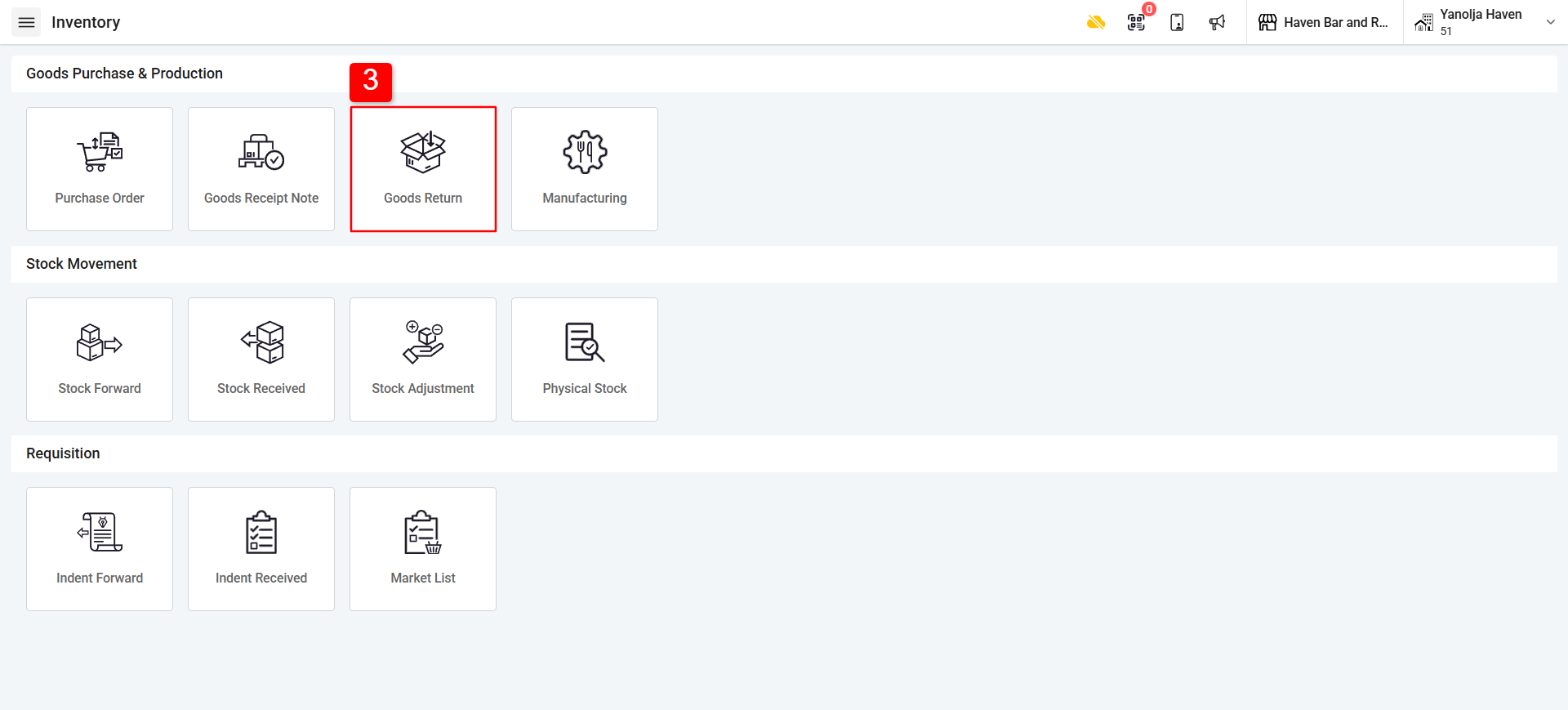
4. Click on the “+” icon to create a new Goods Return.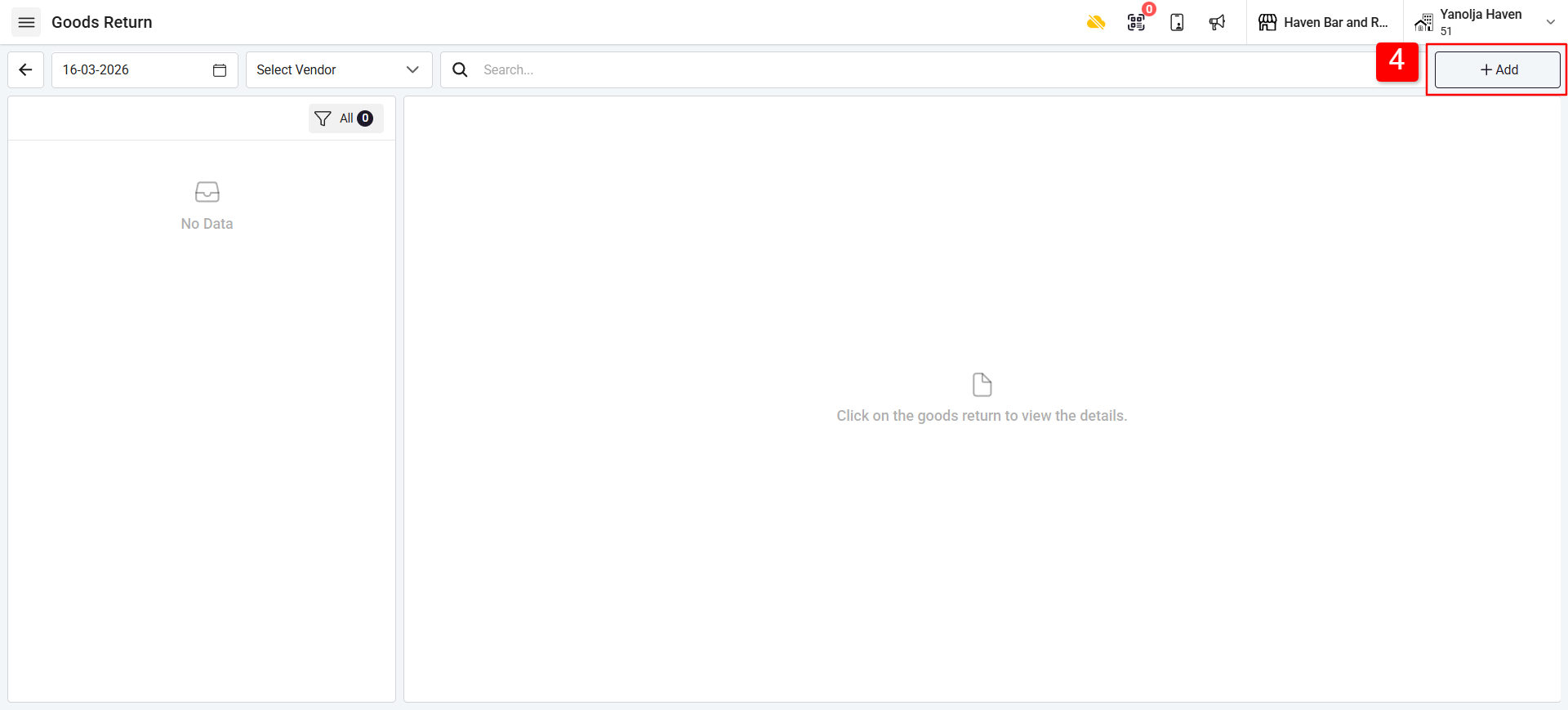
5. Select the Date.
6. Select the Vendor and the Vendor Invoice.
7. Click on Add Item.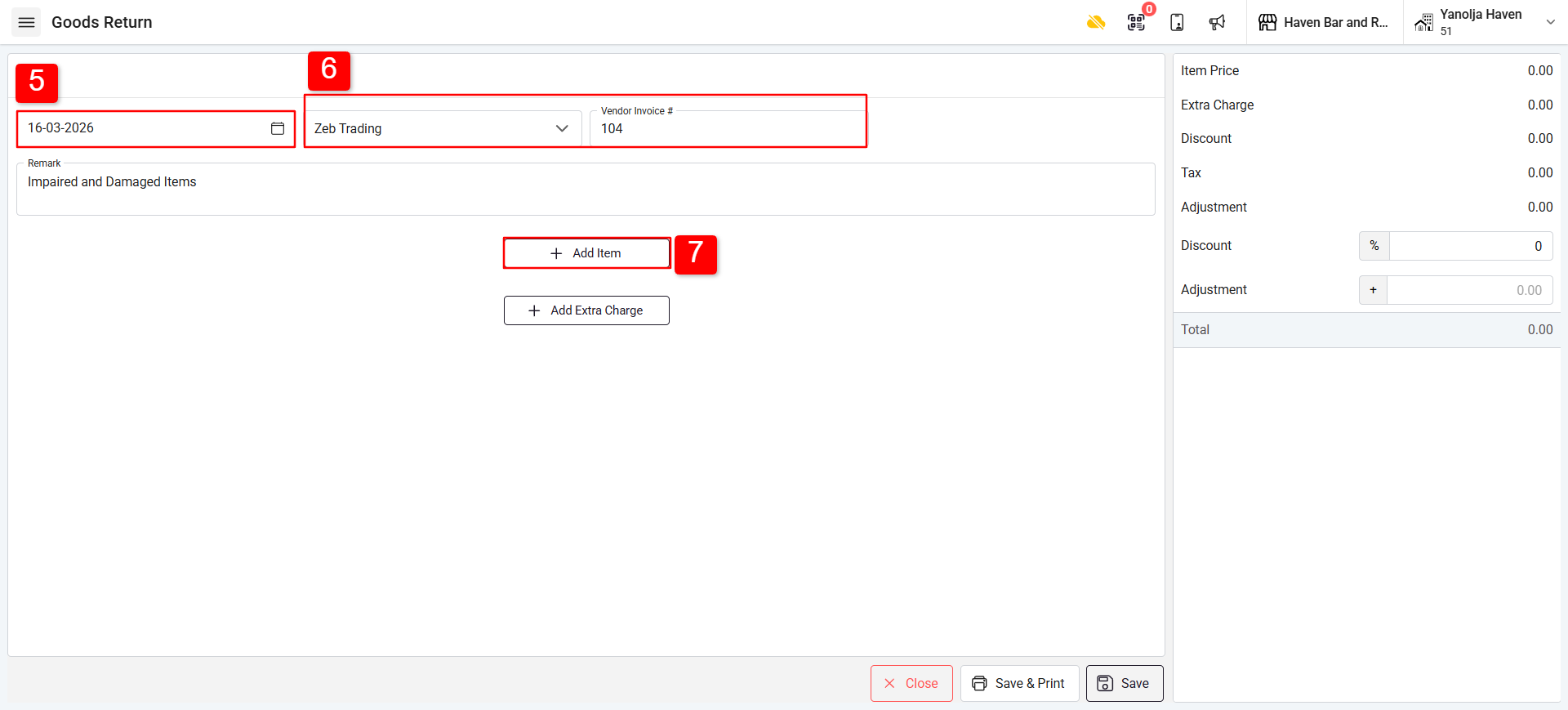
8. Select the items that need to be returned to the vendor.
9. Click Save.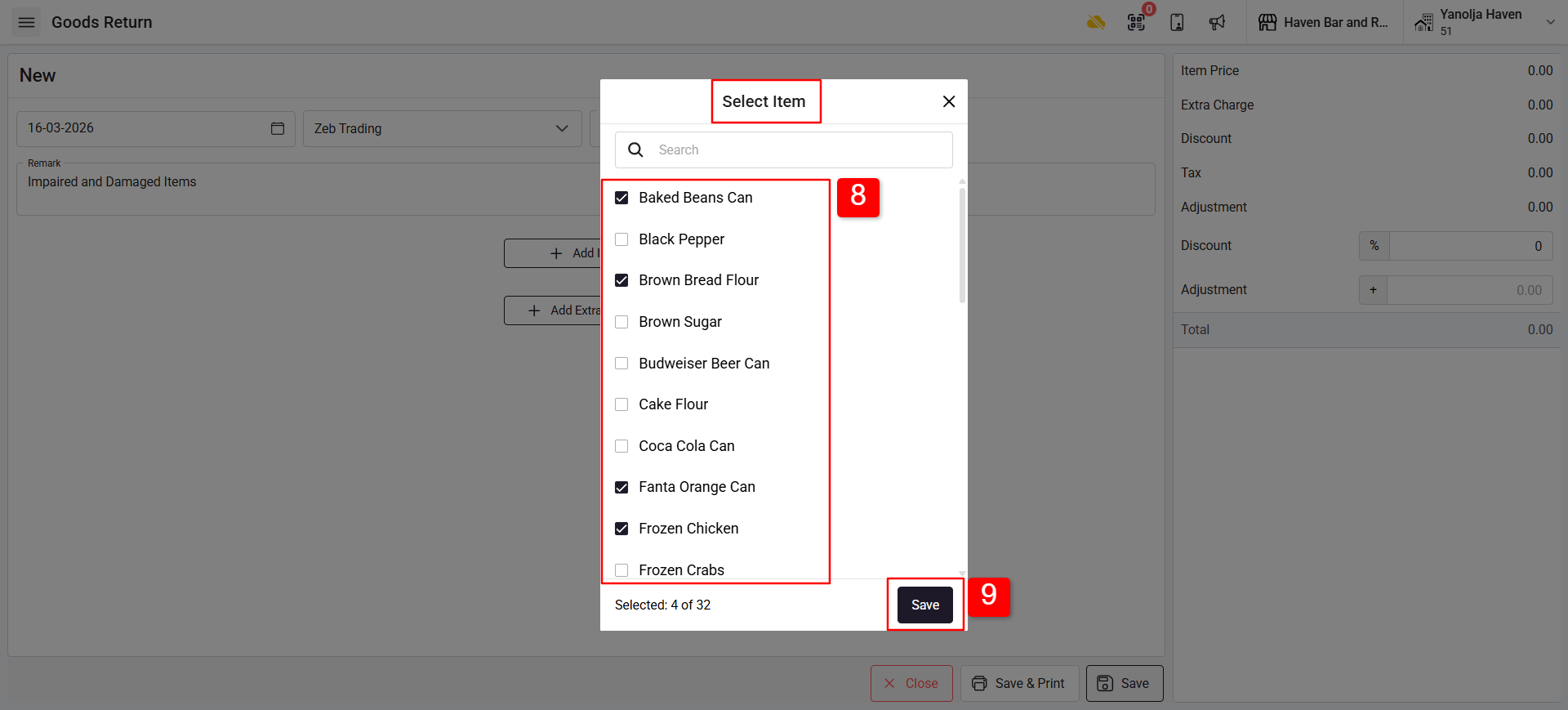
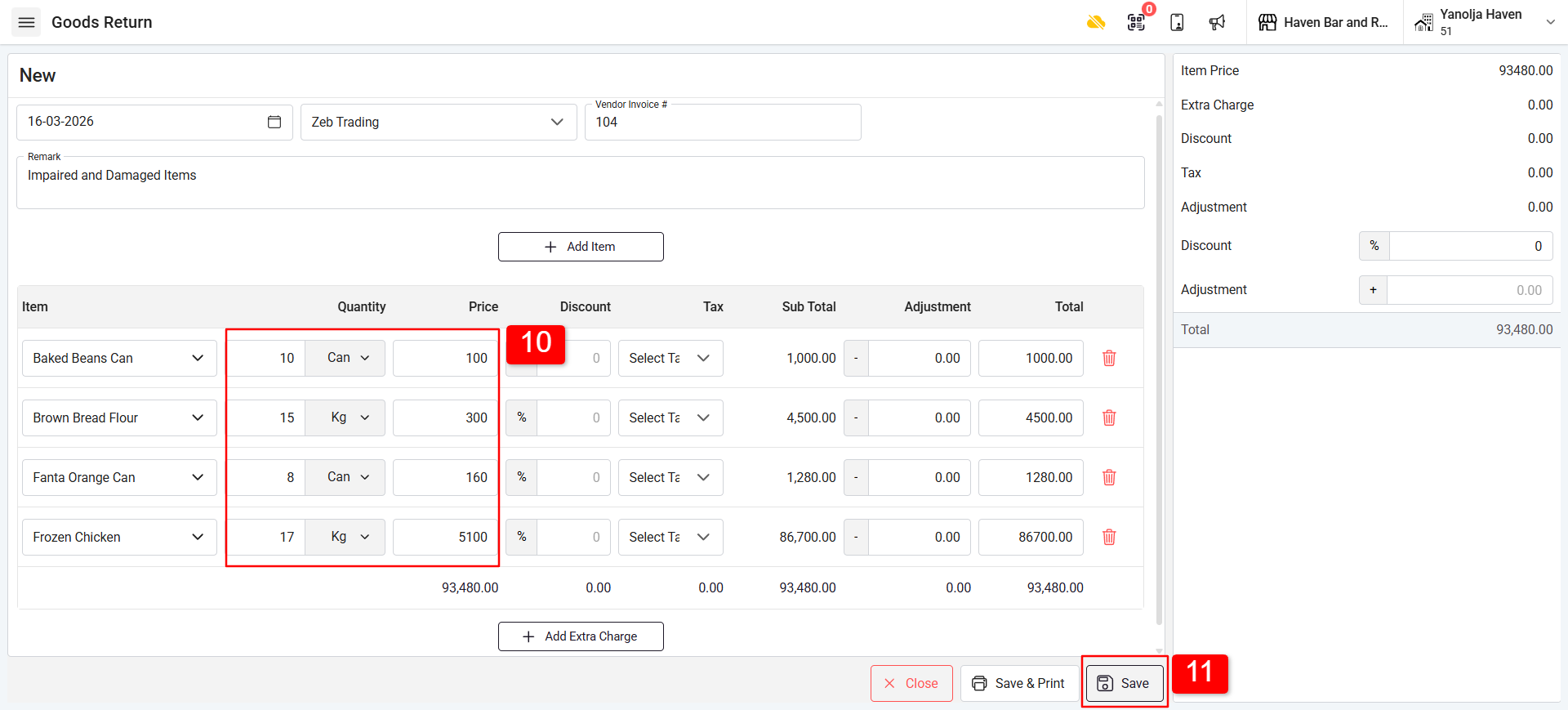
10. Enter the quantity (Qty) and Price of the items being returned.
11. Click Save to complete the process.
Was this article helpful?
That’s Great!
Thank you for your feedback
Sorry! We couldn't be helpful
Thank you for your feedback
Feedback sent
We appreciate your effort and will try to fix the article