How to Move Room or Extra Charges Between Rooms/Folios
You can transfer room charges or extra charges from one room/folio to another using the Move option available in the Folio Details section.
Steps to Move Charges
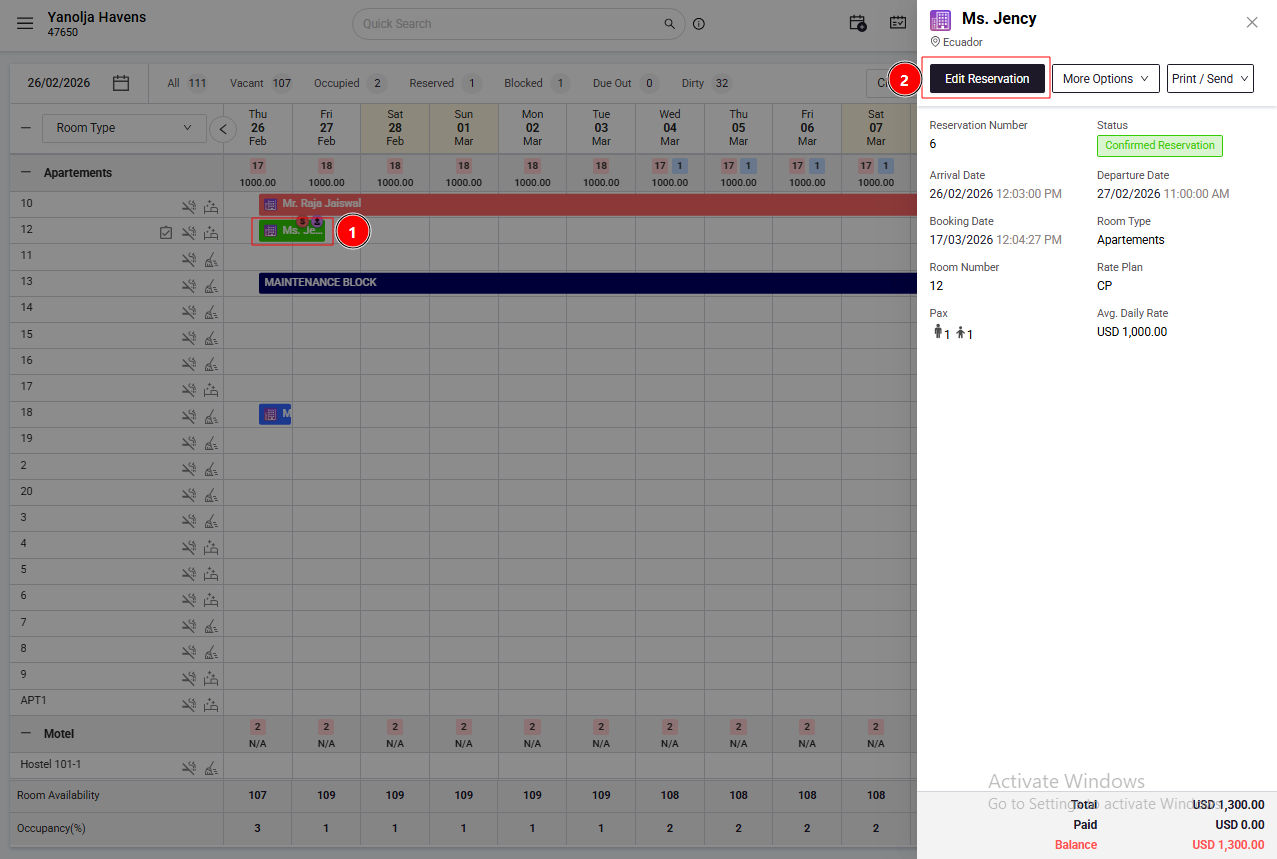
1. Access Folio Details
Go to Edit Reservation
2. Select Charges to Move
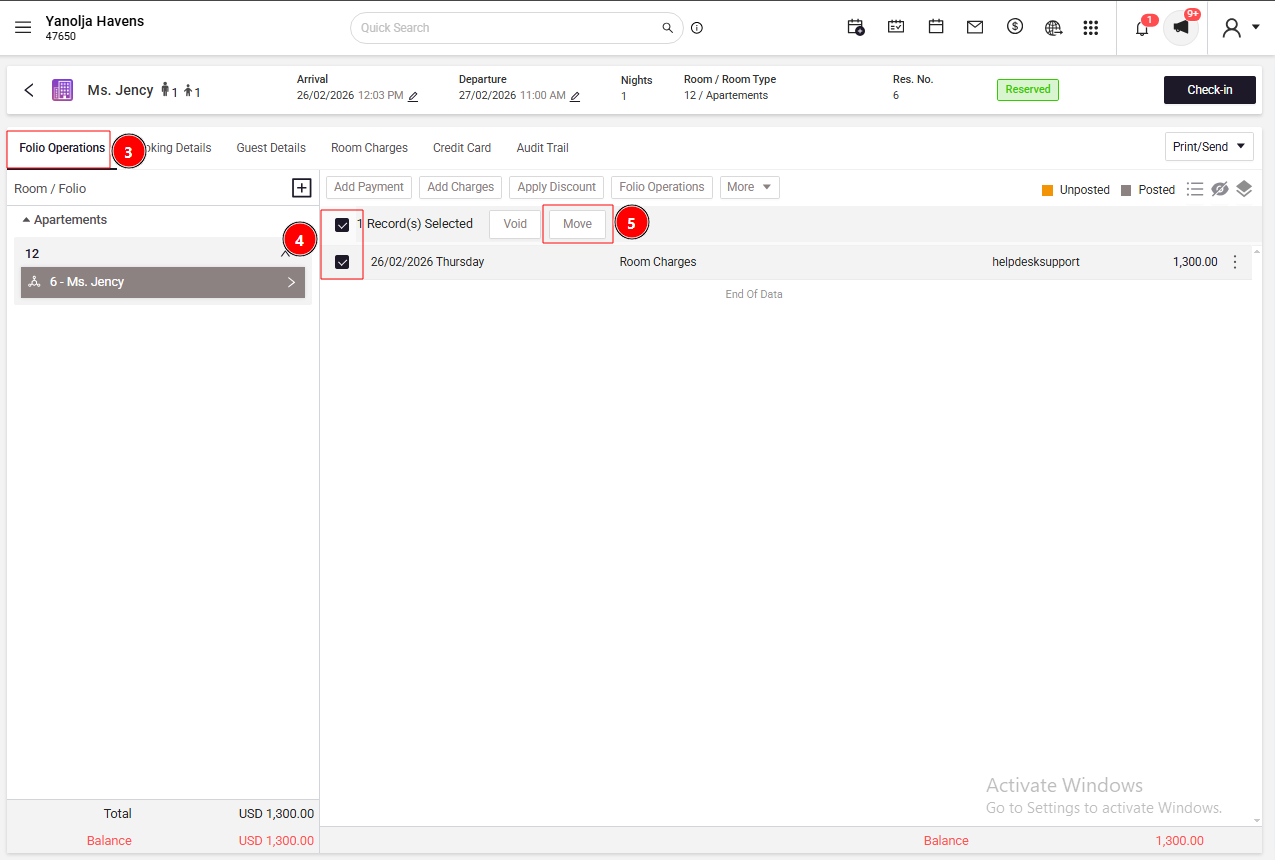
Click on Folio Operations
Choose the charges you want to transfer
Click on the Move option
3. Specify Target Room/Folio
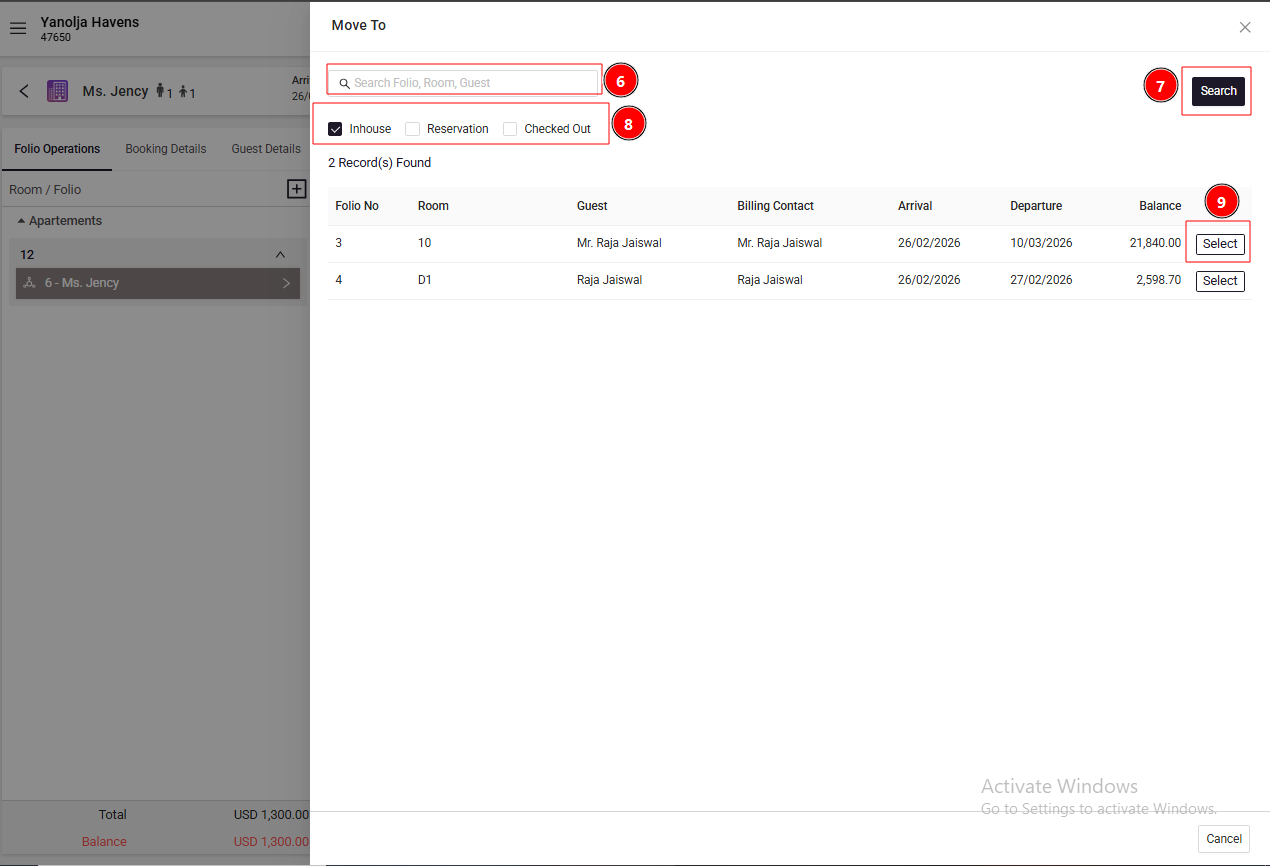
Search for the destination room or folio
Select the appropriate folio
Click on "Search" to confirm
Enable Required Privilege
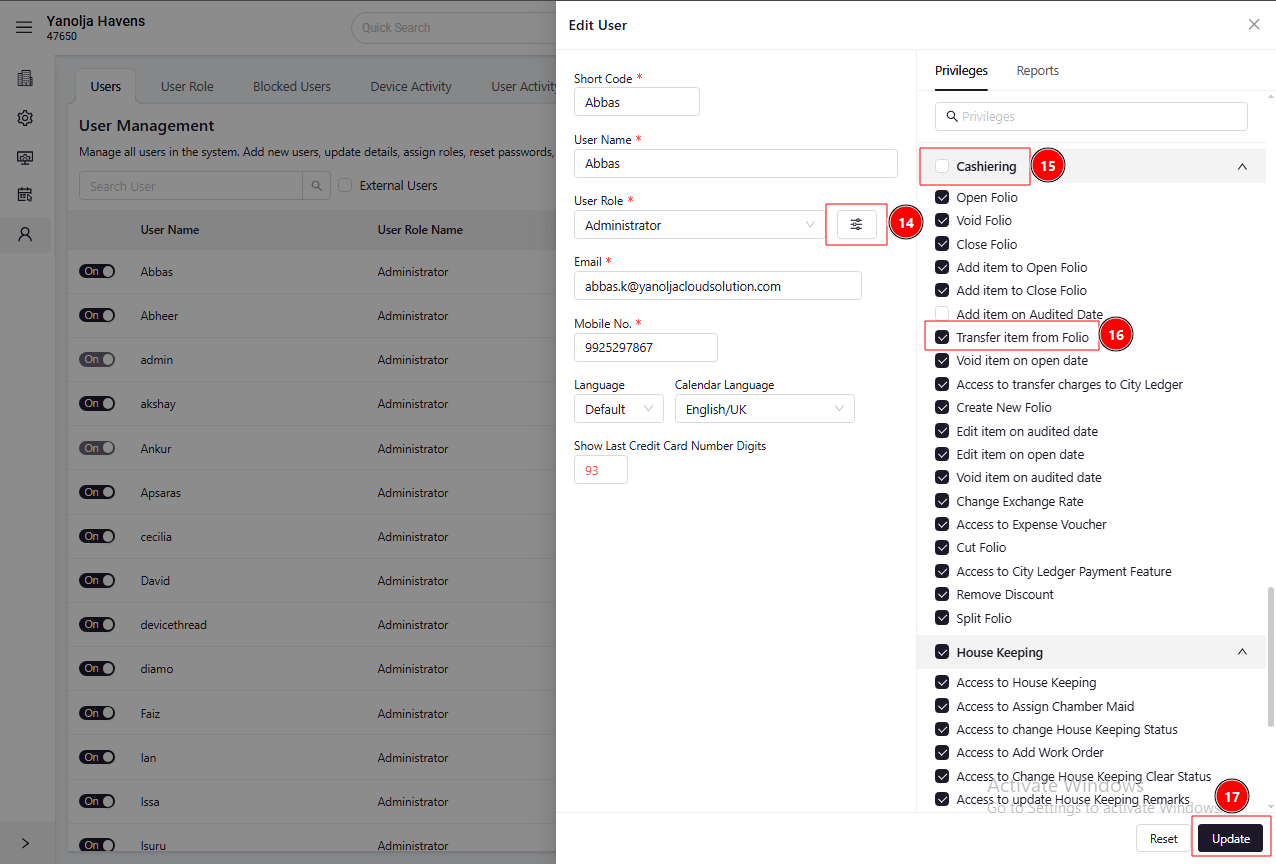
To allow users to transfer charges, ensure the below permission is enabled:
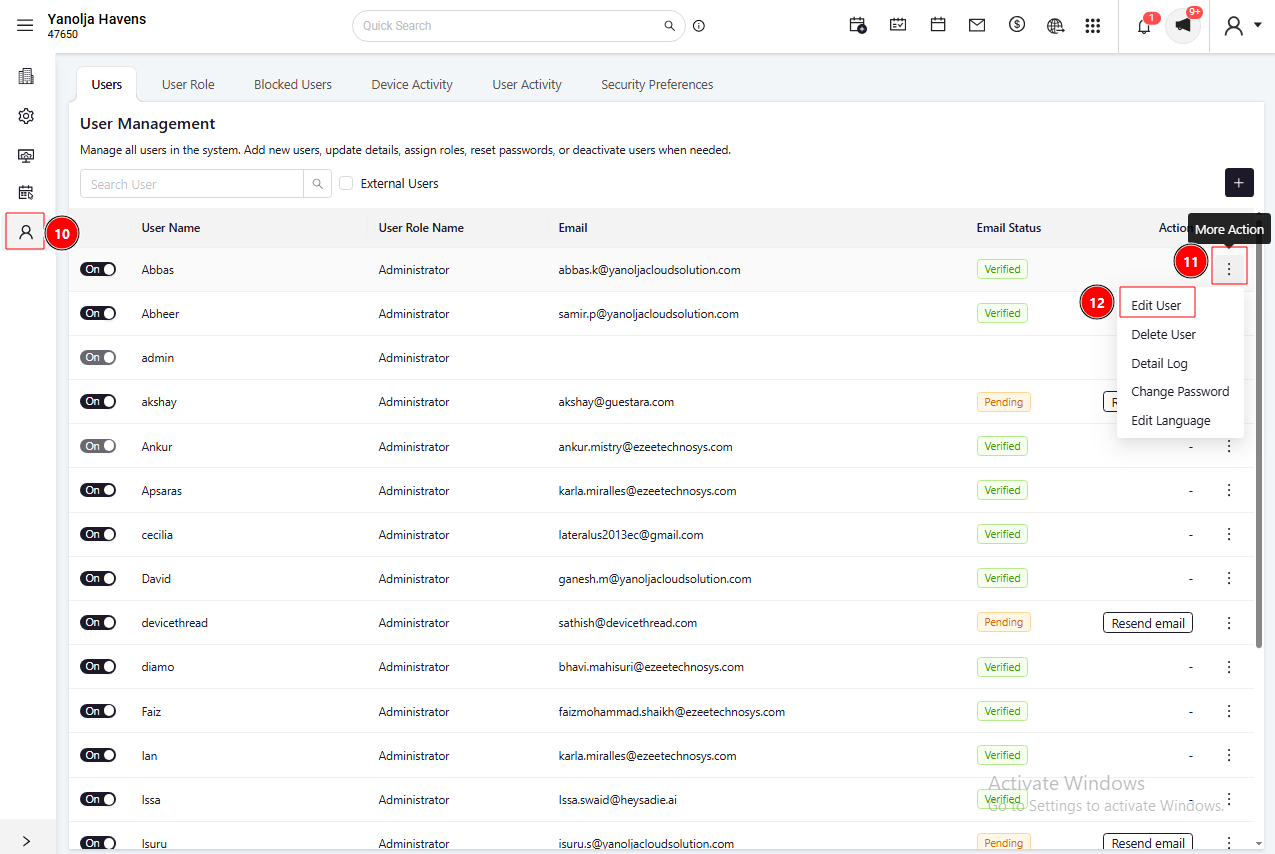
Go to PMS configuration.
Navigate to User
Click on "Edit User."
Open Privileges
Under Cashiering, enable “Transfer Item from Folio."
Once this privilege is enabled, the user will be able to transfer items between folios.
Report Reference
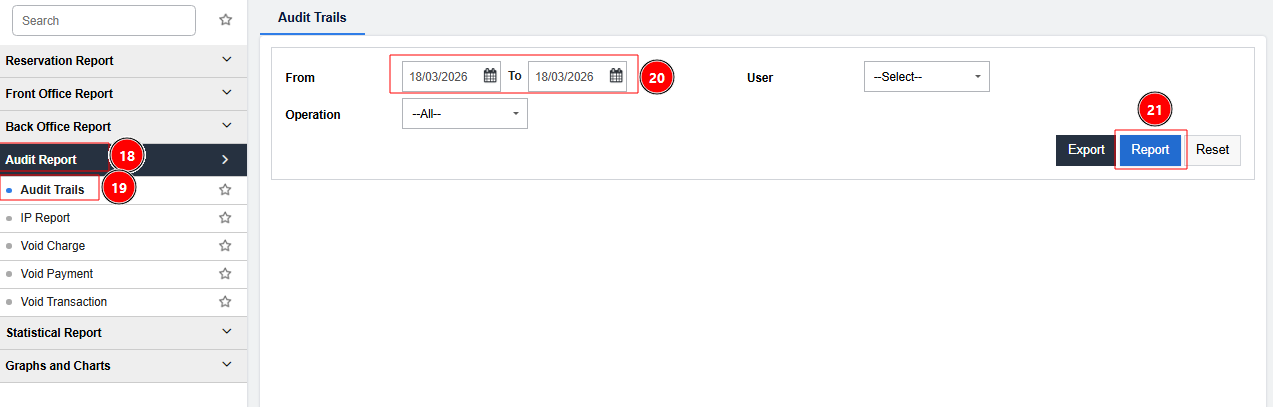
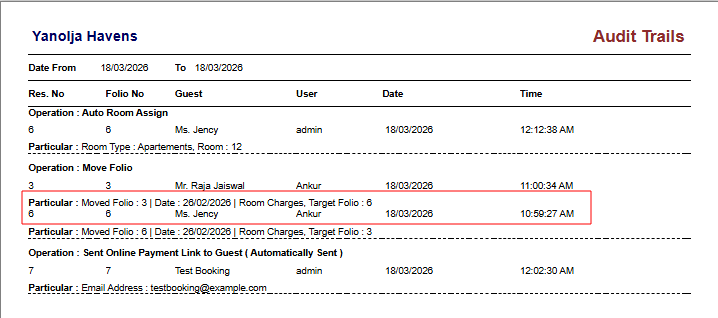
To track or review transferred charges:
Go to Audit Trails Report
Check under the Move Folio operation
Was this article helpful?
That’s Great!
Thank you for your feedback
Sorry! We couldn't be helpful
Thank you for your feedback
Feedback sent
We appreciate your effort and will try to fix the article