Based on user privileges configured in the POS backend (Outlet and User Level), the system allows authorized users to approve or reject Purchase Orders.
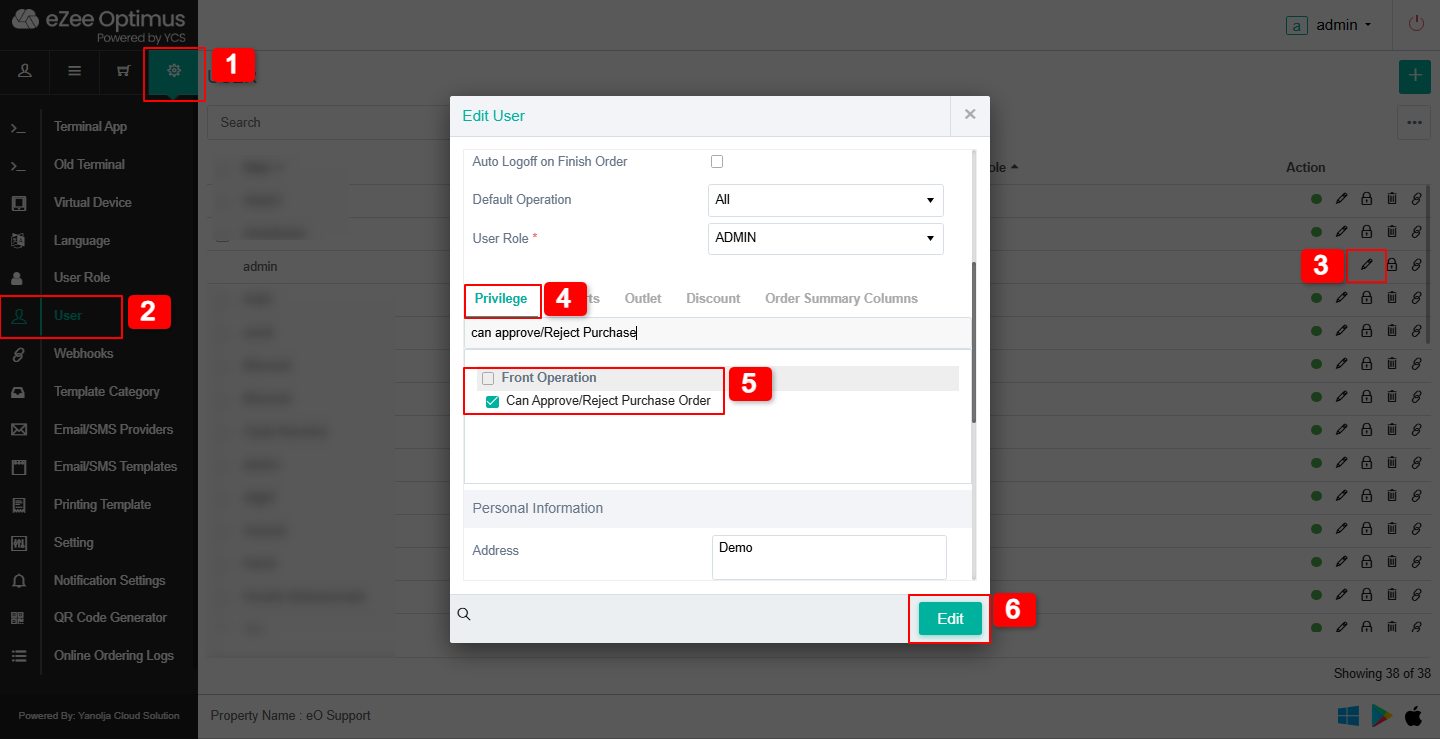
Step 1: Enable Privilege :
The user must have the proper permission to approve/reject the Purchase Order.
1. Go to Settings.
2. Select User.
3. Click Edit User.
4. Go to the Privilege section.
5. Search for privilege and click on privilege to enable it.
Can Approve/Reject Purchase Order.
6. Click Edit/Save to apply the changes.
Step 2: Create a Purchase Order :
1. Navigate to the Menu.
2. Click on Inventory.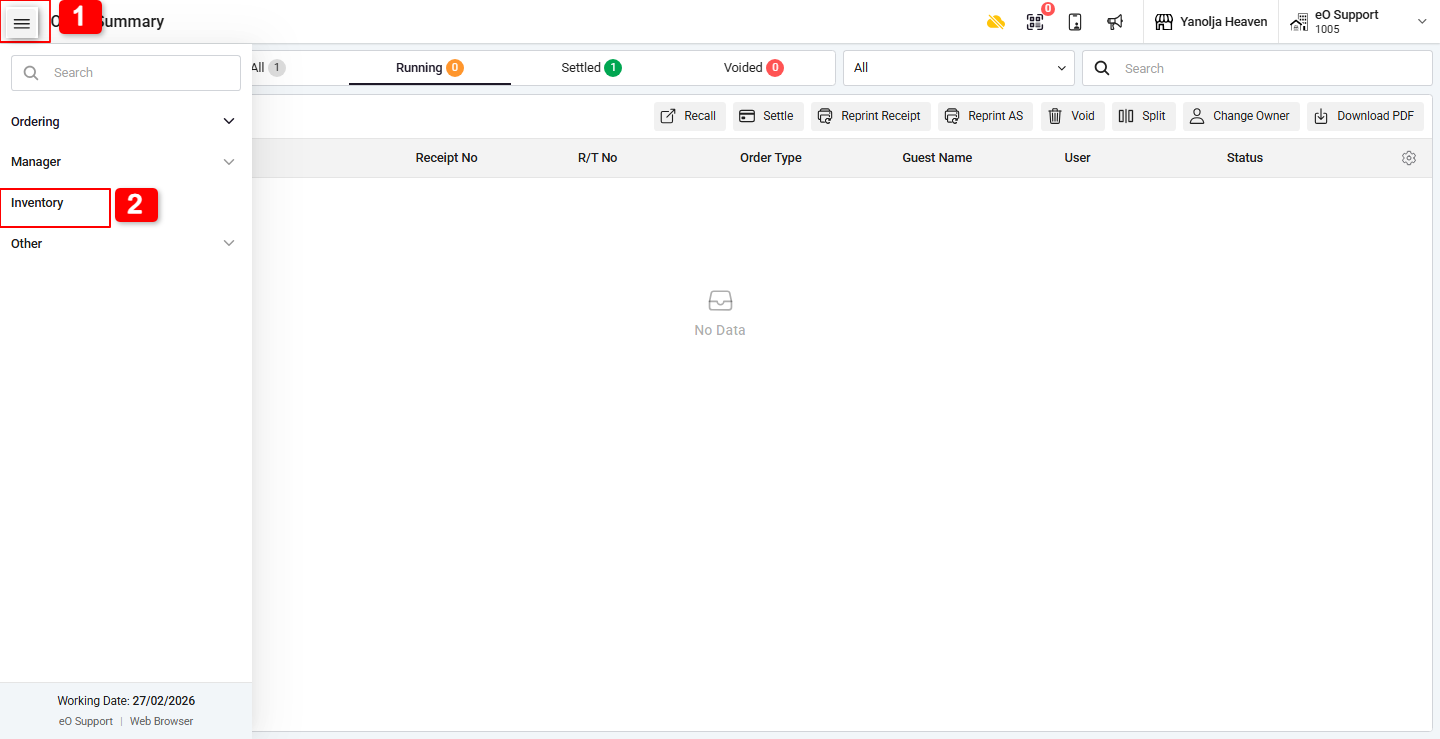
3. Select Purchase Order.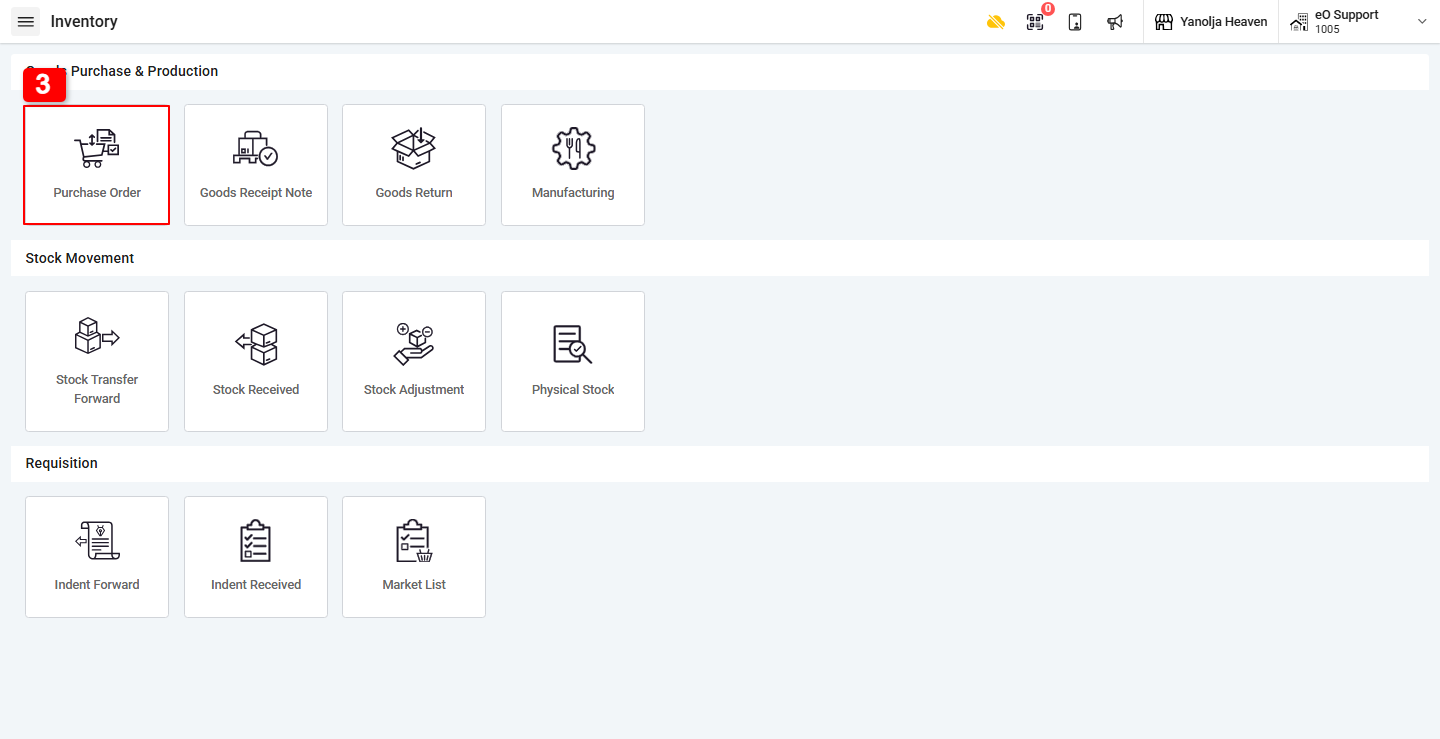
4. Click on Add to create a new PO.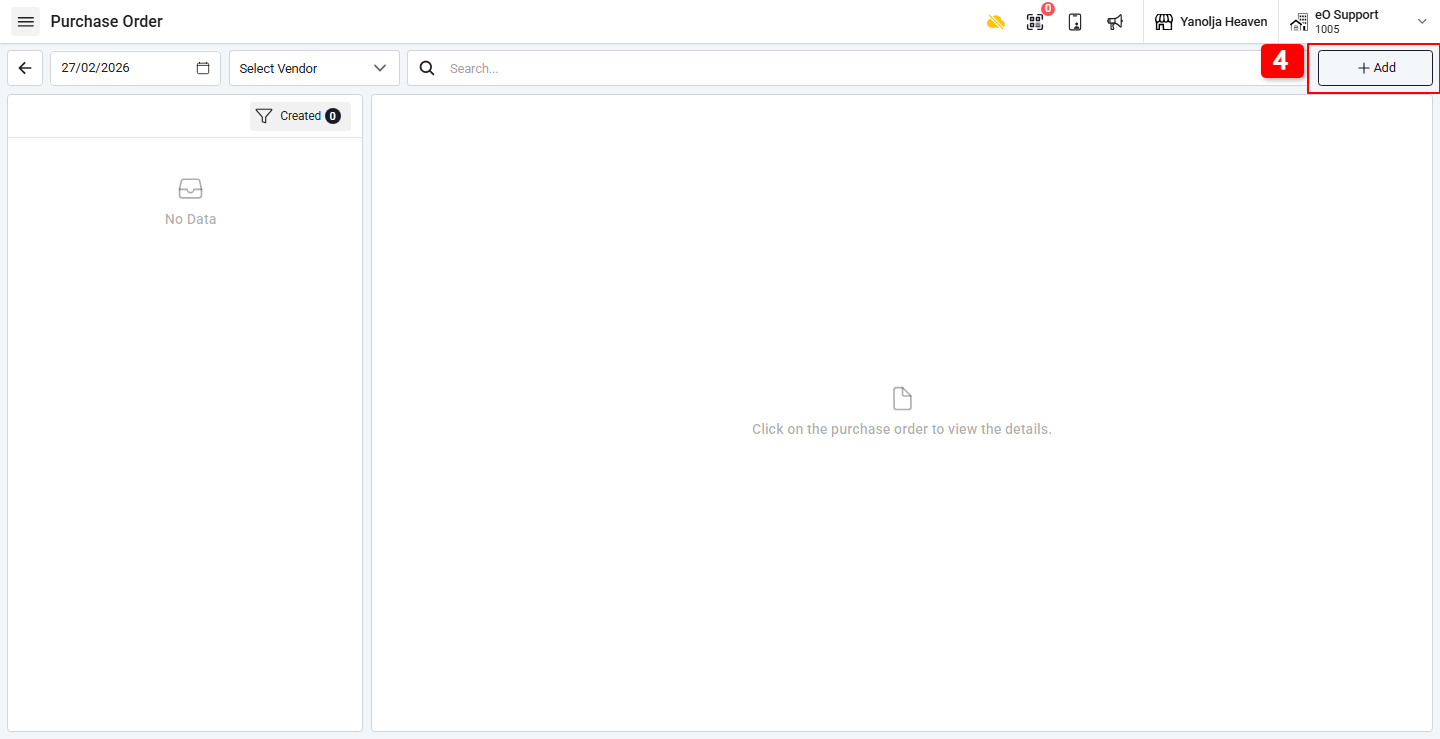
5. Choose the Vendor Account from the list.
6. Click on Add Item.
7. From the item list, select the required items.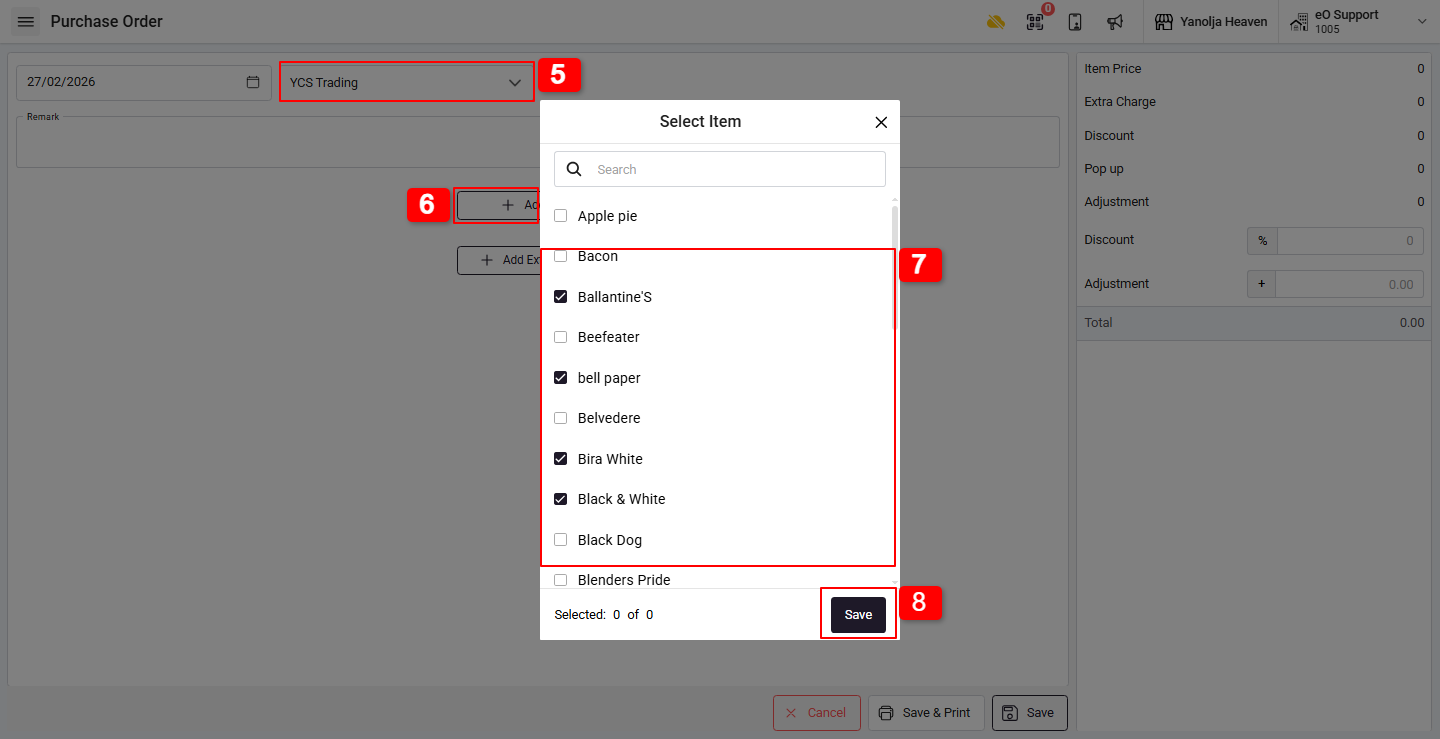
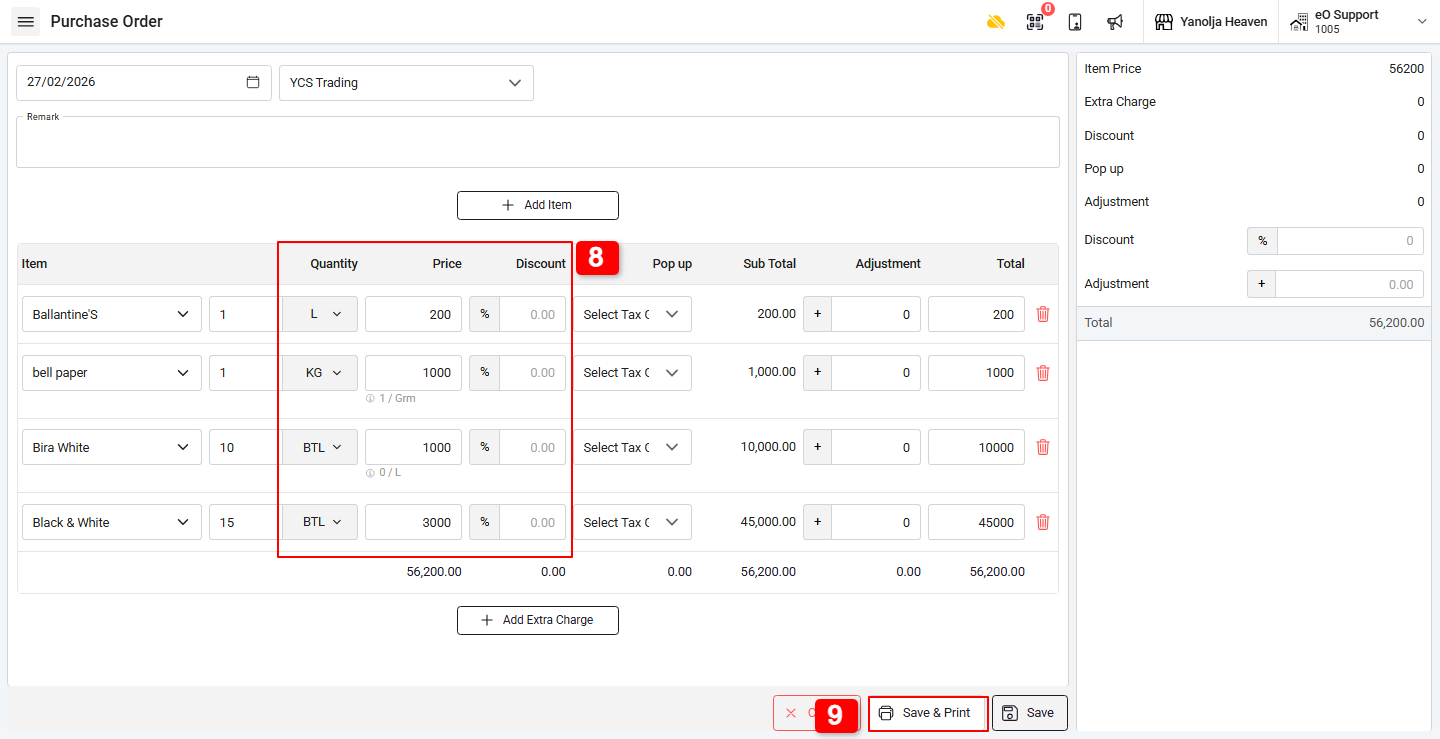
8. Enter the Quantity and Price for each item.
9. Click on Save to create the Purchase Order.
Step 3: Approve or Reject the Purchase Order :
1. Go to Purchase Order under Inventory.
2. Select the created Purchase Order from the list.
3. Click on Approve (or Reject, if applicable) from the bottom-right corner.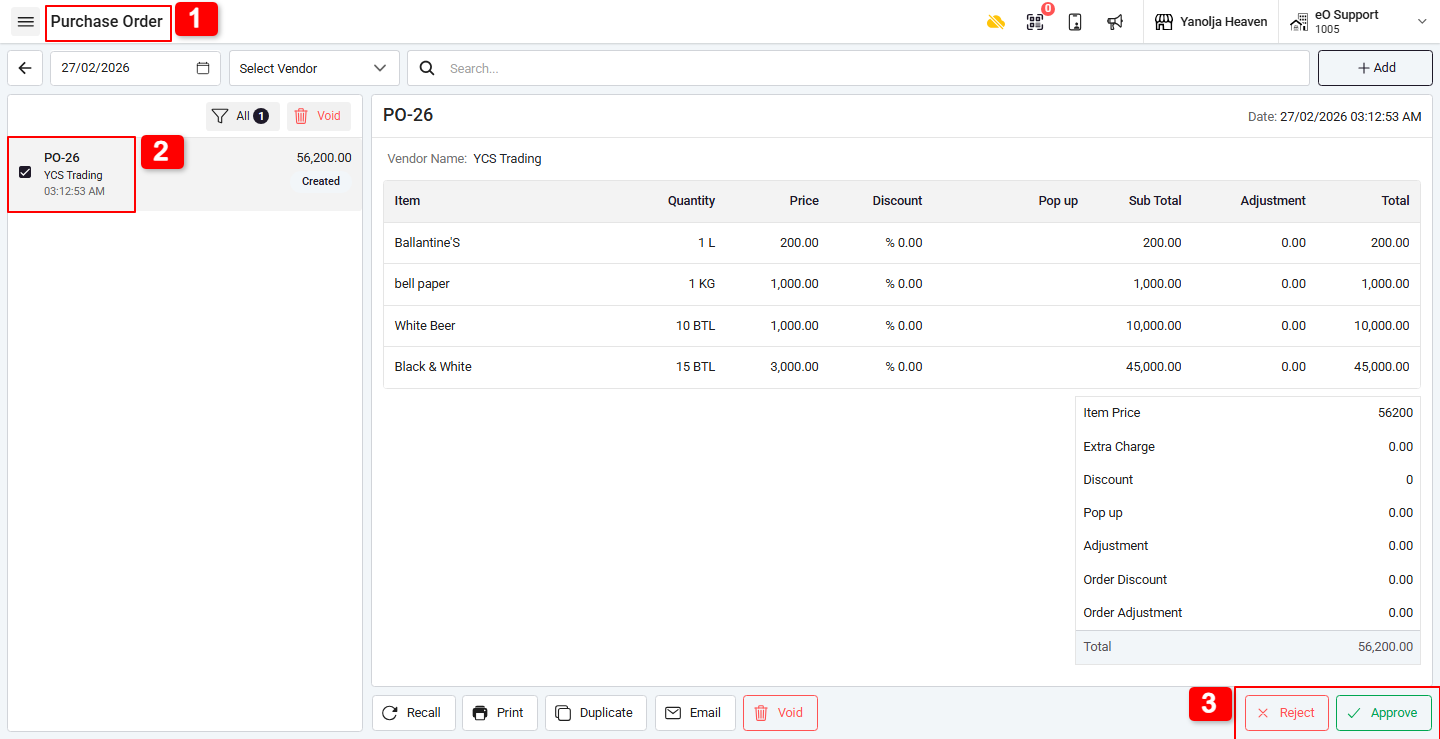
4. Once approved, the Purchase Order status will be updated to Approved.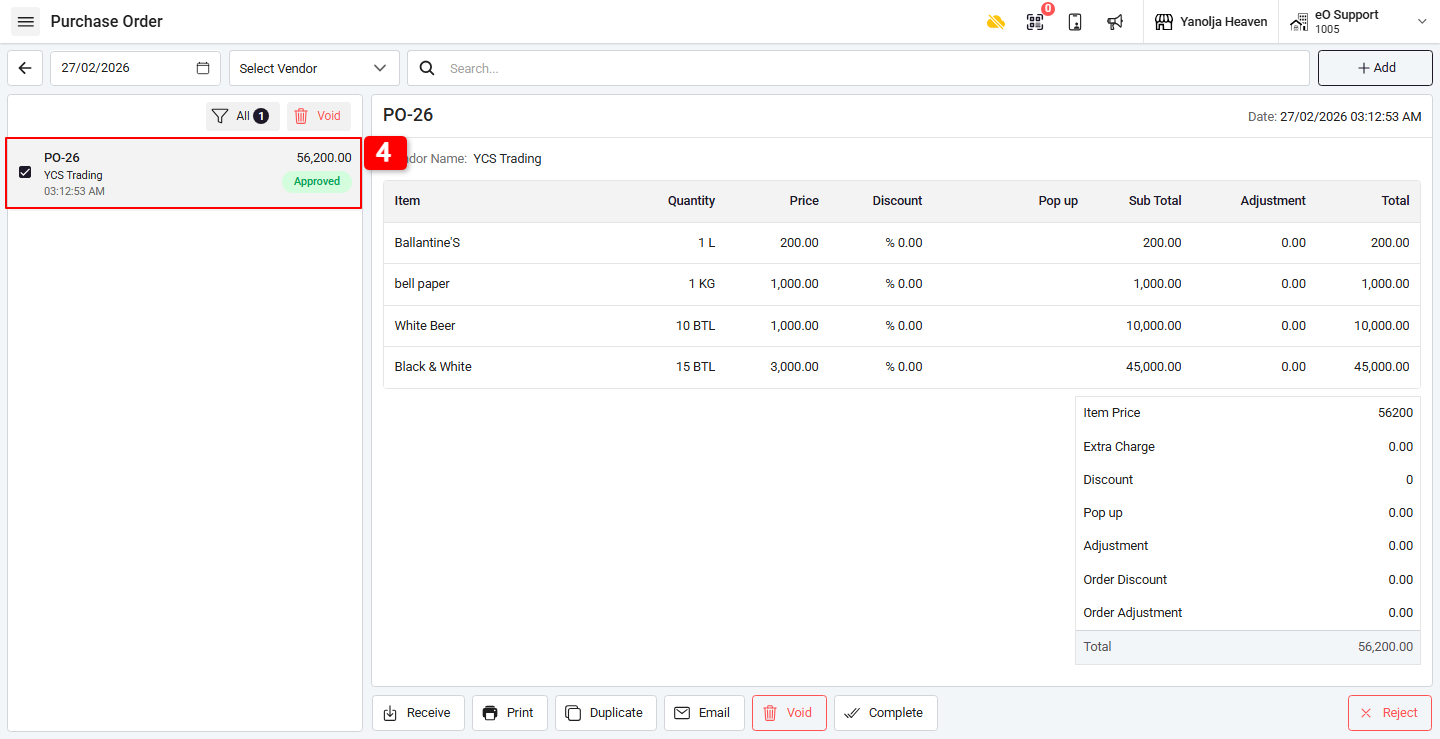
Was this article helpful?
That’s Great!
Thank you for your feedback
Sorry! We couldn't be helpful
Thank you for your feedback
Feedback sent
We appreciate your effort and will try to fix the article