This article explains how to create a group reservation from the Property Management Software (PMS) under Yanolja Cloud Solution.
Follow the steps below to create a group reservation :
Log in to Property Management Software (PMS).
Add Reservation or Drag & Select: From the Stay View screen, drag and select the required room or click add new reservation.
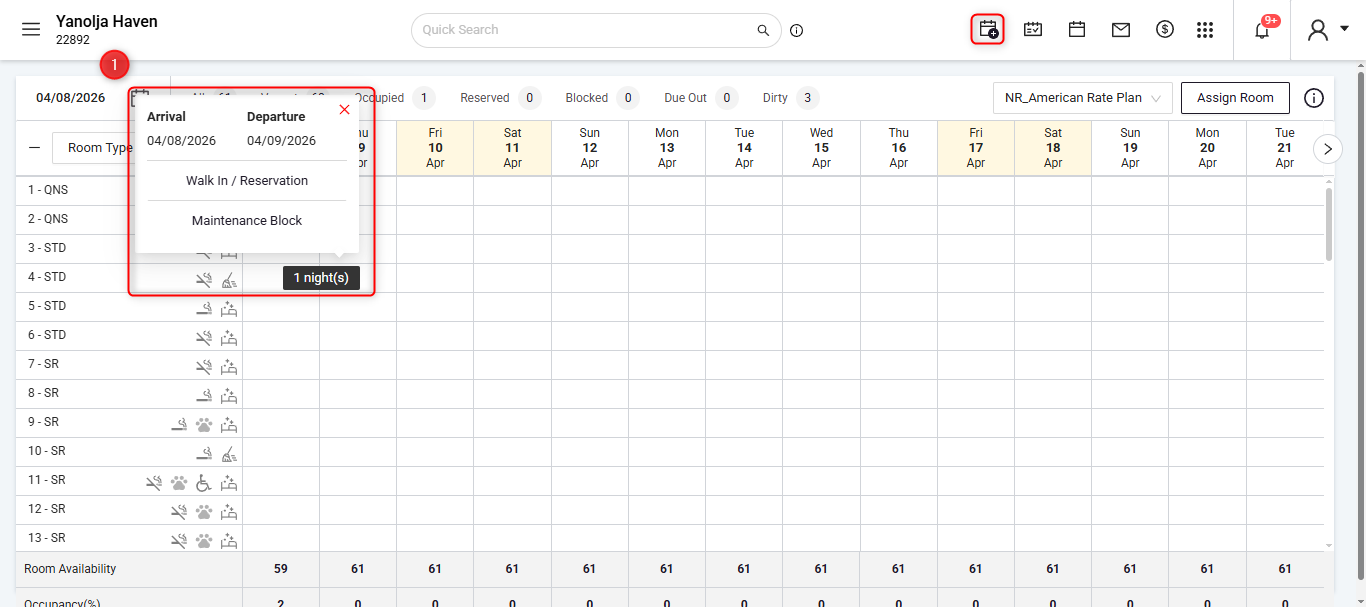
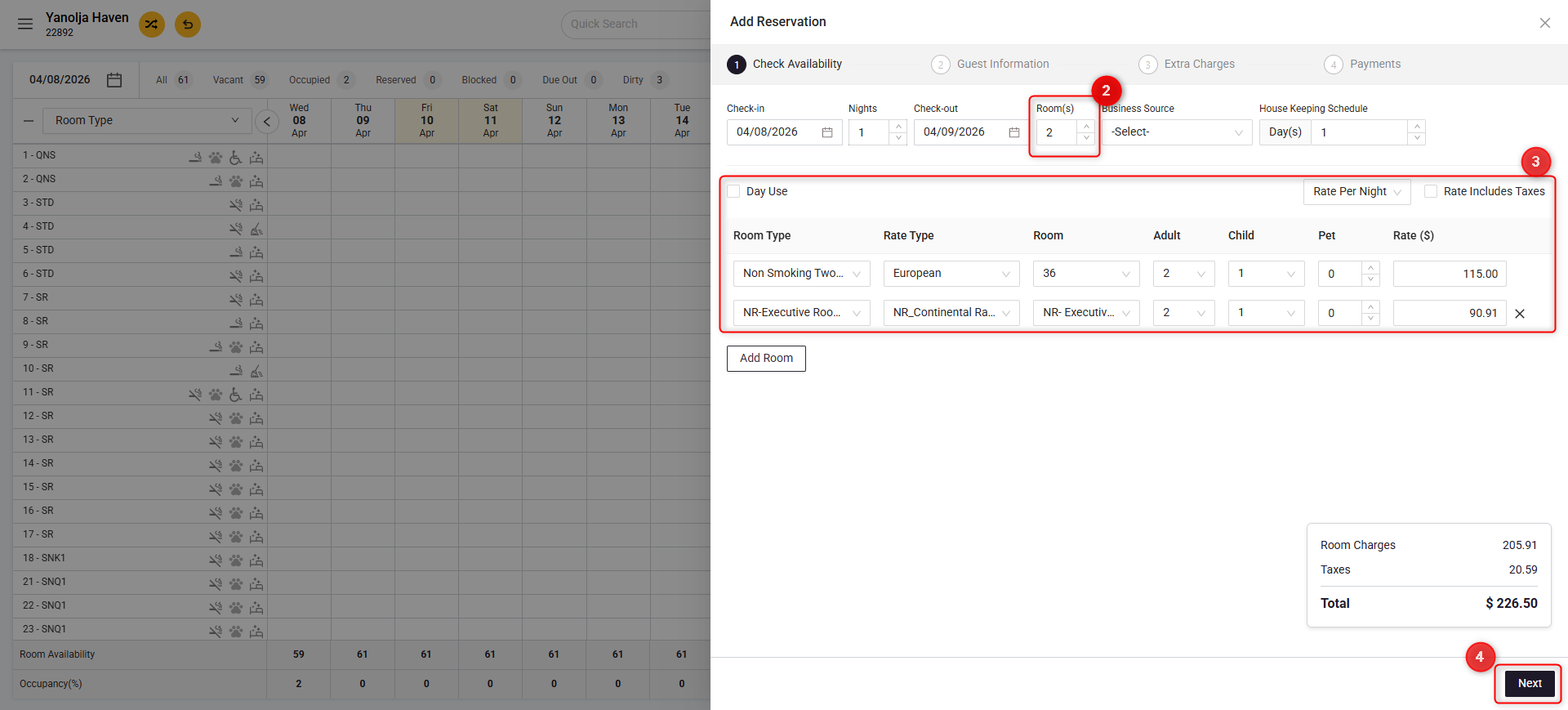
On the reservation screen:
Select the number of Rooms, or
Click on Add Room to include multiple rooms for the group.
Enter all required booking details including room, occupancy, and rate.
Click Next to continue.
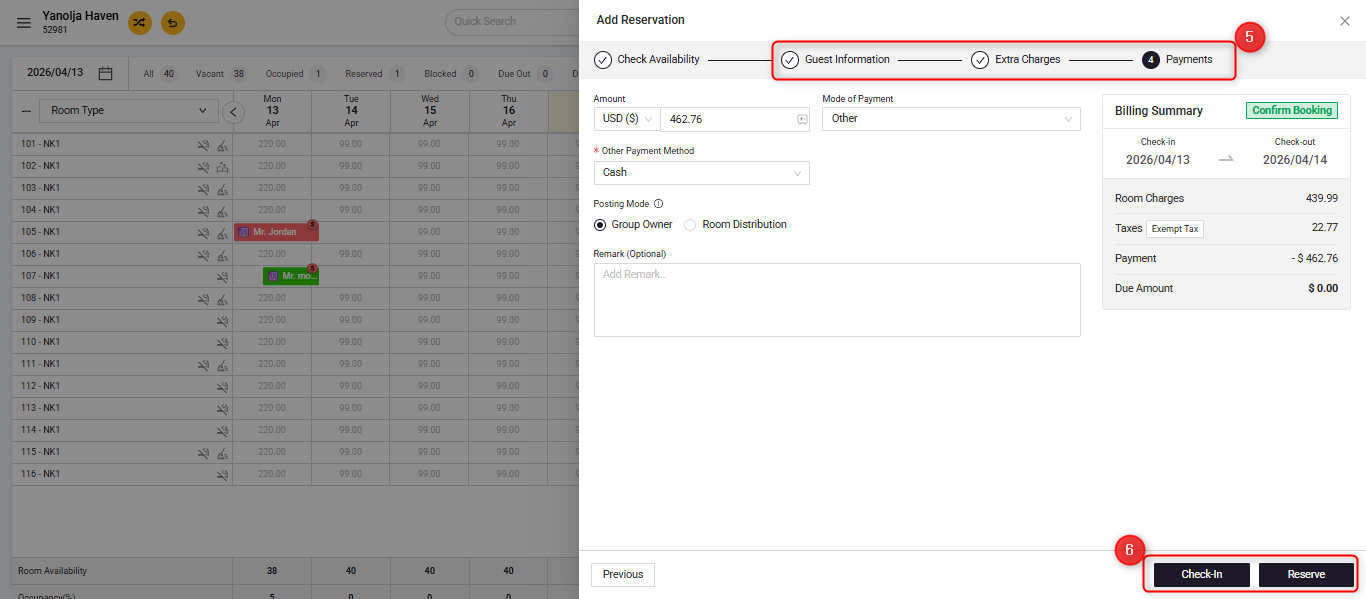
Enter the guest details, add any extra charges if required, Select the payment mode.
Click Reserve or Check-In to complete the booking.
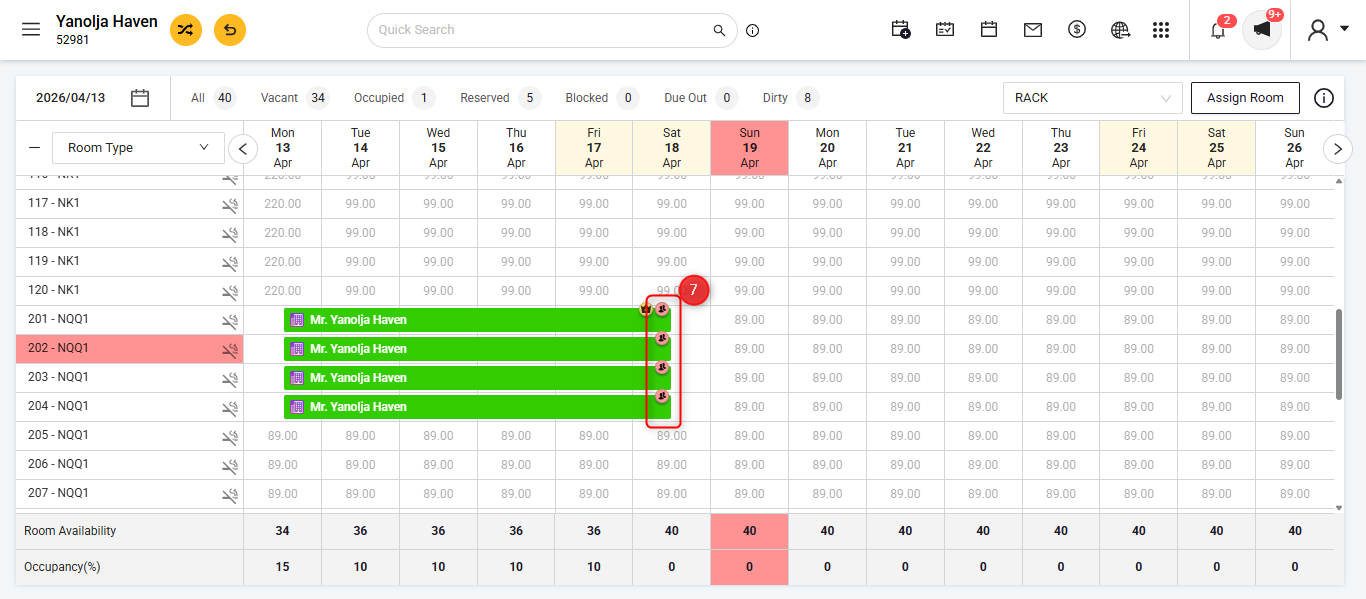
Once the group reservation is created, a group icon will appear at the top of the reservation for easy identification.
Was this article helpful?
That’s Great!
Thank you for your feedback
Sorry! We couldn't be helpful
Thank you for your feedback
Feedback sent
We appreciate your effort and will try to fix the article