This article explains how to create long-stay (weekly or monthly) reservations in the Property Management System (PMS) under Yanolja Cloud Solution using the Total Rate for Stay option.
Step 1: Check Availability
Add Reservation or Drag & Select: From the Stay View screen, drag and select the required room or click add new reservation.
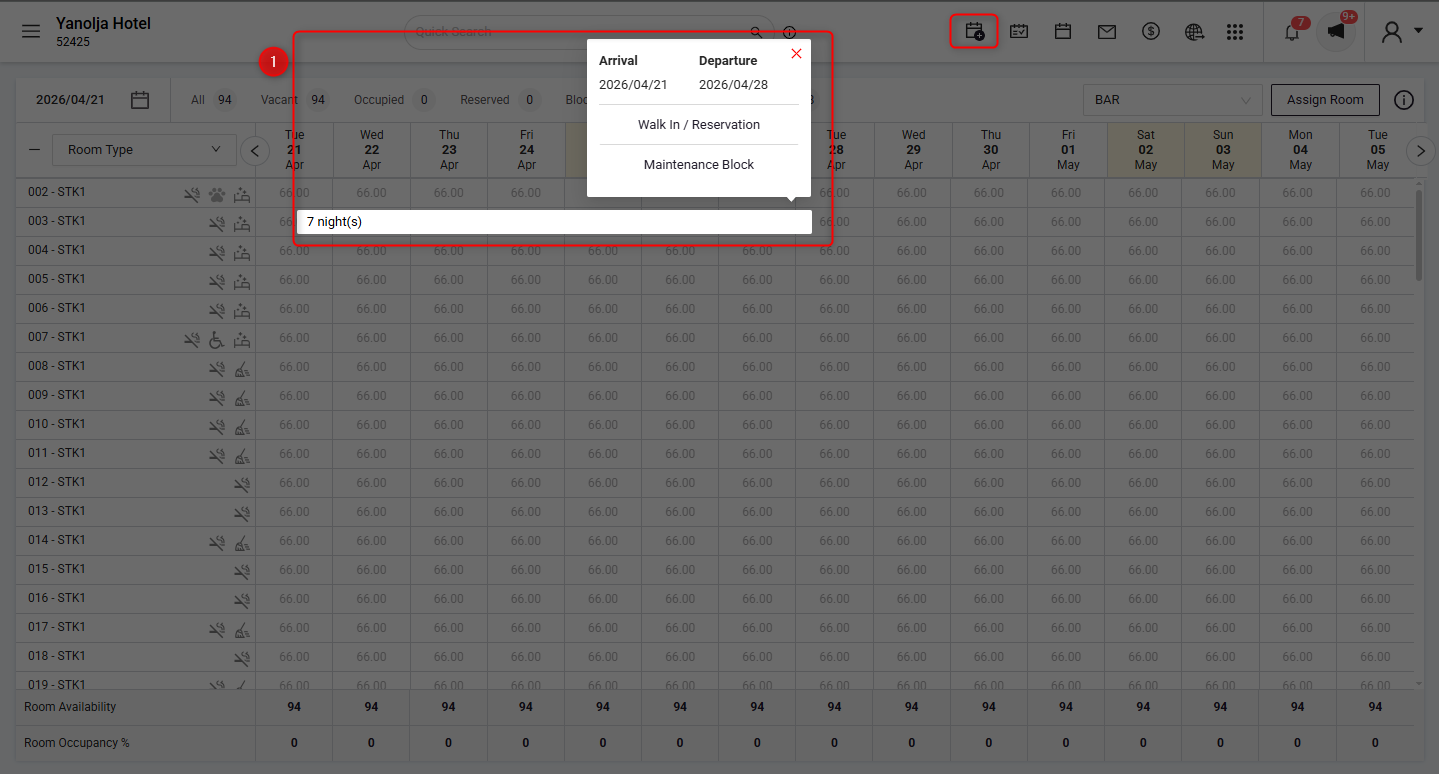
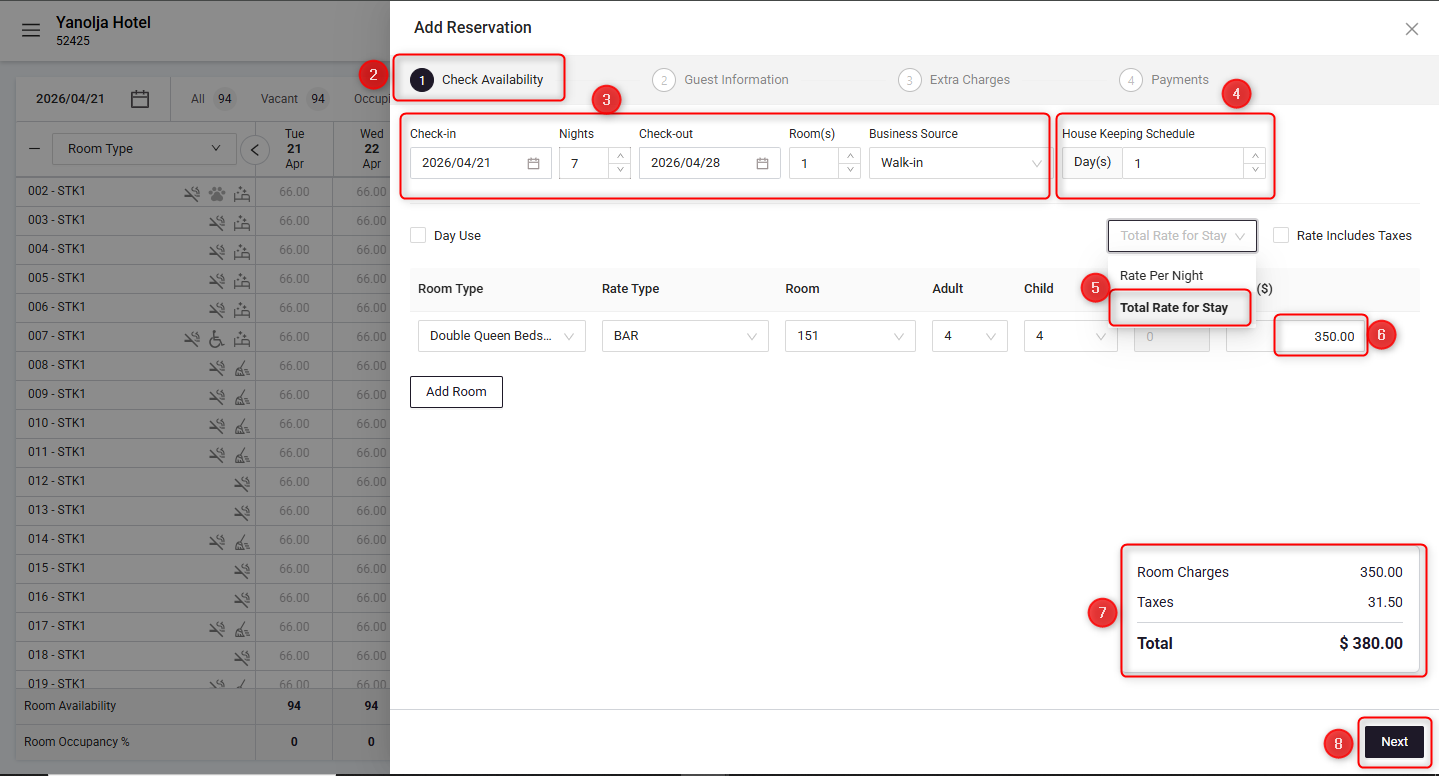
Reservation Details:, On the first page titled Check Availability, fill in the Check-In, Check-out, Number of nights, Room number and Business source details.
Housekeeping Schedule: This defines the frequency (in days) after which the room will be marked as dirty in the system for housekeeping.
Rate Options: Select the room type, rate type, room number, Pax count, and You will find Multiple rate entry options:
Total Rate for the Stay: Choose the rate option as Total Rate for Stay and enter the total amount for the entire stay. The system will automatically divide this amount into per-night rates across all selected nights.
Rate Including Tax: When this option is selected, you can enter the rate including tax, and the system will automatically calculate the base rate and tax.
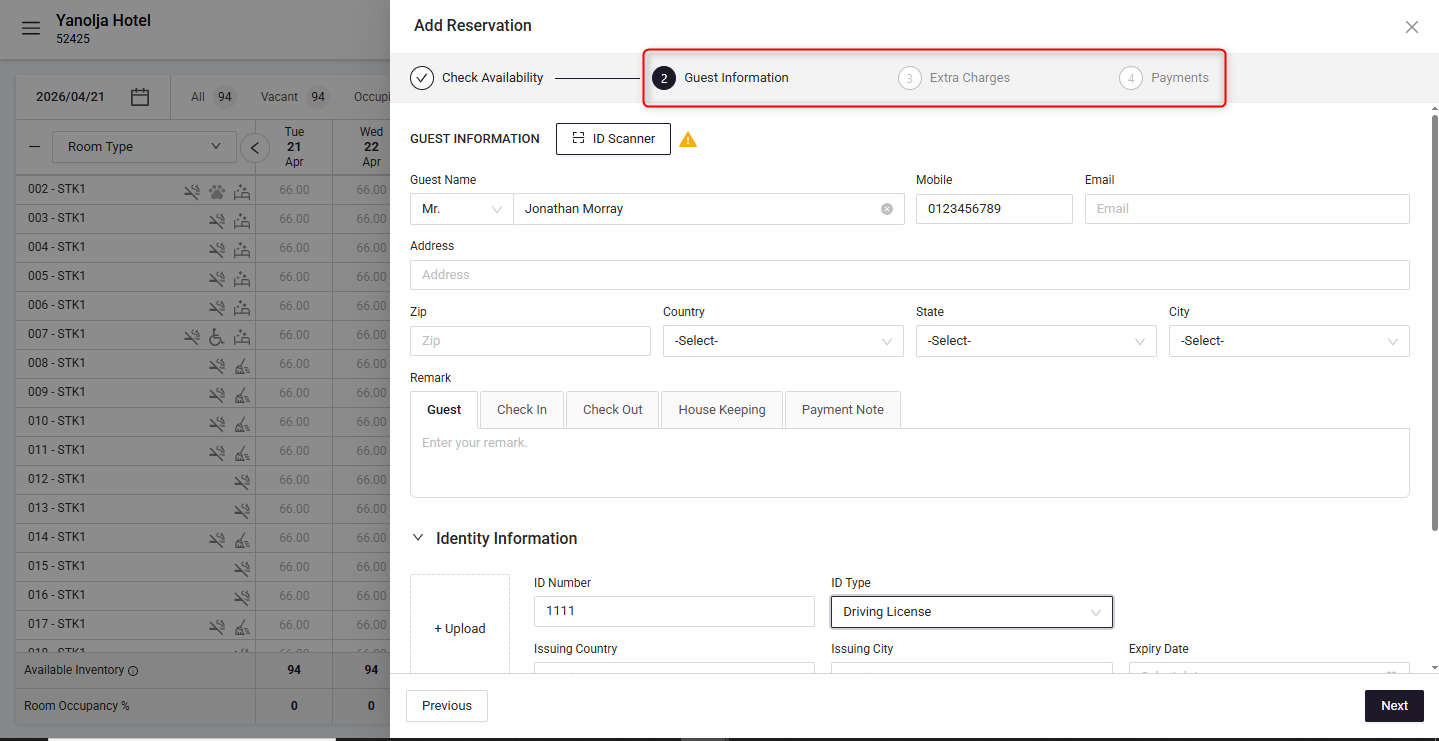
Step 2: Complete steps 2 to 4
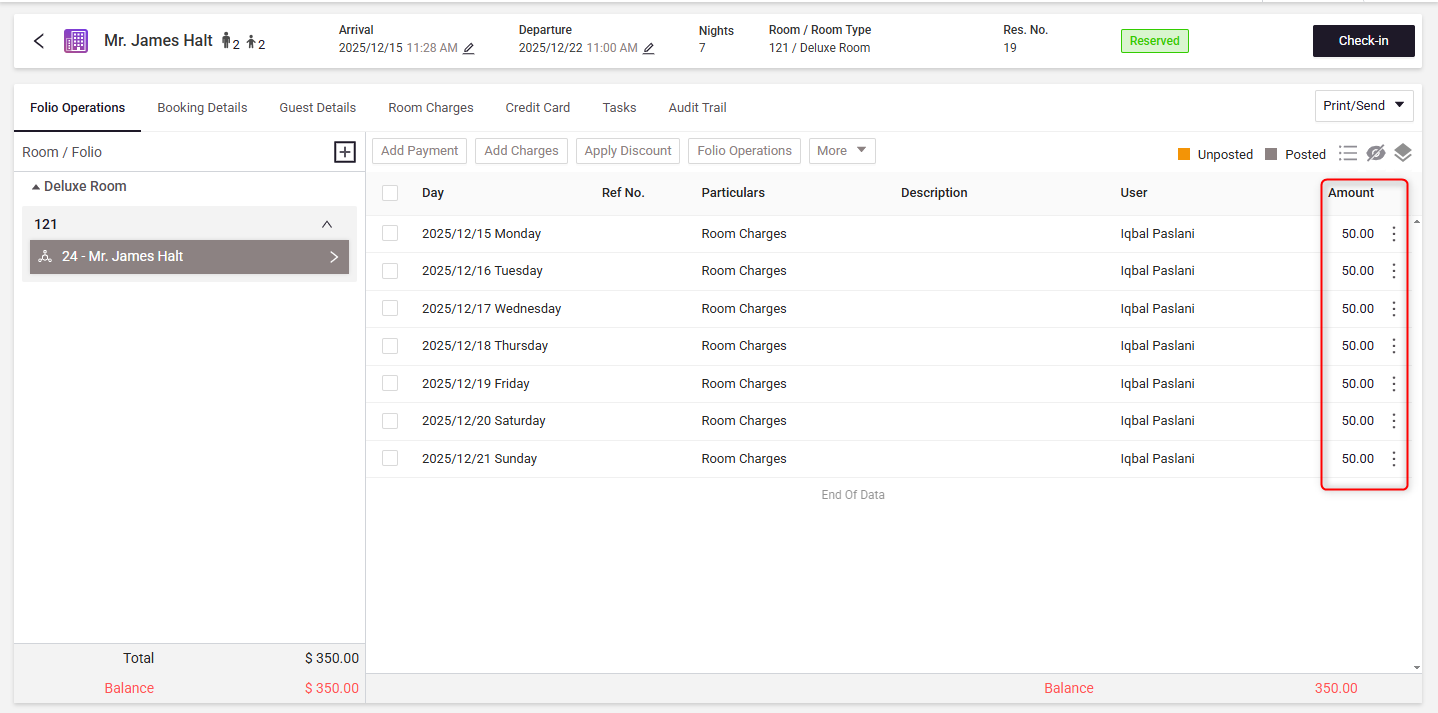
Step 3: After creating a reservation
- The total stay amount is automatically distributed across all nights
- Charges are posted day-wise in the folio
- Reservation reflects the correct total and tax breakdown
Step 4: Viewing Long-Stay Guests in Reports
Detailed Revenue Report –
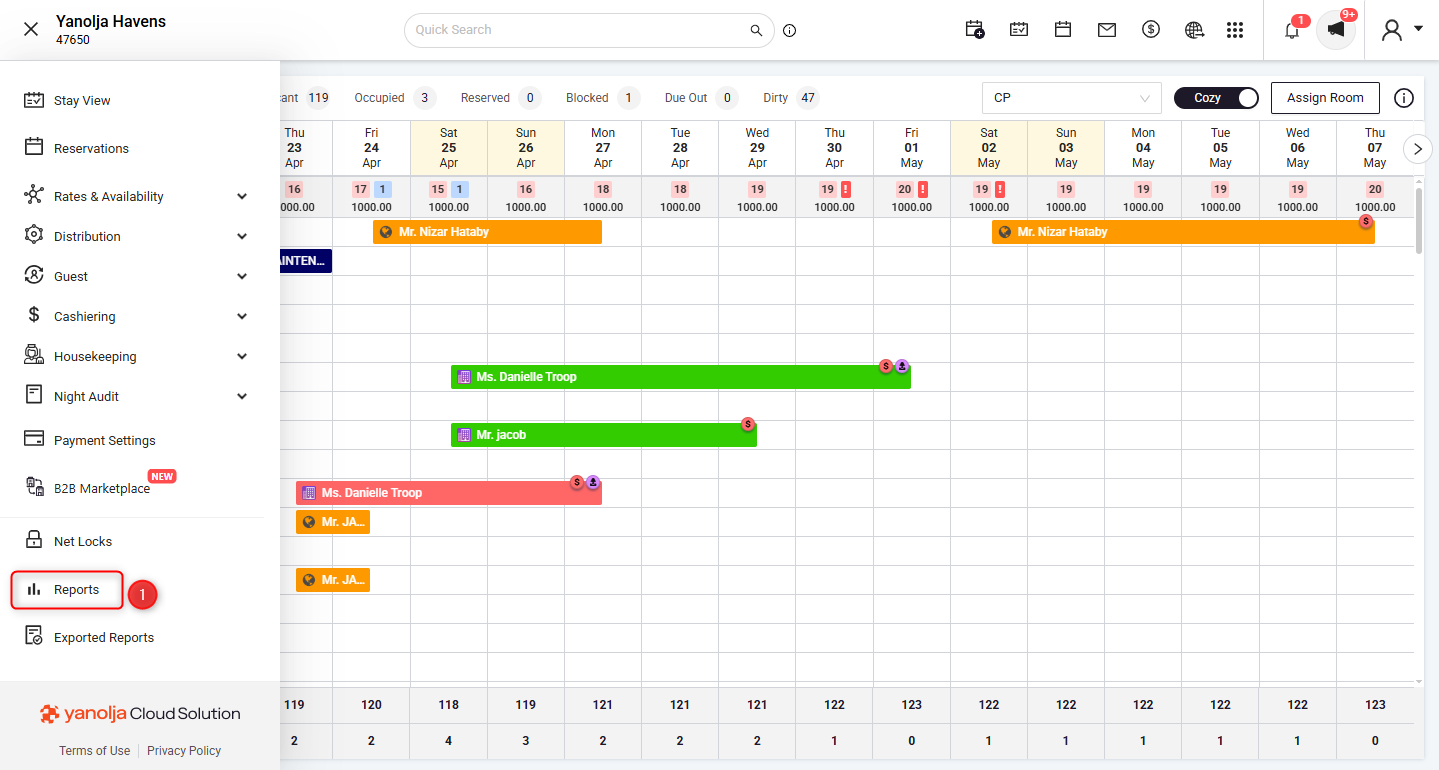
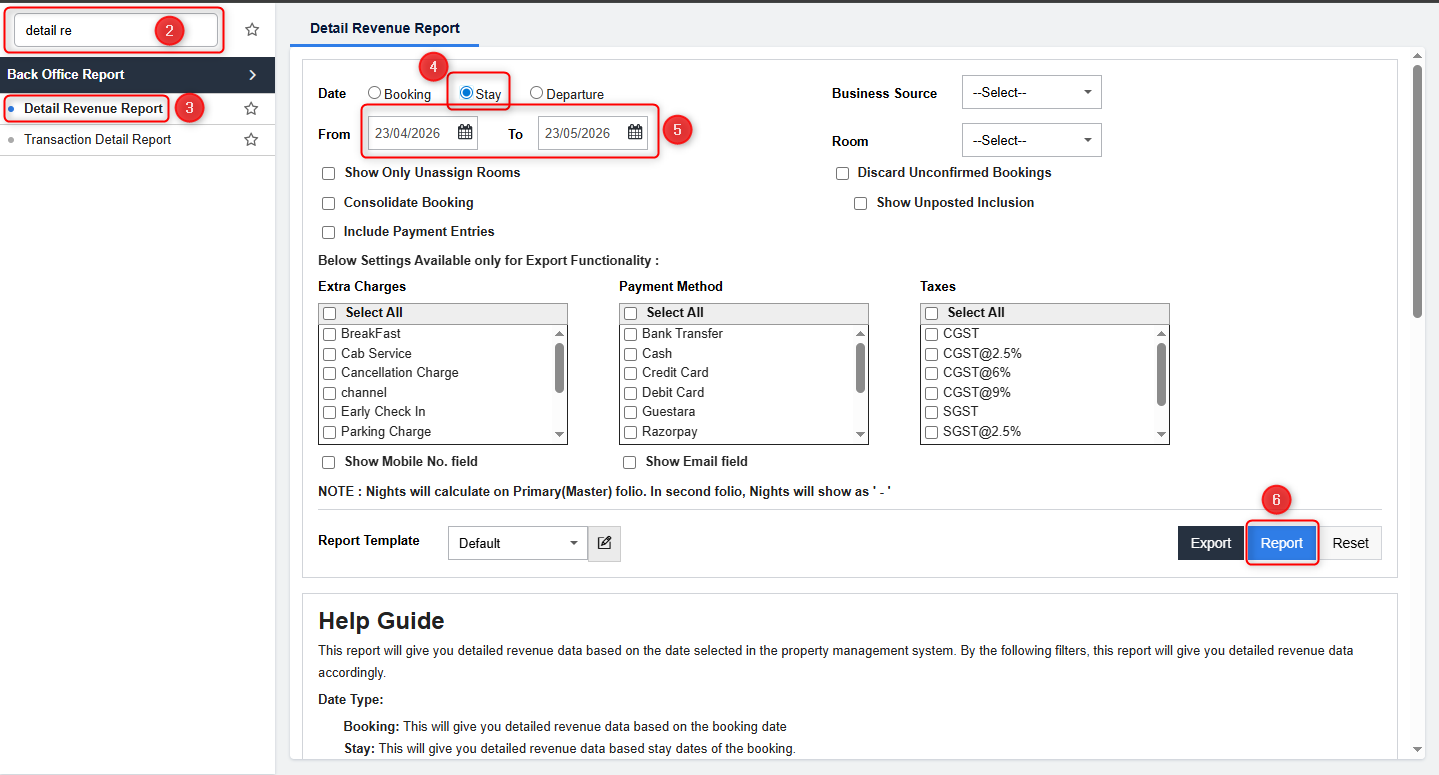
Navigate to Reports from the main menu and search for Detailed Revenue Report. Select the report and choose the Stay option to view data based on the guest’s stay duration. Keep the date range as required (or use the default selection) and click on Report to generate the data.
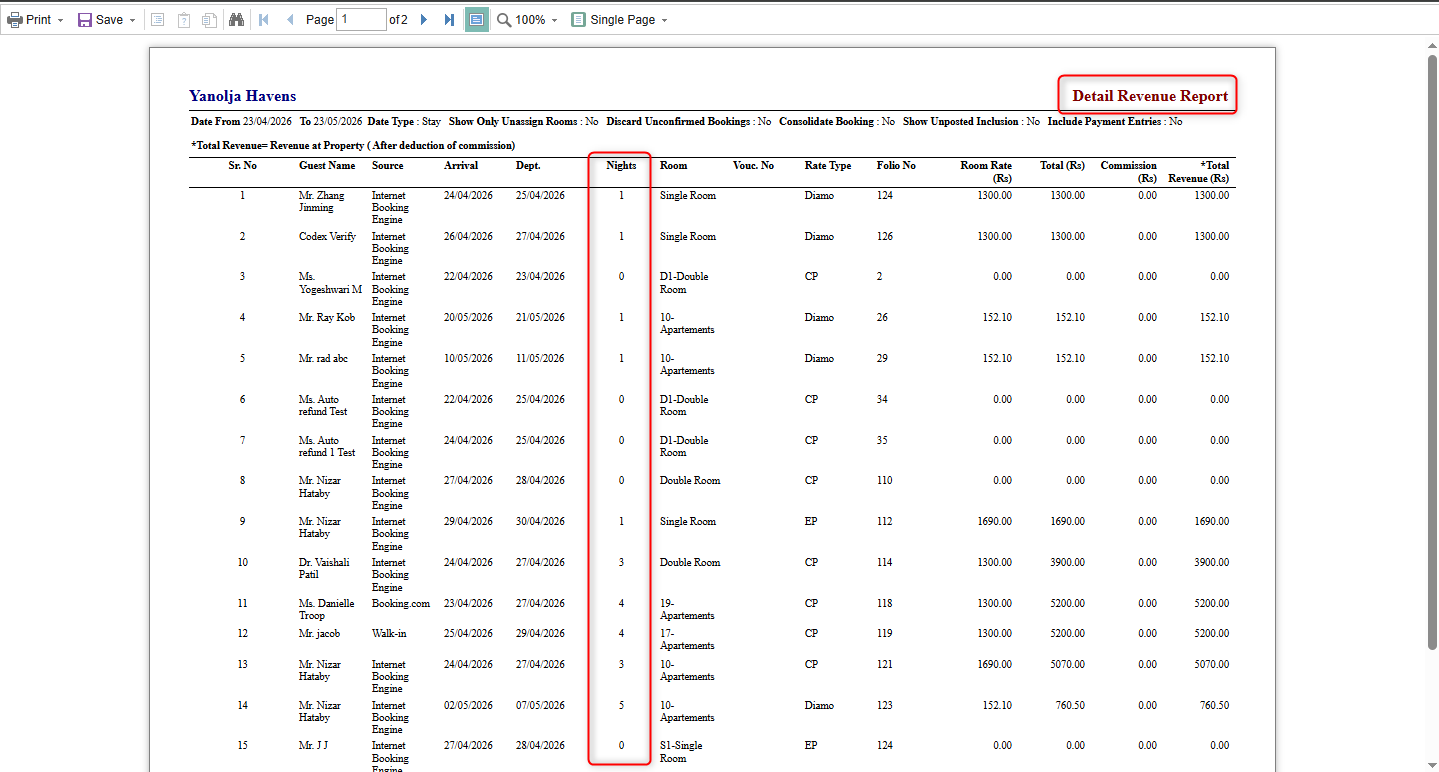
Once the report is generated, it will display key details such as Guest Name, Arrival Date, Departure Date, Nights, and Room Type. The Nights column helps you quickly identify guests staying for longer durations, making it easier to track weekly or monthly reservations and analyze long-stay occupancy.
Was this article helpful?
That’s Great!
Thank you for your feedback
Sorry! We couldn't be helpful
Thank you for your feedback
Feedback sent
We appreciate your effort and will try to fix the article