Whenever you need to refund any amount to a guest, you should process the payment in the same way as a regular transaction, but enter the refund amount as a negative value.
When an amount is posted as a negative value, the system will automatically treat it as a refund.
How to Access:
To refund a guest, please refer and follow the steps outlined.
Steps to Process a Refund
1. Access the Reservation:
Navigate to Front Office > Reservation(s).
Select the reservation for which the refund is required and click Edit Reservation.
2. Initiate the Refund:
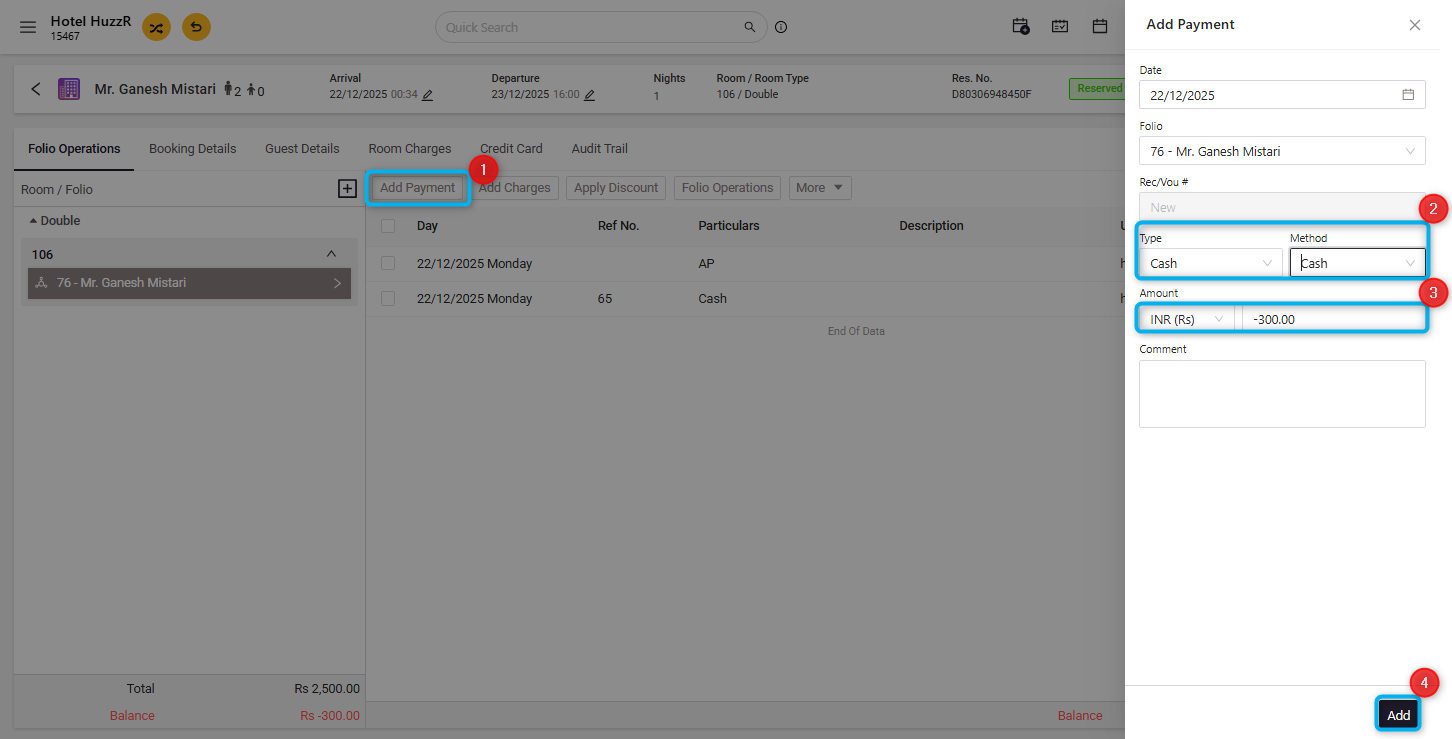
In the Folio Operations section, click Add Payment.
Select the Payment Type that matches the original payment method (for example, Cash or Credit Card).
3. Enter Refund Details
Enter the refund amount as a negative value (for example, to refund ₹300, enter -300).
Add any relevant remarks or descriptions to indicate the reason for the refund.
4. Finalize the Refund
Click Add to post the negative payment.
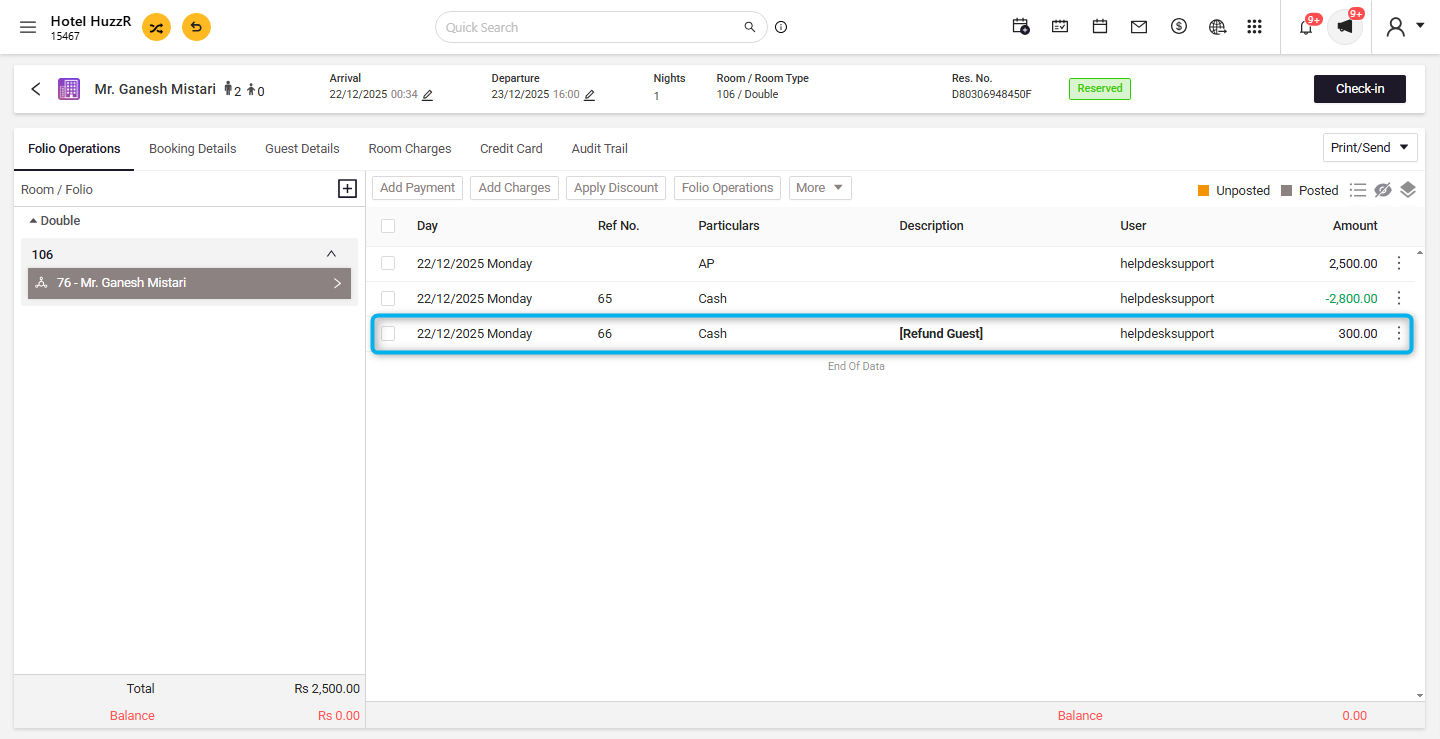
The system will record this entry as a refund and automatically adjust the guest’s folio balance accordingly.
User Privilege Requirement
To process refunds, ensure that the user has the required privileges enabled:
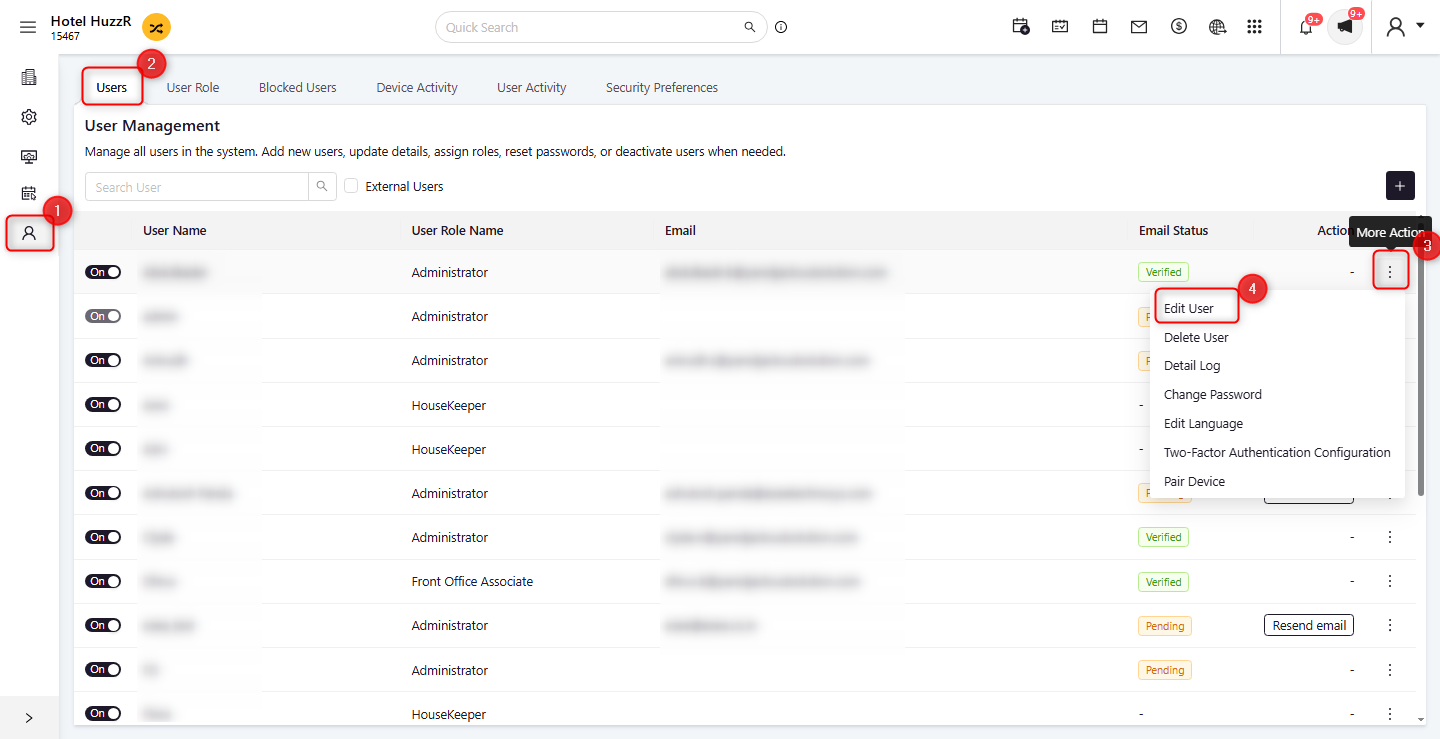
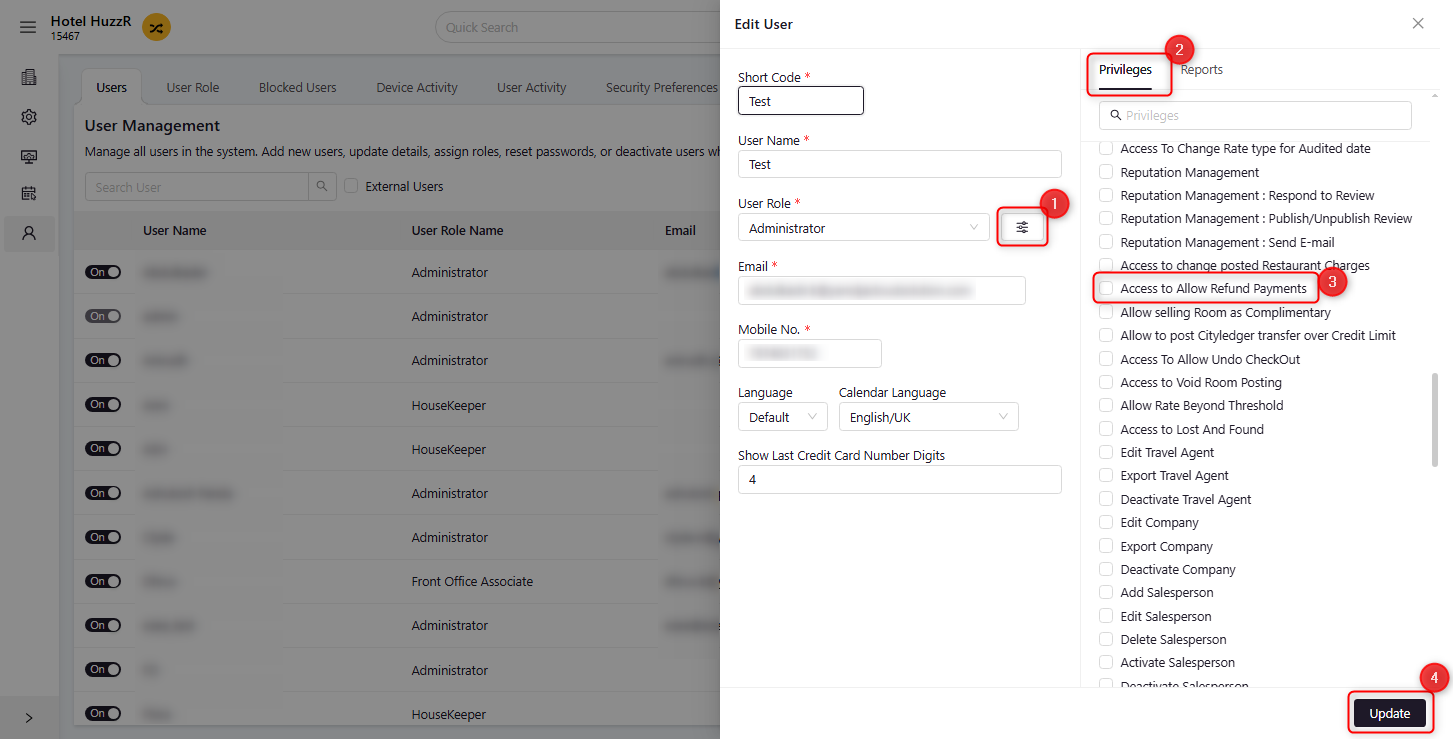
Navigate to Unity Configuration > User Managements > Users > Edit User > Privileges > Front Office.
Confirm that Access to Allow Refund Payments is enabled for the user.
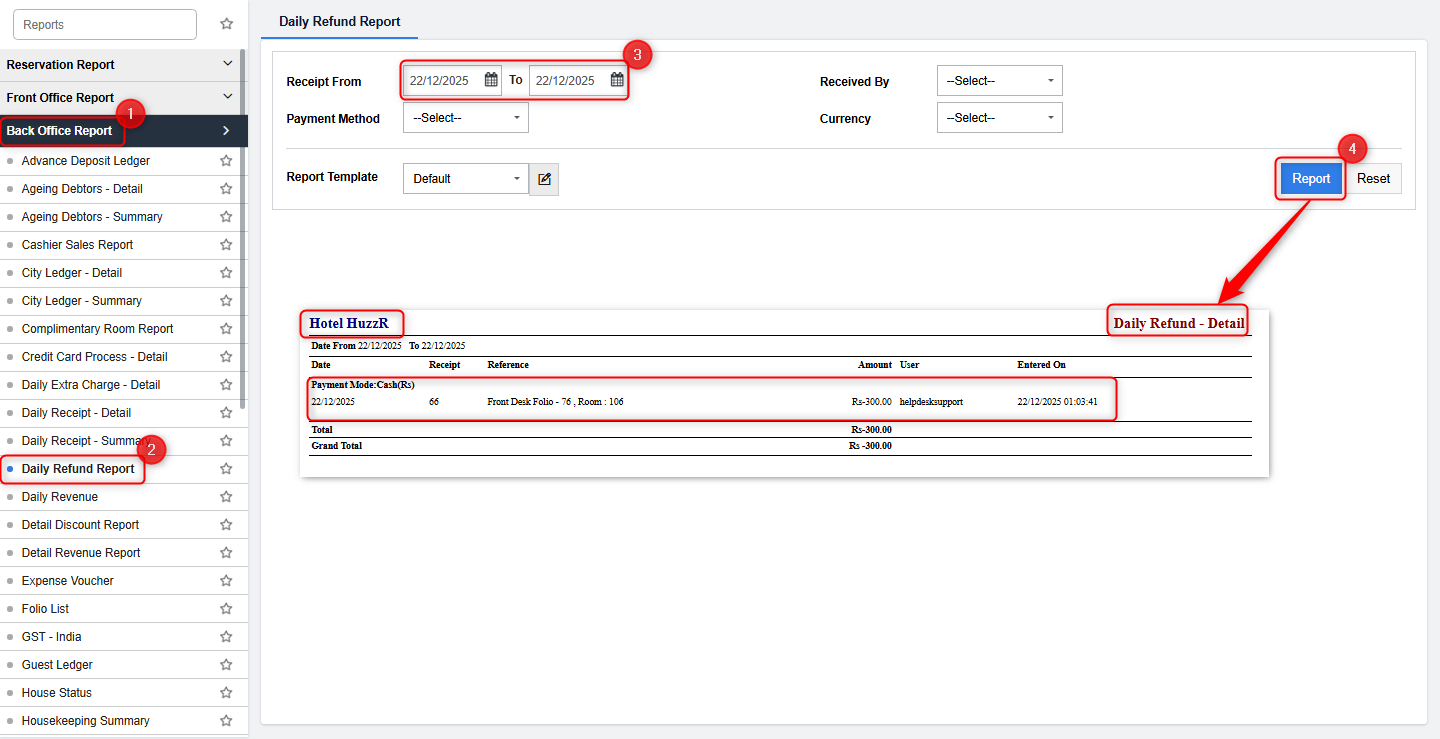
Reporting Refunds
To review all processed refunds:
Navigate to Reports > Back Office Report > Daily Refund Report.
This report displays detailed information on refunded amounts, including the payment methods used.
By following these steps, you can efficiently process refunds in Unity, ensuring accurate financial records and improved guest satisfaction.
Was this article helpful?
That’s Great!
Thank you for your feedback
Sorry! We couldn't be helpful
Thank you for your feedback
Feedback sent
We appreciate your effort and will try to fix the article