In PMS, rooms are categorized based on Room Types such as Deluxe, Standard, Twin, etc. You can add and customize room types as per your hotel's requirements.
Steps to Add a Room Type:
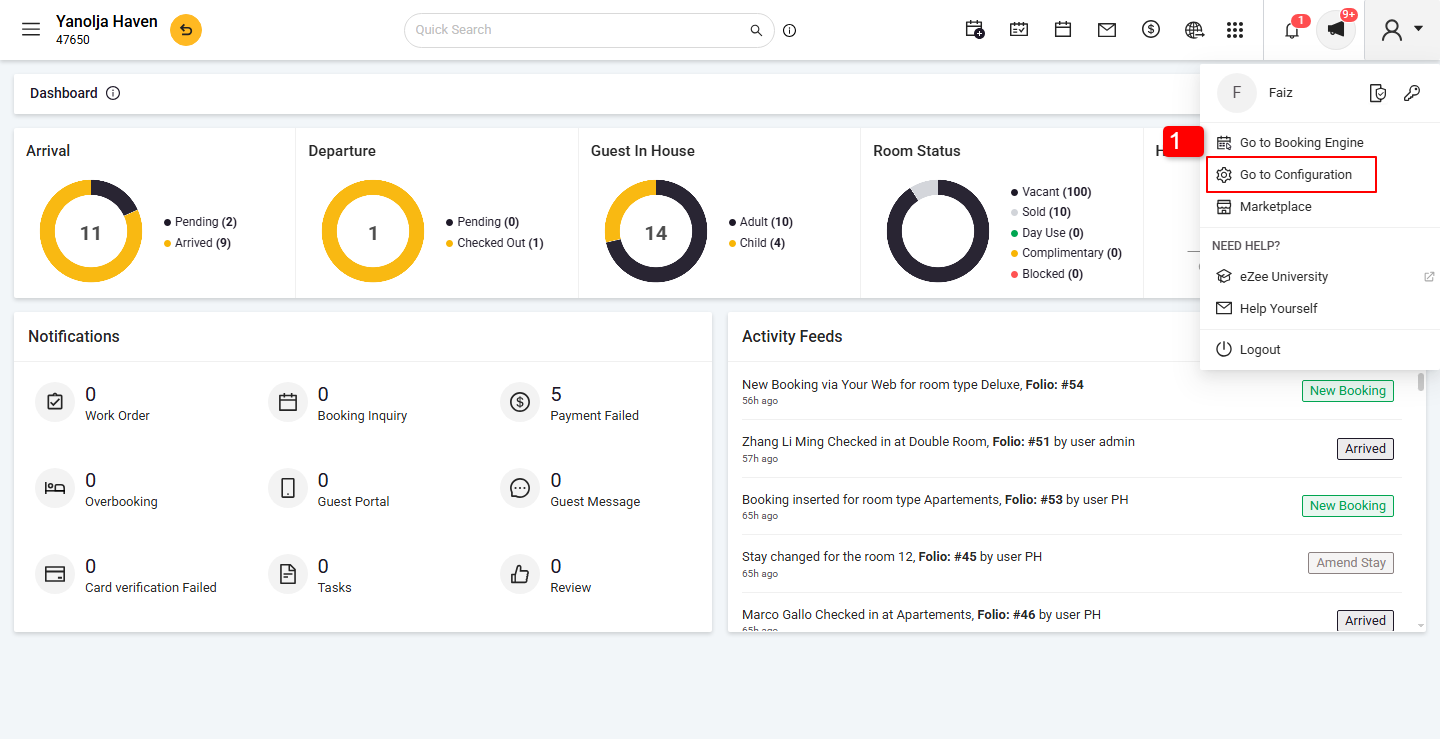
- Go to Configuration
Navigate to:
Room TypesClick on Room Type.
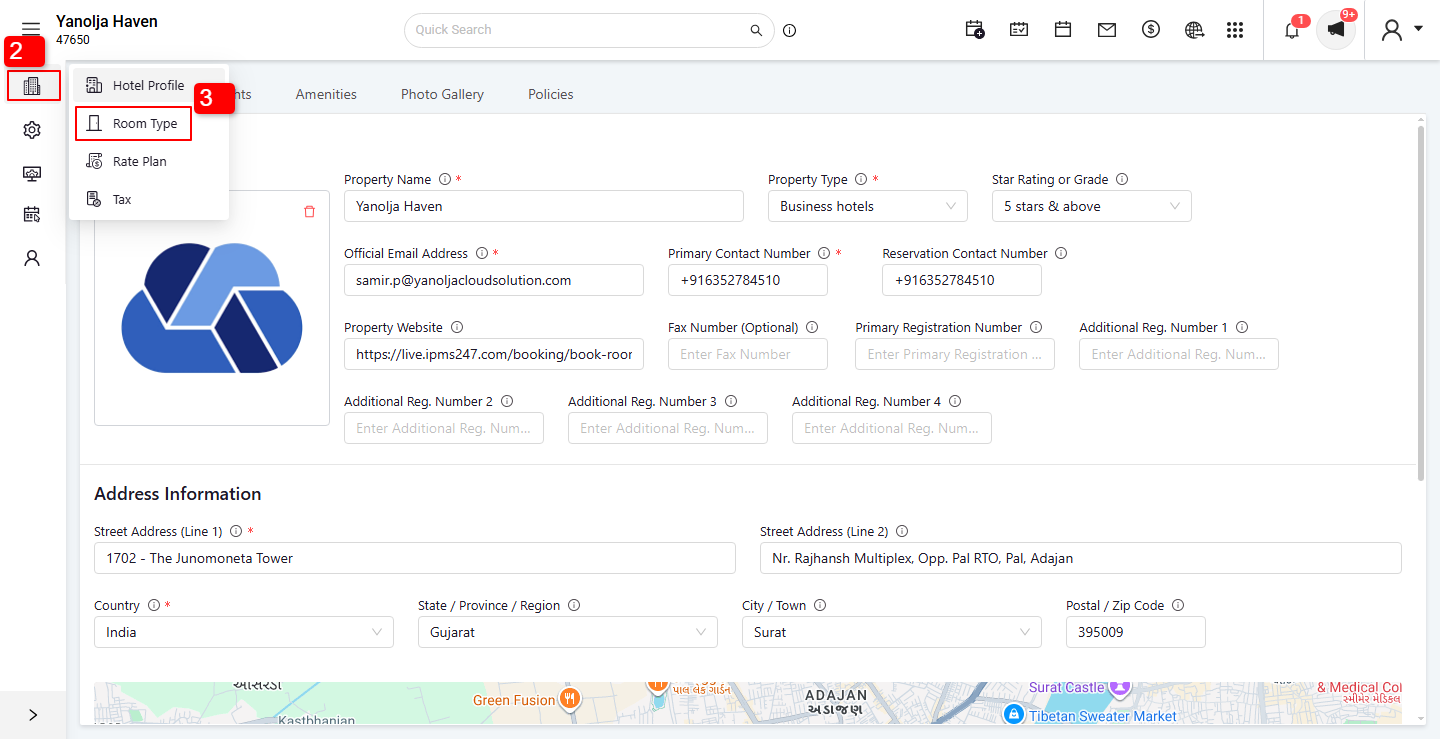
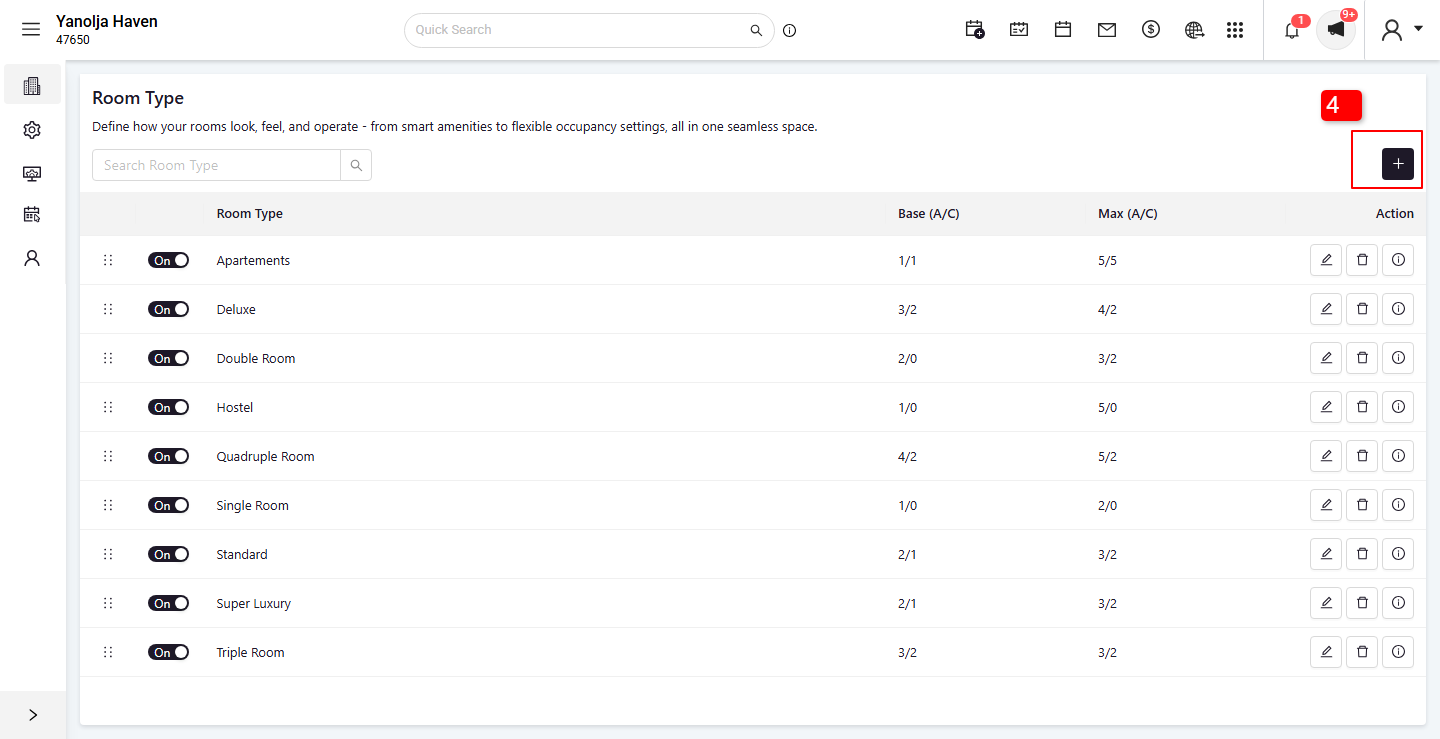
4. Click on Plus (+) Icon.
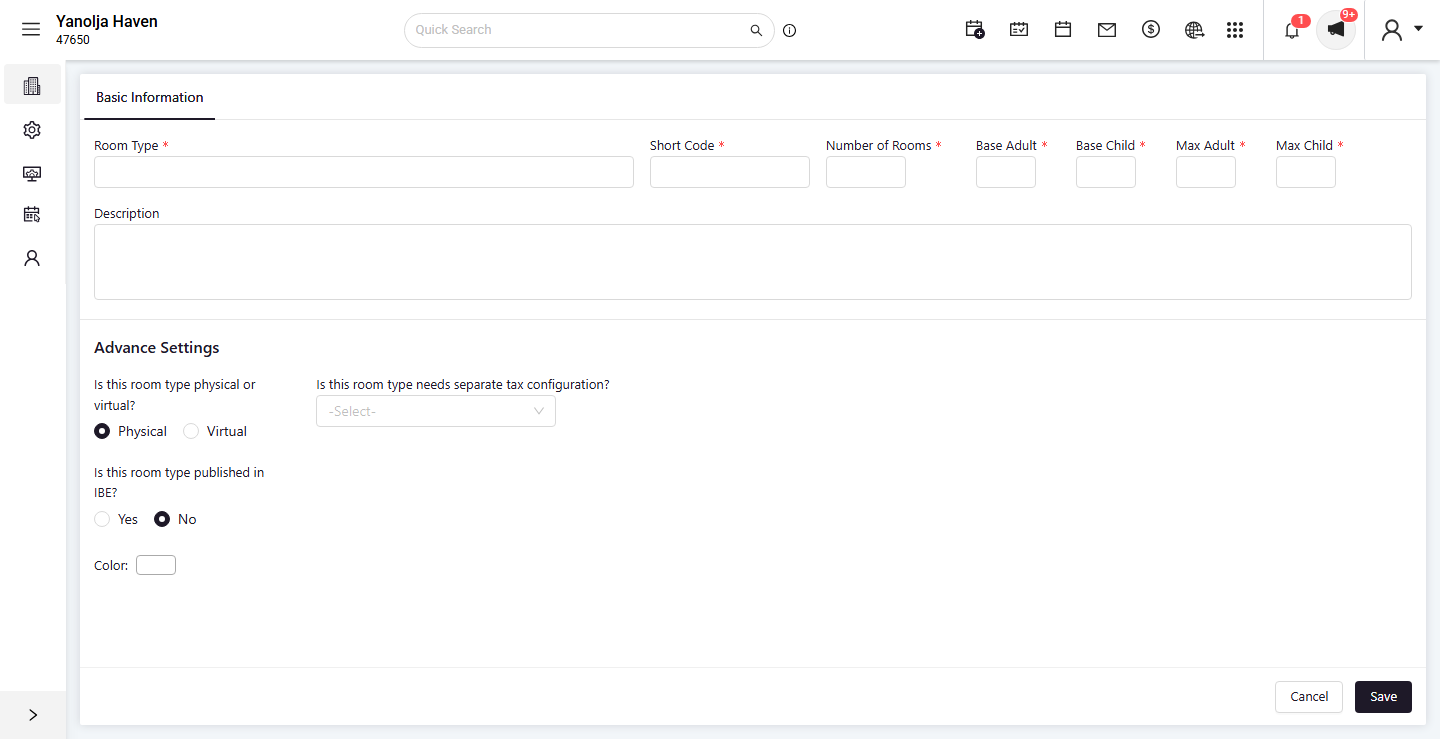
5. Fill in the required information as explained below.
Explanation of Room Type Fields:
Room Type
Full name of the room type (e.g., Deluxe Room, Standard Twin).Shortcode
A short name or code to identify the room type (e.g., DLX for Deluxe).Base Adult / Base Child
Adult: Minimum number of adults allowed in this room.
Child: Minimum number of children allowed.
Max Adult / Max Child
Adult: Maximum number of adults allowed.
Child: Maximum number of children allowed.
Is this room type physical or virtual?
Check this if the room type should act as a physical or virtual (used for billing without physical inventory).Is this room type published in IBE?
Always yes this option to make your Room type visible to all the systemsClick on Save the details.
Mapping Room Type with Rate Type (Required Step)
To make the room type available for bookings, you must link it to an existing Rate Type:
Go to Master Option.
Click on Rate Plan.
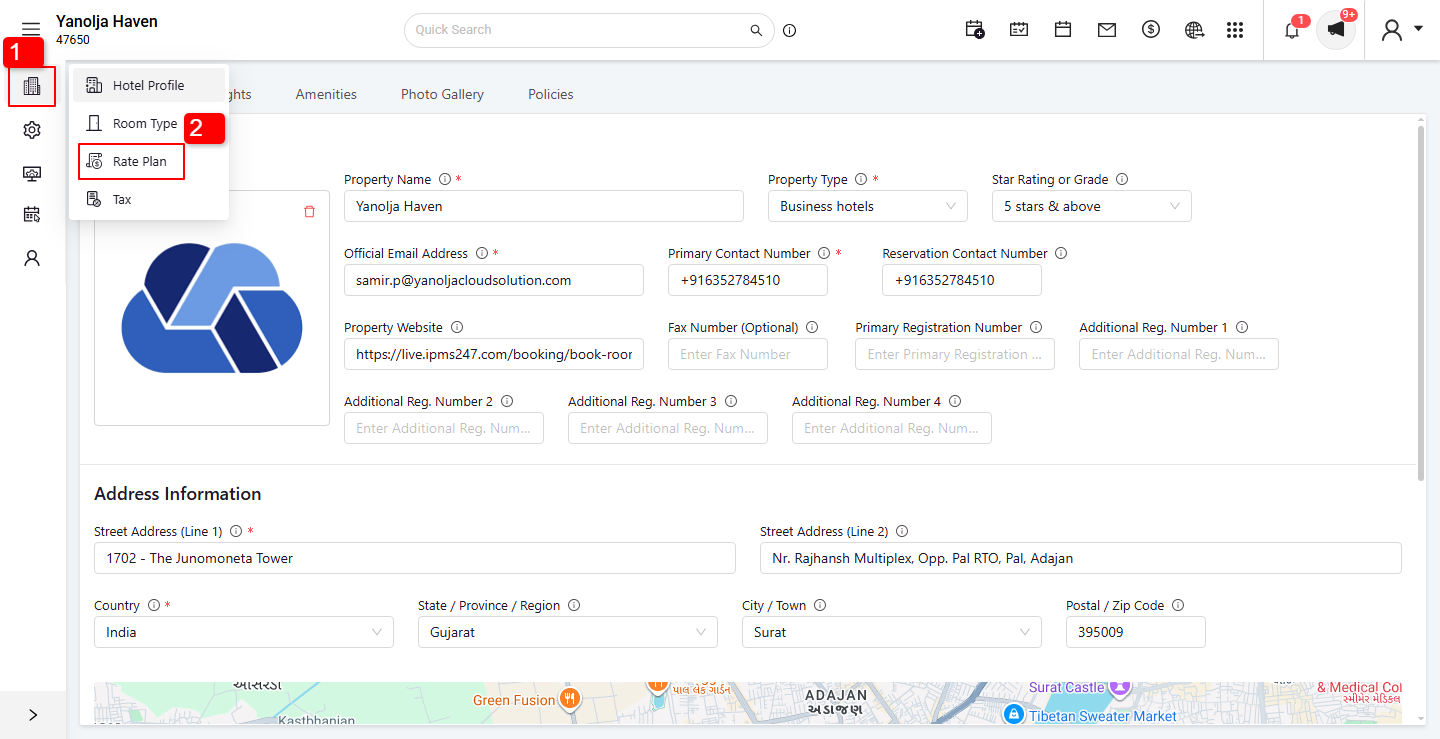
3. Edit the rate type you want to use.
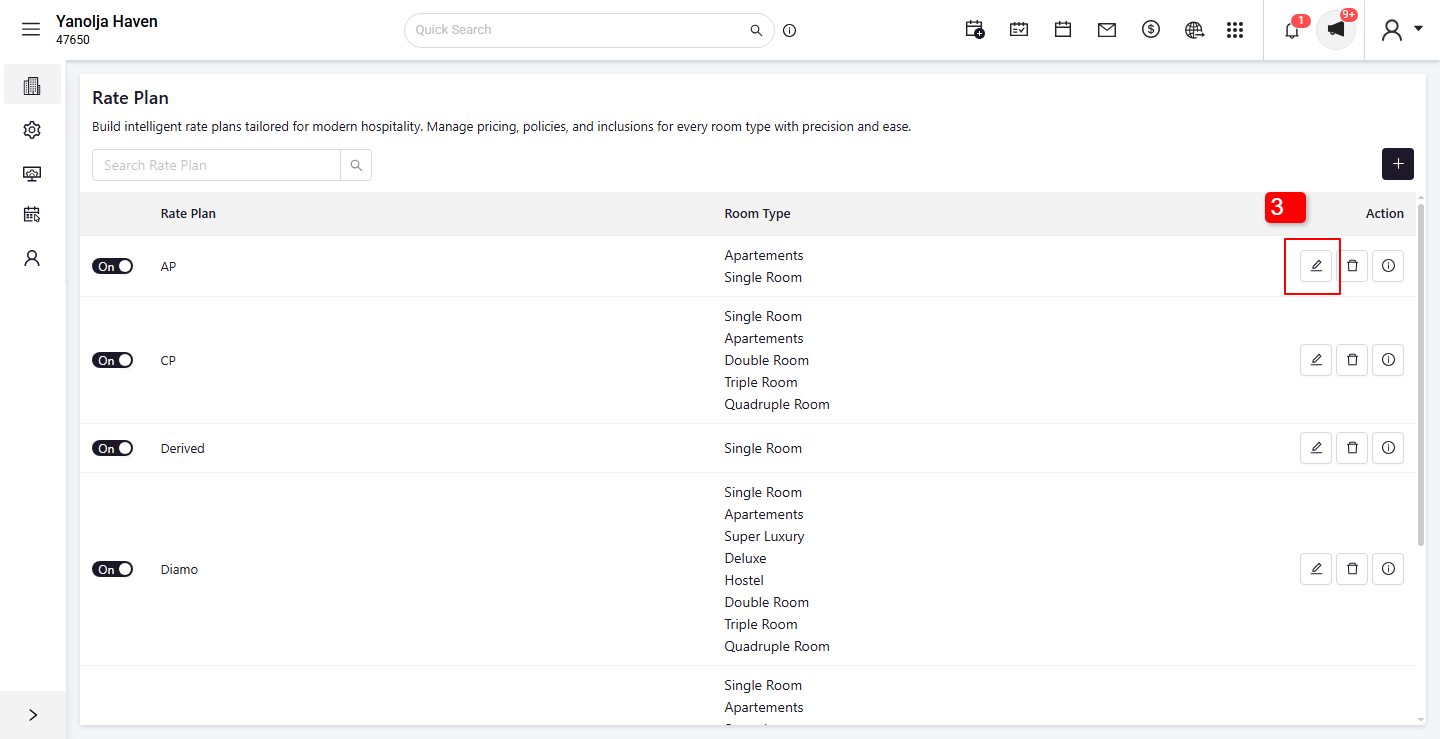
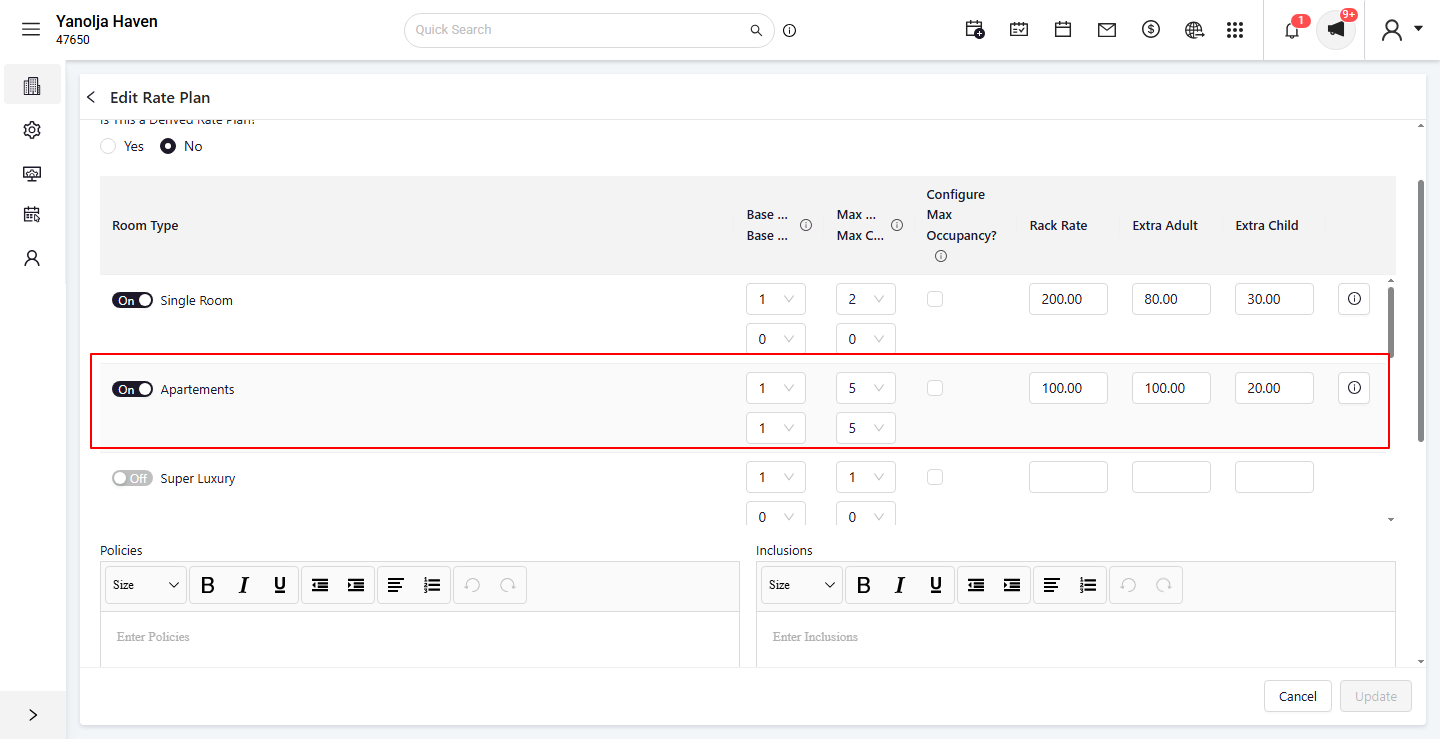
- Checkmark the new room type.
- Add Rack Rates.
- Click on Update the details.
Was this article helpful?
That’s Great!
Thank you for your feedback
Sorry! We couldn't be helpful
Thank you for your feedback
Feedback sent
We appreciate your effort and will try to fix the article