Can I change the quantity of an item after the order is placed?
Yes. The POS system allows you to modify the quantity of an item even after the order has been placed, provided the user has the required privileges.
How do I change the quantity of an item from Order Summary?
Step 1:
1. Click on Order Summary.
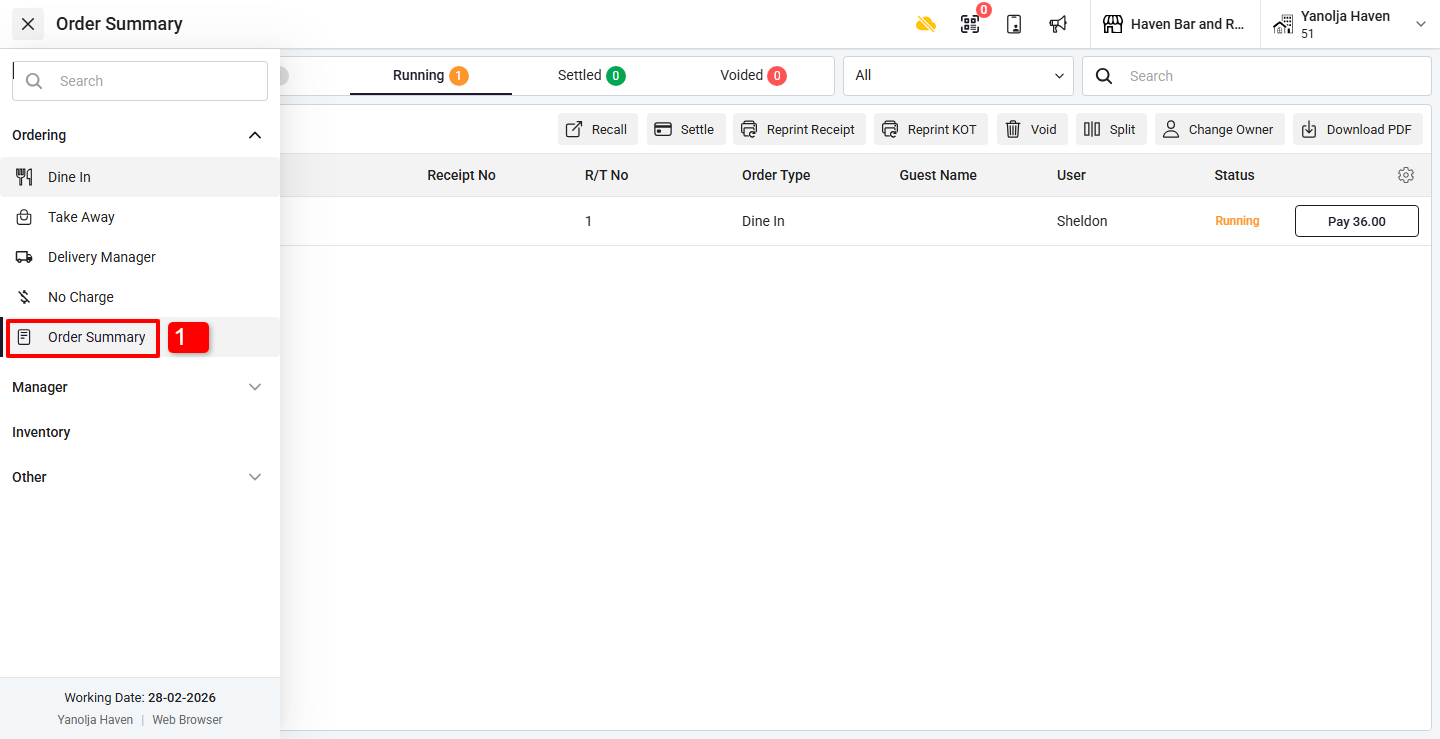
Step 2:
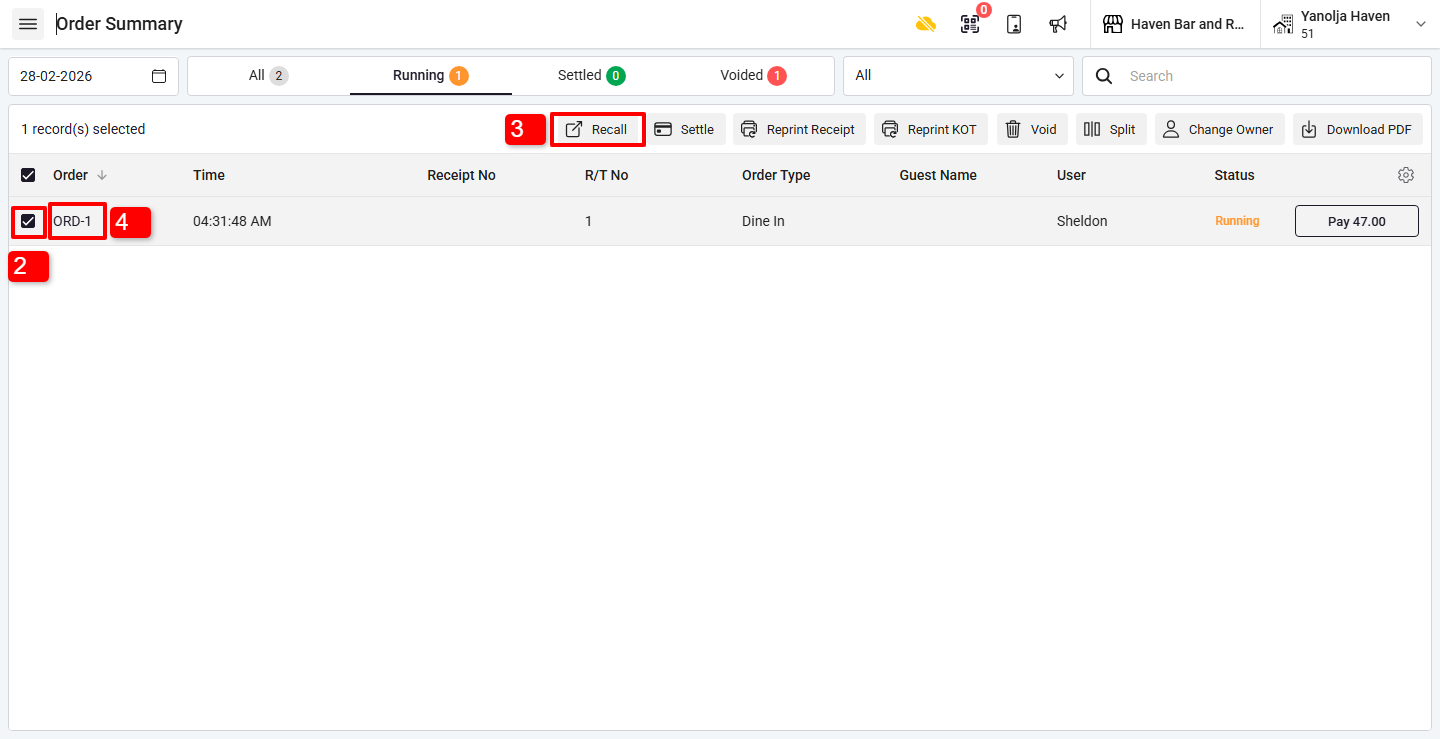
2. Select (check) the order in which you want to change the item quantity.
3. Click on the Recall button
OR
4. Directly click on the Order Number to recall it.
How do I change quantity for a Dine-In Order?
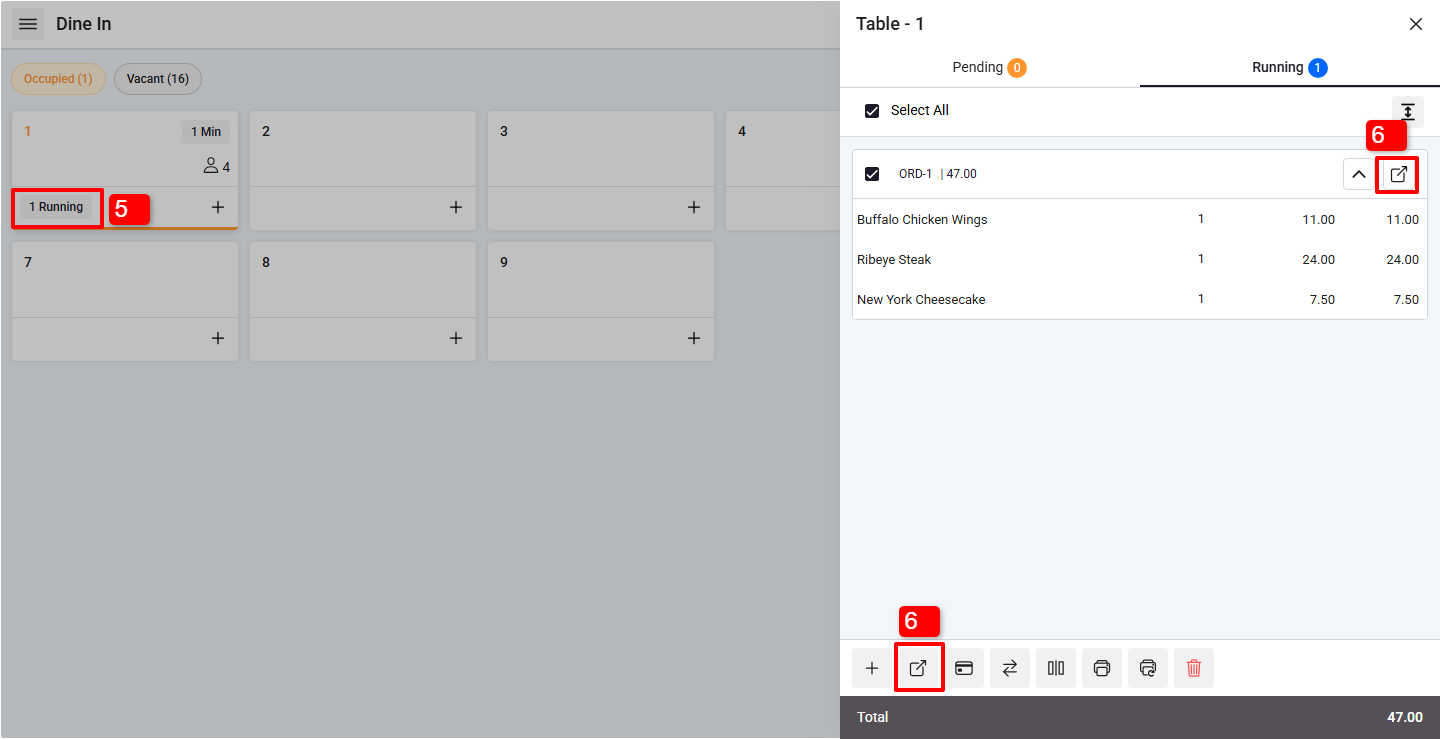
If it is a Dine Order:
5. Click on the Running Table where the order is active.
6. Click on either Recall button to open the order.
Step 3: Edit Quantity
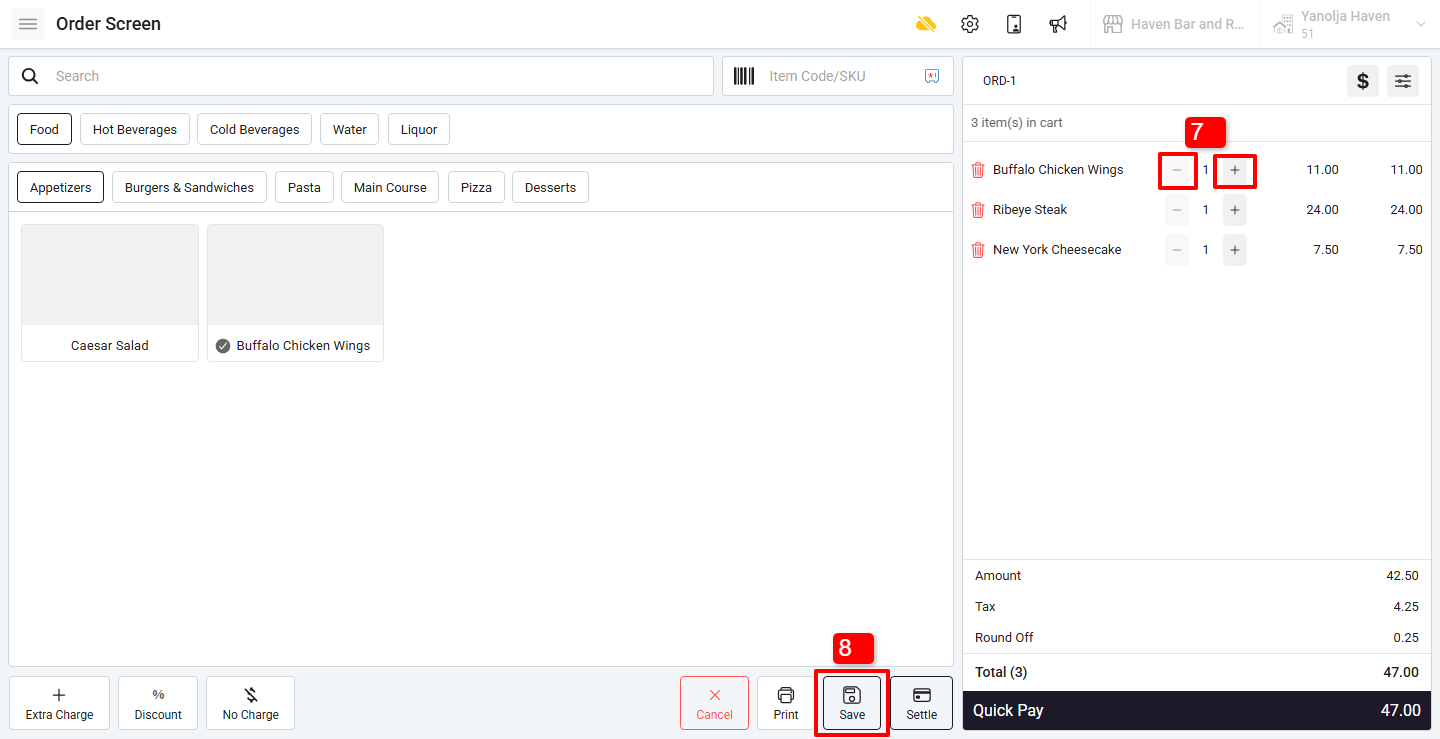
7. To change the quantity:
- Click “+” to increase the quantity
- Click “–” to decrease the quantity
8. After making the changes, click Save to update the order.
What privileges are required to change the item quantity?
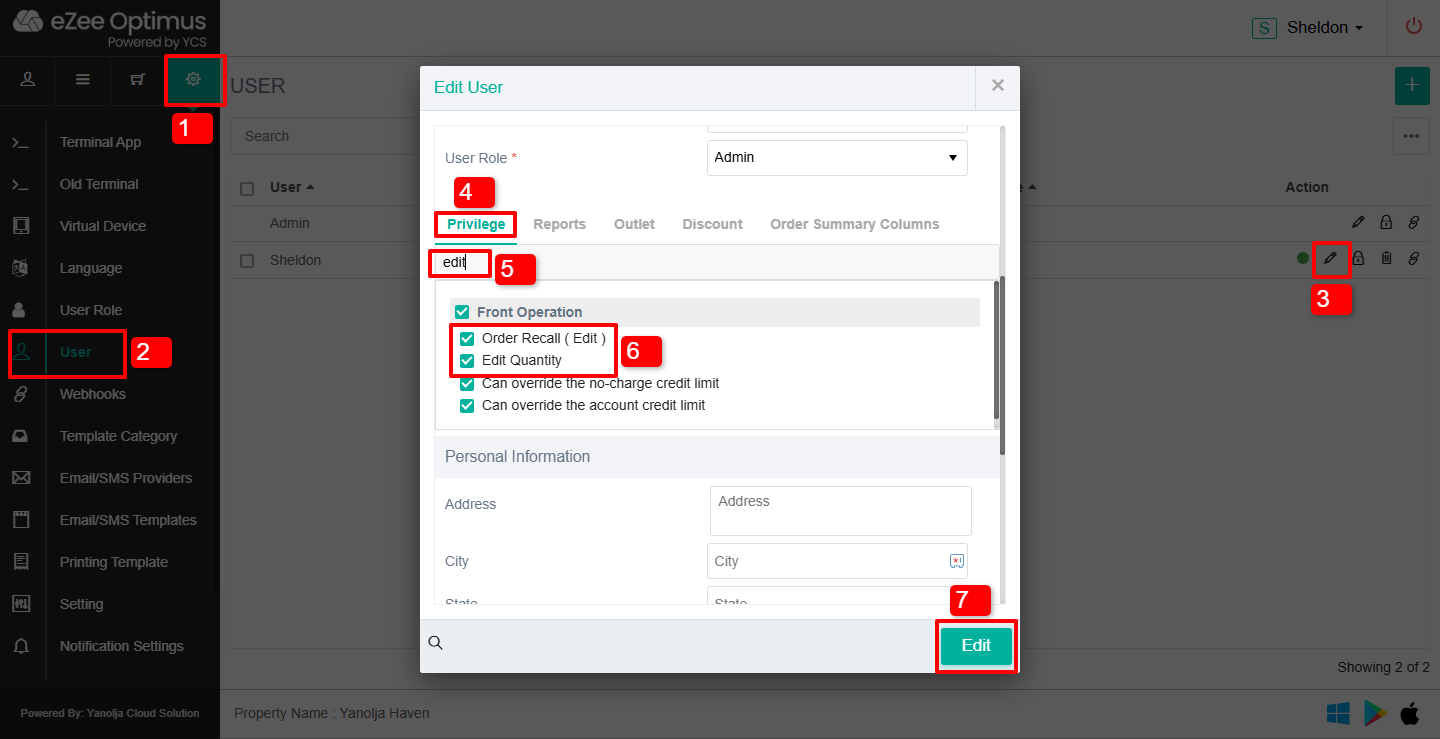
The following permissions must be enabled for the user:
Steps to Enable Privileges
1. Click on the Settings button.
2. Click on Users.
3. Click on the Pencil/Pen (Edit) icon next to the user.
4. Click on Privilege.
5. Search for Edit.
Enable:
- Edit Quantity
- Order Recall (Edit)
6. Click on Save
Once these privileges have been enabled, please log out and log back in. After re-logging, the user will be able to modify item quantities in recalled orders.
Was this article helpful?
That’s Great!
Thank you for your feedback
Sorry! We couldn't be helpful
Thank you for your feedback
Feedback sent
We appreciate your effort and will try to fix the article