What is a Freeze Item?
Freeze Item is a feature that allows you to temporarily stop selling a specific menu item in the outlet.
This is useful in situations such as:
- Item is out of stock
- The outlet is closing
- Special seasonal item
- Specials of the day
- Any temporary selling restriction
When an item is frozen, it cannot be ordered from the POS (unless special privilege is given).
How do I Freeze or Unfreeze an Item?
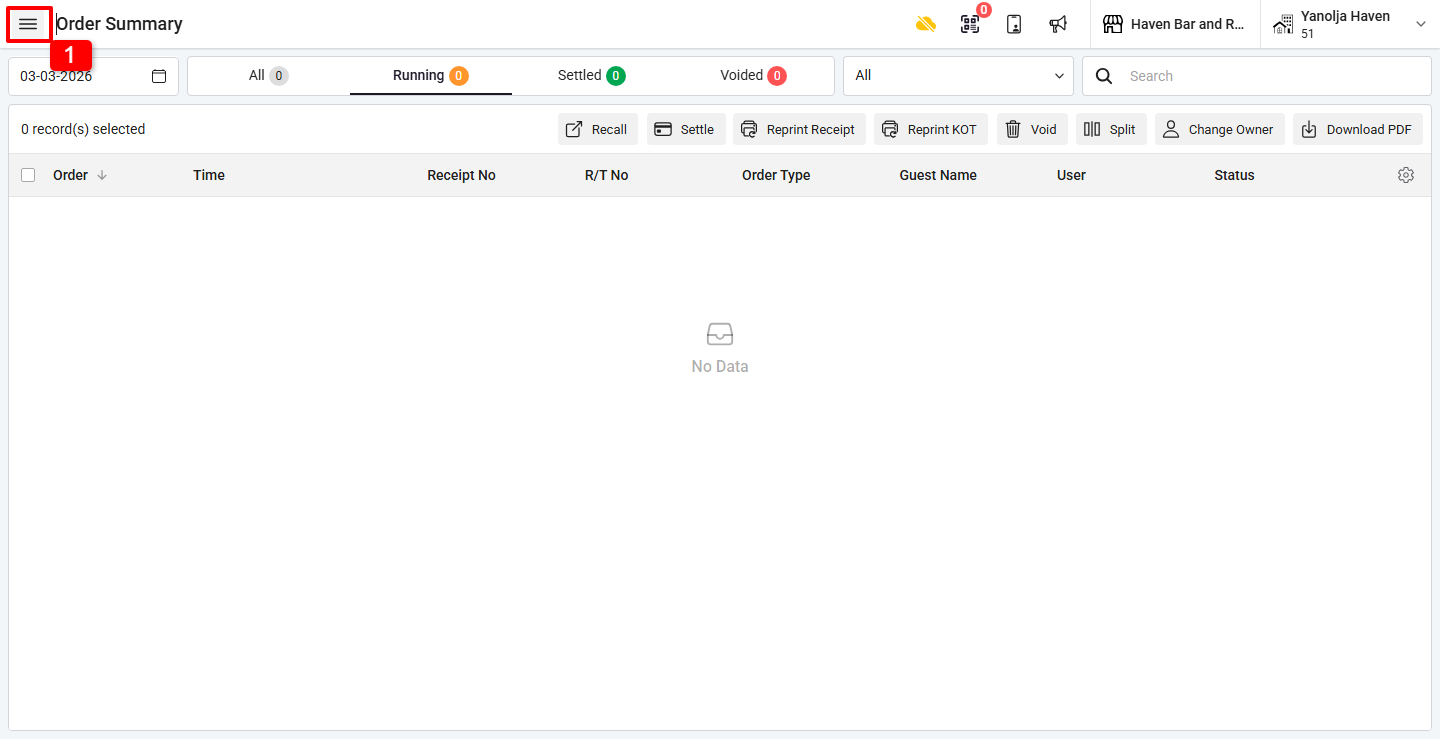
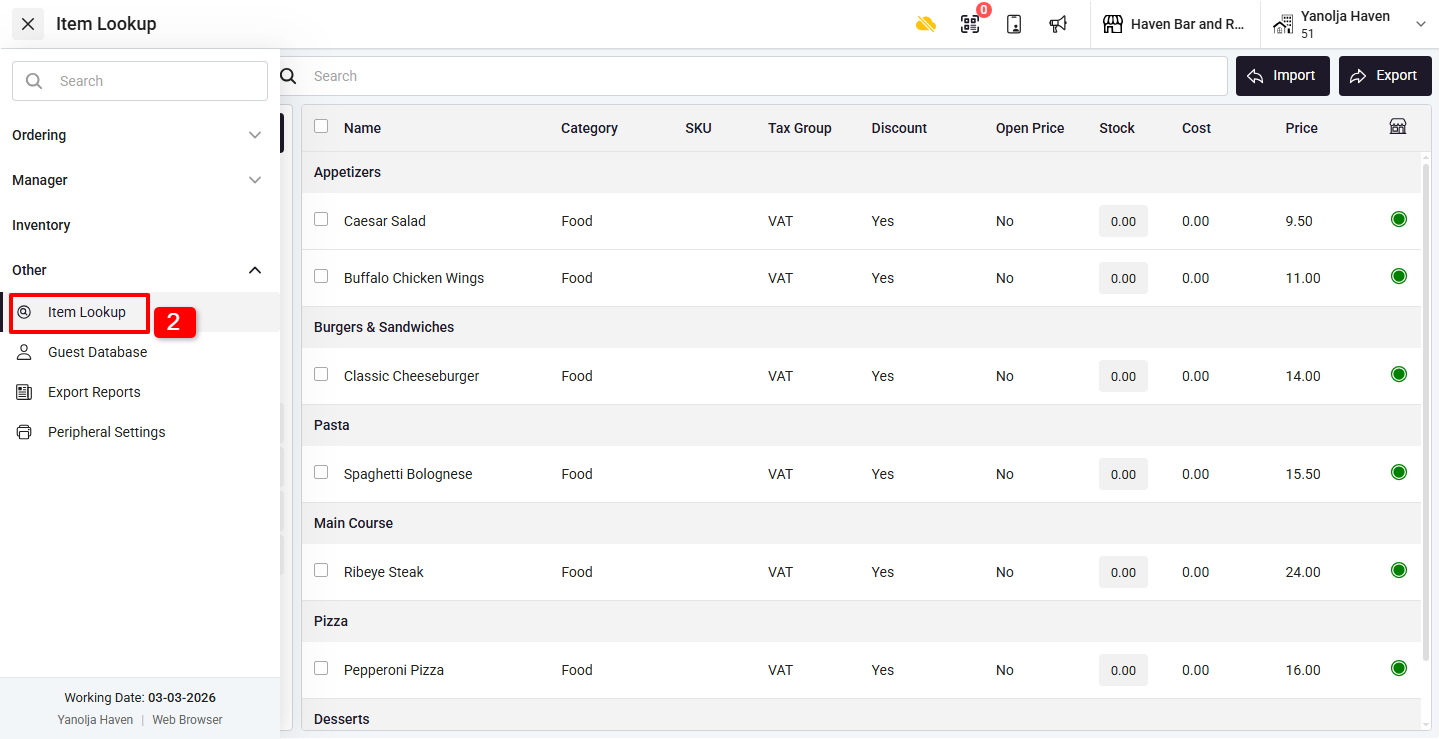
Step 1: Open Item Lookup
1. Click on the Three Lines (☰) Menu on the top-left side.
2. Under Other, click on Item Lookup.
Step 2: Select the Item to Freeze / Unfreeze
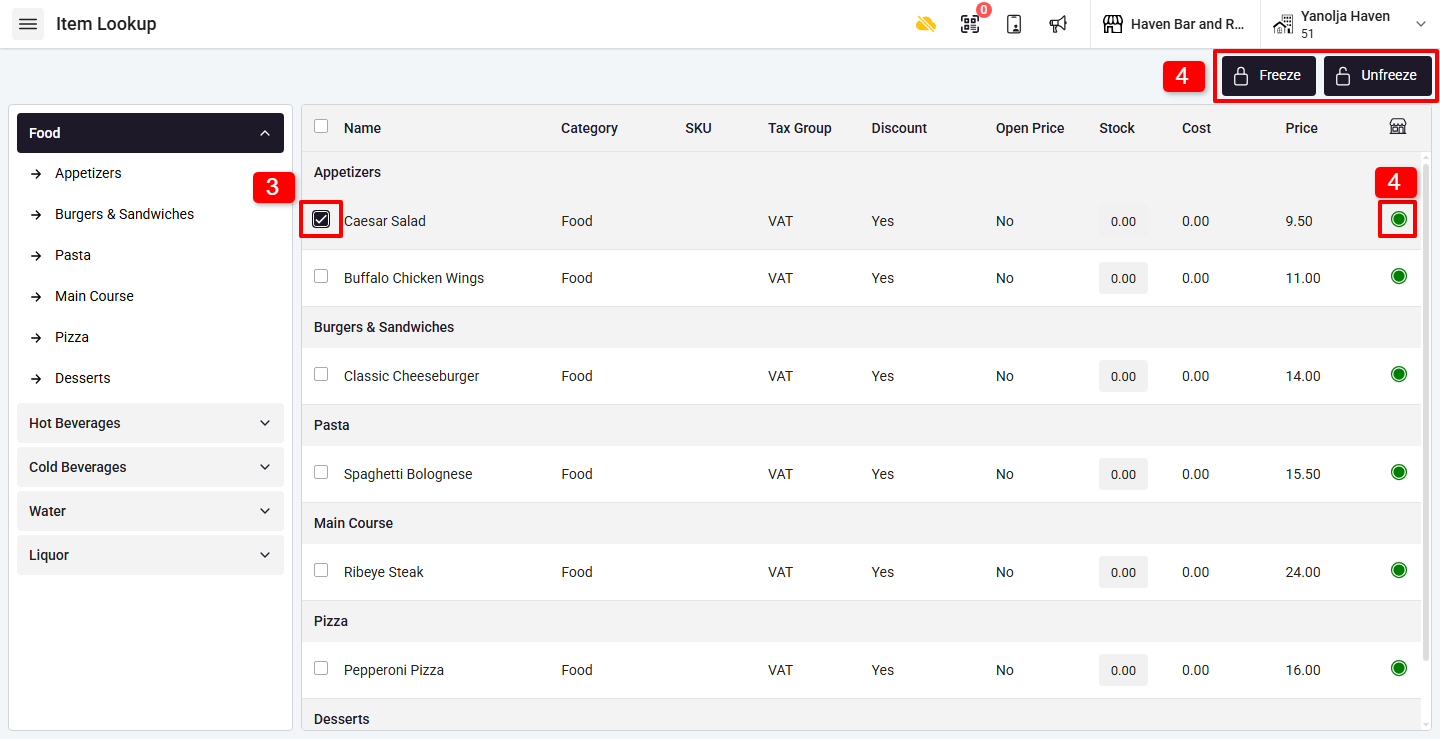
3. Select the item you want to Freeze or Unfreeze.
4. Click on:
- Freeze button to stop selling the item
- Unfreeze button to resume selling
Alternatively:
- Click on the Green Circle to Freeze the item
- Click on the Grey Circle to Unfreeze the item
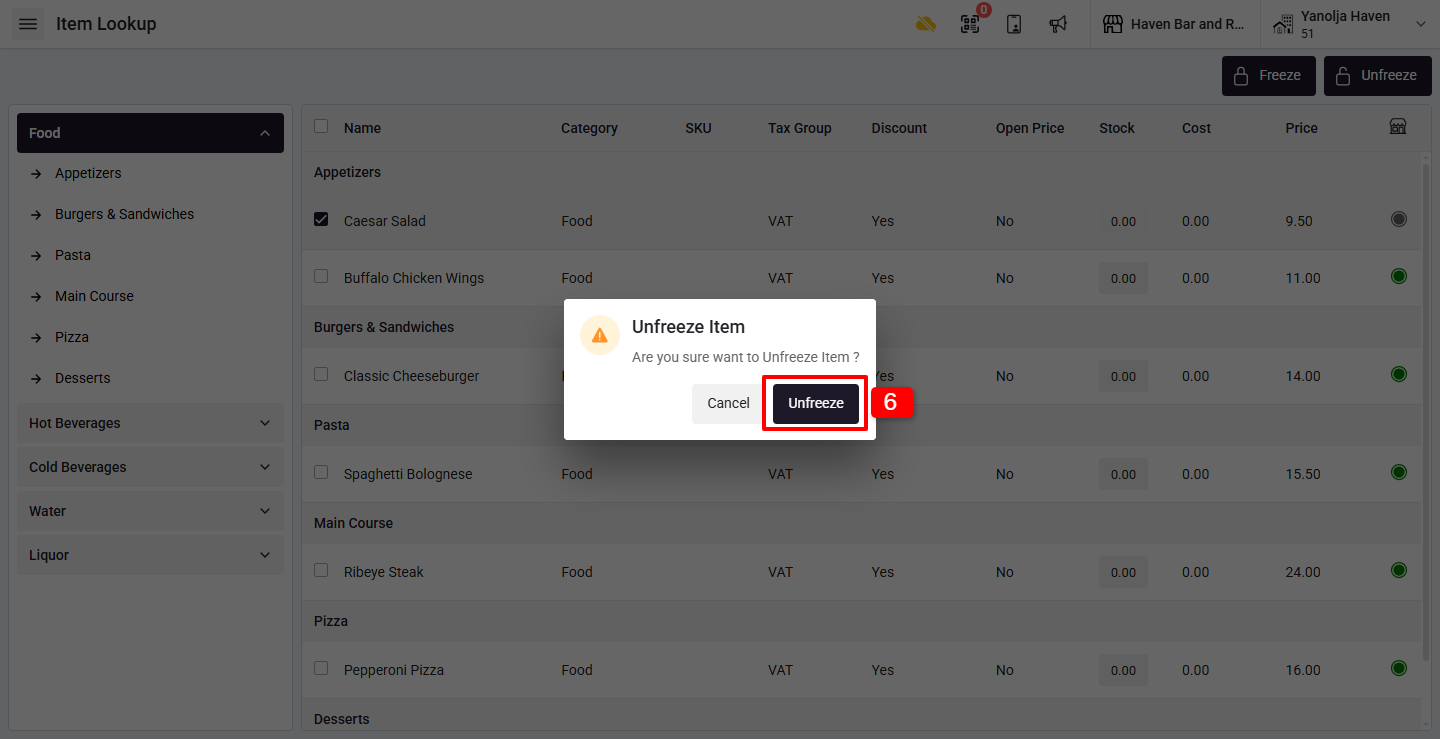
Step 4: Add Reason
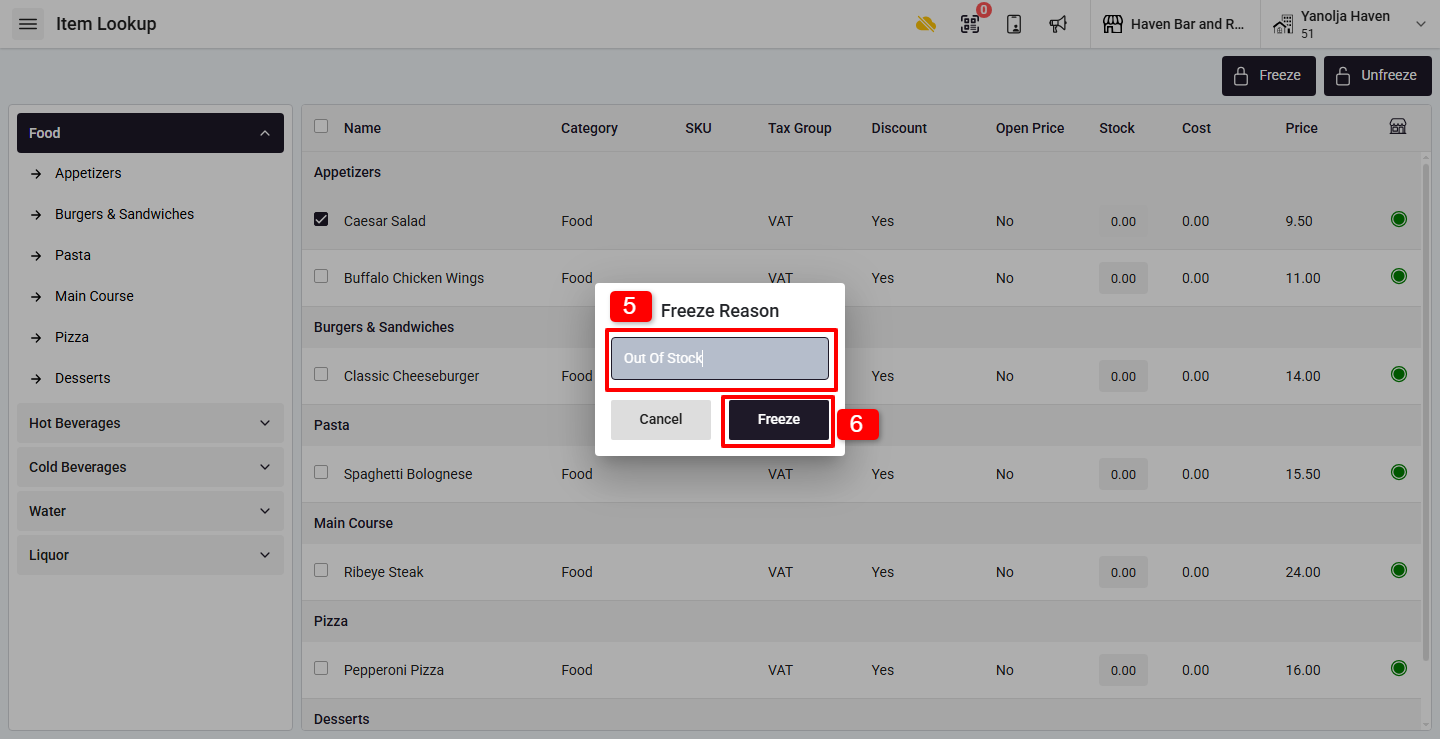
5. Enter the Reason for freezing the item.
6. Click on Freeze (or Unfreeze) to confirm.
What happens when a Frozen Item is selected during ordering?
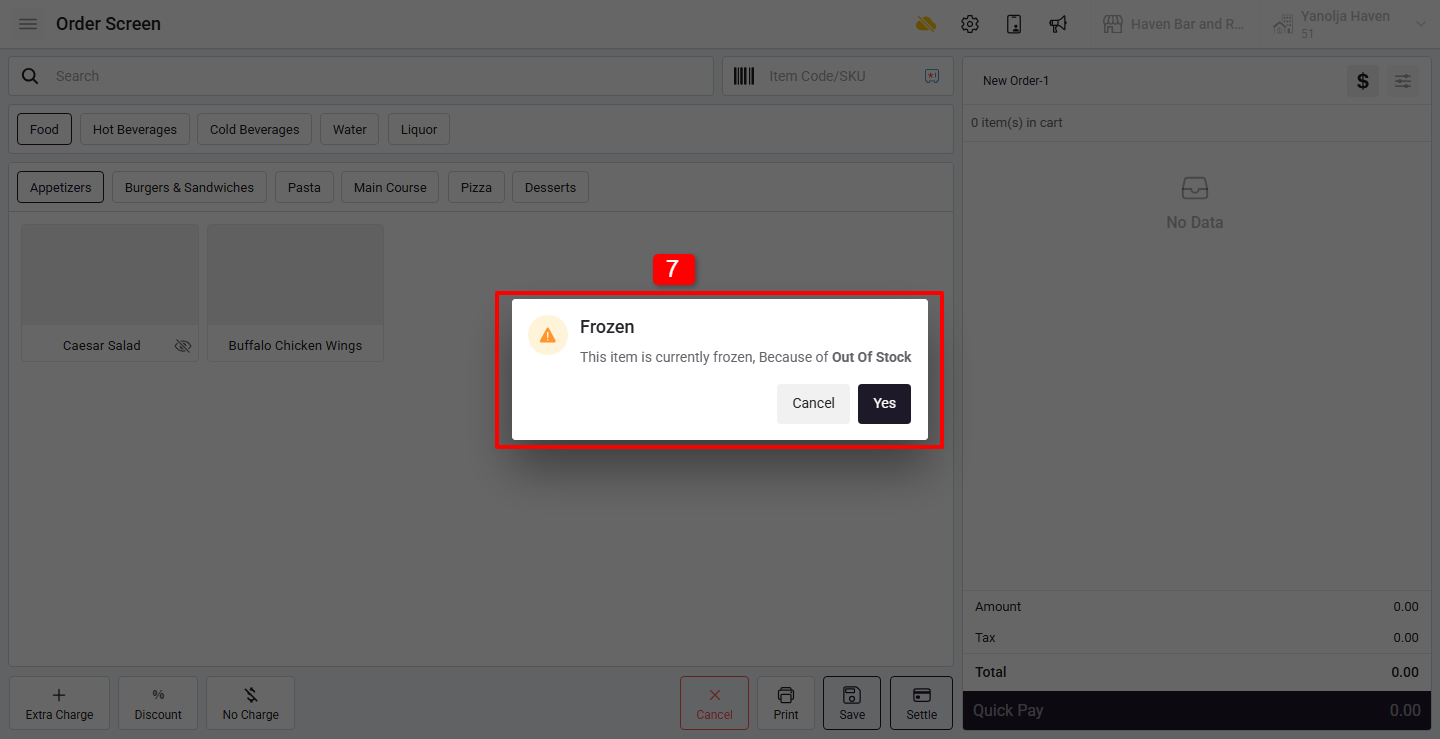
If an item is frozen and a user attempts to select it from the ordering screen:
7. A popup message will appear
“This item is currently frozen, Because of Out Of Stock”
Can I allow specific users to sell Frozen Items?
Yes. You can assign privileges to allow certain users to order frozen items.
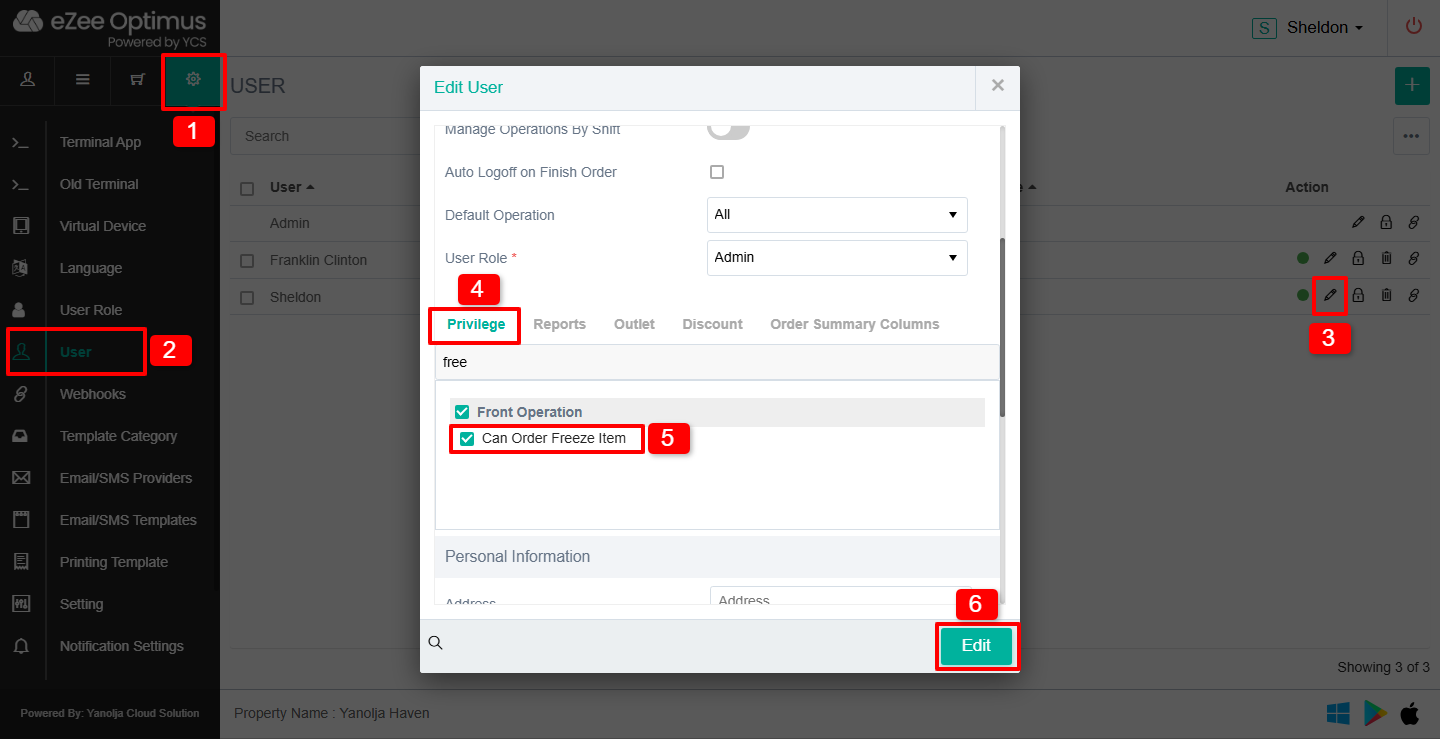
How to Set the Privilege:
Go to Restaurant POS Back Office
1. Click on Settings
2. Click on User
3. Click on "Pen/Pencil" to edit the privileges
4. Click on Privilege
5. Enable Can Order Freeze Item
6. Click on "Edit" button to save the changes
Once enabled, please relogin in the system and the user will be able to order frozen items despite the restriction.
Was this article helpful?
That’s Great!
Thank you for your feedback
Sorry! We couldn't be helpful
Thank you for your feedback
Feedback sent
We appreciate your effort and will try to fix the article