In Restaurant POS, the Column Selection option allows you to customize the Order Summary screen by adding or removing columns as per your requirement.
This helps users view important order details more efficiently.
How do I add or modify columns in Order Summary?
Follow the steps below:
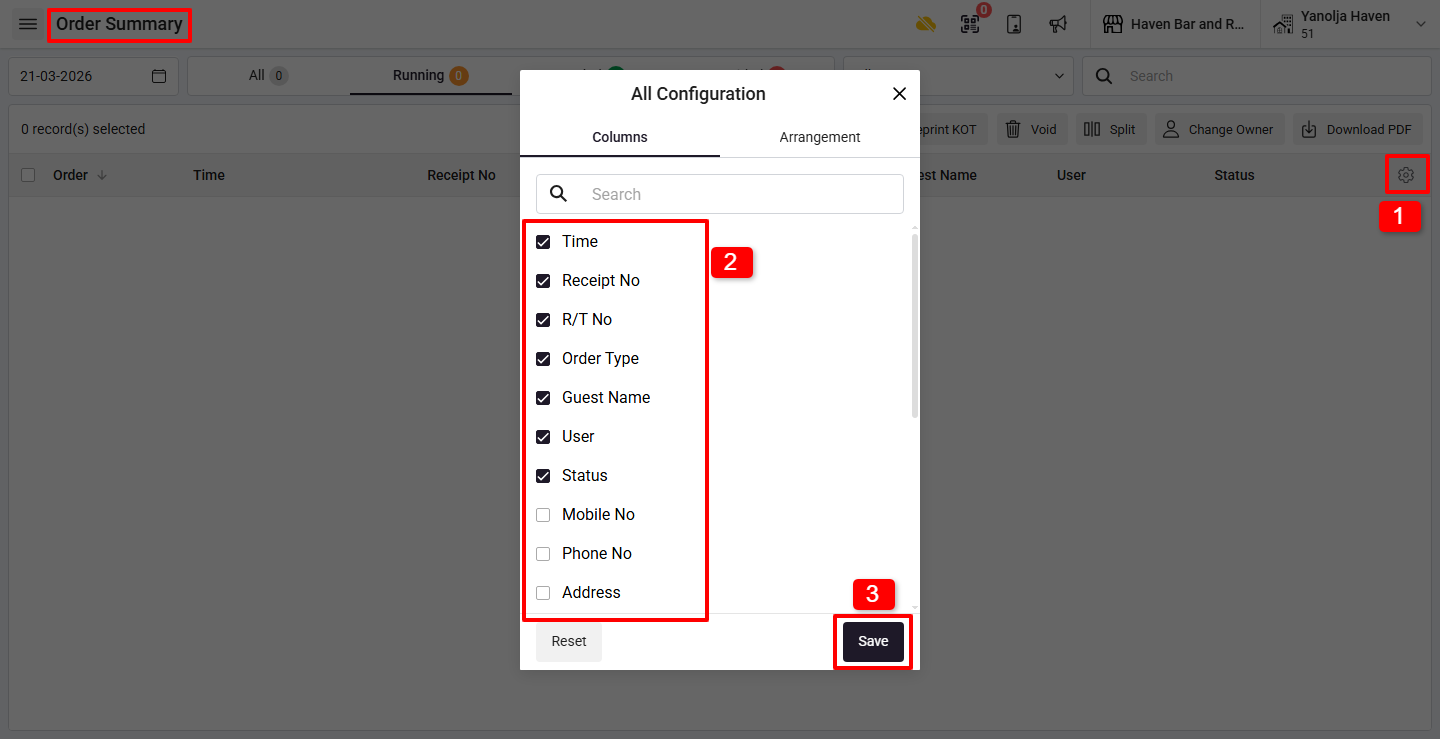
1. Click on the Gear Icon (⚙) on the Order Summary screen.
2. Select the columns you want to add or display.
⚠️ Maximum 8 columns can be selected at a time.
3. Click on the Save button to apply the changes.
Was this article helpful?
That’s Great!
Thank you for your feedback
Sorry! We couldn't be helpful
Thank you for your feedback
Feedback sent
We appreciate your effort and will try to fix the article