If your logo is not appearing on the POS receipt, it is usually due to missing configuration in the system settings, incorrect file format, or improper placement in the receipt template. This guide outlines the exact steps required to ensure your logo prints correctly. Follow each step carefully to resolve the issue.
Resolution Steps
1. Check Prerequisites :
Ensure the logo meets the required specifications:
Image resolution must be 256 x 105 pixels
File name must be exactly: logo.png
Resize the image as needed to avoid cutoff on receipt paper
2. Verify if the Logo is Set in Peripheral Settings :
1. Go to Menu.
2. Click on Other.
3. Navigate to Peripheral Settings.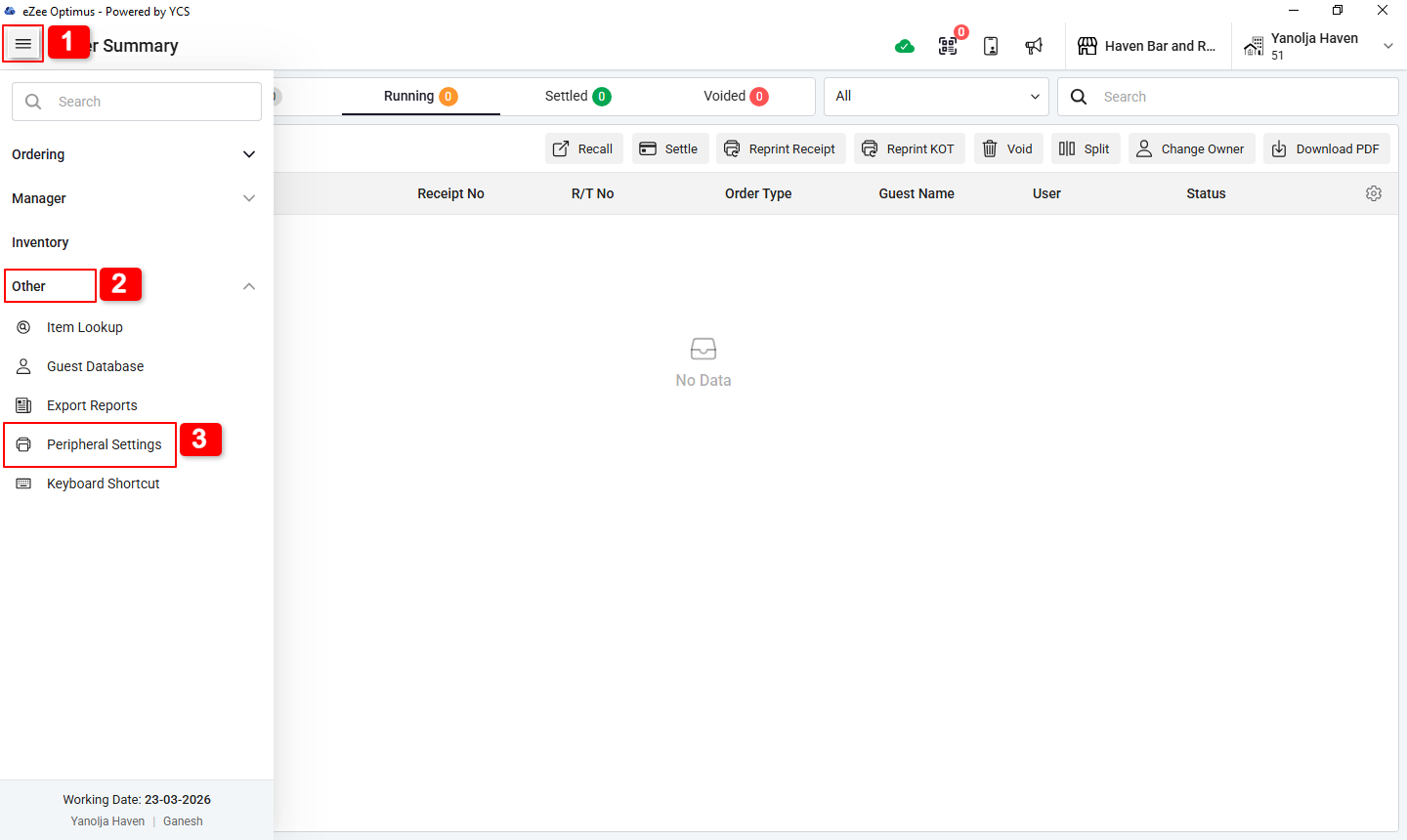
4. Select Common Settings.
5. Scroll to the Logo Path section.
6. Click Set Logo and upload the logo.png file.
7. Click Save.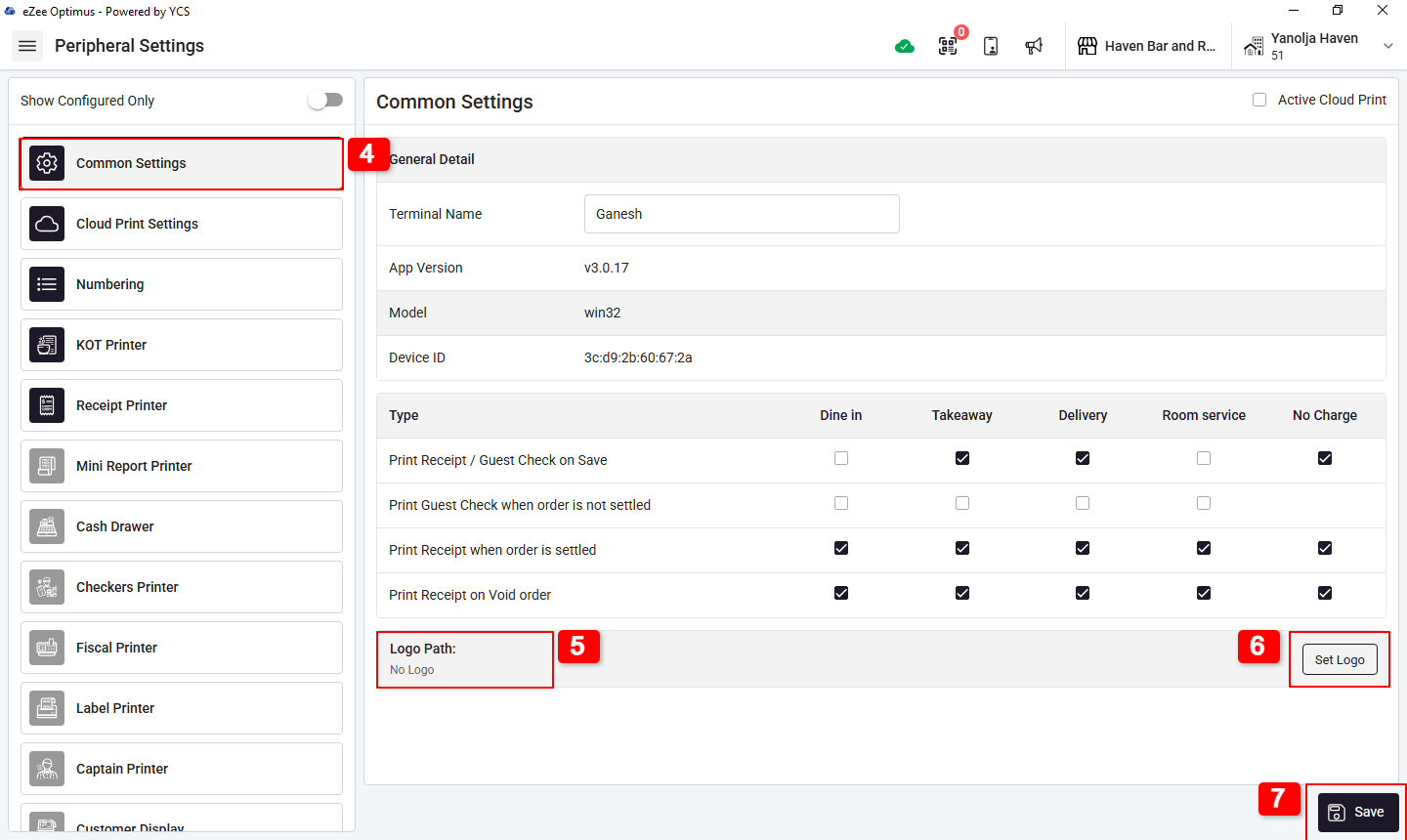
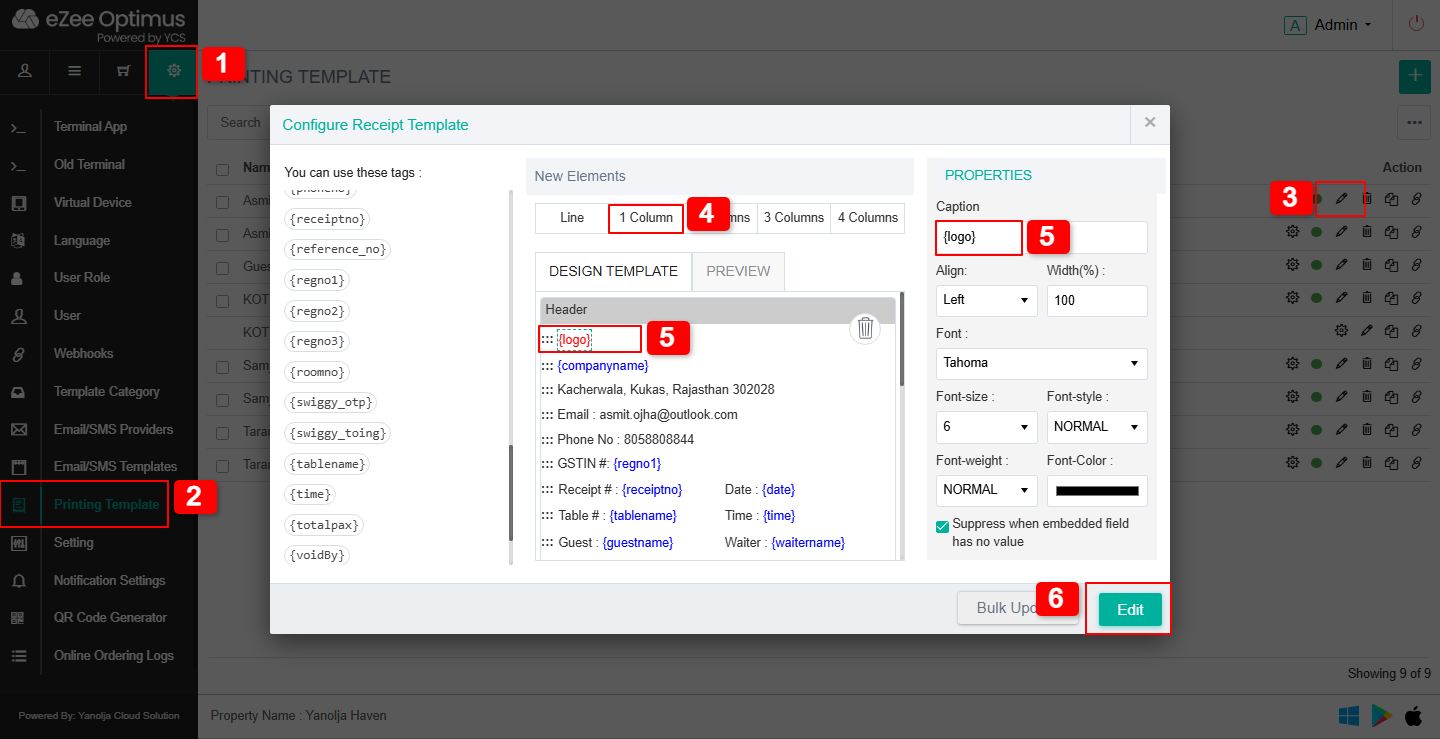
3. Add {logo} Tag in the Receipt Template :
Even if the logo is set in peripheral settings, it must also be added to the receipt template.
1. Go to Settings.
2. Select Printing Template.
3. Click the Edit (pencil) icon next to the receipt template.
4. Drag 1 Column to the Header area.
5. Change the caption of the placeholder to {logo}.
6. Click Edit to save.
4. Place the Logo File in the Correct Folder on Your System :
Ensure the logo file is stored in the following location:
Desktop\optimus\logo.png
This allows the system to fetch the logo during printing.
Final Checklist :
Logo file is named logo.png and resolution is 256 x 105 px
Logo is uploaded in Peripheral Settings.
{logo} tag is correctly added in the receipt template.
File is saved in: Desktop\optimus\logo.png
Restart the POS and printer after making changes.
Was this article helpful?
That’s Great!
Thank you for your feedback
Sorry! We couldn't be helpful
Thank you for your feedback
Feedback sent
We appreciate your effort and will try to fix the article