Yes, in the PMS System, you can reverse a reservation marked as a "No Show." This is useful if a guest arrives after being marked as a no-show or if the status was assigned by mistake.
Steps to Undo a No-Show Reservation
Access the Reservation
Login to PMS System.
1 Click on Reservations.
2 Use the Search function to filter reservations that are marked No Show.
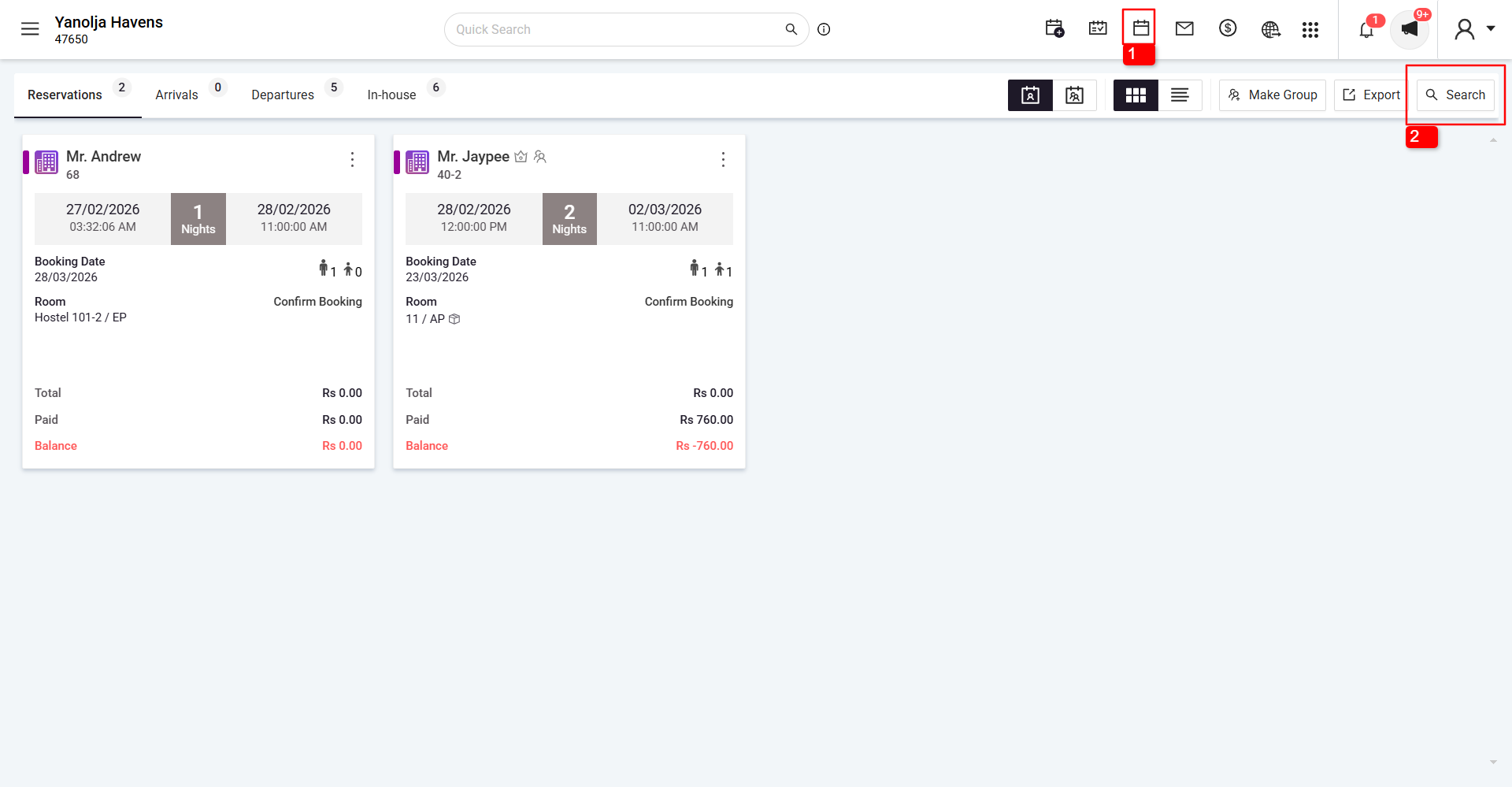
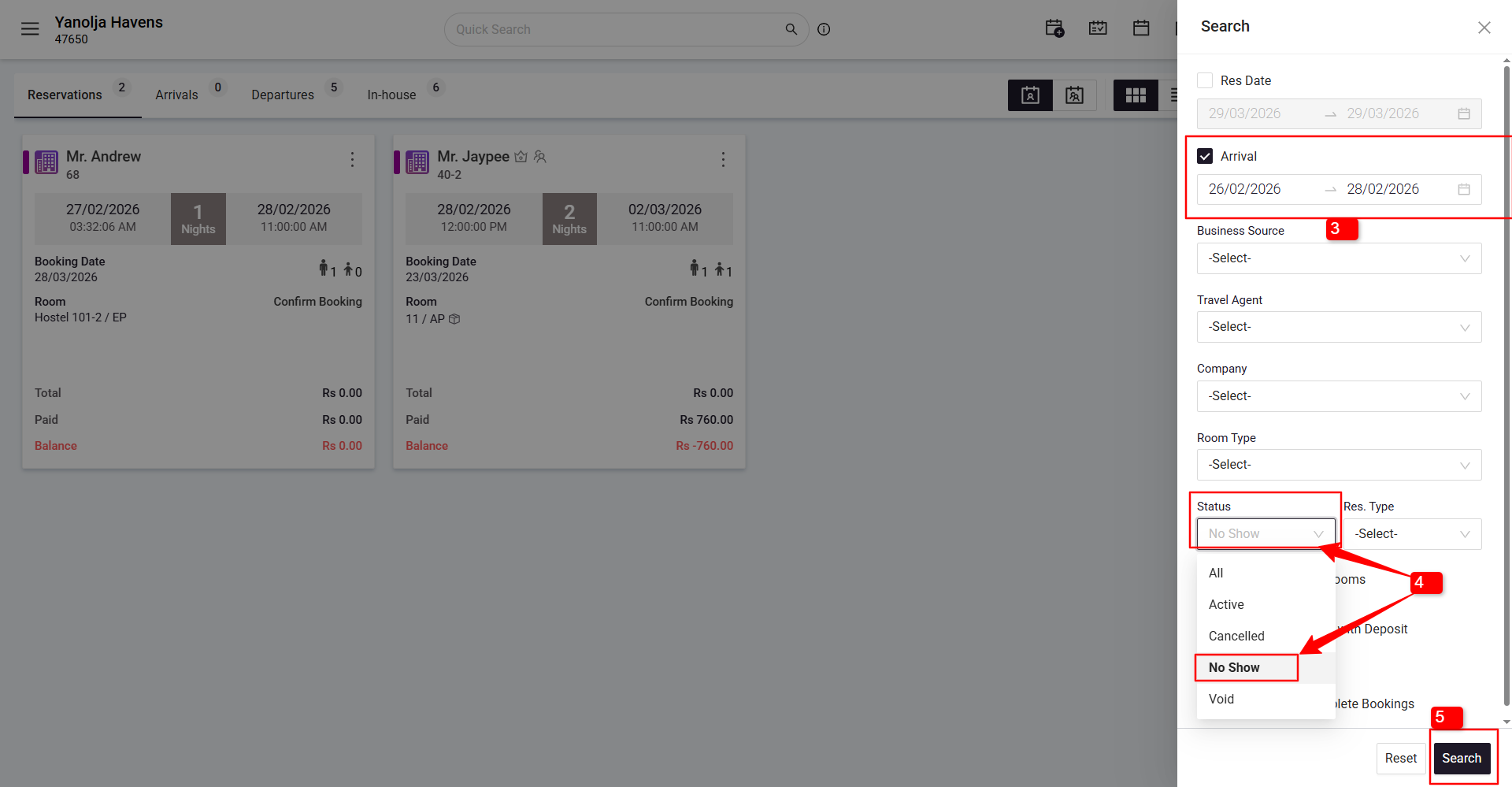
3 Select the date range for the reservation marked as No Show
4 Select No Show in the status filter.
5 Click on Search.
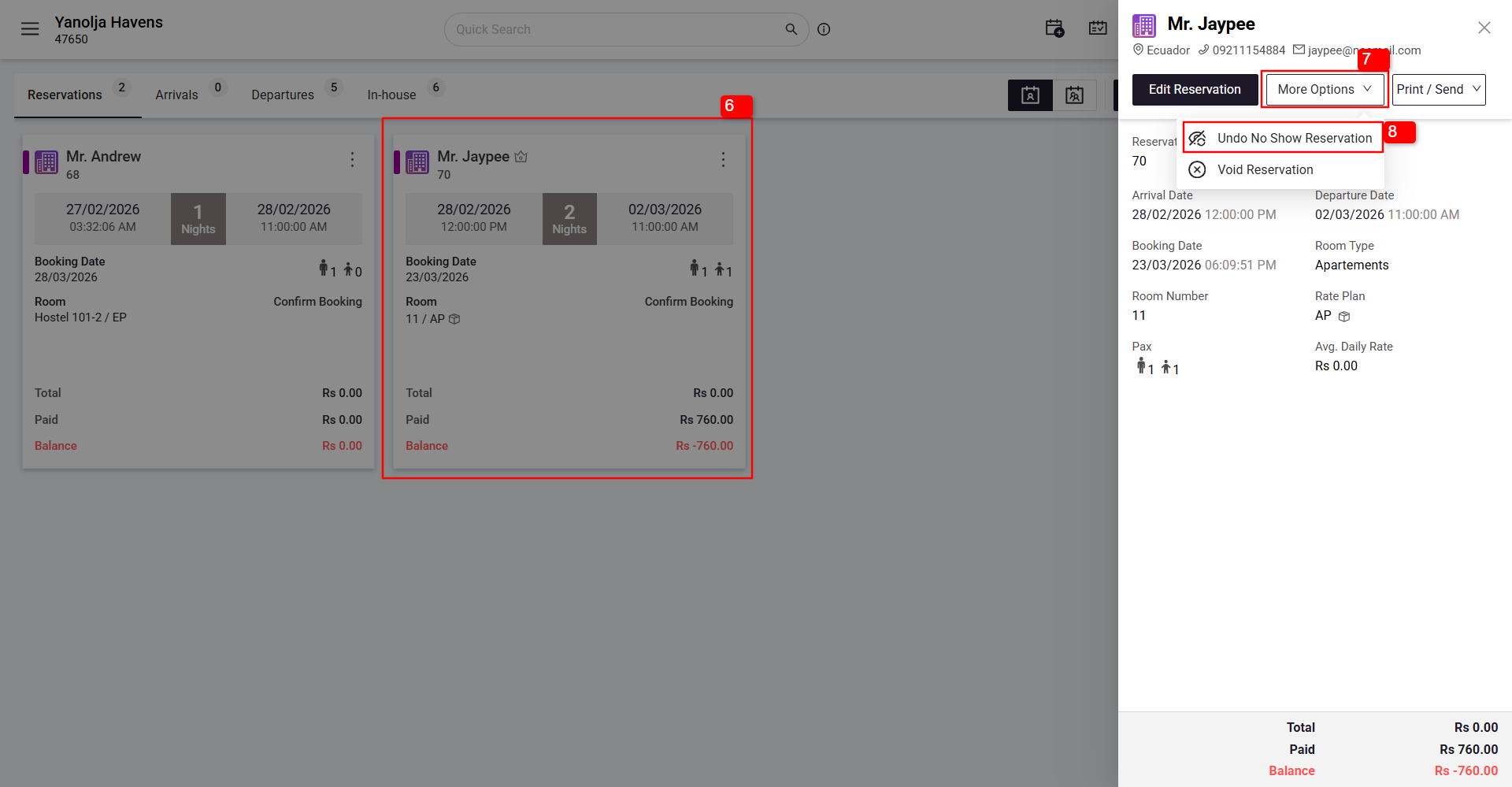
6 Select the desired reservation.
7 Click on More Option.
8 Click on Undo No Show Reservation.
Note
If the Night Audit has already been performed after marking the reservation as a no-show, you can still activate the booking using the same steps. However, the reservation's arrival date will be updated to the current working date.
Reactivate the Previous No-Show
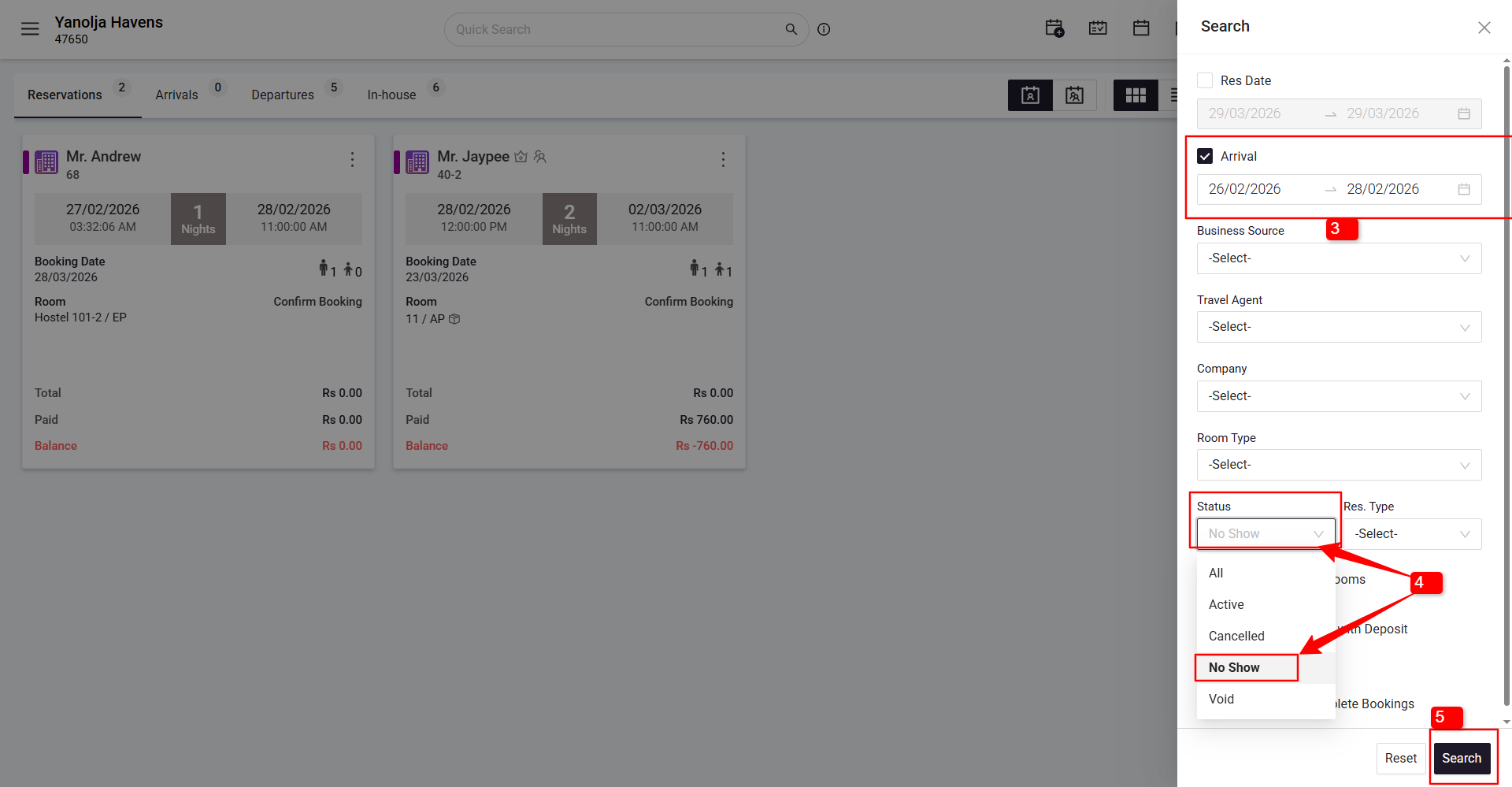
1 Click on Reservations.
2 Use the Search function to filter reservations that are marked No Show.
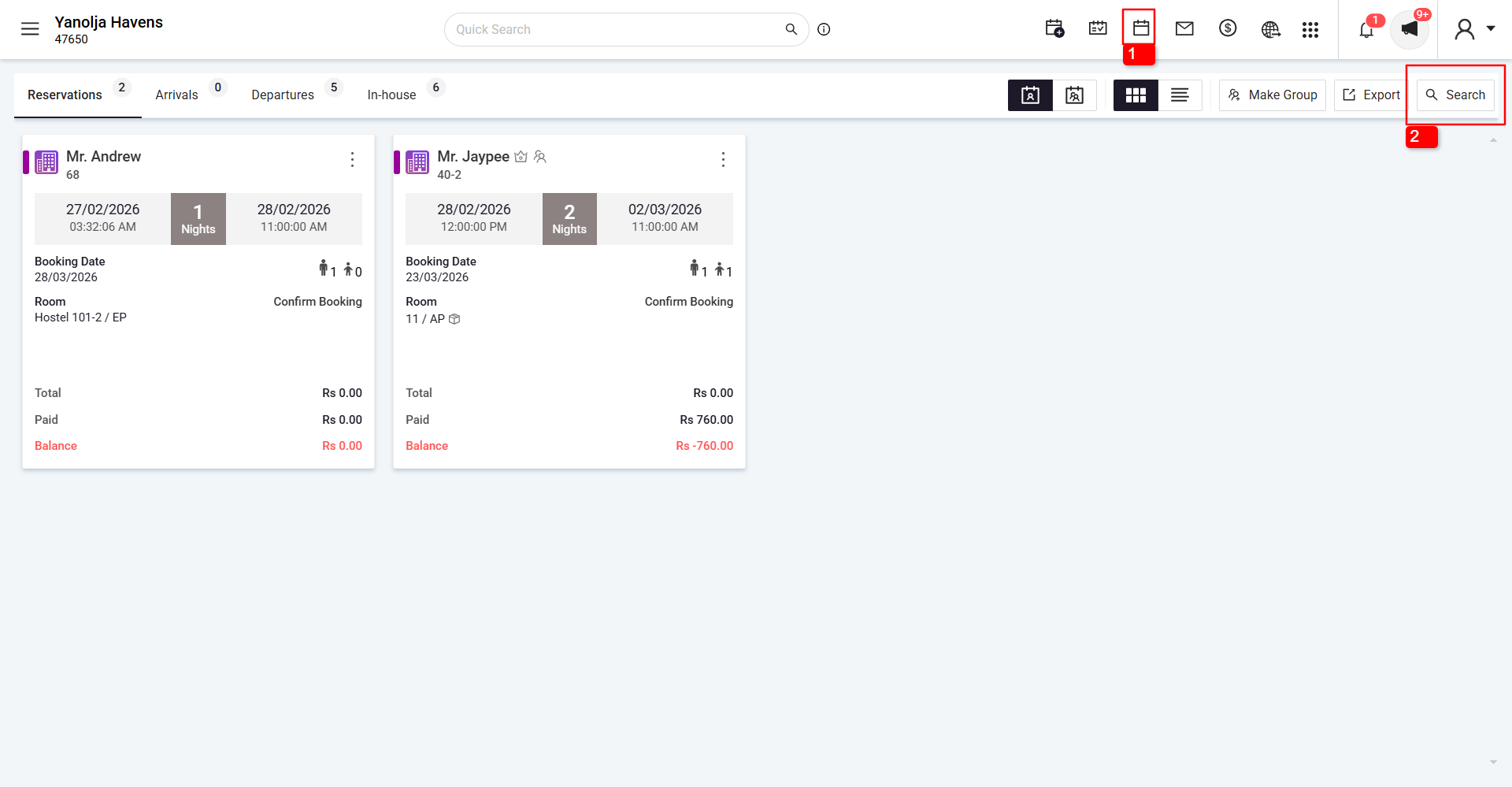
3 Select the date range for the reservation marked as No Show >
4 Select No Show in the status filter.
5 Click on Search.
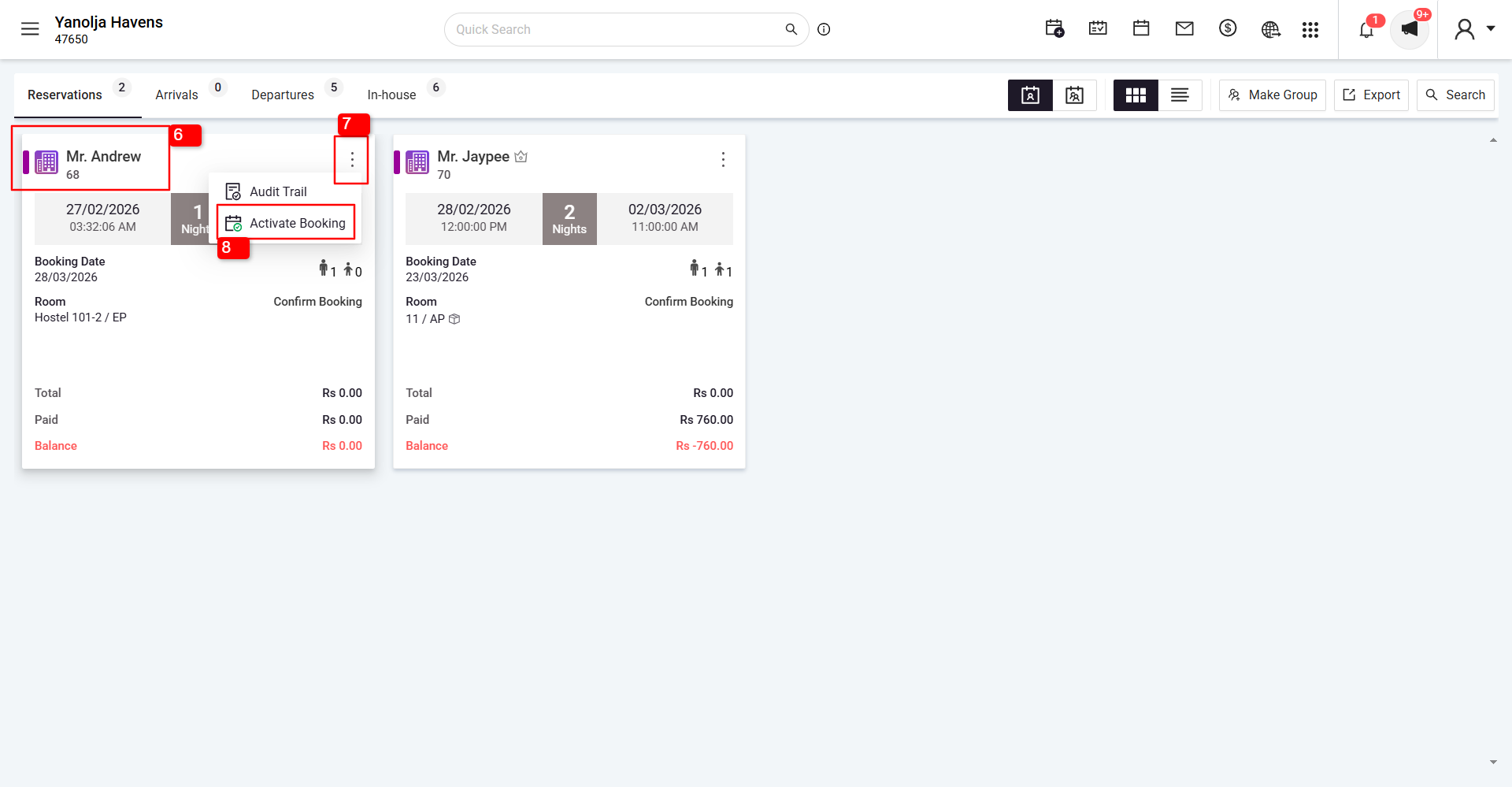
6 Select the desired reservation.
7 Click on Three Dot Option (More Option).
8 Click on Activate Booking.
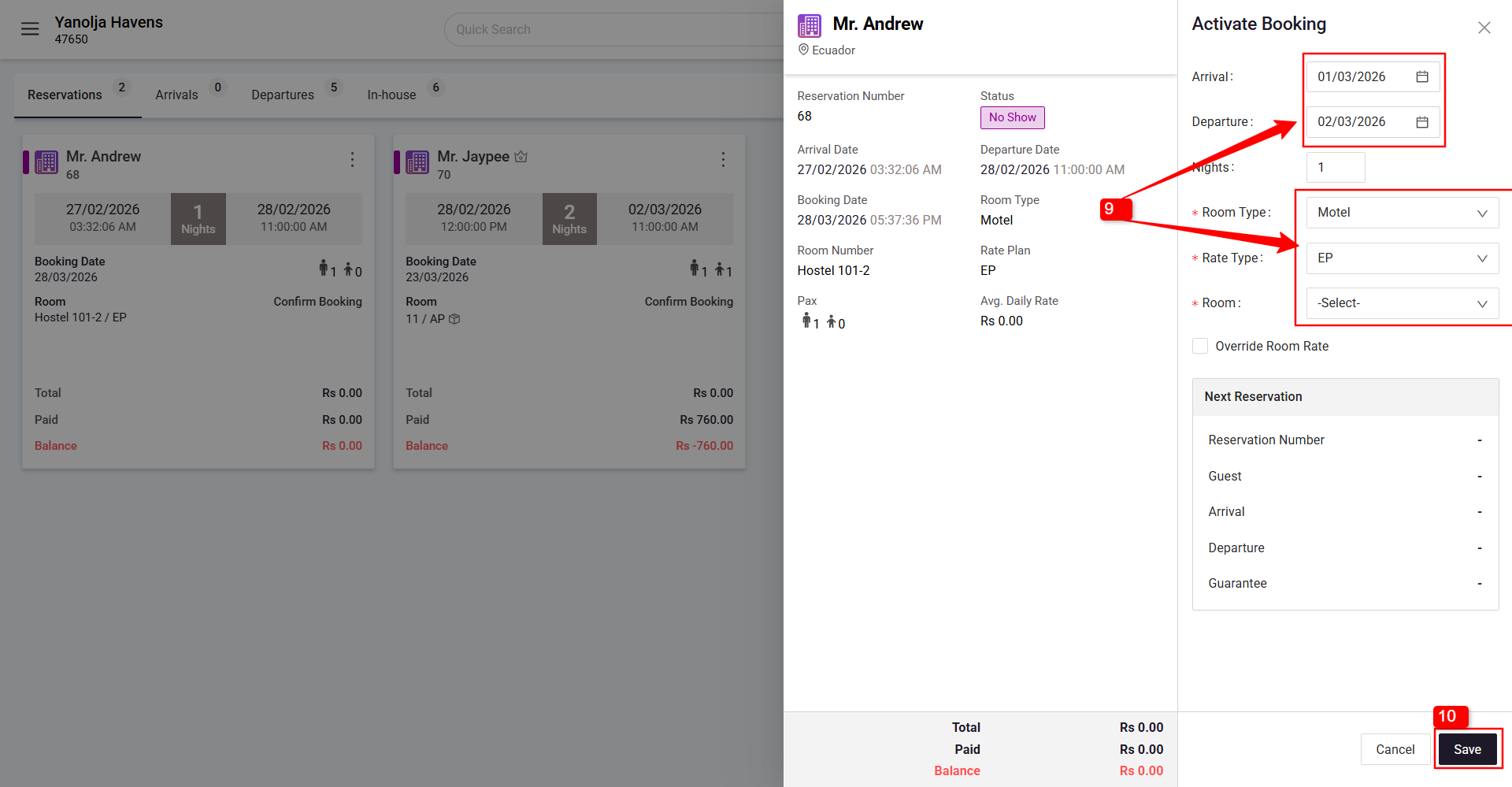
Update Reservation Details
9 After activating, select the Room Type, Rate Plan, and verify the Arrival and Departure Dates.
10 Click Save to confirm the changes.
Was this article helpful?
That’s Great!
Thank you for your feedback
Sorry! We couldn't be helpful
Thank you for your feedback
Feedback sent
We appreciate your effort and will try to fix the article