Overview
The Add New Booking feature allows you to add one or more room bookings under an existing reservation. This is useful when a guest decides to book additional rooms while keeping all bookings linked under the same reservation number.
The Add New Booking option is available for reservations in the following sections:
- Reservations
- Arrivals
- In-house
This allows you to add additional room bookings regardless of whether the guest is yet to arrive, is arriving on the current date, or is already checked in.
Navigation
Reservations → In-house/Reservations → More Options (⋮) → Add New Booking
Note: The Add New Booking option is available for eligible reservations. The navigation may vary depending on the reservation status.
Steps to Add More Bookings to a Single Reservation
- Login to PMS.
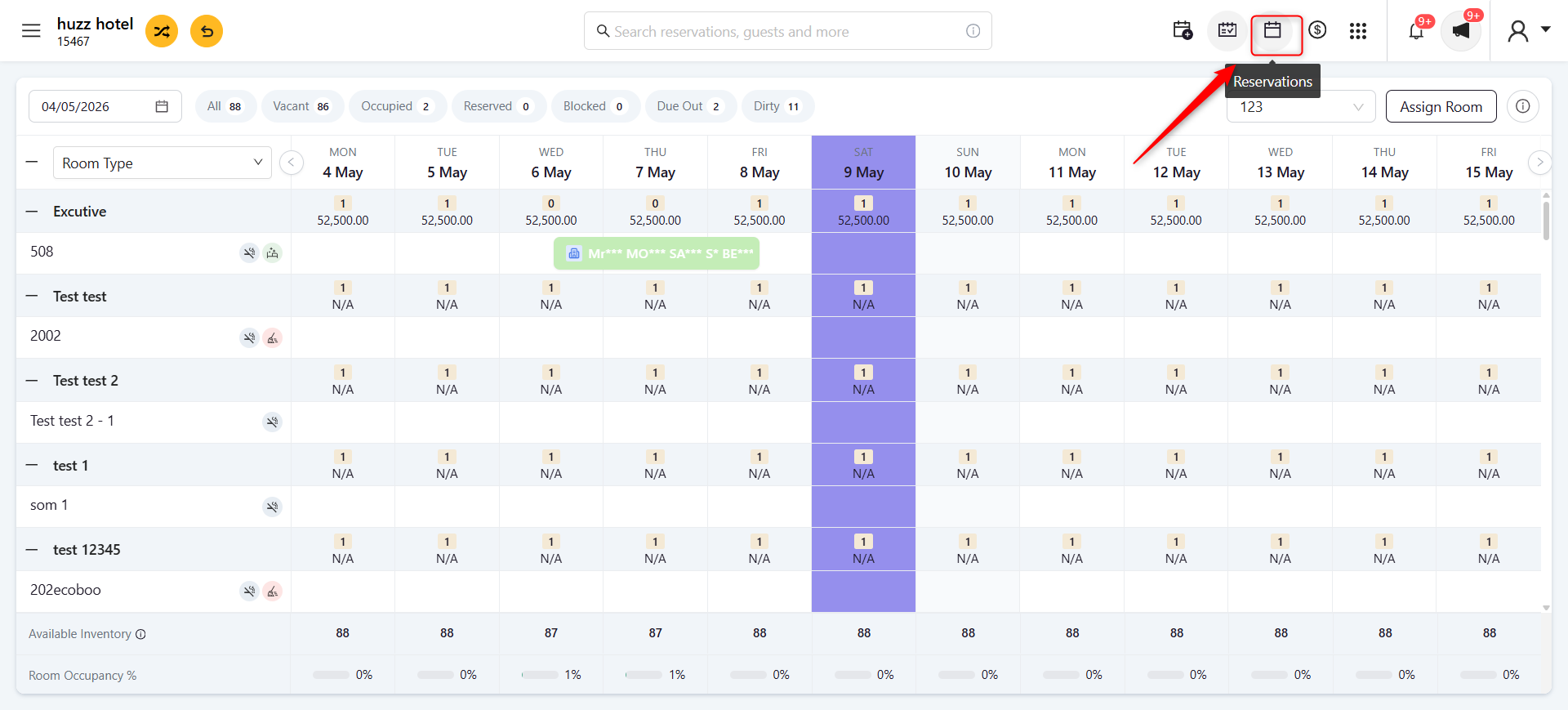
- Click the Reservations icon from the top menu.
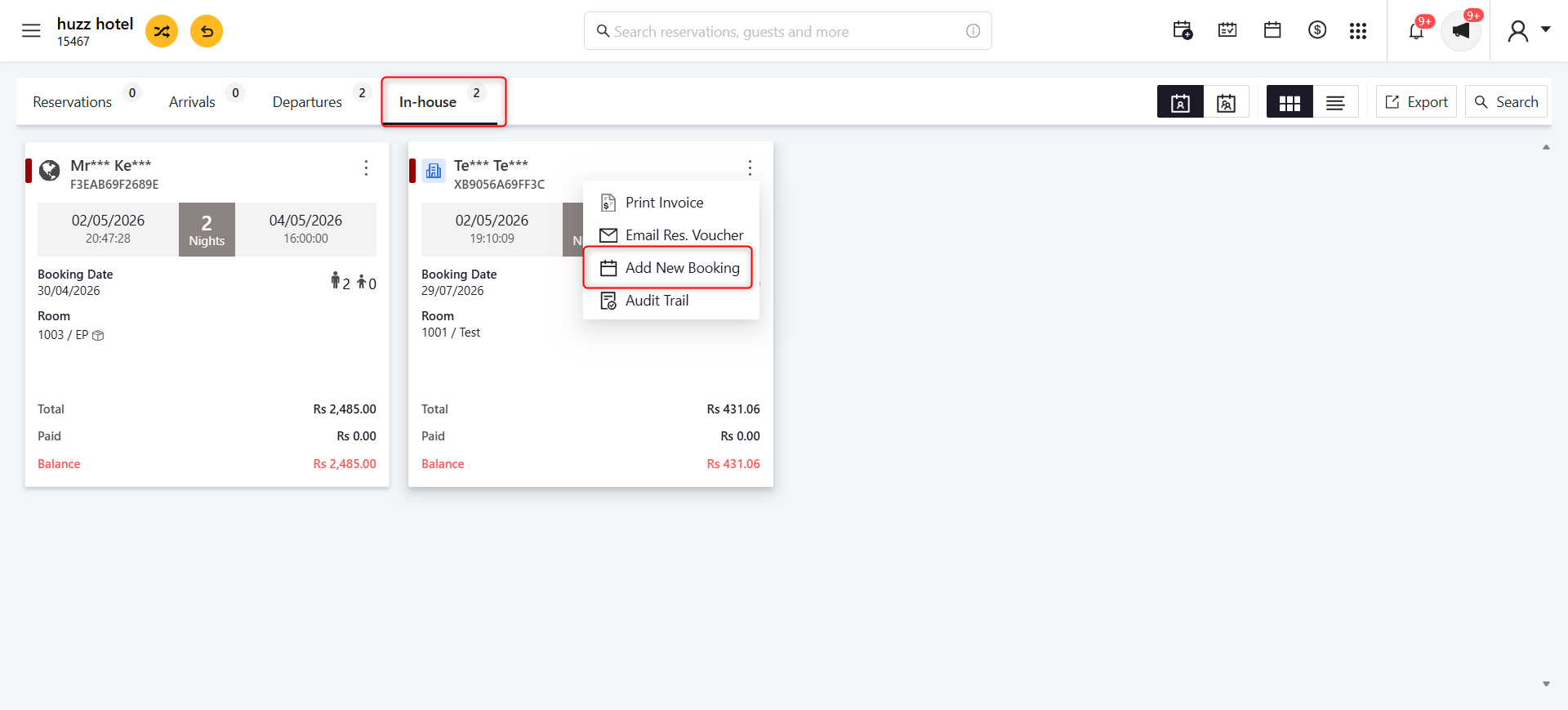
- Open the appropriate reservation section (e.g., In-house or Reservations).
- Locate the reservation to which you want to add another booking.
- Click the More Options (⋮) menu on the reservation card.
- Select Add New Booking.
- Enter the booking details for the additional room:
- Room Type
- Rate Plan
- Arrival & Departure Date
- Number of Adults and Children
- Any additional booking details
- Click Save.
- The new room booking will be linked to the existing reservation.
Screenshots
Step 1: Open Reservations
Step 2: Add a New Booking
Screenshot 3 (Alternative Method – Stay View)
(Add a booking directly from Stay View.)
Explanation
Open the reservation from Stay View.
Click More (⋮).
Select Add New Booking.
Enter the booking details and click Save.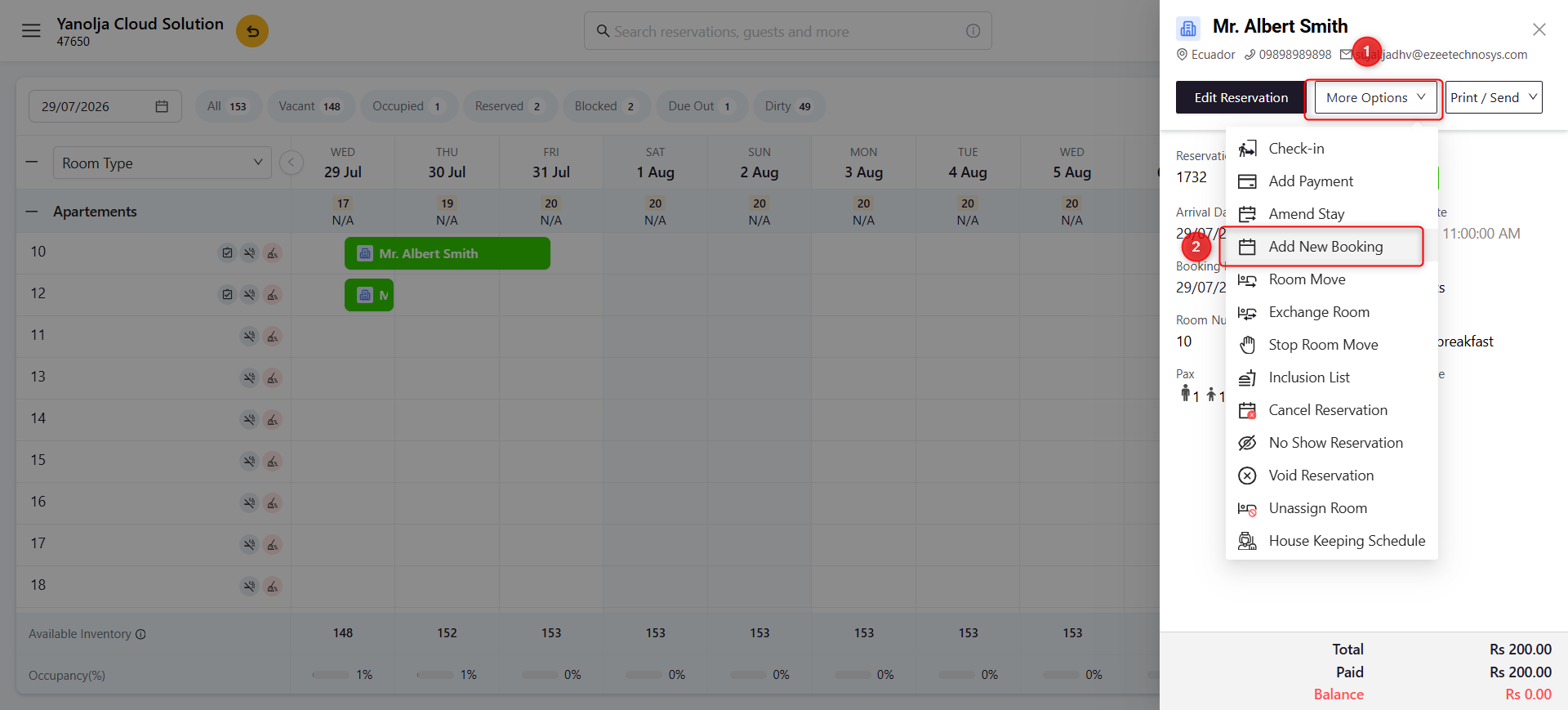
Was this article helpful?
That’s Great!
Thank you for your feedback
Sorry! We couldn't be helpful
Thank you for your feedback
Feedback sent
We appreciate your effort and will try to fix the article