What is a Transaction Lock?
In eZee Optimus, a Transaction Lock occurs when a single order is accessed by multiple users at the same time.
The system automatically locks the transaction to prevent:
- Data conflicts
- Accidental overwriting of order details
- Incorrect billing or settlements
This is a safety feature designed to maintain transaction accuracy and system consistency.
When does the Transaction Lock message appear?
This message usually appears in scenarios such as:
- A waiter opens an order to modify it
- At the same time, a cashier tries to settle the same order
- Two users attempt to edit or access the same order simultaneously
In such cases, the system locks the order to ensure only one user can modify it at a time.
What happens when a transaction is locked?
When a transaction is locked:
- Other users cannot access or settle the order
- The system displays a transaction locked message
- The order must be manually unlocked by an authorized user (usually Admin)
How do I unlock a locked transaction?
Follow the steps below to unlock the order:
Step 1: Open Transaction Lock
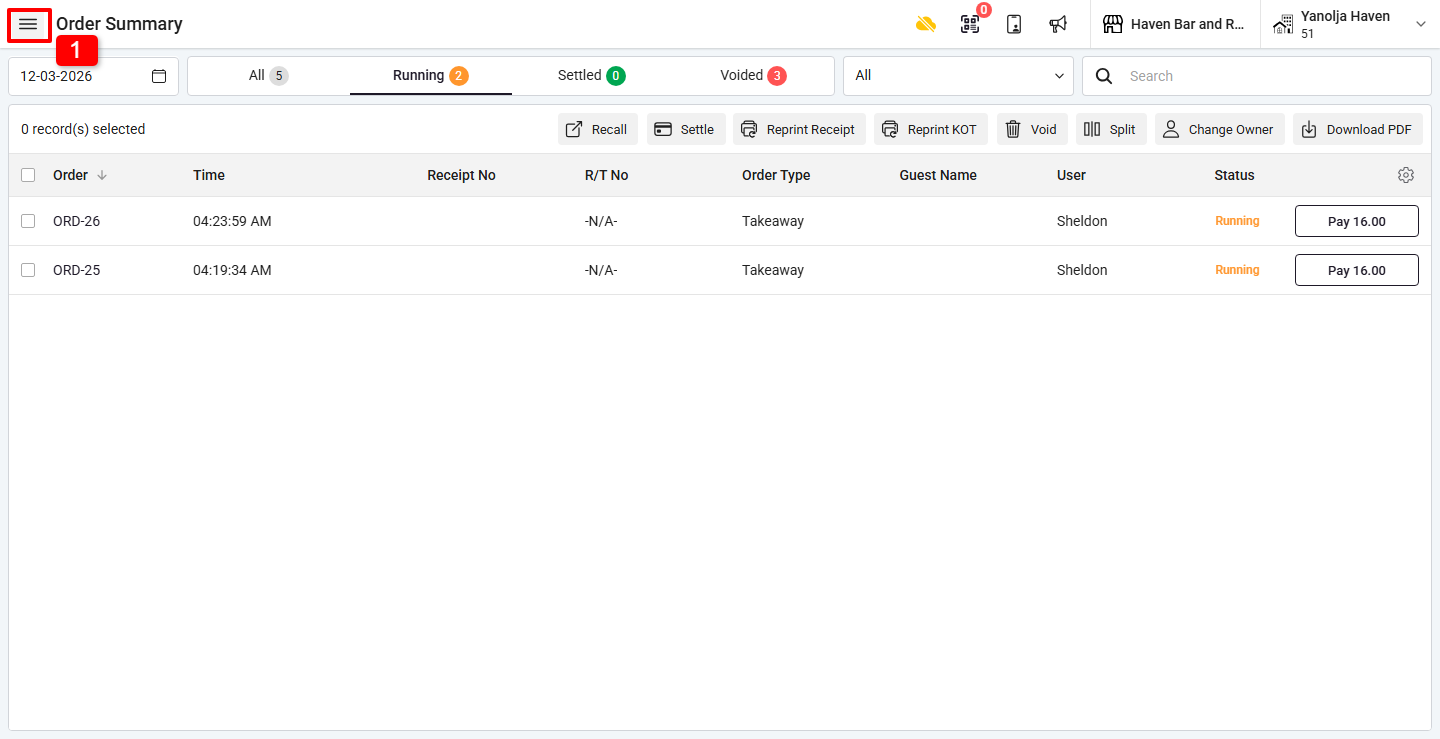
1. Click on the ☰ (Three Lines Menu).
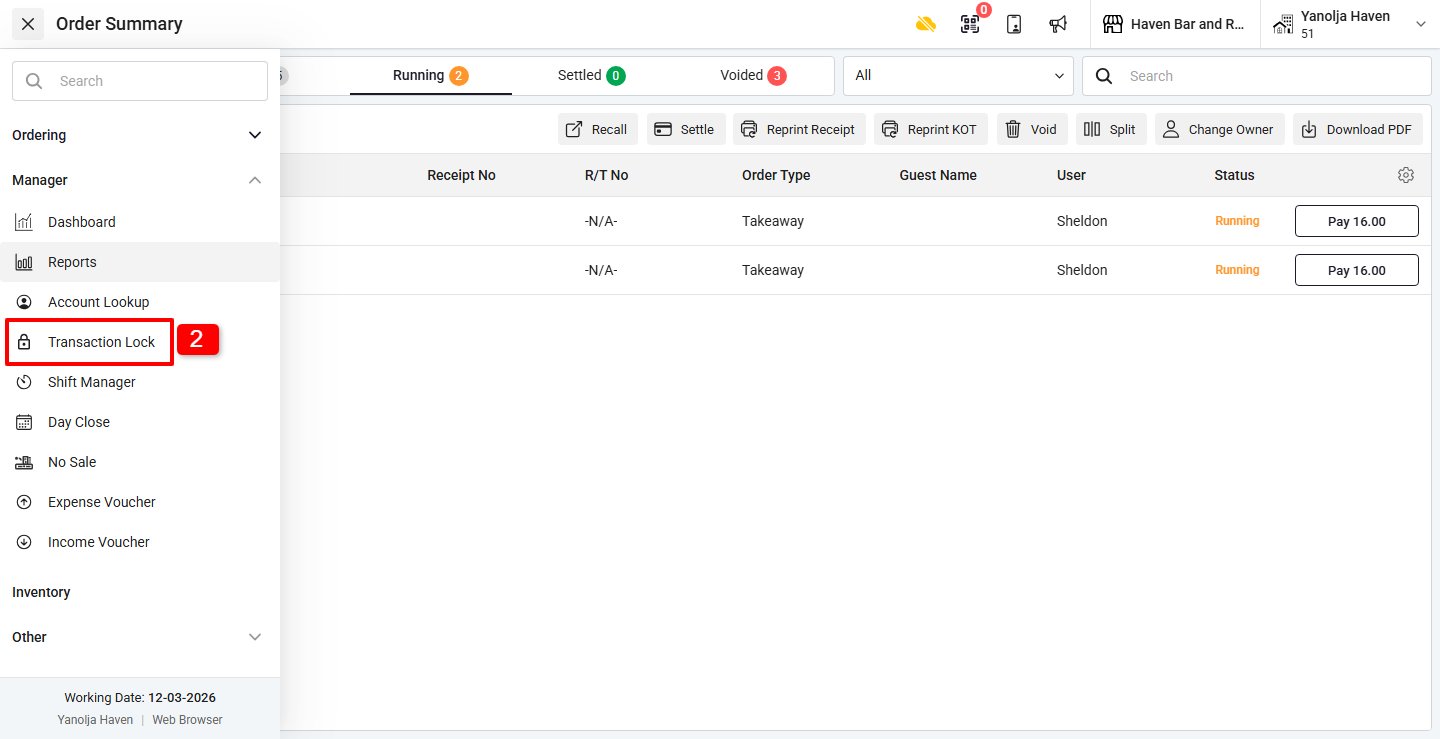
2. Under Manager, click on Transaction Lock.
Step 2: Unlock the Order
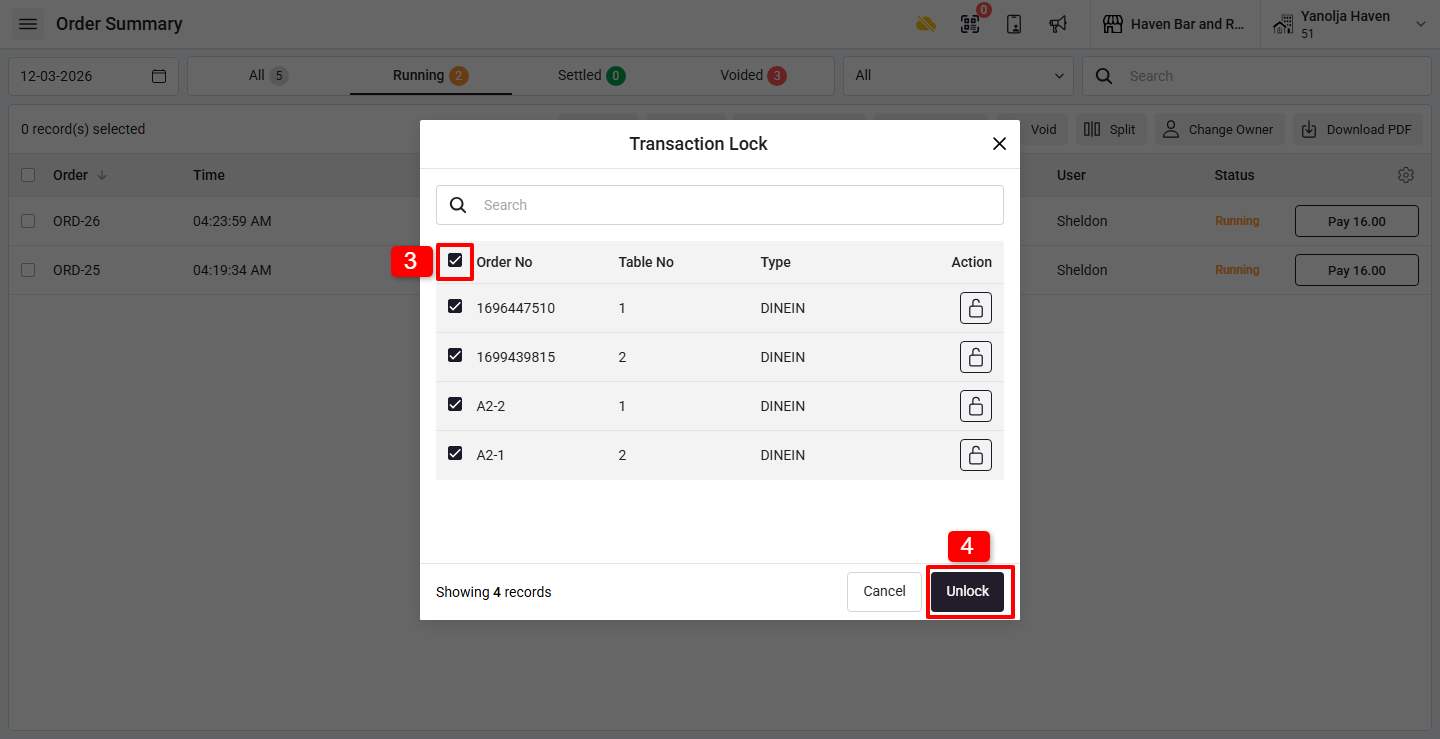
3. Check the box to select the locked orders.
4. Click on Unlock to release the transaction lock.
5. Once unlocked, the order can be accessed, edited, or settled normally.
Was this article helpful?
That’s Great!
Thank you for your feedback
Sorry! We couldn't be helpful
Thank you for your feedback
Feedback sent
We appreciate your effort and will try to fix the article