Transfer Option in POS
The Transfer option in POS allows users to move items or complete orders from one table to another table in the Dine-in module.
There are two types of order transfer available:
Order Transfer
Quantity Transfer
1. Order Transfer
This option is used when you want to move the entire order from one table to another table.
Steps:
1. Go to Menu.
2. Click on Dine-in.
3. Click on Running Table.
4. Select the Transfer feature.
5. Choose the Order Transfer option.
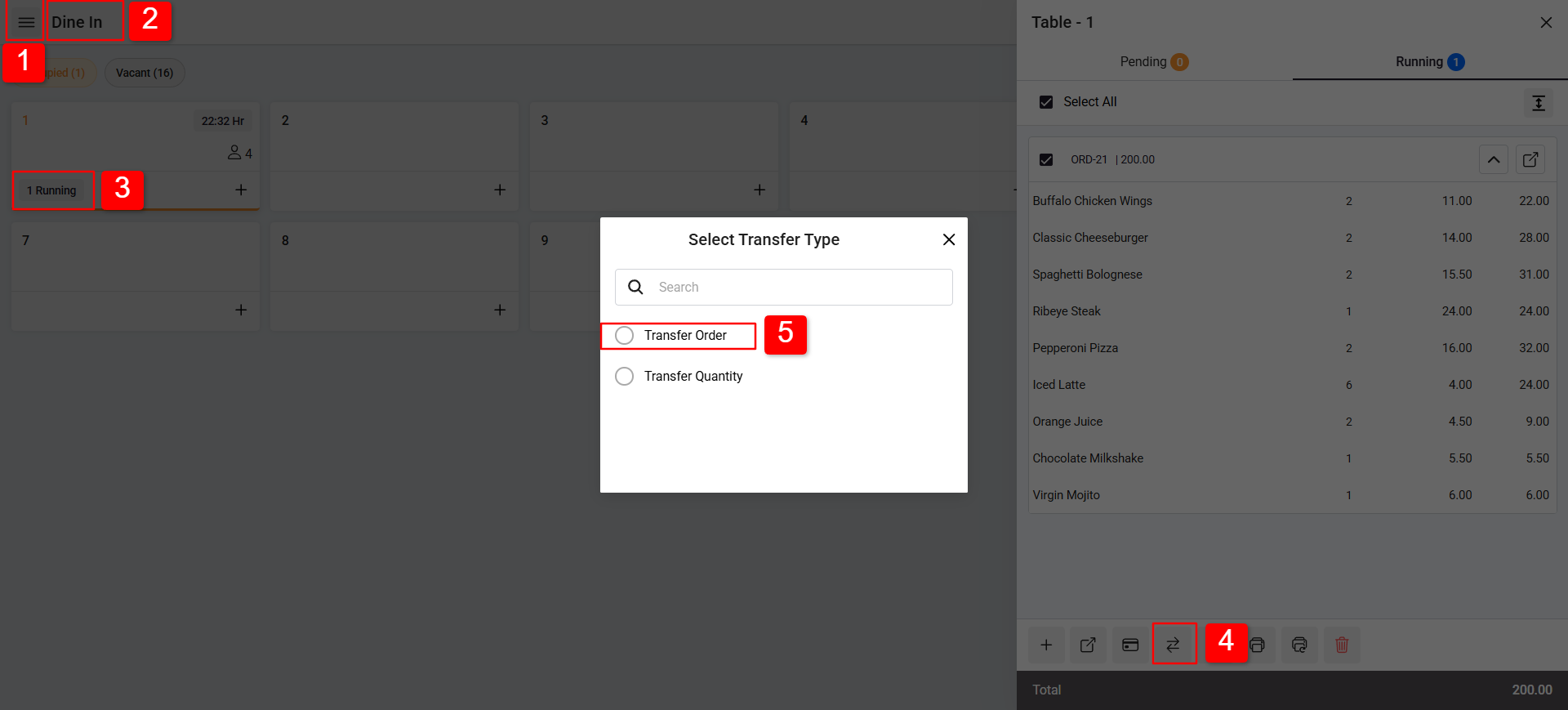
6. Select the Floor and the Table where you want to transfer the order.
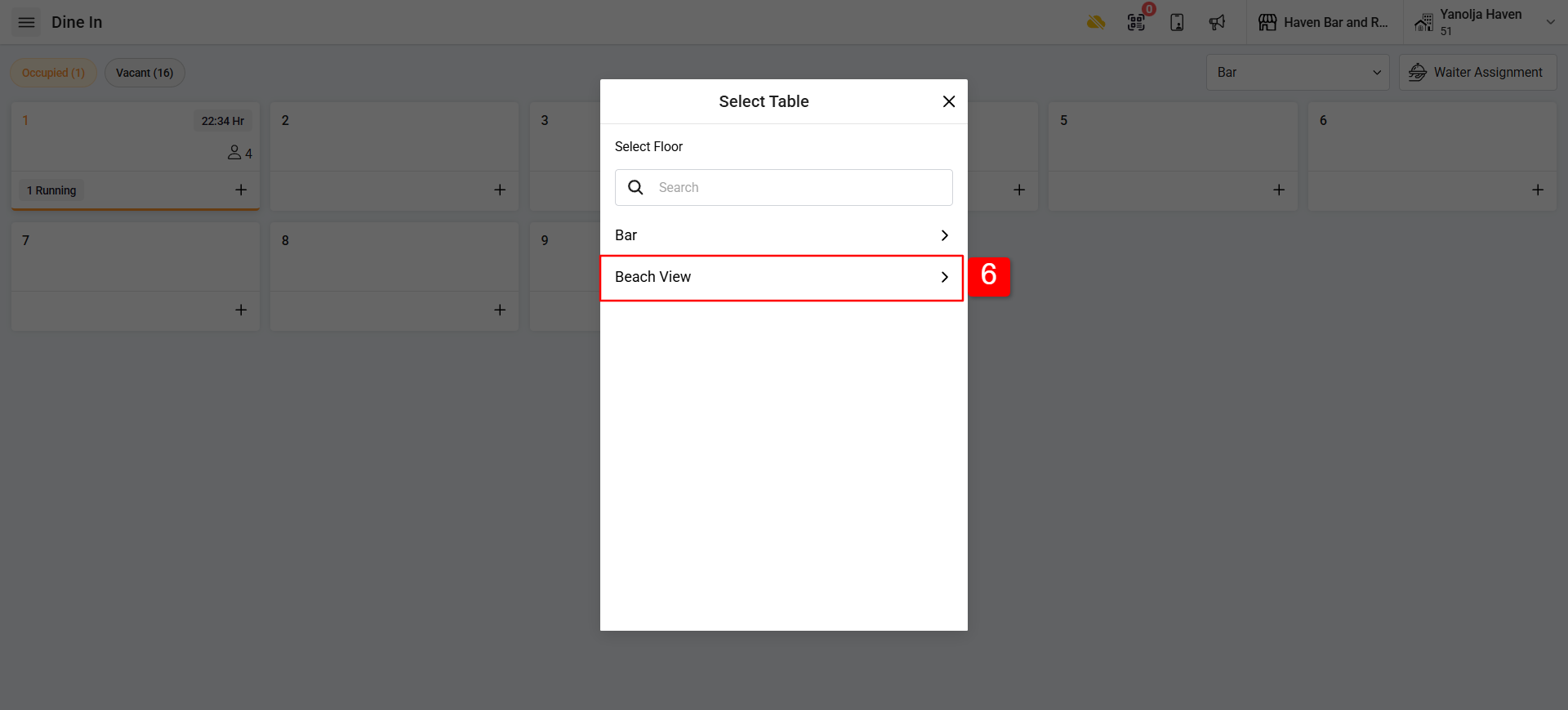
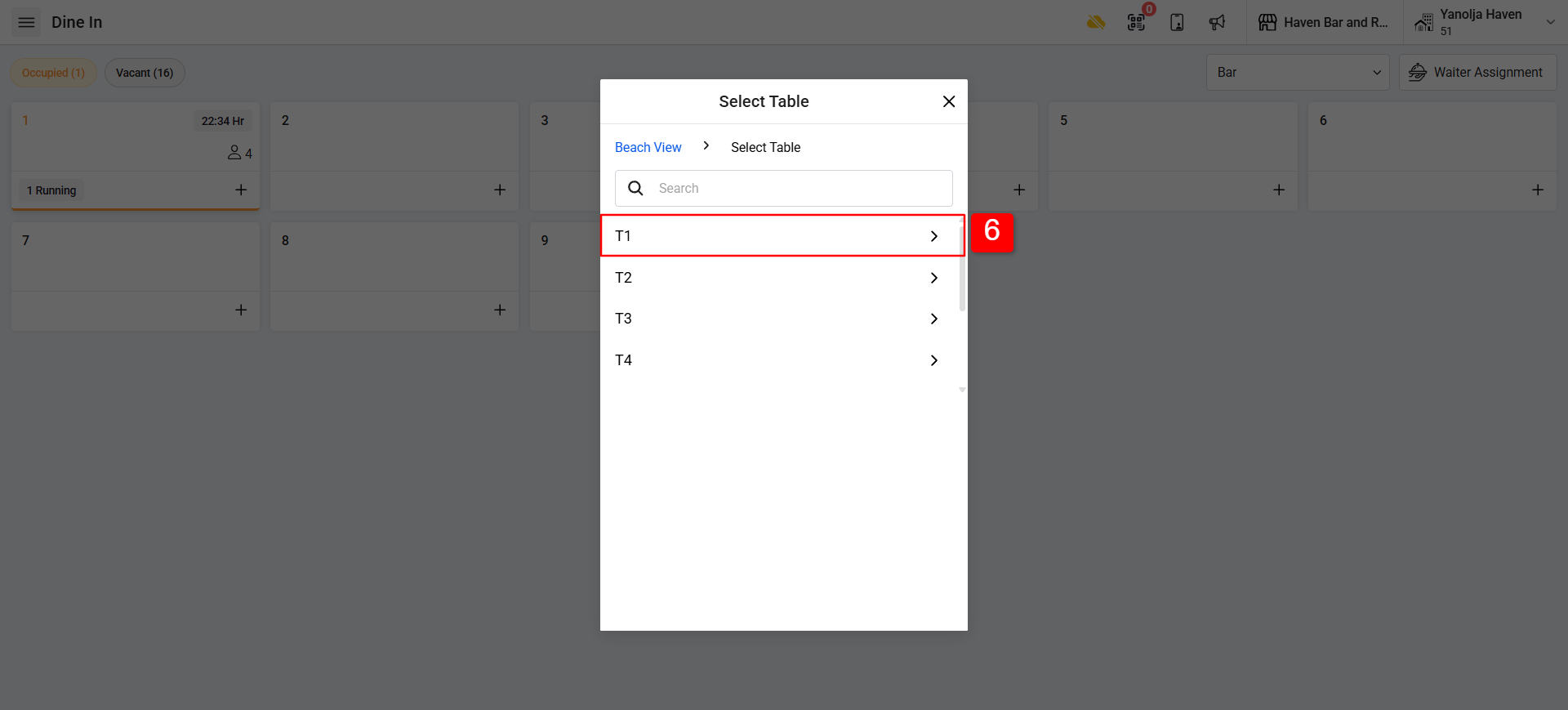
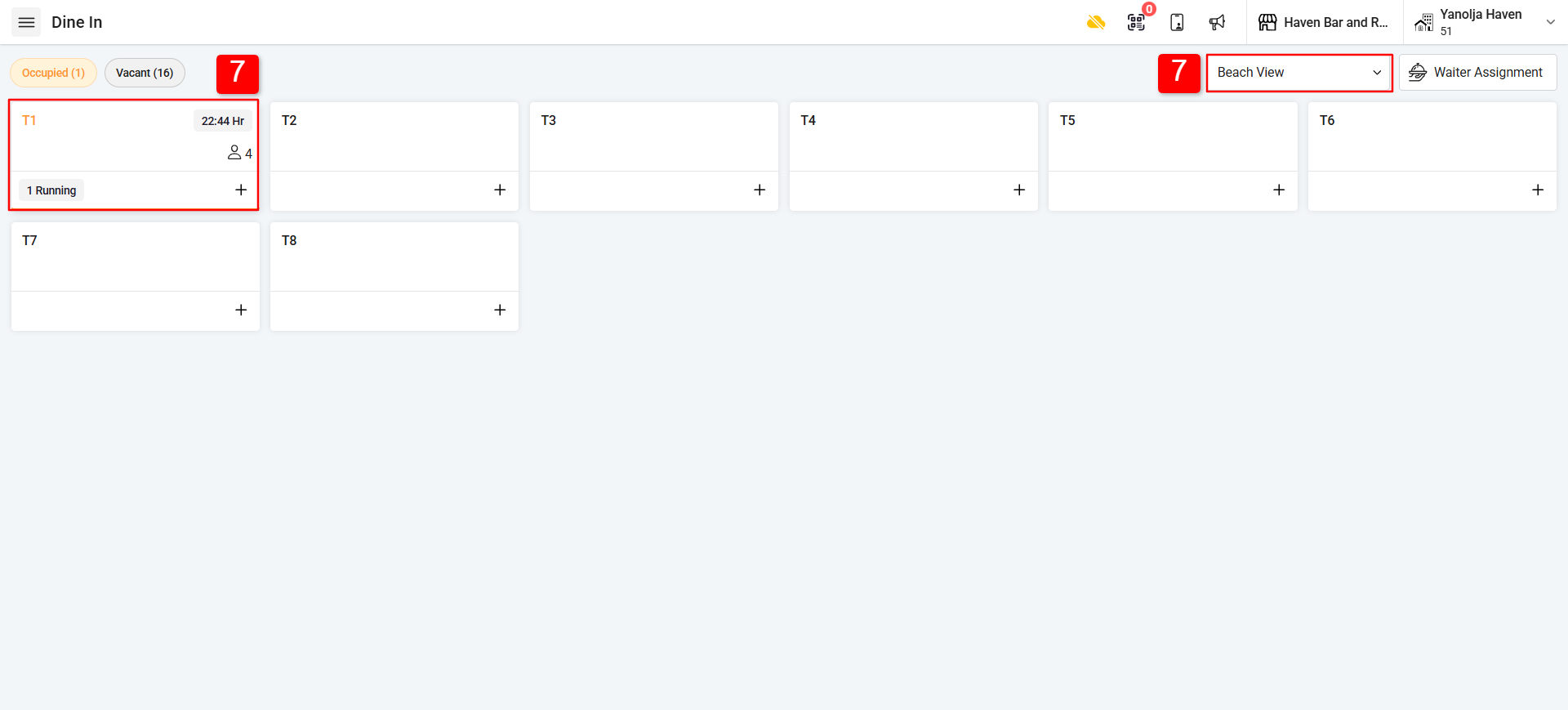
7. The entire order will be transferred from Bar table 1 to the Beach View table T1.
2. Quantity Transfer
This option is used when you want to transfer specific items or quantities from an order to another table.
Steps:
1. Go to Menu.
2. Click on Dine-in.
3. Click on Running Table.
4. Select the Transfer feature.
5. Choose quality transfer option.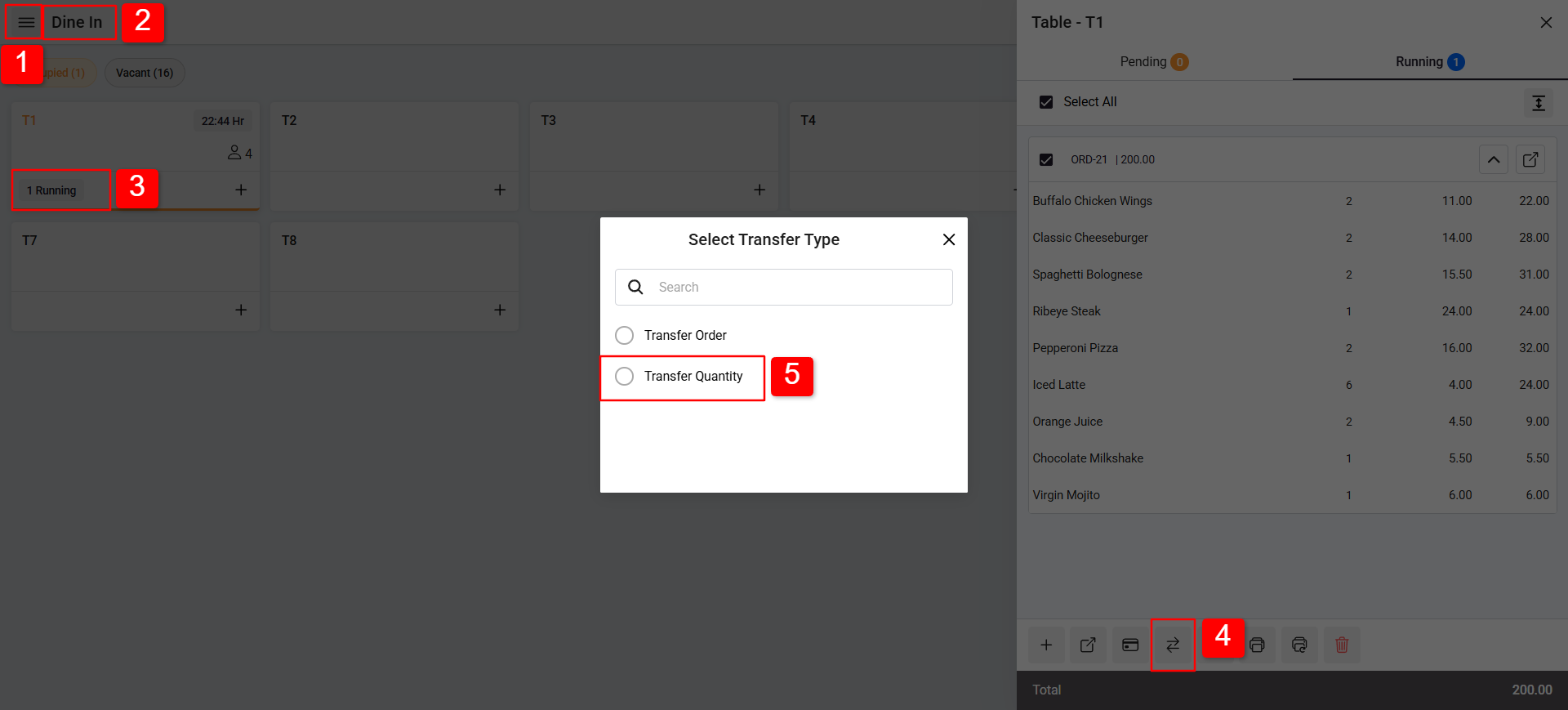
6. Choose the items and quantity you want to transfer.
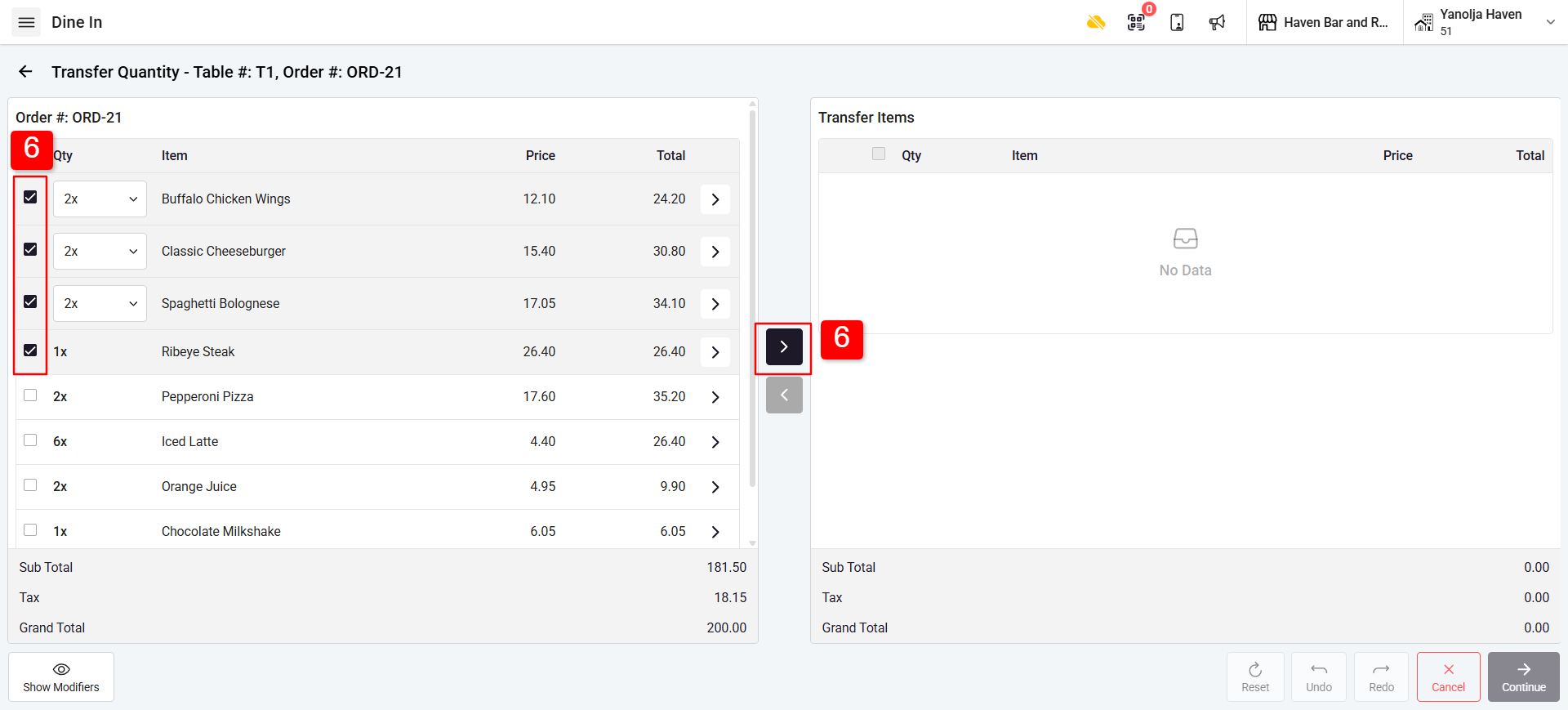
7. Click Continue.
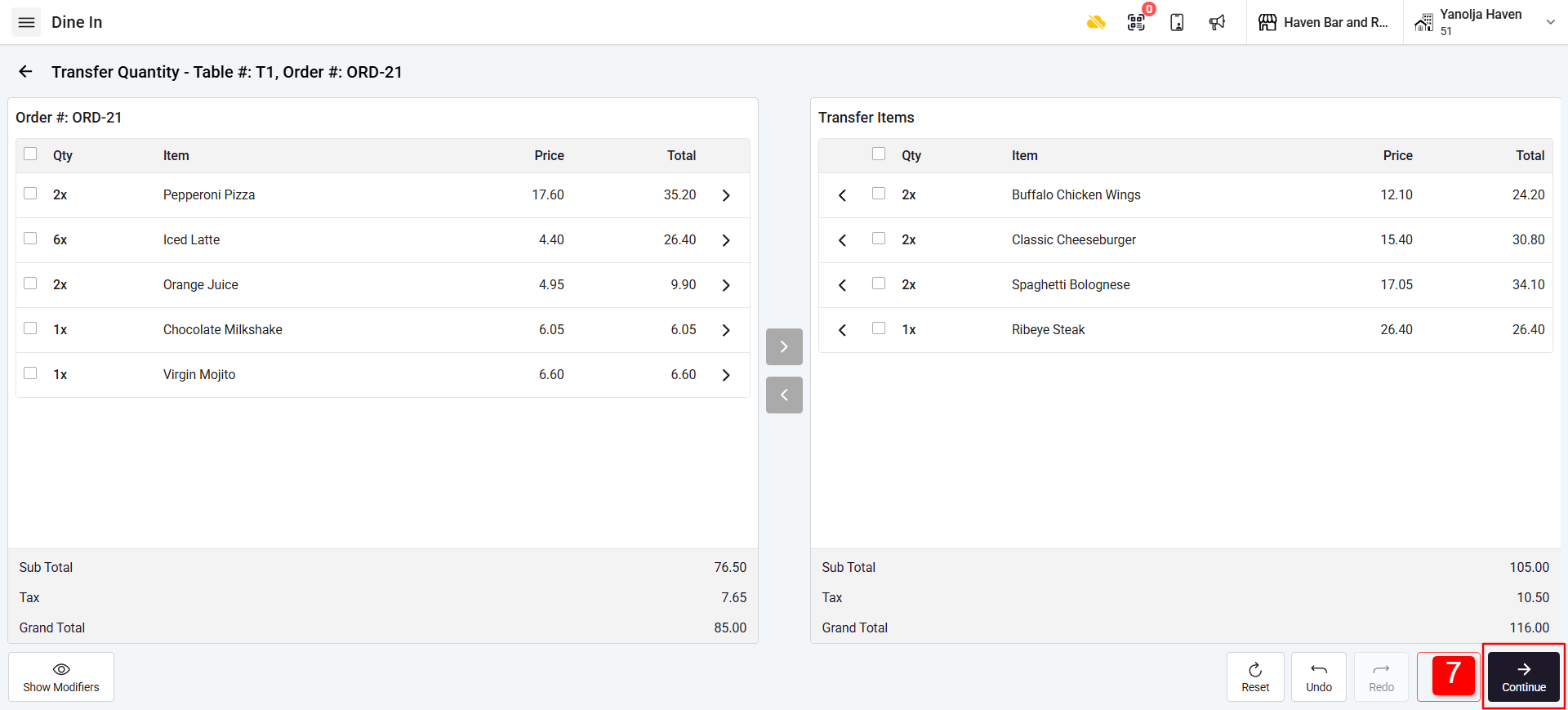
8. Select the Floor and Table
9. After selecting the table, you will see two options: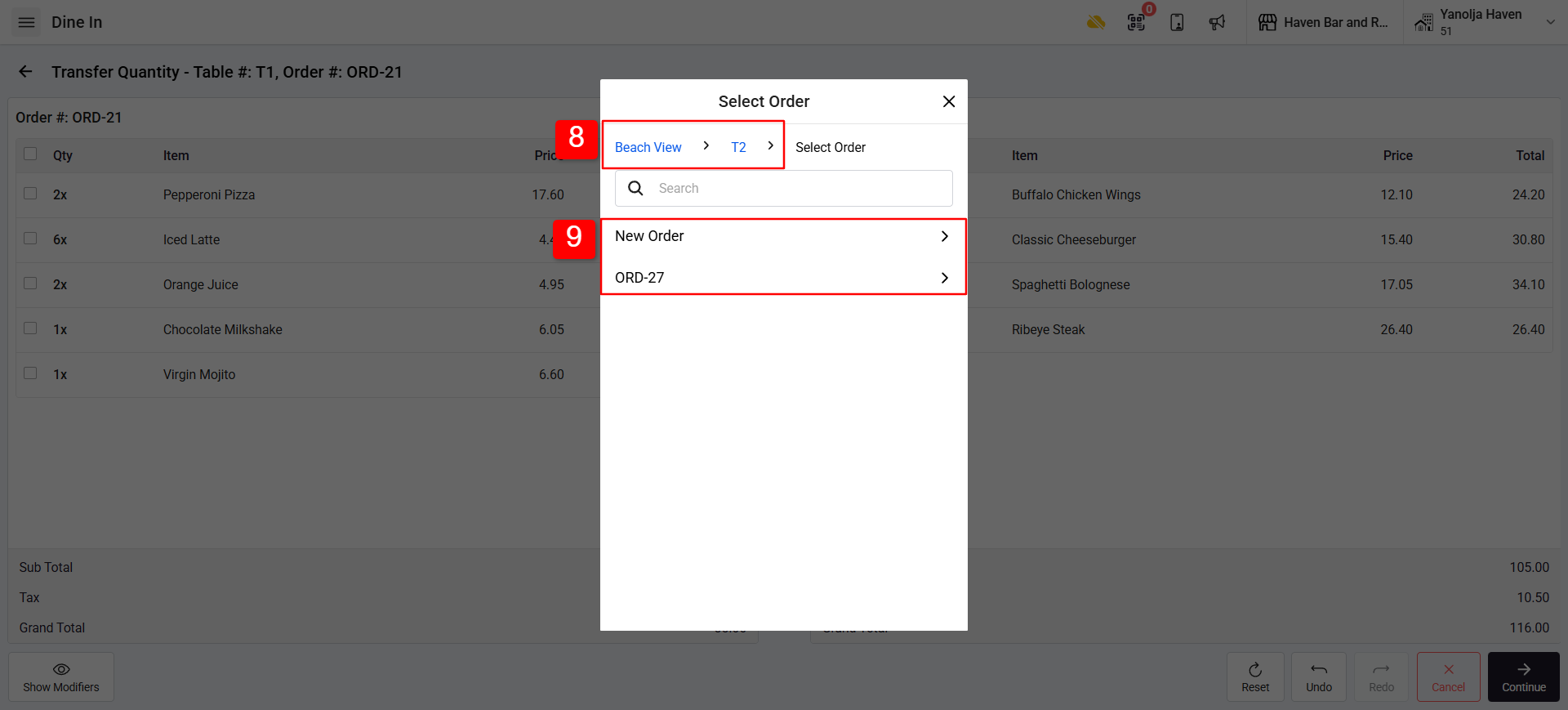
1. New Order
Creates a new order on the selected table.
The transferred items will appear in the new order On same table.
2. Bill No (Running Table)
Transfers the items to an already running table order.
The transferred items will merge with the existing order on that table.
Was this article helpful?
That’s Great!
Thank you for your feedback
Sorry! We couldn't be helpful
Thank you for your feedback
Feedback sent
We appreciate your effort and will try to fix the article