In the PMS System, you can create and manage different types of user roles based on operational requirements. This helps control access levels and permissions for different users.
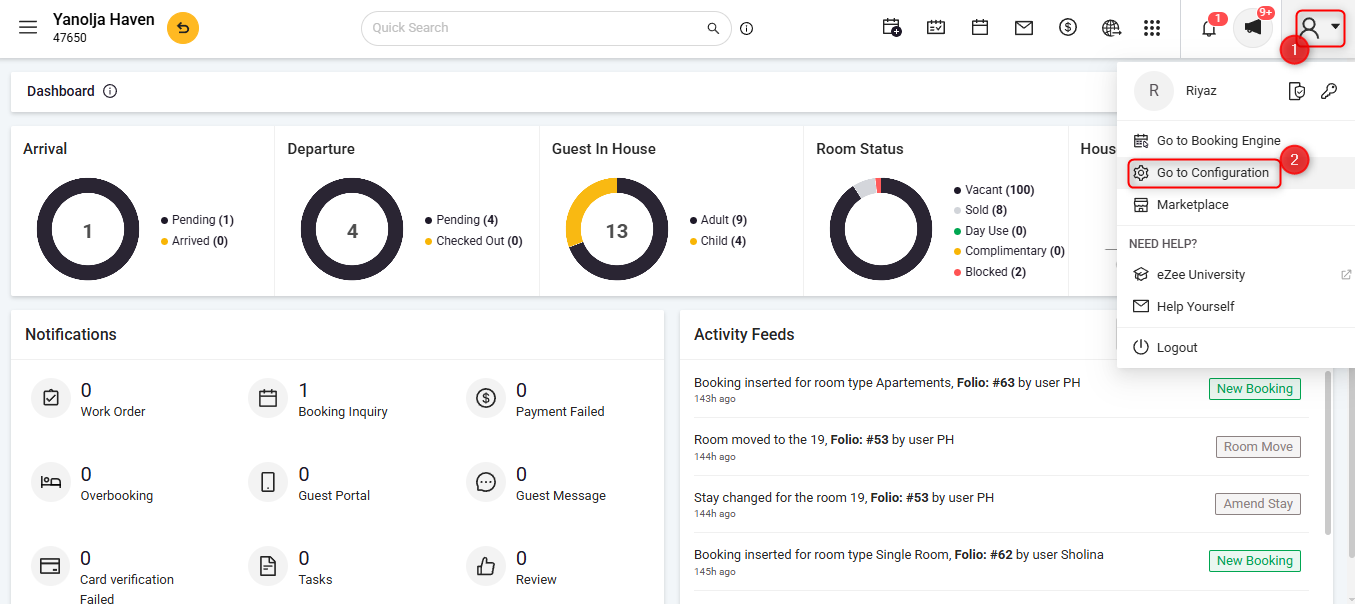
To Access Configuration Panel
Log in to PMS System.
1 Click on the User Icon.
2 Click on Go To Configuration.
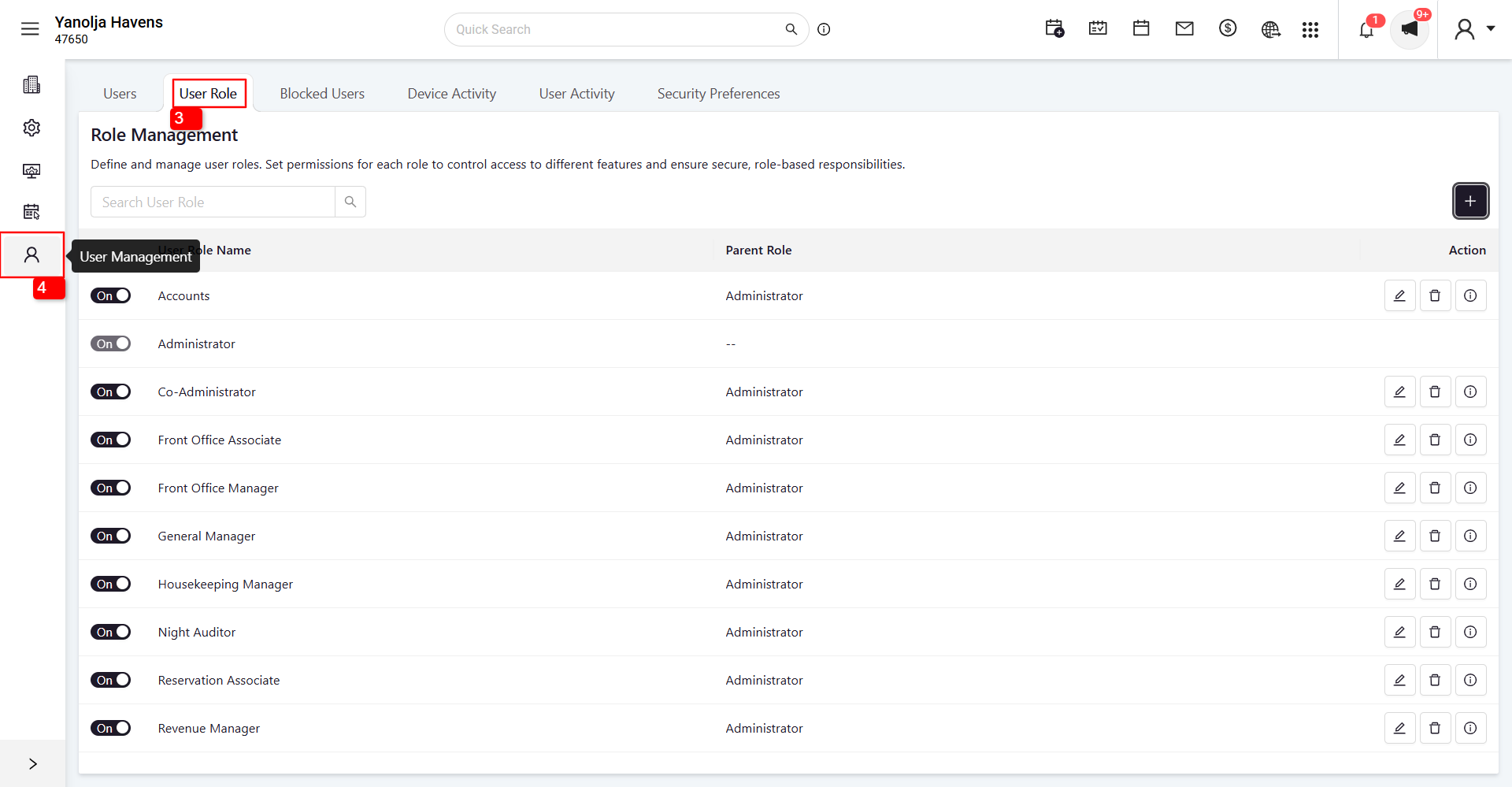
3 Click on User Management.
4 Select User Role.
Add New User Role
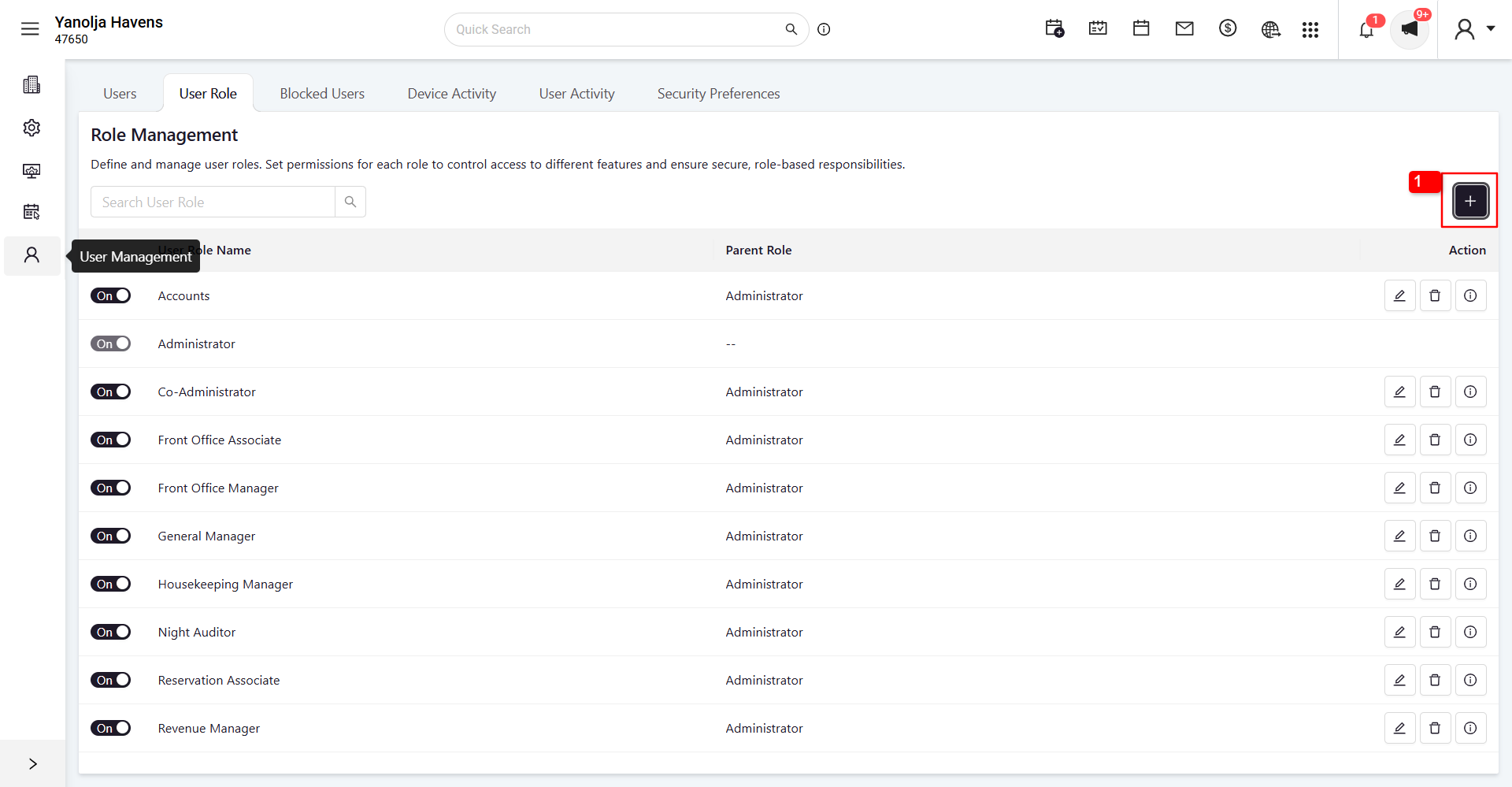
1 Click on the Plus Button (Add New User Role) to start creating a new role.
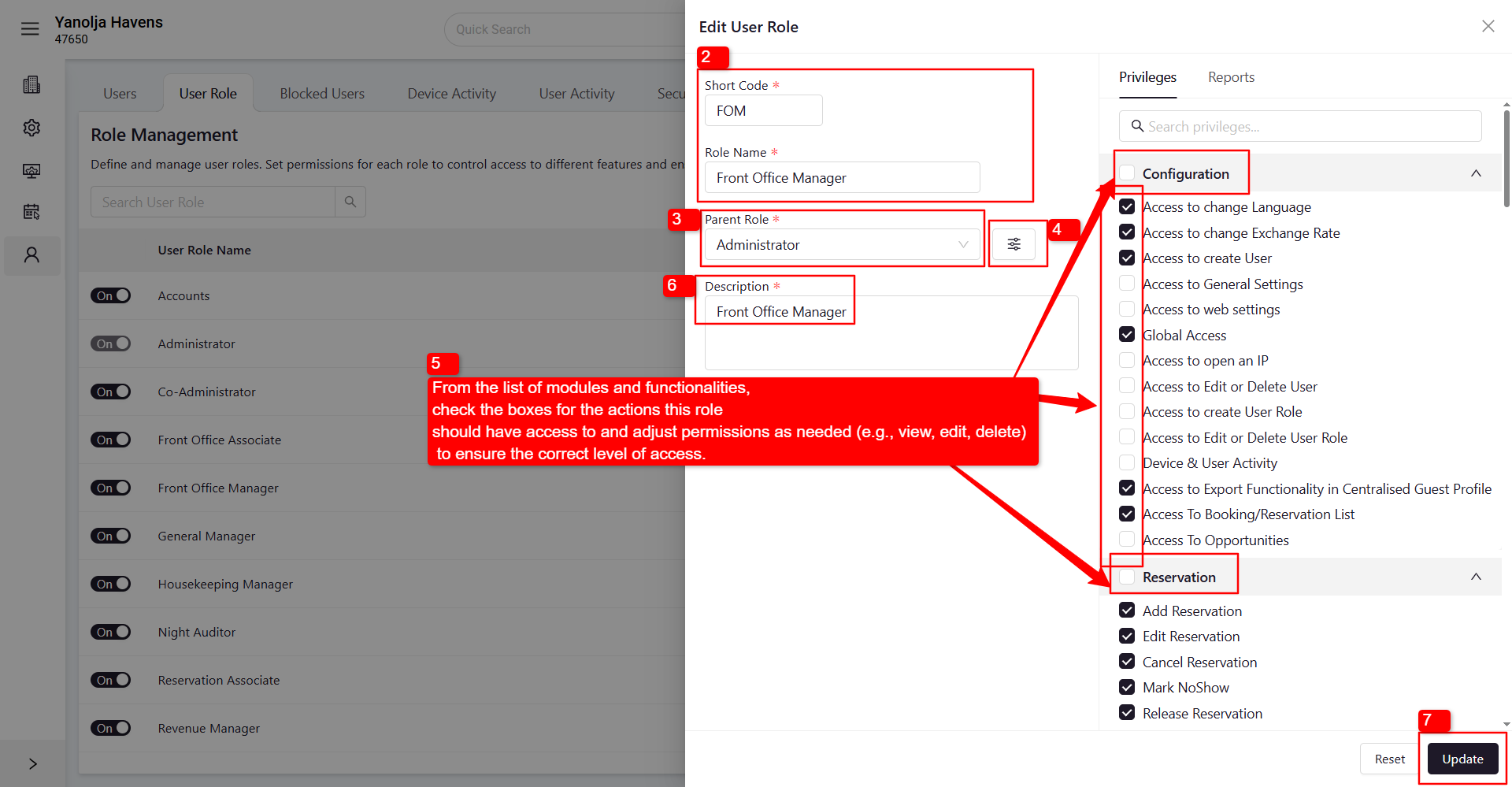
2 Enter the Role Name (e.g., Front Desk, Housekeeping, Manager) and Short Code (e.g., FOA, FOM, HK).
3 Select the Parent Role (e.g., Accounts, Administrator, Co-Administrator, Front Office Associate, Front Office Manager, etc.).
4 Click on the ≡ (three lines) menu.
Assign Privileges
5 From the list of modules and functionalities, check the boxes for the actions this role should have access to and adjust permissions as needed (e.g., view, edit, delete) to ensure the correct level of access.
6 Provide a Role Description to clarify responsibilities (optional).
7 Click Save to finalize the new user role.
Assign User Role to User (Optional)
Assign this role to a user by editing the user’s profile and selecting the newly created role.
Was this article helpful?
That’s Great!
Thank you for your feedback
Sorry! We couldn't be helpful
Thank you for your feedback
Feedback sent
We appreciate your effort and will try to fix the article